
How to Schedule Automatic Restarts & Backups on a Palworld Server
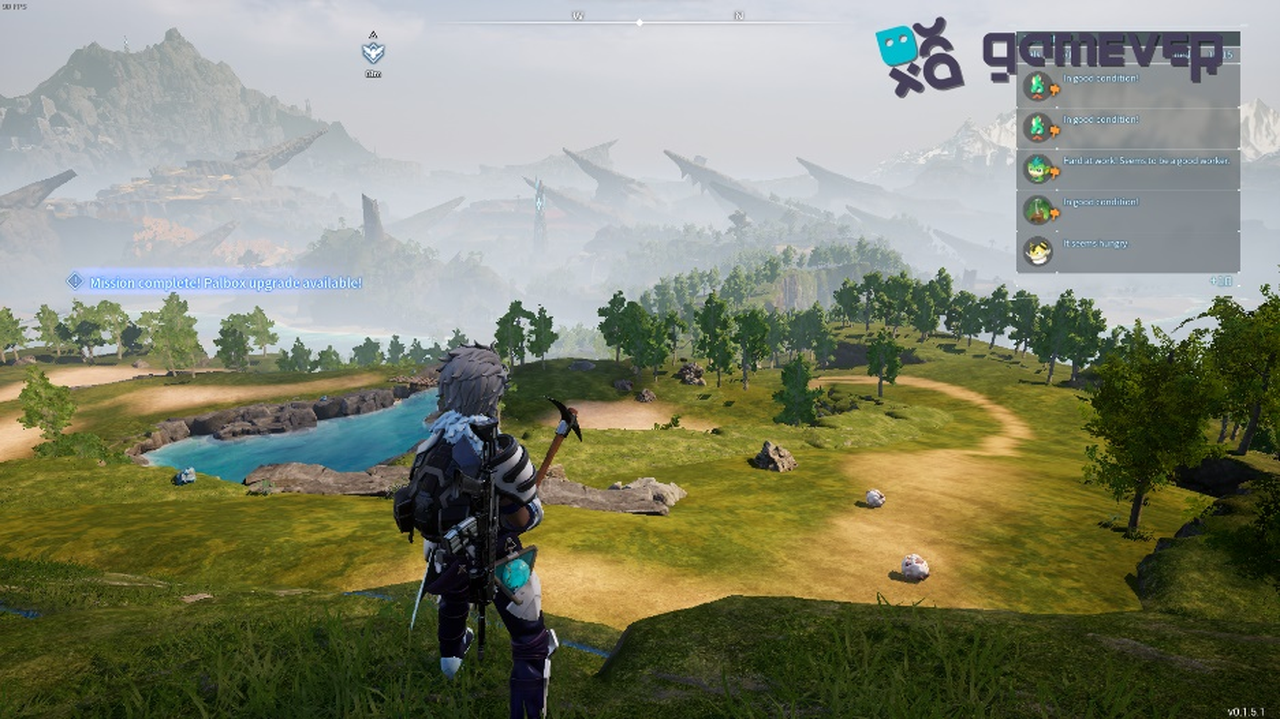
A Palworld dedicated server that runs for days at a time slowly drifts: memory creeps up, small bits of lag accumulate, and pending game updates pile up until something finally breaks. The fix isn't babysitting the console — it's routine automation. This guide covers why scheduled restarts help, how to turn on in-game backups, and how to wire up a graceful, automated restart using admin commands so nobody gets disconnected mid-fight.
Why scheduled restarts matter
A fresh process is a fast process. Over a long uptime, a Palworld server tends to:
- Hold onto memory it never fully releases, which matters most on tight-RAM boxes.
- Accumulate world-simulation drift — base Pals behaving oddly, rubber-banding, rising tick lag.
- Defer updates that can only apply on a clean start after Pocketpair ships a patch.
A short restart on a predictable schedule — say once a day during off-peak hours — clears all three. This is different from a one-off version migration; for the special case of moving onto the 1.0 build, see 14-palworld-server-survive-1.0-update.md. If your server feels laggy between restarts, that's a separate problem covered in 22-palworld-reduce-server-lag-optimization.md.
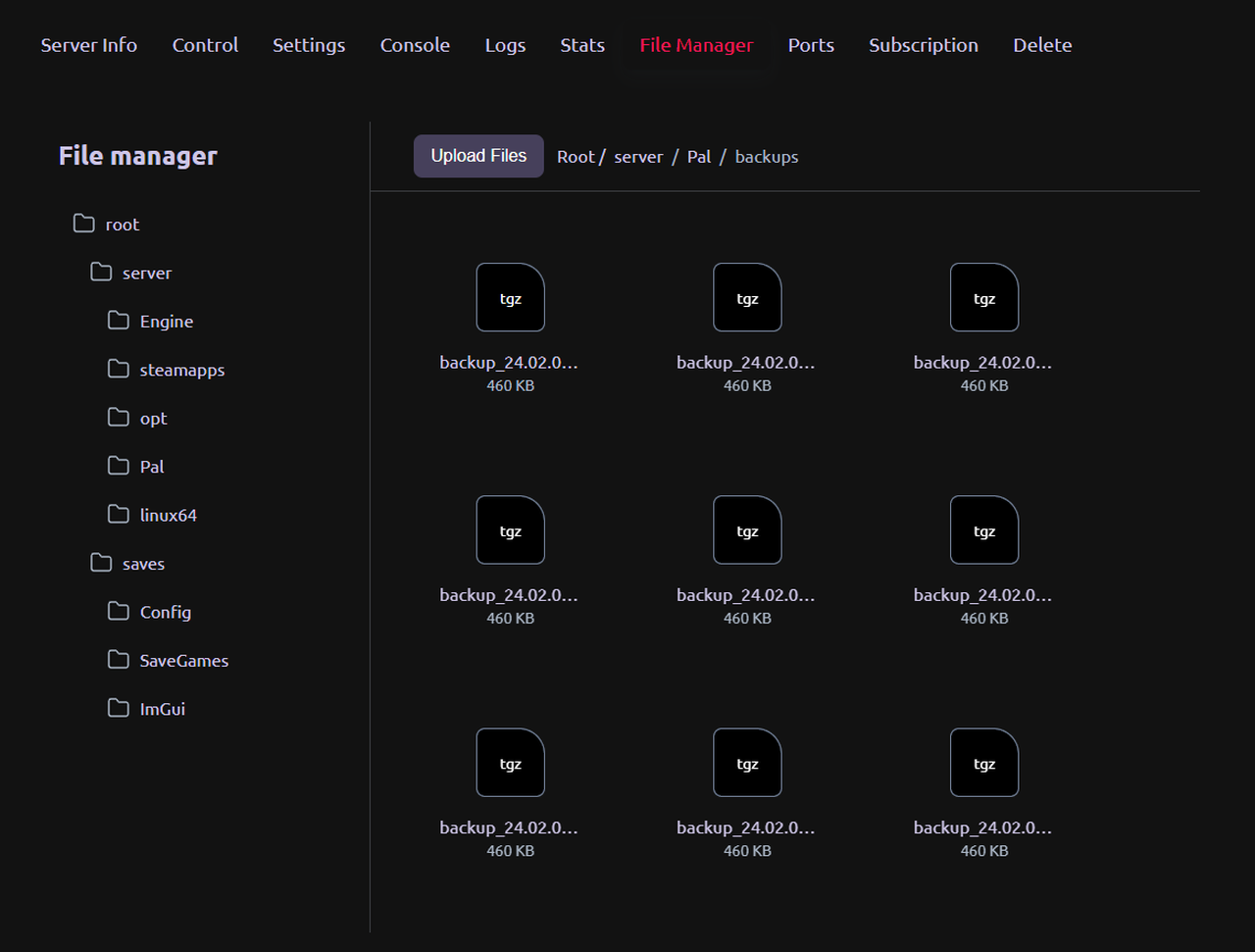
Turn on in-game backups first
Before you automate restarts, make sure you can recover a world. Palworld's dedicated server can write its own save backups via PalWorldSettings.ini under [/Script/Pal.PalGameWorldSettings]:
bIsUseBackupSaveData=True— enables the server's built-in periodic save backups.AutoSaveSpan=180.000000— how often (in seconds) the world auto-saves. A shorter span means less lost progress if something goes wrong, at a small I/O cost.
Always stop the server before editing PalWorldSettings.ini. If you edit it while the server is running, your changes get overwritten when it shuts down. For the complete, recommended settings list, see 03-palworld-best-server-settings-1.0.md. If you ever need to roll a player or world back, our "How to restore player progress after server wiping" guide walks through restoring from a backup.
Build a graceful restart sequence
A hard kill drops everyone instantly and risks losing minutes of progress. A graceful restart saves first, warns players, then shuts down on a timer. First make admin commands available: set AdminPassword in the config, then in chat run /AdminPassword <pass> to authenticate. The sequence you want is:
/Save— force a save so the latest world state is on disk./Broadcast Server restart in 60 seconds— warn everyone who's online./Shutdown 60 Daily maintenance restart— count down the given seconds, show the message, then stop cleanly.
After /Shutdown completes, your process manager (or hosting panel) brings the server back up. For the full reference of every admin command — /ShowPlayers, /KickPlayer, /BanPlayer, /Info and more — see our "Palworld Commands for Server Administrators" article.
Schedule it with cron-style automation
To make this routine, run the command sequence on a timer instead of typing it by hand. The common approach is:
- Send the admin commands over RCON from a small script (
/Save, then/Broadcast, then/Shutdown <seconds> <message>). If you haven't enabled RCON yet, see 21-palworld-rcon-and-rest-api-setup.md for the setup steps. - Trigger that script on a cron-style schedule — for example, daily at 5:00 AM local time, ideally when player counts are lowest.
- Let your service/process supervisor auto-restart the process once it exits, so the server comes back without manual steps.
The exact tooling depends on your host OS, but the pattern is the same everywhere: save, warn, shut down on a delay, relaunch. Keep the restart window short and consistent so your community learns to expect it.
Doing this on a gamever server
On a gamever Palworld server you don't need to hand-roll any of this. Scheduled restarts are built in — pick the times from the control panel and the server handles the save-and-shutdown cycle for you. Automatic and one-click backups run alongside, so a recoverable copy of your world is always on hand without touching PalWorldSettings.ini manually. Updates roll out quickly after Pocketpair ships them, which pairs naturally with a nightly restart that applies them cleanly.
Conclusion
Scheduled restarts and backups are the cheapest insurance a Palworld server admin can buy: a daily clean start clears memory and lag, in-game backups protect your world, and a save-warn-shutdown sequence keeps it graceful so players never lose progress. Set it once, run it on a cron-style timer, and your server stays fast and stable for the long haul.
Rent your Palworld server at gamever.io — instant setup, one-click backups and updates, online 24/7. Free trial, promo code WELCOME.