
How to Zoom in Minecraft?
Introduction:
Players of the game Minecraft are presented with a large pixelated sandbox, which reflects the idea of limitless creation and exploration. Even though the game's default settings offer a typical perspective of the environment, there are times when players want to examine items or creatures in greater detail, whether for constructing, mining, or planning their next move in survival mode. This comprehensive tutorial will walk you through the process of adding a zoom feature to your game, which will improve your Mac or PC Minecraft experience.
Understanding the Basics of Zoom
Native to Minecraft, there's no direct control labeled 'zoom.' The feature that most players refer to as "zoom" is an ability typically provided through modifications (mods) or external tools. These methods allow you to magnify your in-game view, offering a closer look at your surroundings without physically moving your character closer.
Options for Zooming In:
- Optifine: Arguably the most popular method, Optifine is a mod that enhances the Minecraft graphics and allows players to zoom in.
- Using a Spyglass: Introduced in the Minecraft 1.17 update, the Spyglass is an in-game item that players can use to zoom in on specific locations or entities.
- Commands or Game Settings: Certain commands can adjust your field of view (FOV), which can sometimes give a semblance of a zoomed-in perspective.
Method 1: Using Optifine for Enhanced Graphics and Zoom
Optifine doesn’t just offer the ability to zoom in; it also significantly improves the game’s graphics performance. Here’s how you can install it and use the zoom feature:
Step 1: Downloading and Installing Optifine
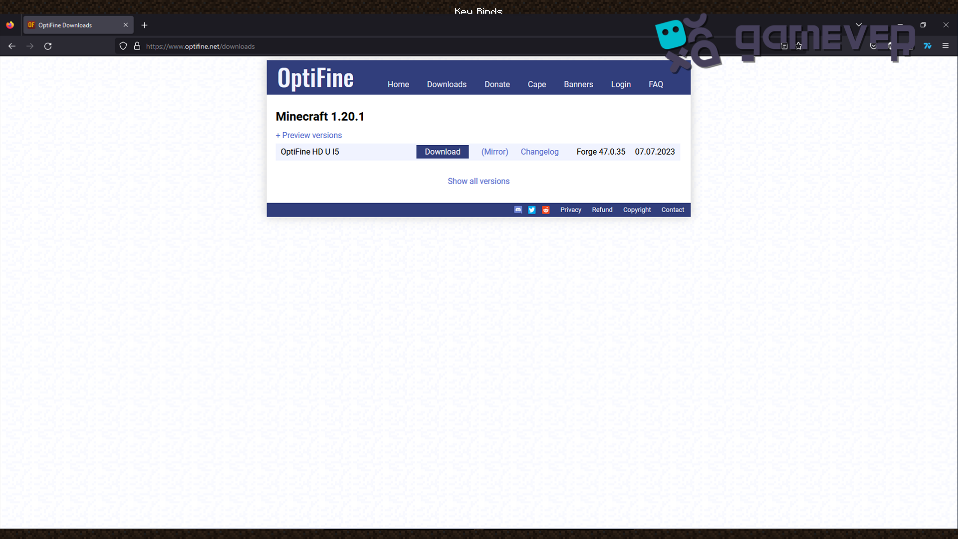
- Visit the official Optifine website and choose the version that matches your installed version of Minecraft.
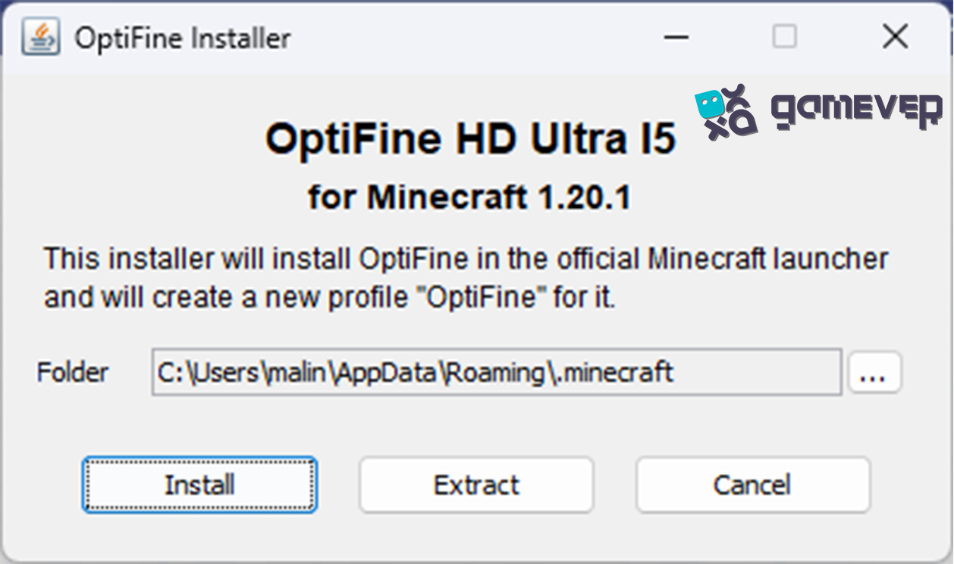
- Once downloaded, open the installer and install Optifine as a mod. You’ll need to have Minecraft installed on your computer.
Step 2: Using Zoom
- After installation, launch Minecraft.
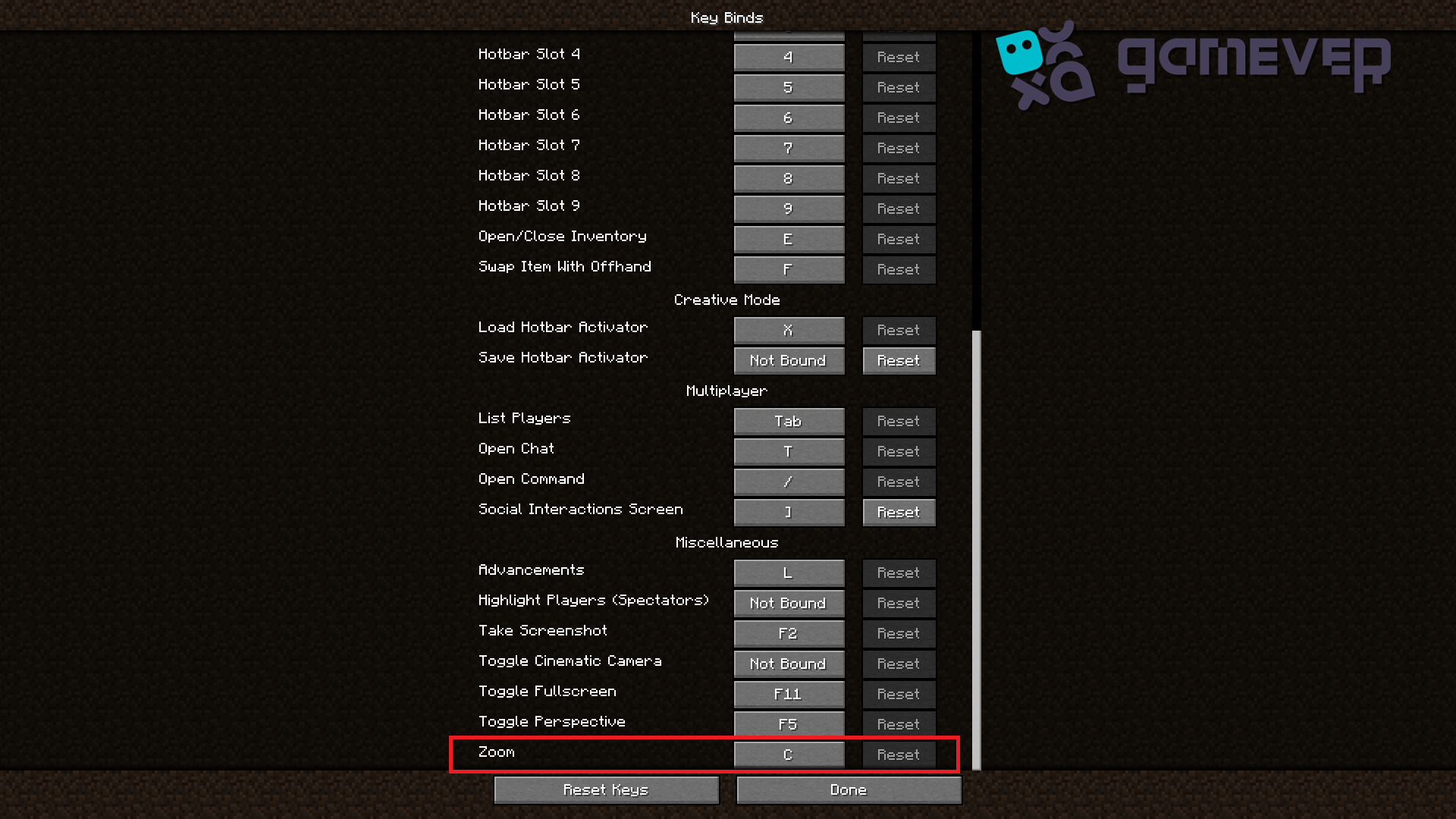
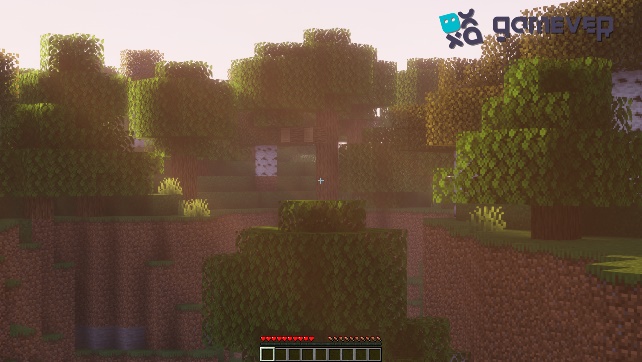
- Navigate to 'Options' from the main menu, then 'Controls,' and locate the 'Zoom' feature. The default button for using zoom in Optifine is the 'C' key, but you can change this to any key you prefer.
Method 2: Using a Spyglass
The Spyglass is a handy item introduced in the game's 1.17 Caves & Cliffs update. It allows players to zoom in on distant objects or creatures.
Step 1: Crafting a Spyglass
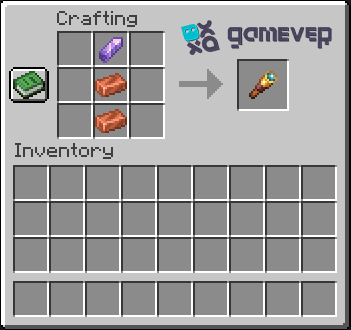
- Gather the required materials, which include 2 copper ingots and 1 amethyst shard.
- Use a crafting table and arrange the items in the crafting grid to create your spyglass.
Step 2: Using the Spyglass
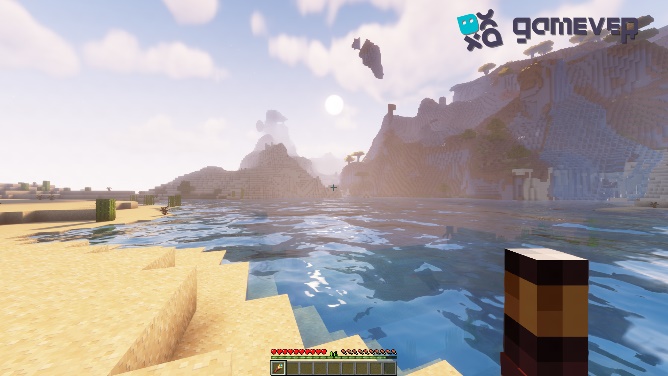
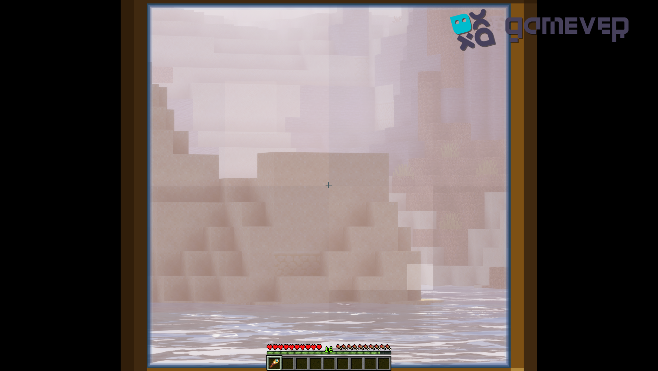
- To use the Spyglass, equip it and right-click (for PCs) or press the left trigger button (for consoles).
- Your view will zoom in on wherever your cursor is pointed. It’s a fixed zoom level and is centered wherever you're looking.
Method 3: Adjusting Field of View (FOV) Settings
While not a traditional zoom, adjusting your game’s FOV settings can create a zoom-like effect.
Step 1: Accessing FOV Settings
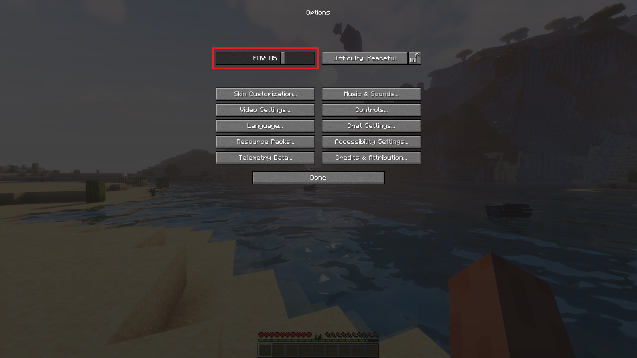
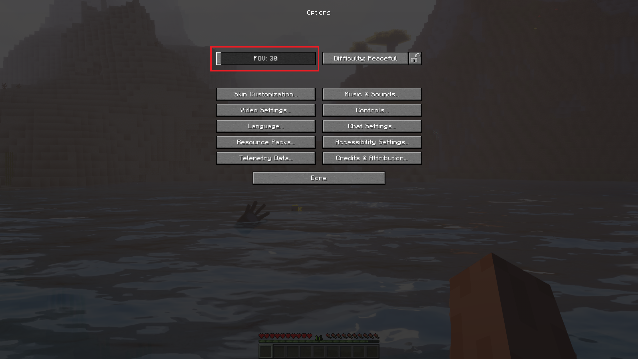
- Go to 'Options' from the main menu, and then 'Video Settings.'
- Locate the 'FOV' slider. The default FOV is around 70.
Step 2: Adjusting FOV
- Slide the bar left to decrease your FOV, which will give the appearance of zooming in.
- Note that this method affects your entire view, not a specific area.
Conclusion:
Players can get a closer look at the enormous world they explore and construct in Minecraft by zooming in with the Spyglass in-game item, mods like Optifine, or settings in the game. It's useful for intricate activities like mining and construction, but it also gives games a strategic edge, particularly in survival or online scenarios.
Join Gamever servers to get even more out of your gaming experience! You can hire a server just for you and your friends with Gamever. Take part in creating, discovering, and exploring in a quiet, unhurried setting. A seamless, safe, and high-performing gaming experience is guaranteed by Gamever. Get your server now, explore new areas with your friends, and have the time of your life playing Minecraft!