
How to Install OptiFine for Minecraft?
OptiFine is a highly popular mod that enhances Minecraft's performance, improves graphics, and enables support for HD textures and shaders. Whether you're looking to boost FPS (frames per second) or customize your game’s visual settings, OptiFine offers a host of features that make the game smoother and more beautiful. In this guide, we’ll walk you through the steps to install OptiFine using Minecraft Forge and explain how to use it to optimize your gameplay. Additionally, we’ll highlight the benefits of using OptiFine on Gamever servers, where enhanced performance and visuals can improve your multiplayer experience.
Step 1: Download OptiFine
To begin, you’ll need to download OptiFine from the official website.
- Visit the Official OptiFine Website: Head to OptiFine.net and find the version that matches your Minecraft installation.
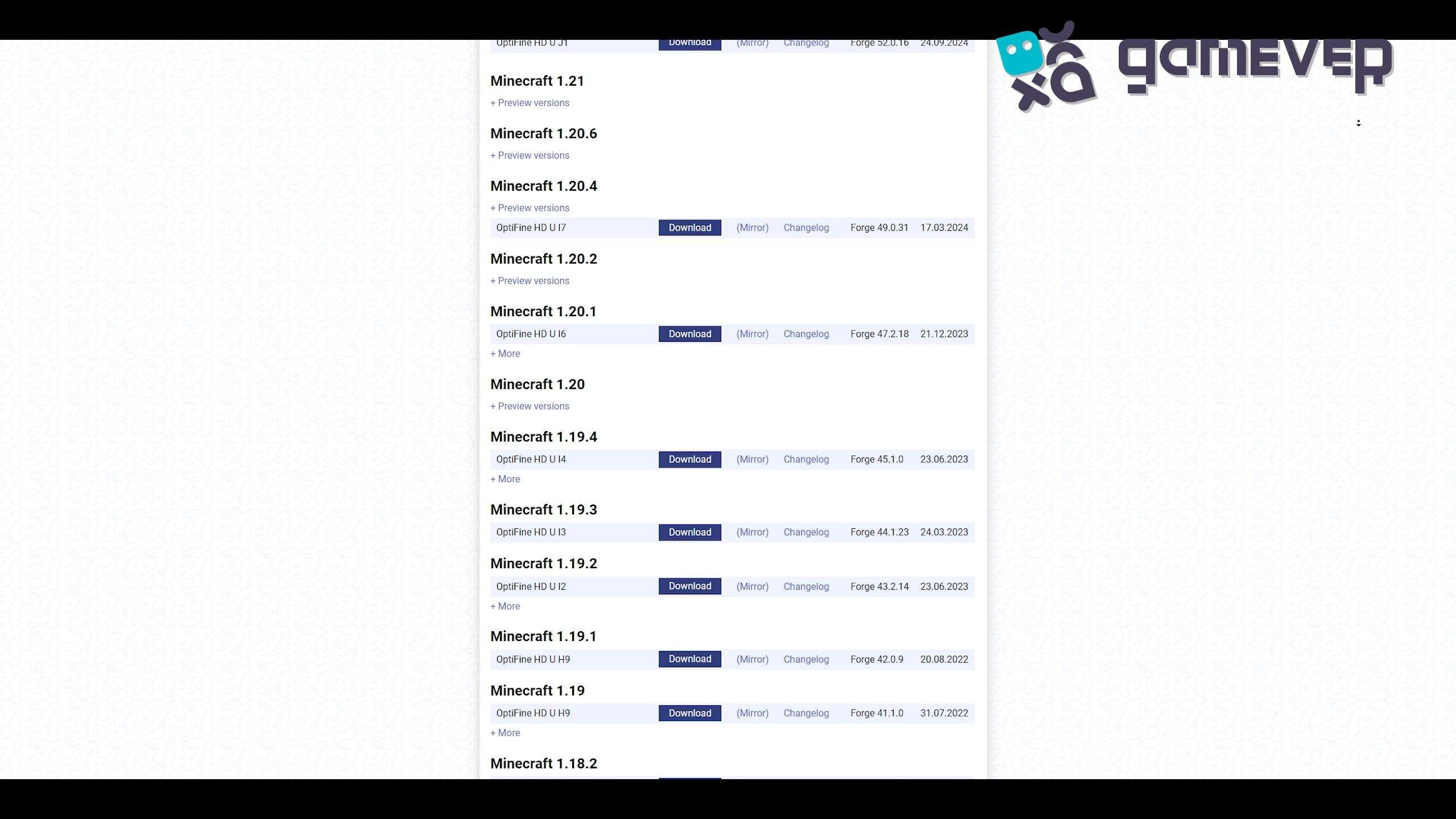
- Select the Correct Version: Make sure to download the version of OptiFine that corresponds to your Minecraft version (for example, Minecraft 1.18, 1.17, etc.).
- Download the .jar File: Click on the download link and save the OptiFine .jar file to your computer in a location that’s easy to find, such as your desktop or downloads folder.
Step 2: Install Minecraft Forge
Before you can run OptiFine, you’ll need Minecraft Forge, which is required for most Minecraft mods.
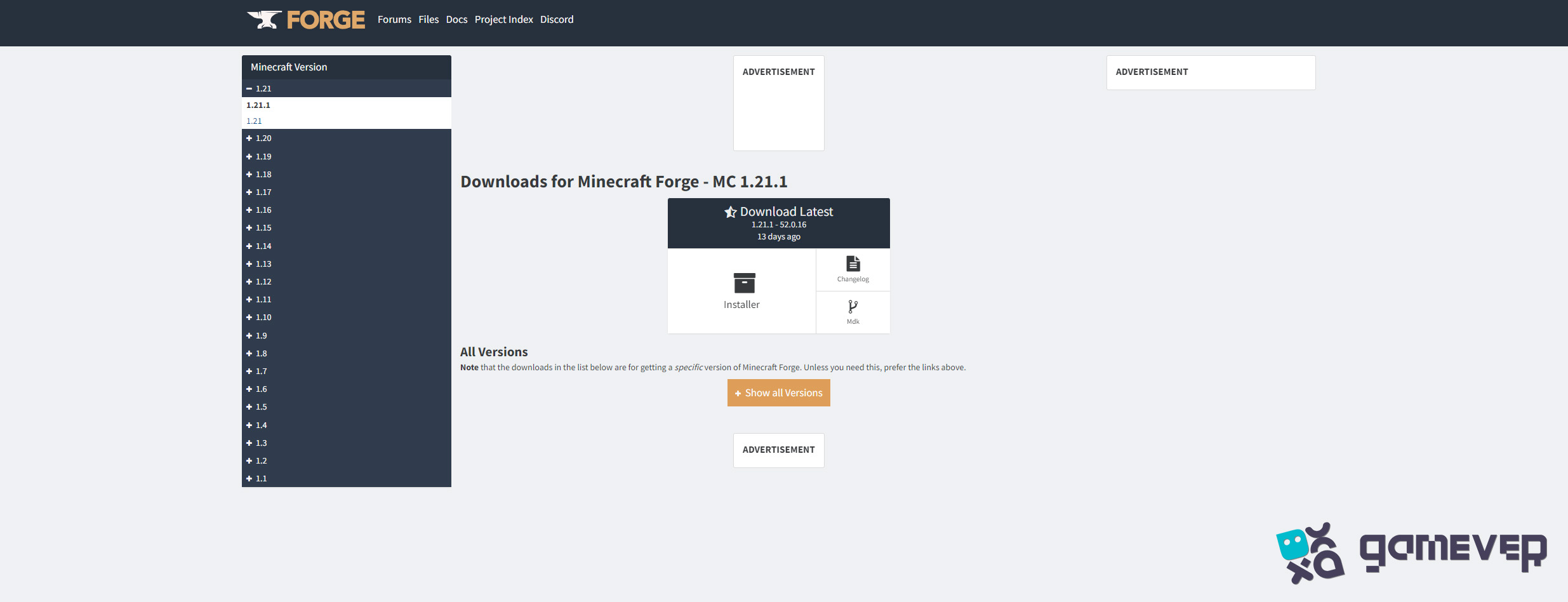
- Install Forge: Follow the installation steps and make sure you select the appropriate version that matches both your Minecraft version and the OptiFine version.
- Set Minecraft to Run With Forge: Open the Minecraft launcher and ensure that the Forge profile is selected before starting the game.
Step 3: Place OptiFine in the ‘Mods’ Folder
Once you’ve downloaded OptiFine and installed Forge, it’s time to move the OptiFine .jar file into the correct folder.
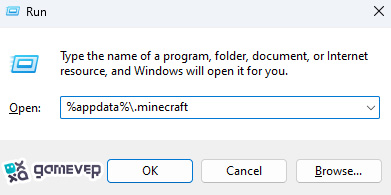
If you don’t see a mods folder, you can create one manually. Then, drag and drop the OptiFine .jar file into this folder.
Step 4: Launch Minecraft with OptiFine
After placing the OptiFine .jar file into the mods folder, you can now launch Minecraft using the Forge profile. If everything is set up correctly, OptiFine will be installed and active, allowing you to adjust settings for better performance and visuals.
Key Features of OptiFine
OptiFine is packed with features that make Minecraft run smoother and look better. Here are some of its key benefits:
1. FPS Boost
OptiFine enhances the performance of Minecraft by optimizing the game’s code, helping it run more smoothly on a variety of systems. You’ll notice improved FPS, especially on lower-end PCs, making gameplay far more fluid.
2. HD Texture Support
With OptiFine, you can install high-resolution texture packs, making Minecraft look more detailed and visually stunning. The mod allows for full customization of textures and blocks, so you can enjoy the game in much higher detail.
3. Shader Support
One of OptiFine’s most popular features is its support for shaders. Shaders can dramatically improve Minecraft’s graphics, adding realistic lighting, shadows, and reflections. OptiFine makes it easy to download and install shader packs, letting you transform your world with beautiful visuals.
4. Customizable Settings
OptiFine provides a range of settings to help you tweak Minecraft's performance and visual quality:
- Render Distance: Adjust how far you can see in-game. Lowering the render distance can improve performance, while increasing it can enhance exploration.
- Dynamic Lighting: Realistic lighting effects that change as you move with torches or other light sources.
- Animations: Turn off unnecessary animations to reduce lag and improve performance.
Benefits of Using OptiFine on Gamever Servers
When playing on Gamever servers, OptiFine offers several advantages that improve both performance and gameplay:
- Smoother Multiplayer Experience: OptiFine helps reduce lag and improve FPS on multiplayer servers, especially when there are a lot of players or complex builds.
- Stunning Visuals for Large Builds: With HD textures and shaders enabled, large builds and custom maps on Gamever servers will look even more impressive.
- Customizable Performance: Adjust OptiFine’s settings to suit your PC’s capabilities, ensuring smooth gameplay even on resource-heavy servers.
Conclusion
Installing OptiFine in Minecraft is an easy way to improve both the performance and the visuals of the game. Whether you’re looking to boost FPS, install HD texture packs, or enable shaders for stunning graphics, OptiFine is a must-have mod for any Minecraft player. Plus, when playing on Gamever servers, you’ll be able to enjoy a smoother, more visually immersive multiplayer experience.