
How to Install Mods on a Palworld Dedicated Server

Palworld has only limited official modding support, so almost everything you'll add to a dedicated server comes from the community. That makes installing mods more hands-on than in many games, and there's one rule you can't break: the server and every single client must run the exact same mods and the same game version, or players simply won't be able to connect. This guide walks through the general, safe process — without inventing folder paths or mod names you should always get from the mod's own documentation.
The golden rule: everyone runs the same mods
This is the part people skip, and it's the number one reason "the mod won't work." Palworld checks that clients and the server match. If your server loads a mod and a player doesn't have it (or has a different version), that player gets stuck on connect.
- The dedicated server and every client must have the same mods installed.
- All of them must be on the same game version — a mismatch alone can block joins.
- When you add, update, or remove a mod, everyone has to do the same change before reconnecting.
Treat your mod list as a shared agreement with your players, not something you change quietly on the server alone.
Back up before you touch anything
Mods modify how the game and your save behave, and a bad install can corrupt a world. Always take a full backup first — your save data and your config, including PalWorldSettings.ini.
- Make a copy of your world/save folder before installing.
- Keep the backup somewhere separate so a failed mod can't overwrite it.
- If anything goes wrong, you can roll back cleanly to the world you backed up.
On a gamever server, one-click backups make this a single step before you experiment.
Stop the server first
Never install mods or edit config on a live server. Stop the dedicated server before making changes, the same way you would before editing PalWorldSettings.ini — if the server is running, your edits can be overwritten on restart.
- Shut the server down fully (give players warning with
/Shutdown <seconds> <message>if it's live). - Make your file changes while it's stopped.
- Start it back up only once everything is in place.
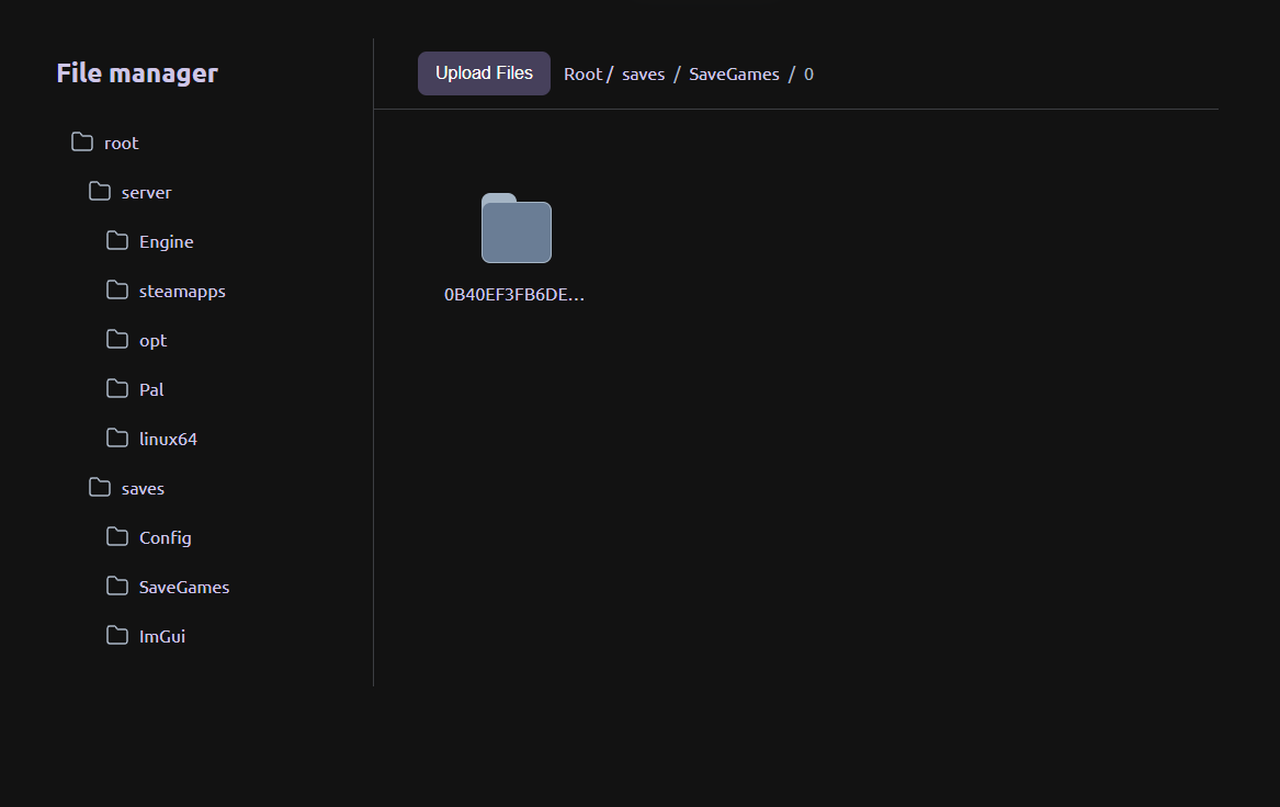
Install the mod files
Because Palworld modding is community-driven, the mod's own instructions are authoritative — follow them exactly. The general shape of the process is consistent:
- Install the community mod loader (most mods rely on one) per its documentation.
- Drop the mod files into the location the mod specifies. Don't guess at paths — use what the author provides.
- Read each mod's notes for dependencies, load order, or required settings.
- Restart the server, then confirm it boots cleanly with the mods loaded.
After that, have each player install the matching mods and loader before they try to connect. Send them the same versions you used on the server.
Mind performance and server load
Mods aren't free. Heavy mods — extra Pals, large content packs, complex systems — cost CPU and memory, and that shows up as server-side lag, not as a client FPS problem. Server lag is a different beast from client graphics tuning; if you're chasing client frame rate, that's a separate topic.
- Add mods gradually and watch how the server handles them.
- If you're stacking content-heavy mods, make sure your hardware has the slots and RAM to keep up — see Palworld server sizing for the launch wave.
- Seeing lag after adding mods? Work through How to reduce Palworld server lag.
For tuning the underlying game options (not mods), the full list lives in Palworld best server settings, and the in-game admin tools are covered in our Palworld Commands for Server Administrators guide.
Mods and major game updates
Here's the trap that catches every modded server eventually: mods commonly break after a major game update. When Palworld 1.0 lands on July 10, 2026, expect community mods to need updating before they work again.
- After any big patch, disable your mods until the authors release updated versions.
- Don't update the game and assume your mod list still works — verify each mod first.
- Plan the transition in advance with Surviving the Palworld 1.0 update.
Running mods unmatched against a new version is a guaranteed way to lock everyone out.
Modding made easier on gamever
A gamever Palworld server gives you the foundation modding needs: one-click backups before every experiment, fast updates so your game version is easy to keep in sync, and 24/7 uptime so your community is always there to test changes together. Stop, back up, install, restart — without fighting the host.
Conclusion
Modding a Palworld dedicated server isn't hard, but it is unforgiving about consistency. Back up, stop the server, install per the mod's instructions, restart, and make every player match — same mods, same version. Keep an eye on performance, and be ready to pause your mods around major updates like 1.0.
Rent your Palworld server at gamever.io — instant setup, one-click backups and updates, online 24/7. Free trial, promo code WELCOME.