
Server-Side Mods in Palworld: PalModSettings.ini, and the Flag That Undoes Everything
Most Palworld modding advice tells you to back up, stop the server and copy files in. All true, and none of it is the actual mechanism. Server-side mods are driven by a config file called PalModSettings.ini, they are Windows-only, and there is one launch argument — -NoMods — that switches every mod off without you editing anything. If a modded server will not start, that flag is the thing to reach for.
Three Limits Before You Start
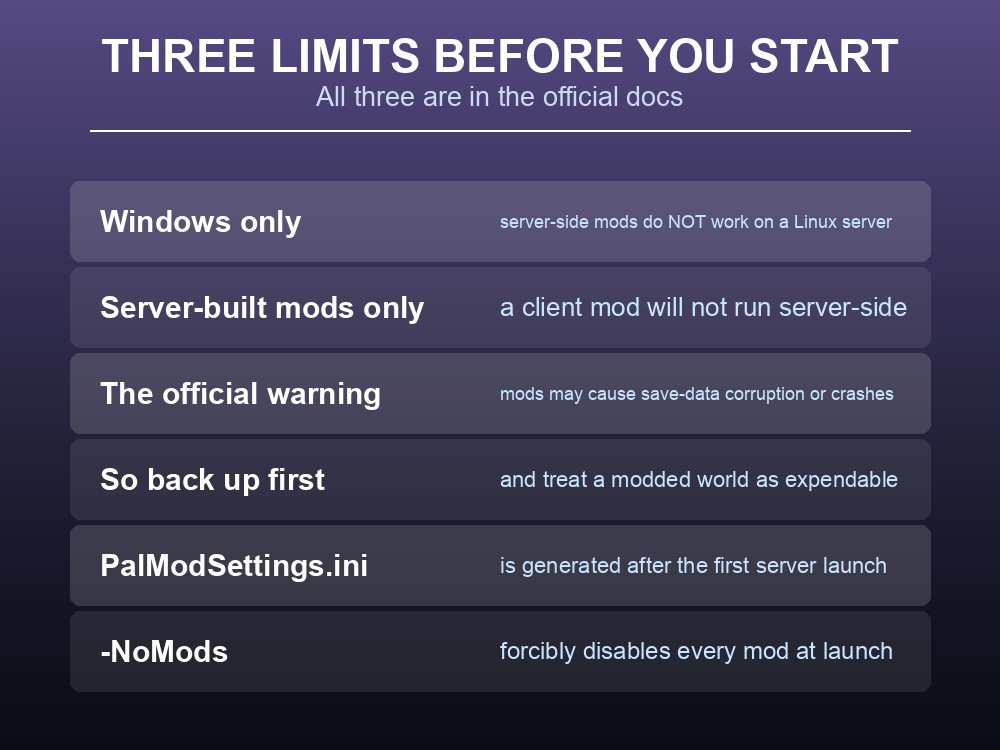
Server-side mods only work on the Windows dedicated server. The documentation states it plainly: "At this time, server-side mods work only on the dedicated server with Windows edition." If you run Linux, this feature does not exist for you — no workaround, no partial support. That single line saves an evening.
Only mods built to run on servers will work. A mod that changes something client-side will not do anything server-side, regardless of where you put the files.
And Pocketpair's own risk note is blunt: "Use mods at your own risk. They may cause save-data corruption or crashes." Given that slow storage alone can corrupt a Palworld save, treat a modded world as something you have a restore point for — not as the world your group has invested six months in.
PalModSettings.ini does not exist until you launch once. It is generated automatically after the first run of the dedicated server, so if you cannot find the file, that is why.
PalModSettings.ini
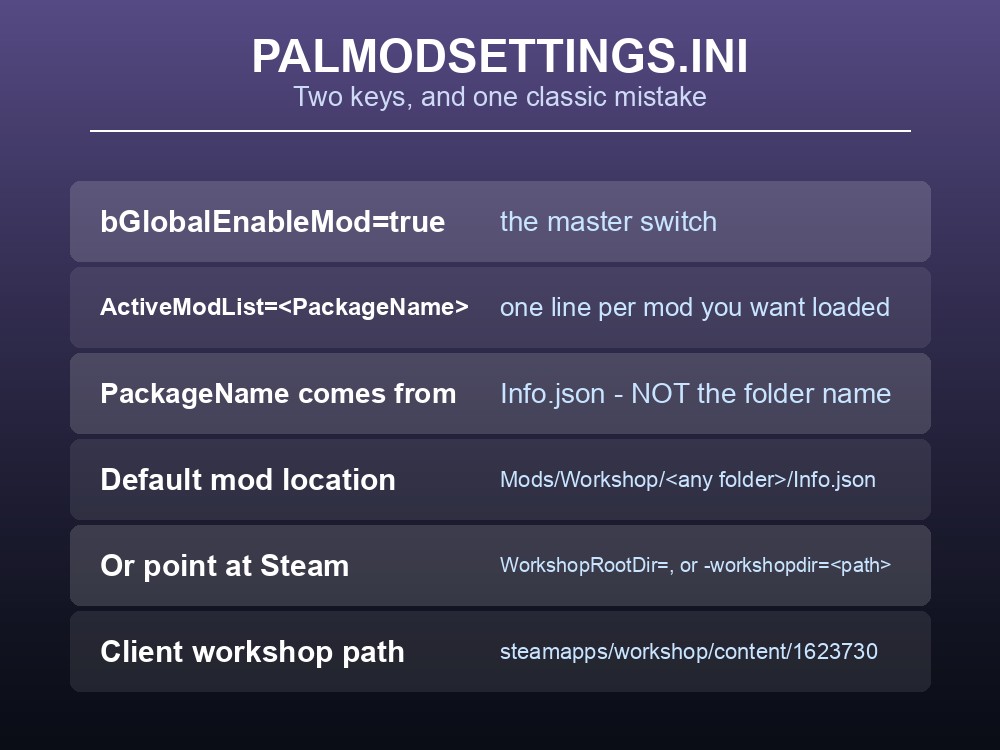
The file lives at Mods/PalModSettings.ini and takes two keys:
[PalModSettings]
bGlobalEnableMod=true
ActiveModList=GamingCattiva
ActiveModList=FarmingQuivern
# WorkshopRootDir=C:\Program Files (x86)\Steam\steamapps\workshop\content\1623730
bGlobalEnableMod=true is the master switch, and each mod gets its own ActiveModList line — you repeat the key rather than comma-separating.
Here is the mistake almost everyone makes once. The value on ActiveModList is the PackageName from the mod's Info.json, and the docs call this out specifically: "it is not the folder name." Name the folder whatever you like; the server matches on PackageName. A mod that silently fails to load is usually this.
The server needs to be told where Workshop items live, and there are three ways:
- Use the default directory. Copy the mod into
Mods/Workshop/beside the server executable, withInfo.jsondirectly under your chosen folder —.\Mods\Workshop\[any folder name]\Info.json. - Point at a Workshop directory with
WorkshopRootDir=<absolute path>under[PalModSettings]. Everything compatible under that path loads. - Or pass it at launch with
-workshopdir="<absolute path>".
On a client machine the Steam Workshop path is C:\Program Files (x86)\Steam\steamapps\workshop\content\1623730 — useful if the server shares a box with a game install.
And the recovery lever: -NoMods. Adding it as a launch argument "forcibly disables all mods." When a mod update breaks startup, you do not need to work out which one — start with -NoMods, confirm the server is otherwise healthy, then bisect at leisure.
What Happens on Restart
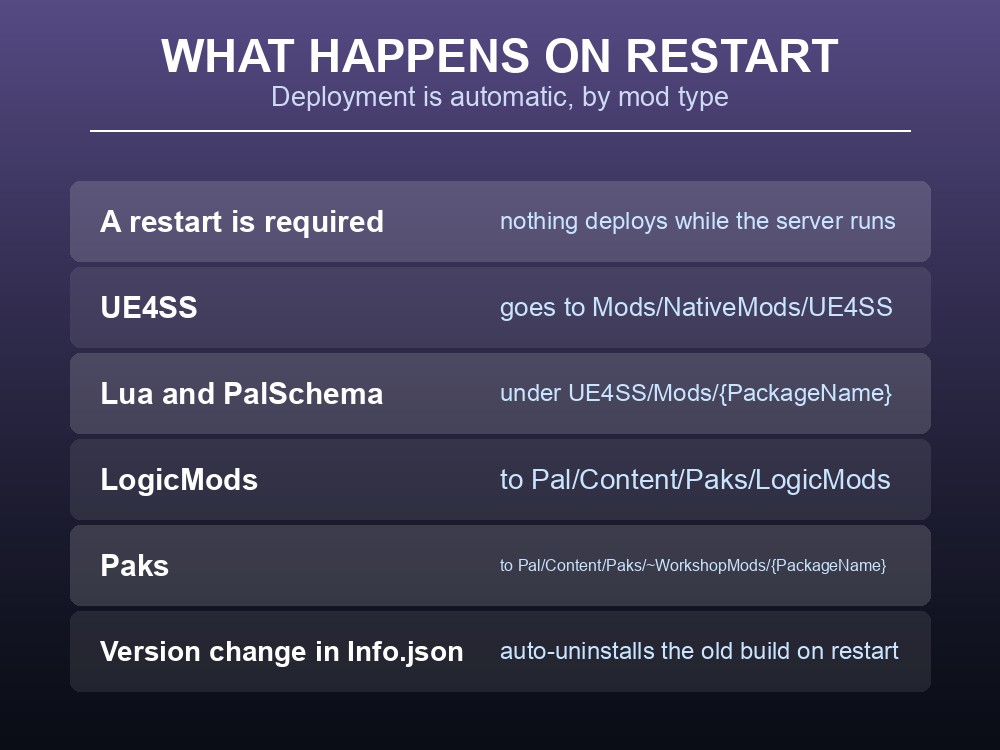
Mods apply on restart, never while the server is running. On restart the server writes Mods/ManagedMods/<PackageName>/InstallManifest.json and deploys files according to the InstallRules in the mod's Info.json.
Each mod type has a fixed destination:
| Type | Deployed to |
|---|---|
| UE4SS | Mods\NativeMods\UE4SS |
| Lua | Mods\NativeMods\UE4SS\Mods\{PackageName} |
| PalSchema | Mods\NativeMods\UE4SS\Mods\PalSchema\mods\{PackageName} |
| LogicMods | Pal\Content\Paks\LogicMods |
| Paks | Pal\Content\Paks\~WorkshopMods\{PackageName} |
You do not copy these by hand. That is the part the older "copy the files in" advice gets wrong — the server places them, and it does so from the manifest. Your job is the Workshop folder and the ini.
Updates are handled for you too. "If the Version in Info.json changes, restarting the dedicated server will automatically uninstall the old version and redeploy the new one." So a mod update is a restart, not a manual cleanup.
To remove a mod, take its PackageName out of ActiveModList and restart. Deleting files while the server is stopped works against the manifest rather than with it.
One consequence worth planning around. Because everything applies on restart, a mod change means downtime — so batch them. Adding four mods is one restart if you edit the ini once, and four restarts if you do them one at a time.
Practical tips
- Server-side mods are Windows-only. There is no Linux path.
ActiveModListtakes thePackageNamefromInfo.json, not the folder name.- One
ActiveModListline per mod — repeat the key, do not comma-separate.-NoModsdisables everything at launch — your first move when a modded server will not start.PalModSettings.inionly appears after the first launch.- A version bump in
Info.jsonauto-replaces the old build on the next restart.
Running your own Palworld 1.0 server
Modding is the clearest case for hosting where a restore point is one click: Pocketpair's own documentation warns that mods "may cause save-data corruption or crashes", and the fix for a bad mod day is a backup taken before you started. A gamever Palworld server gives you the file tree and the launch arguments directly — so dropping a Workshop folder in, editing PalModSettings.ini and restarting is a few minutes — with automatic backups taken before updates and one-click restores if a mod goes wrong.
Conclusion
Palworld's server-side mods run through Mods/PalModSettings.ini, which appears only after the dedicated server has launched once. Set bGlobalEnableMod=true and add one ActiveModList line per mod, using the PackageName from Info.json — not the folder name, which is the single most common reason a mod silently fails to load. Point the server at your Workshop content with the default Mods/Workshop/ directory, WorkshopRootDir=, or -workshopdir=. Everything deploys on restart, automatically and by type — UE4SS, Lua, PalSchema, LogicMods and Paks each have a fixed destination — and a Version change in Info.json replaces the old build for you. Two hard limits to know first: server-side mods work only on the Windows dedicated server, and Pocketpair warn that mods "may cause save-data corruption or crashes." Keep -NoMods in your back pocket; it turns everything off at launch when something breaks.
Want a restore point before you try a mod? Rent a Palworld server at gamever.io — instant setup, one-click backups and updates, full crossplay and 24/7 uptime. Start with a free trial and use promo code WELCOME.