
How to Move Your Palworld World to a Dedicated Server
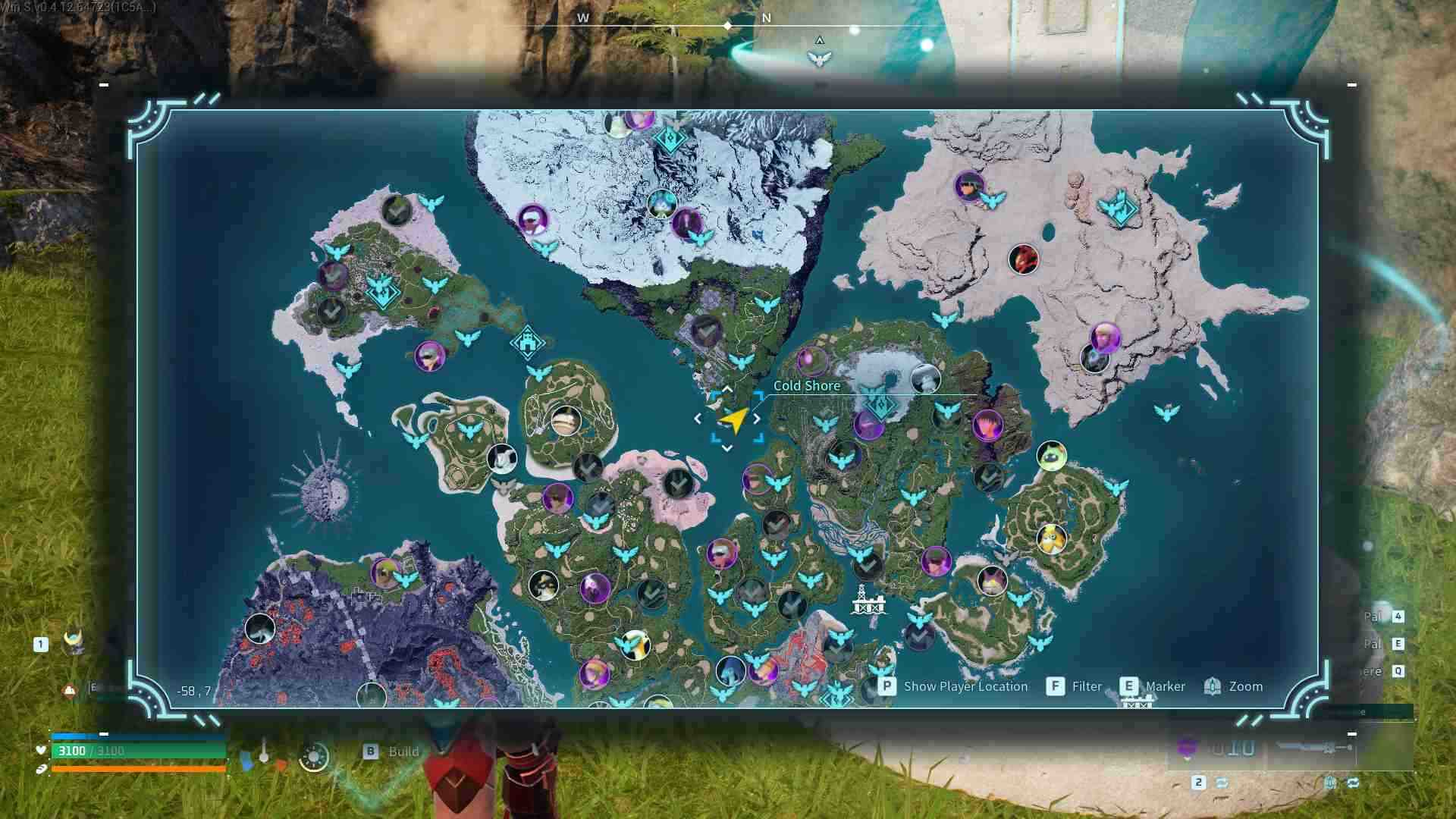
Palworld left Early Access and launched v1.0 on 10 July 2026, simultaneously on PC, PlayStation 5, Xbox Series X|S and Game Pass. Since then groups have got bigger and worlds have got busier, and hosting an adventure off a single player's machine is the first thing that breaks. This guide is only about the move itself: taking your world from a solo or co-op host onto a dedicated server so it has a permanent home. (Worried about who can join across platforms? Crossplay is in — see crossplay, Game Pass and who can join.)
Why move to a dedicated server
When you host co-op from inside the game, your world only exists while you are online — friends can't play if you're away, and your PC or console carries the entire load. A dedicated server fixes all of that:
- Persistent 24/7 world that stays online whether or not the host is around.
- Up to 32 players on a dedicated server, versus just 4 for an in-game co-op host.
- No reliance on one machine — no more "the host went to bed, session's over."
- Better performance for big bases, since the server isn't also rendering someone's game.
With a multi-platform player base and newcomers arriving through Game Pass, a dedicated server is simply built to handle the crowd.
Co-op host saves and dedicated saves are different
This is the most important thing to understand before you start: a co-op-host save and a dedicated-server save are stored differently. You cannot just point a dedicated server at your old session and expect it to appear. Moving a world means physically transferring the correct save folder and letting the server adopt it.
Because of that, the golden rule is simple: back up first, then migrate. Never delete your original world until the dedicated server is confirmed working.
Back up your existing world
Before touching anything, make a copy of your current save folder. On PC, single-player and co-op-host worlds live under your local Palworld save directory, each in its own folder named by a long world ID.
- Fully close Palworld so the save isn't being written to.
- Copy the entire world folder somewhere safe (an external drive or a second location).
- Note which folder is the active world — the one with the most recent timestamp.
If you're on console and can't reach the raw files, starting a fresh world on the dedicated server may be simpler — see fresh save or keep your world to decide.
Transfer the world onto the dedicated server
Once you have a backup, place the world data where the dedicated server expects it. The server keeps its worlds in its own save path, and it loads a specific world by ID.
- Stop the dedicated server before copying anything in.
- Upload your backed-up world folder into the server's save location.
- Tell the server which world to load (its
DedicatedServerName/ world ID setting). - Start the server and confirm the world loads with your bases and Pals intact.
Take your time and verify in-game before declaring the move done.
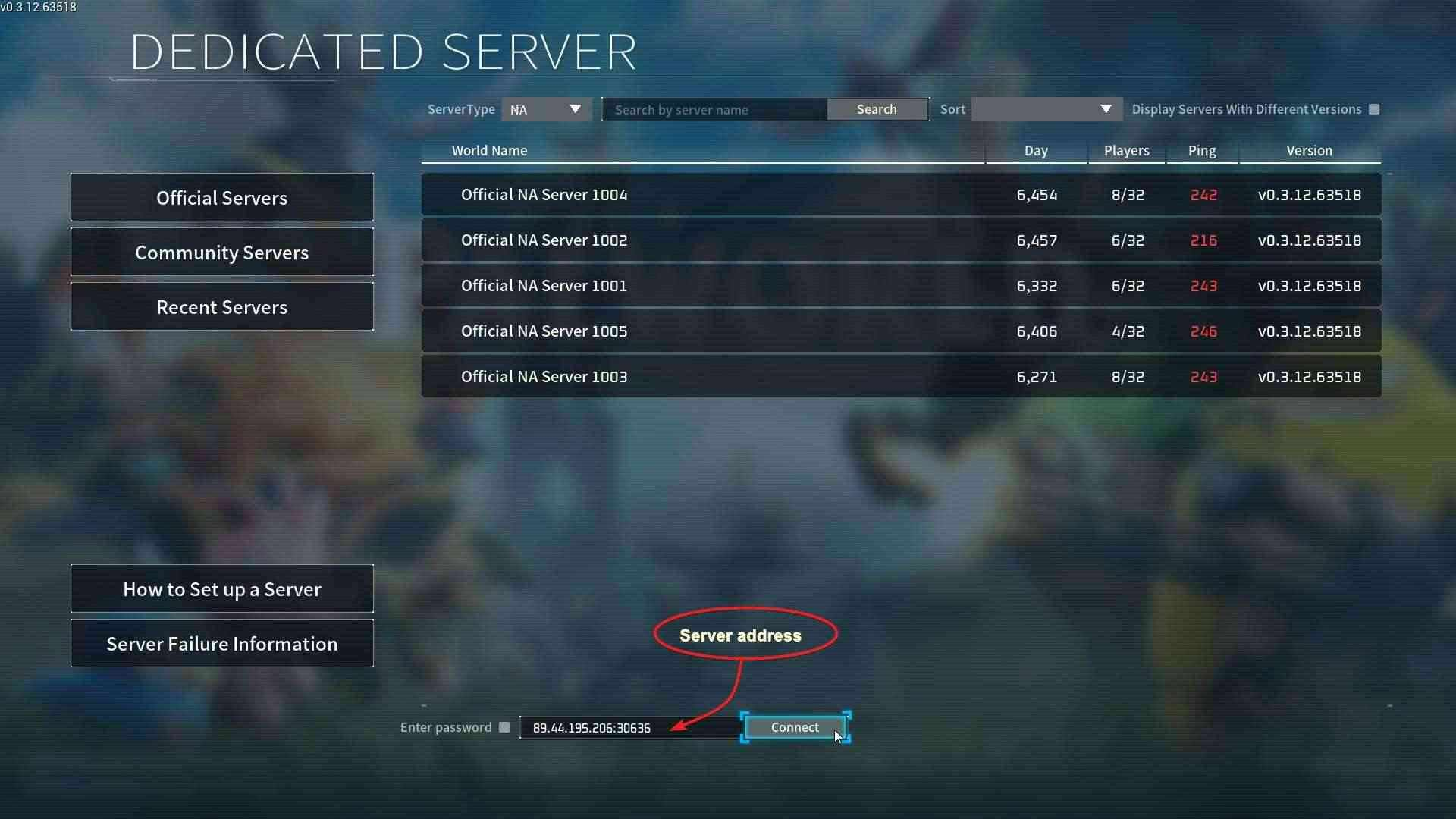
Set ServerName, password and share your IP:Port
With the world loaded, configure how people find and join it. Open your server settings and set a clear ServerName so it's recognizable, and a ServerPassword to keep the world private.
- The default Palworld dedicated-server port is 8211/UDP — make sure it's open/forwarded.
- Share your connection details as IP:Port (for example
your.server.ip:8211). - Give friends the password separately, and you're ready to play.
Migrate, or start fresh on the new server?
If migrating raw files feels fiddly, an alternative is to skip the transfer and spin up a brand-new dedicated world instead. Pocketpair recommend a fresh save for 1.0 (old saves still load and stay compatible), so this is a legitimate choice rather than a fallback — weigh it in fresh save or keep your world. Either way, the steps above get a dedicated server ready for the crowd.
Doing it the easy way on gamever
On a gamever Palworld server you skip the manual file juggling. Deploy a server in a couple of clicks, upload your existing save through the panel to bring your world along, and lean on one-click backups so you can migrate (or start fresh) without ever risking your current world. Version updates roll out fast after Pocketpair ship them, so you are on the current build within hours.
Conclusion
Migrating to a dedicated server gives your Palworld world a permanent, high-capacity home — up to 32 players, online 24/7. Back up first, transfer the right save folder (remembering co-op and dedicated saves differ), set your ServerName and password, and share your IP:Port on 8211. And if you'd rather start clean, fresh save or keep your world covers that call.
Rent your Palworld server at gamever.io — instant setup, one-click backups and updates, online 24/7. Free trial, promo code WELCOME.