
Minecraft Commands Guide: How to use gamemode commands
Minecraft offers four primary game modes, each providing a unique experience:
- Survival Mode: The classic Minecraft experience. Gather resources, manage hunger, and fend off those pesky creepers. It's all about staying alive and thriving.
- Creative Mode: Unleash your imagination! With unlimited resources and the ability to fly, you can build to your heart's content without any pesky mobs bothering you.
- Adventure Mode: Designed for custom maps and adventures. Players can't break or place blocks unless they have the proper tools, making it perfect for story-driven gameplay.
- Spectator Mode: Great for checking out builds or spying on friends — especially fun when you're watching teammates tackle puzzles together on a shared server like Gamever.
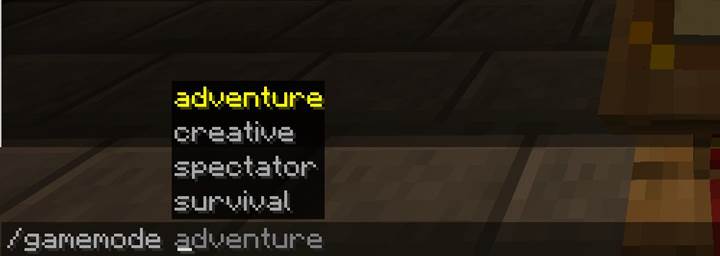
The /gamemode command
Switching between these modes is a breeze with the /gamemode command. Here's the basic syntax:
/gamemode [mode] [player]
- mode: The game mode you want to switch to. You can use the full name or abbreviations like s - for Survival, c - for Creative, a - for Adventure, and sp - for Spectator.
- player: (Optional) The player's name or selector you want to change the mode for. If omitted, it defaults to you.
Examples:
- Want to jump into Creative mode? Simply type:
/gamemode creative
- Need to set all players to Adventure mode? Use:
/gamemode adventure @a

- Helping out a friend named Ninjaman? Switch their mode with:
/gamemode survival Ninjaman
The /defaultgamemode command
Planning a server or custom map? The /defaultgamemode command sets the default game mode for all new players joining the world. Here's how it works:
/defaultgamemode [mode]
Example:
To set the default mode to Adventure:
/defaultgamemode adventure
Now, every new player will start their journey in Adventure mode. Handy, right?
Practical applications
- Custom Maps: Ensure players experience your adventure as intended by setting the appropriate default game mode.
- Server Management: Quickly adjust game modes for events or challenges without restarting the server.
- Personal Gameplay: Switch to Creative for building, then back to Survival for a challenge, all without leaving your world. Gamever makes these switches seamless — ideal for jumping between roles mid-adventure without any hiccups.
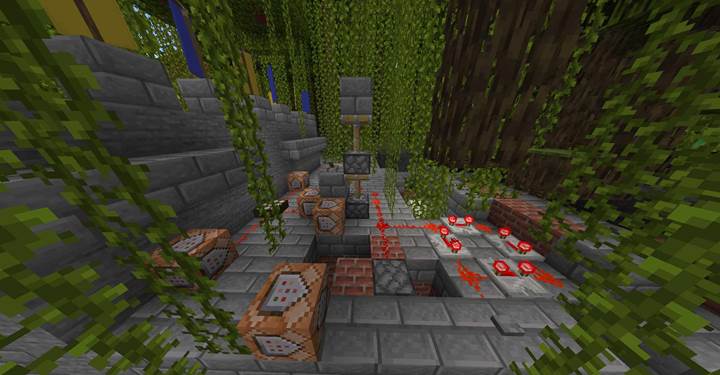
Quest Overview
Incorporating dynamic gamemode transitions can significantly enhance the depth and immersion of your Minecraft quests. Running multiplayer adventures like this becomes even more engaging when you're on a server built for collaboration — whether it’s Gamever or any platform you enjoy with friends.
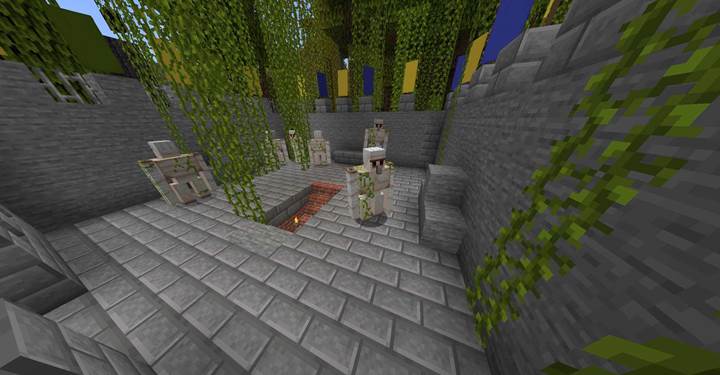
Players embark on a journey through various elemental zones, each presenting unique challenges. In the "Fire" zone, players are restricted from breaking blocks, emphasizing puzzle-solving. At certain points, players enter the "Ghostly Realm," switching to Spectator mode to reveal concealed paths or objects.
Datapack Structure:
To organize the quest, structure your datapack as follows:
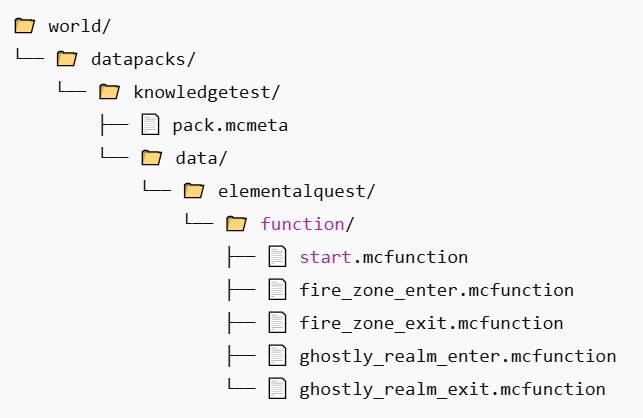
1. Create a pack.mcmeta file to define your datapack:{
"pack": {
"pack_format": 71,
"description": "Elemental Quest: Trials and Specters"
}
}
start.mcfunction:
Initialize the quest and set up necessary scoreboards or tags:2. Initialize quest
scoreboard objectives add inFireZone dummy scoreboard objectives add inGhostlyRealm dummy
fire_zone_enter.mcfunction:
Trigger this function when a player enters the Fire zone to restrict block manipulation:
3. Mark player as in Fire zone:
scoreboard players set @s inFireZone 1
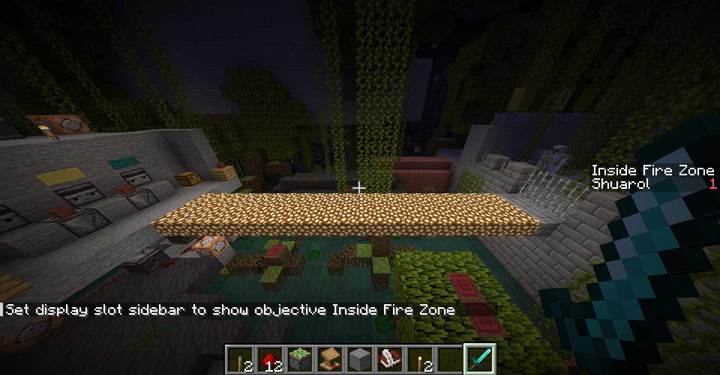
4. Set Adventure mode to prevent block breaking/placing:
gamemode adventure @s
Optional: Notify player
tellraw @s {"text":"You have entered the Fire Zone. Block manipulation is restricted.","color":"gold"}
fire_zone_exit.mcfunction:
When the player exits the Fire zone, revert to Survival mode:5. Mark player as out of Fire zone
scoreboard players set @s inFireZone 0
6. Set Survival mode
gamemode survival @s
Optional: Notify player
tellraw @s {"text":"You have left the Fire Zone. Block manipulation is restored.","color":"gold"}
ghostly_realm_enter.mcfunction:
Activate this function to allow players to access Spectator mode in designated areas:
7. Mark player as in Ghostly Realm
scoreboard players set @s inGhostlyRealm 1
8. Set Spectator mode
gamemode spectator @s
Optional: Notify player
tellraw @s {"text":"You have entered the Ghostly Realm. Explore hidden paths.","color":"gray"}
ghostly_realm_exit.mcfunction:
Revert players back to their previous mode upon exiting the Ghostly Realm:
9. Mark player as out of Ghostly Realm
scoreboard players set @s inGhostlyRealm 0
10. Set Survival mode
gamemode survival @s
Optional: Notify player
tellraw @s {"text":"You have left the Ghostly Realm.","color":"gray"}
Implementing Zone Detection:
To automate mode transitions based on player location, utilize the execute command within a repeating function or command block:
Fire Zone boundaries
execute as @a[x=100,y=64,z=100,dx=10,dy=5,dz=10] run function elementalquest:fire_zone_enter
execute as @a[score_inFireZone_min=1, x=110,y=64,z=110,dx=10,dy=5,dz=10] run function elementalquest:fire_zone_exit
Ghostly Realm trigger area
execute as @a[x=200,y=70,z=200,dx=5,dy=5,dz=5] run function elementalquest:ghostly_realm_enter
execute as @a[score_inGhostlyRealm_min=1, x=205,y=70,z=205,dx=5,dy=5,dz=5] run function elementalquest:ghostly_realm_exit
Notes:
- Coordinate Definitions: Adjust the x, y, z, dx, dy, and dz values to match the specific areas in your world.
- Scoreboards: The inFireZone and inGhostlyRealm scoreboards track player states to manage mode transitions effectively.
- Command Execution: Ensure these commands run continuously, either through a repeating command block or by invoking them in a tick function.
By using these functions and commands, you can create smooth transitions between game modes and add more depth to your custom quests.
From building in Creative to surviving in Adventure, mastering /gamemode and /defaultgamemode helps you shape every part of your world. With the right tools — and the right server — shared gameplay can become a full-fledged adventure.