
How to use a command block in Minecraft?
Minecraft, a game that has captured the hearts of millions worldwide, offers a vast sandbox for players to unleash their creativity. One of the game's most powerful tools is the Command Block. This block, often overlooked by casual players, can transform your Minecraft experience, allowing you to automate processes, create custom game mechanics, and much more.
What is a command block?
A command block is not just another decorative block in Minecraft. It's a tool that executes commands upon receiving a redstone signal. These commands can range from simple tasks like changing the weather to complex operations like spawning mobs or building structures.
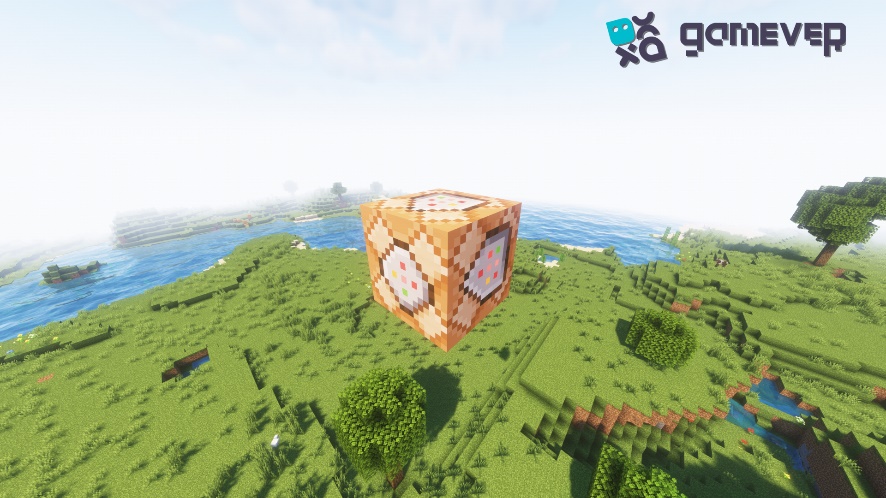
Acquiring a Command Block
Unlike most blocks in Minecraft, you can't obtain a command block by mining or crafting. Instead, you need to use a game command. Enter the following command in the chat:
/give @p minecraft:command_block
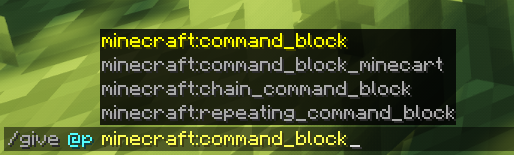
Once entered, a Command Block will appear in your inventory.
Setting Up Your Command Block
Placement: Place the Command Block on the ground just like any other block.
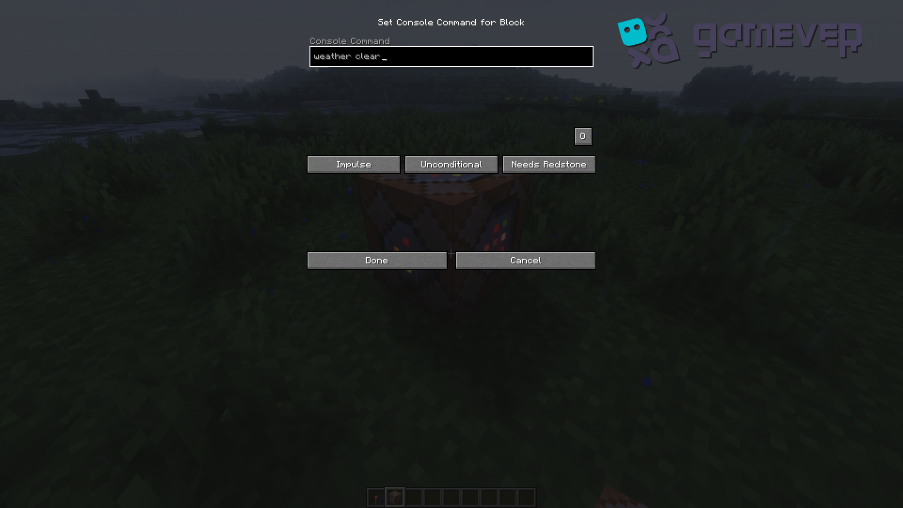
Accessing the Interface: Right-click on the Command Block to open its interface. Here, you'll see a space where you can enter your desired command.
Command Input: Type in your command. For example, to change the weather to clear, type: /weather clear.
Configuration: Below the command input space, you'll see a series of options:
Impulse: Executes the command once.
Chain: Executes only when a command block behind it executes.
Repeat: continuously executes the command.
Condition: Determines if the command block requires a successful command execution from a preceding block.
Redstone: Determines if the Command Block requires a redstone signal to operate.
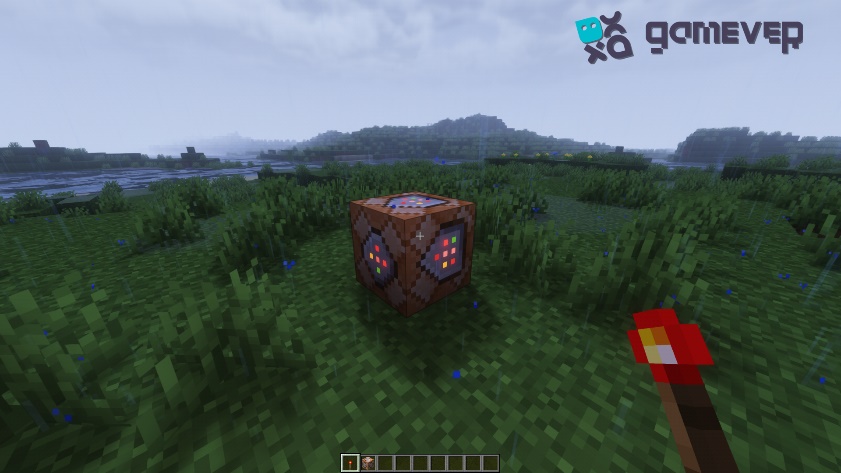
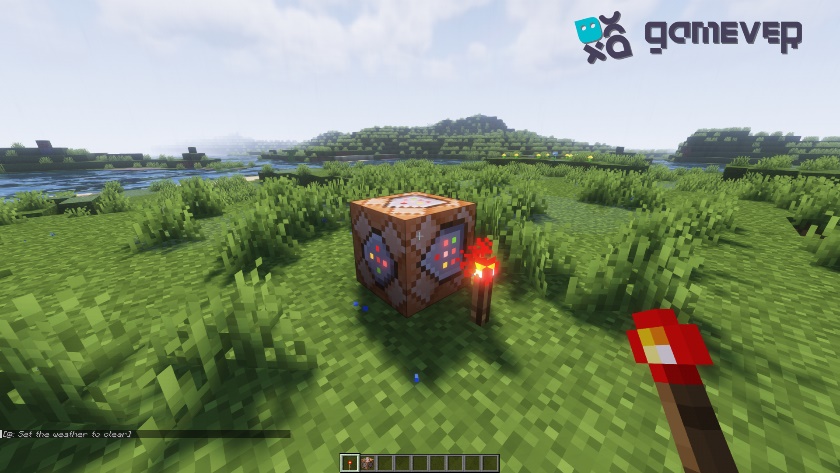
Executing Commands
To execute the command you've set, provide the Command Block with a redstone signal. This can be done using a redstone torch, button, lever, or any redstone-activating device.
Advanced Uses
While simple commands can enhance gameplay, the real power of command blocks lies in their ability to perform complex tasks.
Teleportation: Move players or entities to a specific location.
Custom Mobs: Spawn mobs with specific gear, effects, or abilities.
Storytelling: Use Command Blocks to create interactive stories or quests.
Troubleshooting
If your command block isn't working:
Check the command: Ensure the command syntax is correct.
Redstone Signal: Ensure the Command Block is receiving a redstone signal.
Game Mode: Command blocks only work in Creative Mode.
Permissions: On multiplayer servers, ensure you have the necessary permissions.
Conclusion
Command blocks are a testament to the limitless potential of Minecraft. They empower players to reshape the game, crafting unique experiences and mechanics. Whether you're a budding game designer or a player looking to enhance your world, command blocks are a tool you shouldn't overlook.
And speaking of enhancing your Minecraft experience, have you considered playing on a dedicated server? Gamever offers an exceptional service where you can rent a server to play with your friends. Dive into uninterrupted gameplay, customize your server settings, and enjoy Minecraft like never before. So why wait? Use and play on the Gamever servers today!