
How to Install the Replay Mod for Minecraft
The Replay Mod is an essential tool for Minecraft players looking to capture, edit, and share high-quality videos directly from the game. Ideal for creating cinematic replays, tutorials, or time-lapses, Replay Mod gives you complete control over camera paths and playback speed. Here’s how to install and use Replay Mod, and why it’s an especially beneficial addition for players on Gamever servers.
Step 1: Download the Replay Mod
To begin, download Replay Mod from its official website or a trusted modding platform.
- Visit replaymod.com or CurseForge to download the Replay Mod.
- Ensure you download the version that matches your Minecraft version.

Step 2: Install Minecraft Fabric
Replay Mod requires Fabric, a mod loader that enables mods to run smoothly in Minecraft.
- Download Minecraft Fabric from Fabric’s official website.
- Install Fabric for the Minecraft version that matches Replay Mod.
- Open the Minecraft launcher and select the Fabric profile to confirm installation.
Step 3: Place Replay Mod in the ‘Mods’ Folder
After downloading Replay Mod, place the .jar file in Minecraft’s mods folder.
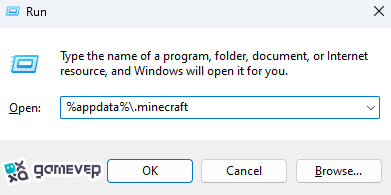
If there’s no mods folder, create one manually. Then, move the Replay Mod .jar file into this folder.
Step 4: Launch Minecraft
With Replay Mod installed, launch Minecraft using the Fabric profile. Once loaded, you’ll see the Replay Viewer in your main menu, allowing you to access and edit your recorded replays.

Using Replay Mod in Minecraft
Replay Mod provides a suite of features for recording and editing gameplay, making it simple to capture cinematic scenes:
1. Automatic Recording
When you enter a world or server, Replay Mod begins recording automatically. To access recordings, return to the Replay Viewer in the main menu, where you can choose which replay to view and edit.
2. Camera Control and Keyframes
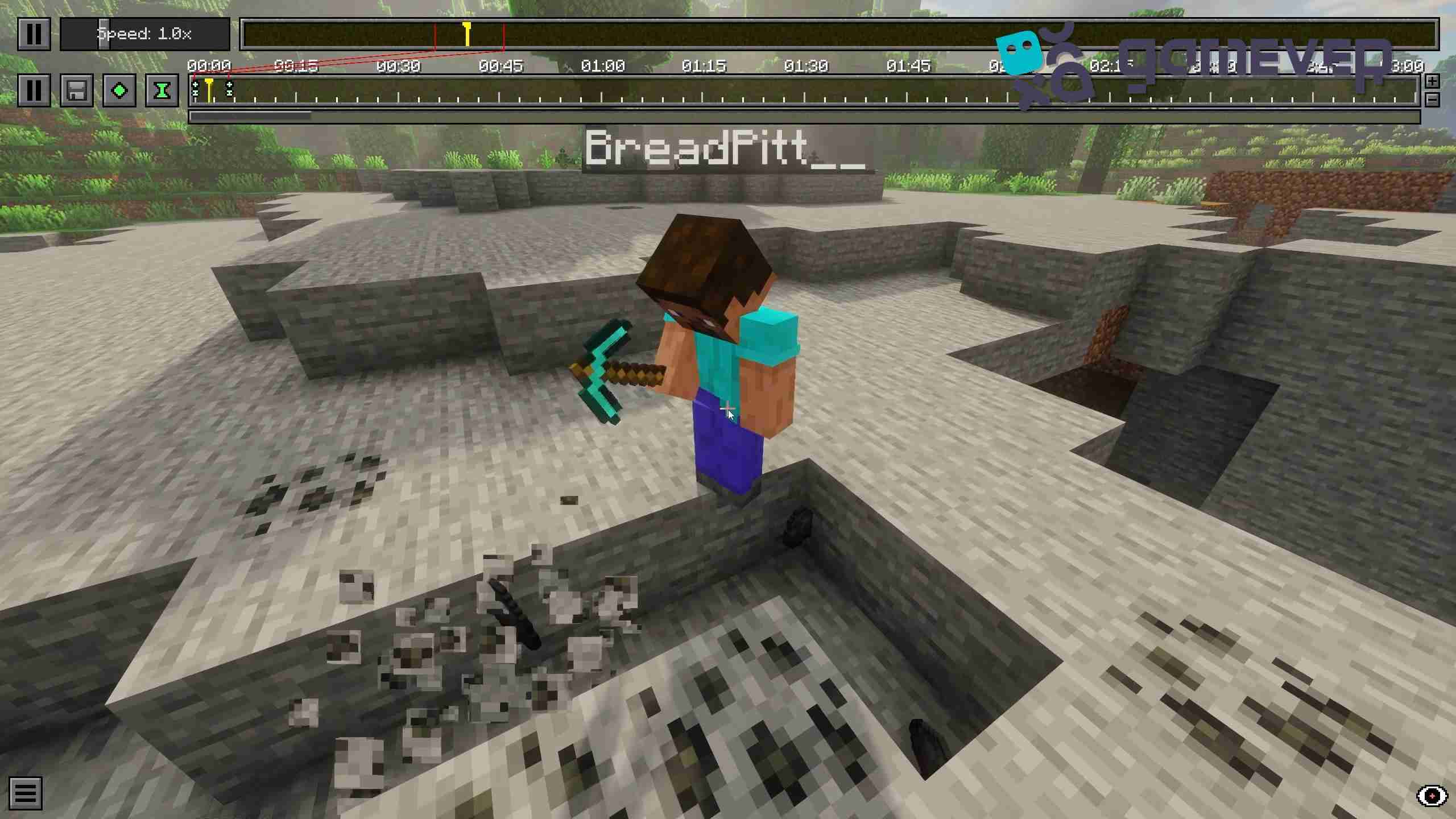
One of Replay Mod’s standout features is its camera control. Set up smooth camera paths with keyframes:
- Keyframes: Add keyframes along a timeline to set camera position and angle, creating dynamic shots.
- Playback Control: Adjust playback speed to emphasize certain scenes, and pause if you need to focus on specific moments.
3. Advanced Editing
You can also slow down or speed up time, providing a level of control that’s perfect for creating detailed tutorials or cinematic scenes.
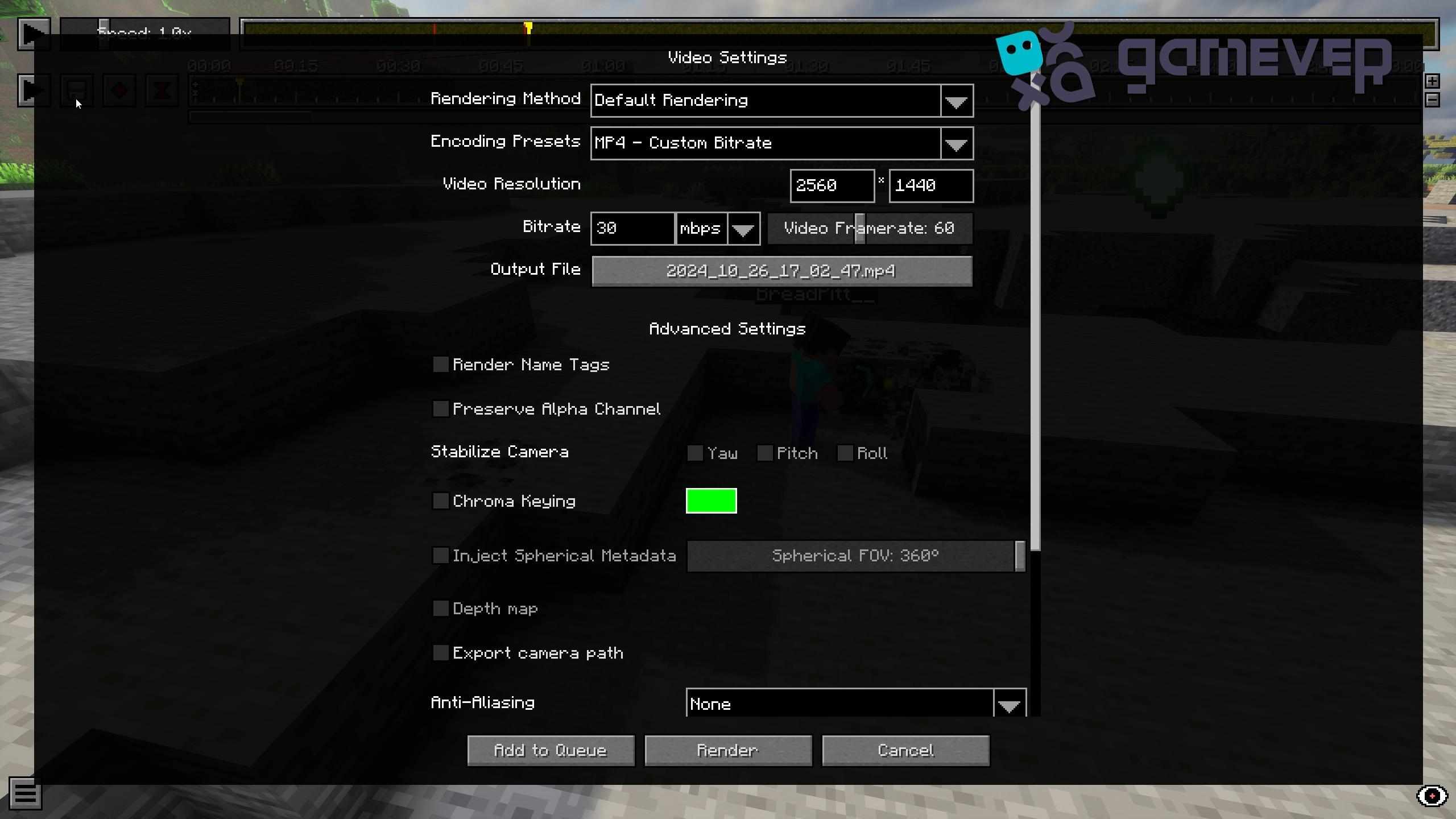
4. Exporting Your Video
Once you’re satisfied with your replay, you can export the video directly within the mod. Replay Mod compresses files efficiently, so even lengthy recordings remain manageable and ready to share.
Benefits of Using Replay Mod on Gamever Servers
Replay Mod is especially useful for players on Gamever servers, where capturing shared experiences or large builds can create lasting memories.
- Collaborative Projects: Capture group builds or events with cinematic quality, perfect for server showcases.
- PvP or Adventure Highlights: Record and relive exciting multiplayer moments, such as PvP battles or server adventures.
- Enhanced Storytelling: With custom images and camera paths, Replay Mod allows you to create immersive stories that reflect your Gamever experiences.
Conclusion
The Replay Mod offers Minecraft players a powerful tool for capturing and editing in-game moments with cinematic quality. From smooth camera paths to custom editing options, Replay Mod is a must-have for players wanting professional-quality videos directly from Minecraft. When playing on Gamever servers, Replay Mod allows you to capture every memorable moment with ease, bringing your gameplay to life.