
How to Install the Camera Utils Mod for Minecraft
The Camera Utils mod is an essential tool for Minecraft players who want to capture stunning visuals or create cinematic content. This client-side mod provides flexible camera controls, dynamic zoom, and customizable third-person perspectives, making it perfect for players focused on personal projects, YouTube videos, or creative builds. In this guide, we’ll walk through the steps to install Camera Utils and explain its features. Additionally, we’ll highlight the advantages of using this mod on Gamever servers, where it can bring a new level of visual control to multiplayer experiences.
Step 1: Download the Camera Utils Mod
To begin, download the Camera Utils mod from a reputable modding website, such as CurseForge or Modrinth.
- Visit the Camera Utils page on CurseForge or Modrinth.
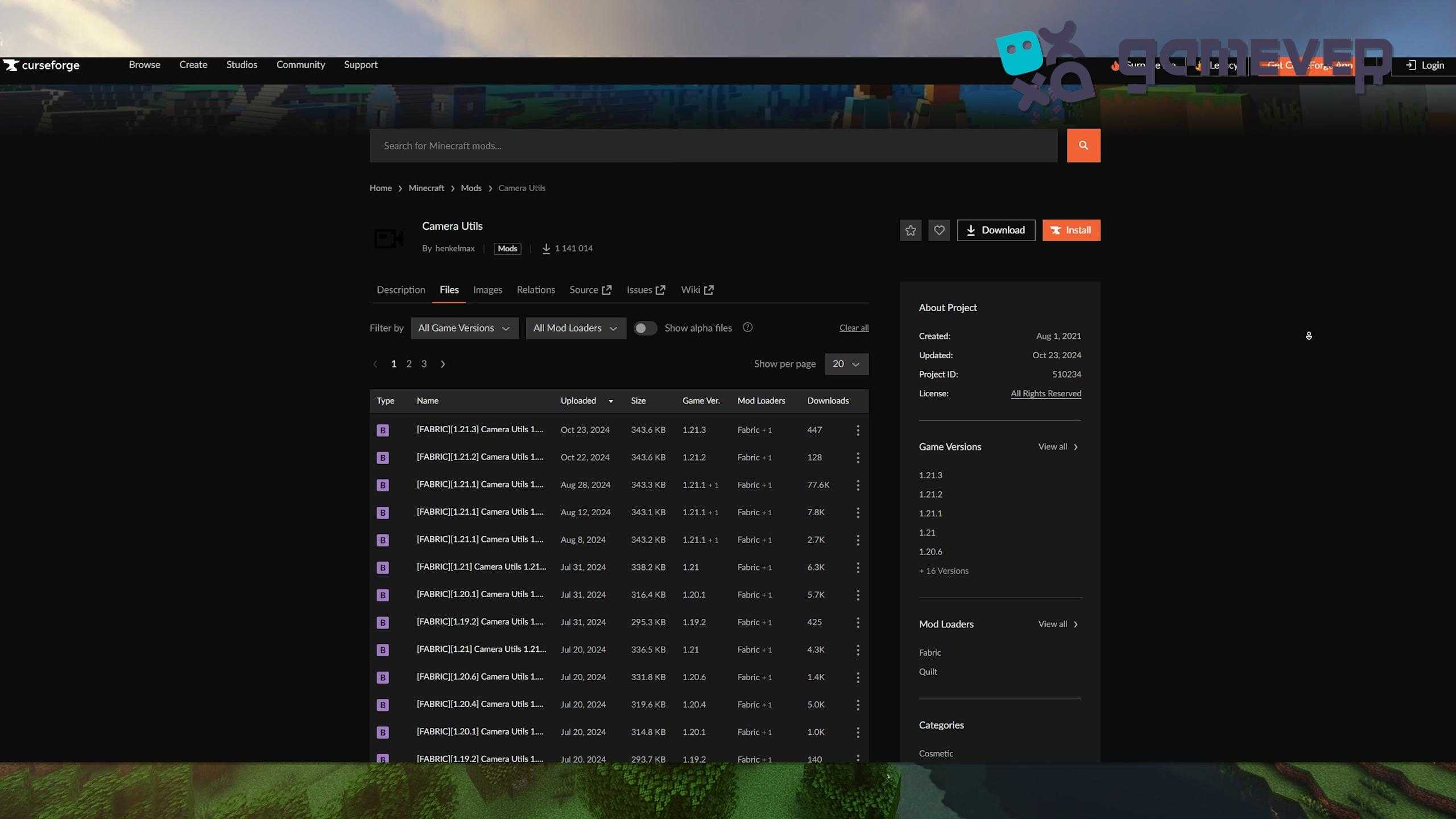
- Select and download the version that corresponds with your Minecraft version, ensuring compatibility.
Step 2: Install Minecraft Fabric
Camera Utils requires Minecraft Fabric, a mod loader that enables mods in Minecraft. If you don’t already have Fabric installed, follow these steps:
- Download it from Fabric's website.
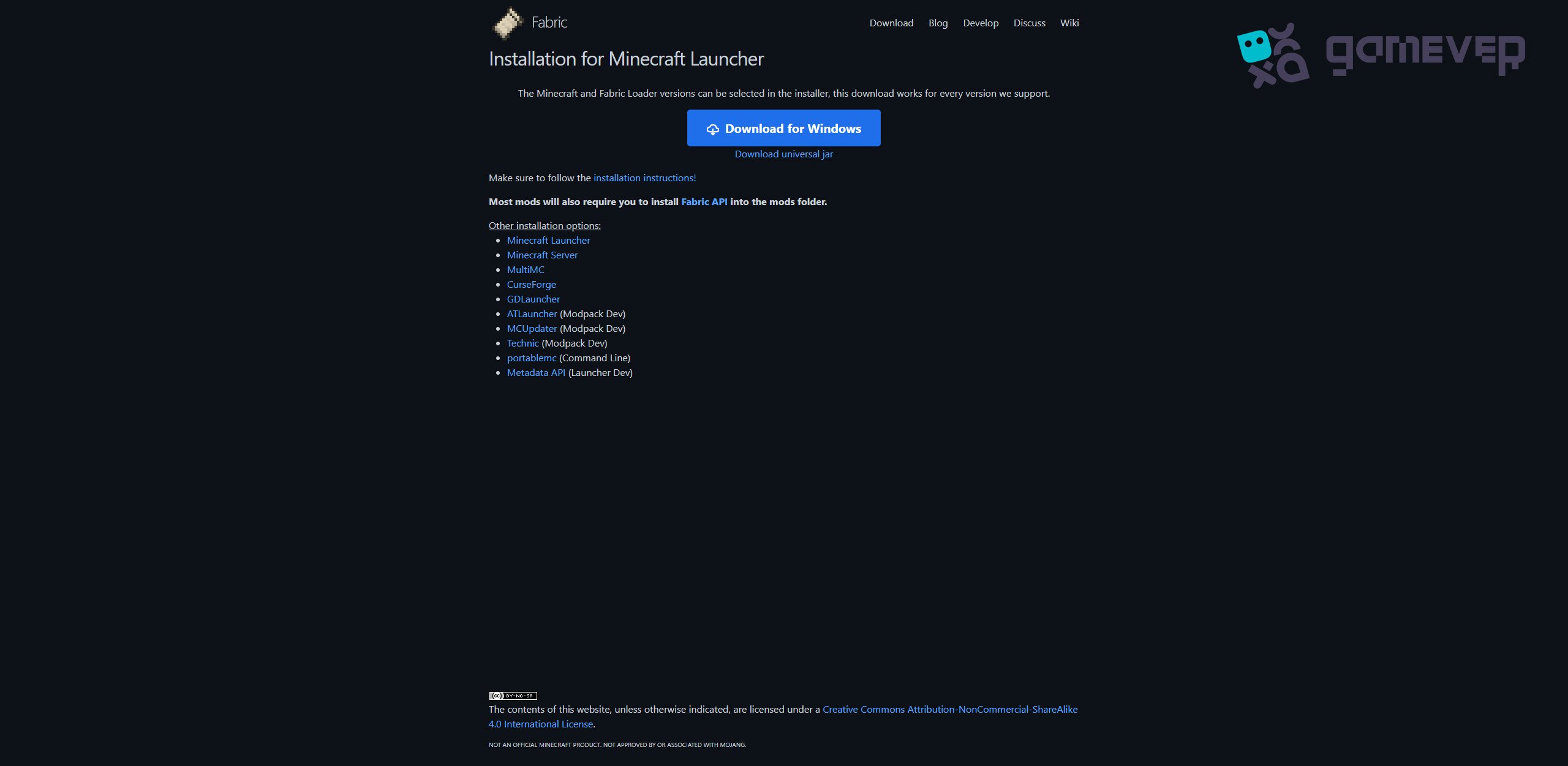
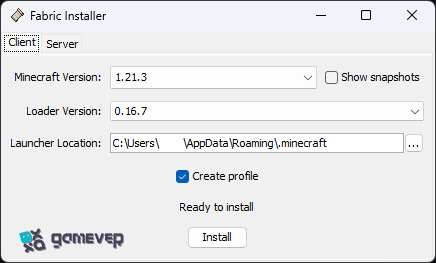
- Install Fabric following the instructions, ensuring the version matches both Minecraft and the Camera Utils mod.
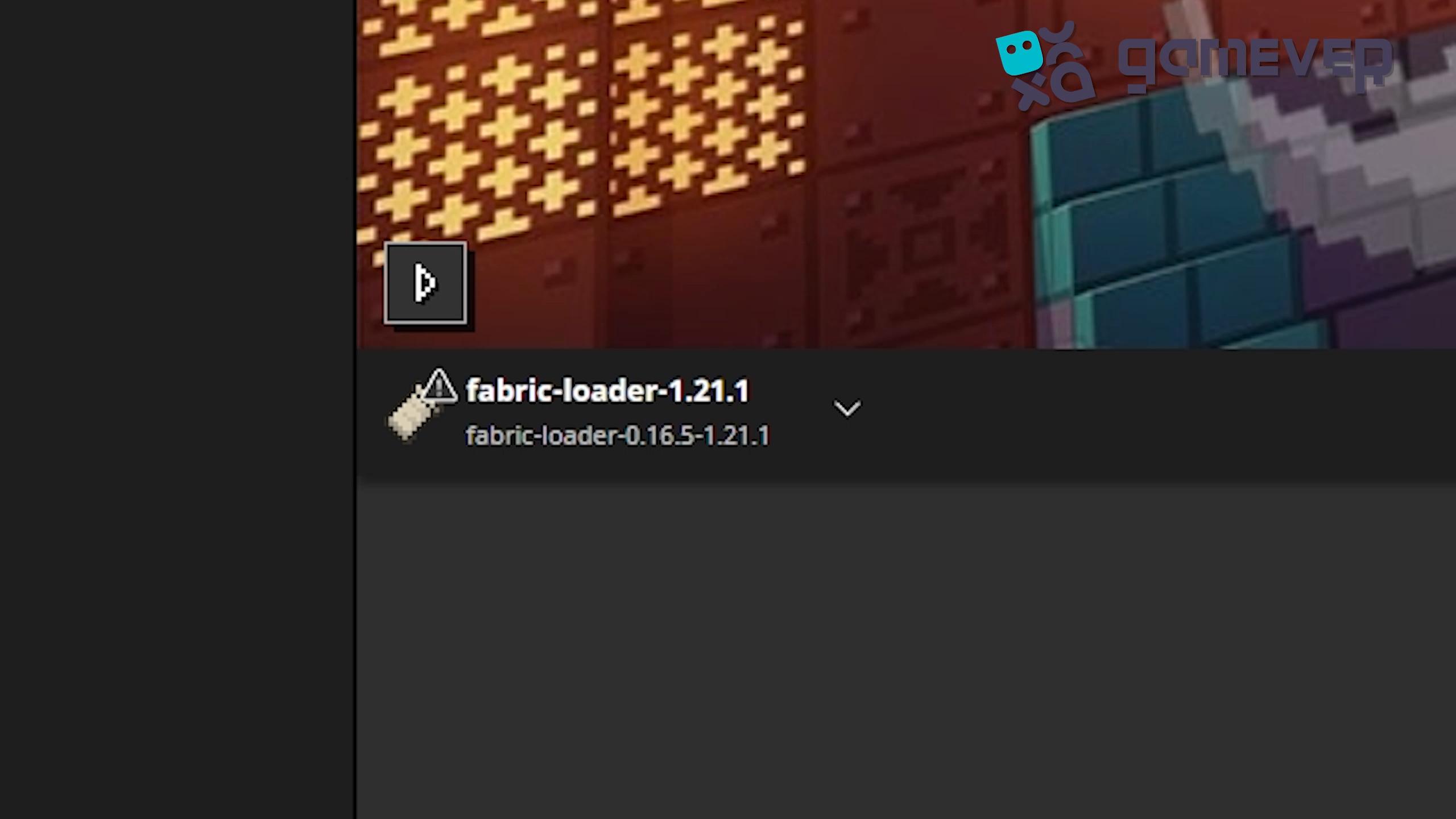
- In the Minecraft launcher, select the Fabric profile to confirm the installation.
Step 3: Add Camera Utils to the ‘Mods’ Folder
Once you’ve downloaded the Camera Utils mod, it’s time to place the .jar file into Minecraft’s mods folder.
- On Windows, go to %appdata%/.minecraft/mods.
If there isn’t a mods folder, create one manually. Then, drag and drop the Camera Utils .jar file into this folder.
Step 4: Launch Minecraft
After placing the Camera Utils file in the mods folder, open the Minecraft launcher, select the Fabric profile, and start the game. Camera Utils will be active once Minecraft loads, allowing you to access its extensive camera options.
Key Features of Camera Utils
The Camera Utils mod offers a variety of features, ideal for capturing creative content or enhancing gameplay with custom views:
1. Dynamic Zoom
With dynamic zoom, you can adjust your zoom level smoothly by pressing ‘Z’ and scrolling to zoom in or out. This feature provides precision control, making it perfect for capturing small details or shifting focus gradually.

2. A detached camera
The detached camera lets you lock the camera in one position while moving your character separately. To enable this, press the detach key; then, use Right Alt + detach key to snap back to your character’s view.

3. Customizable Third-Person Views
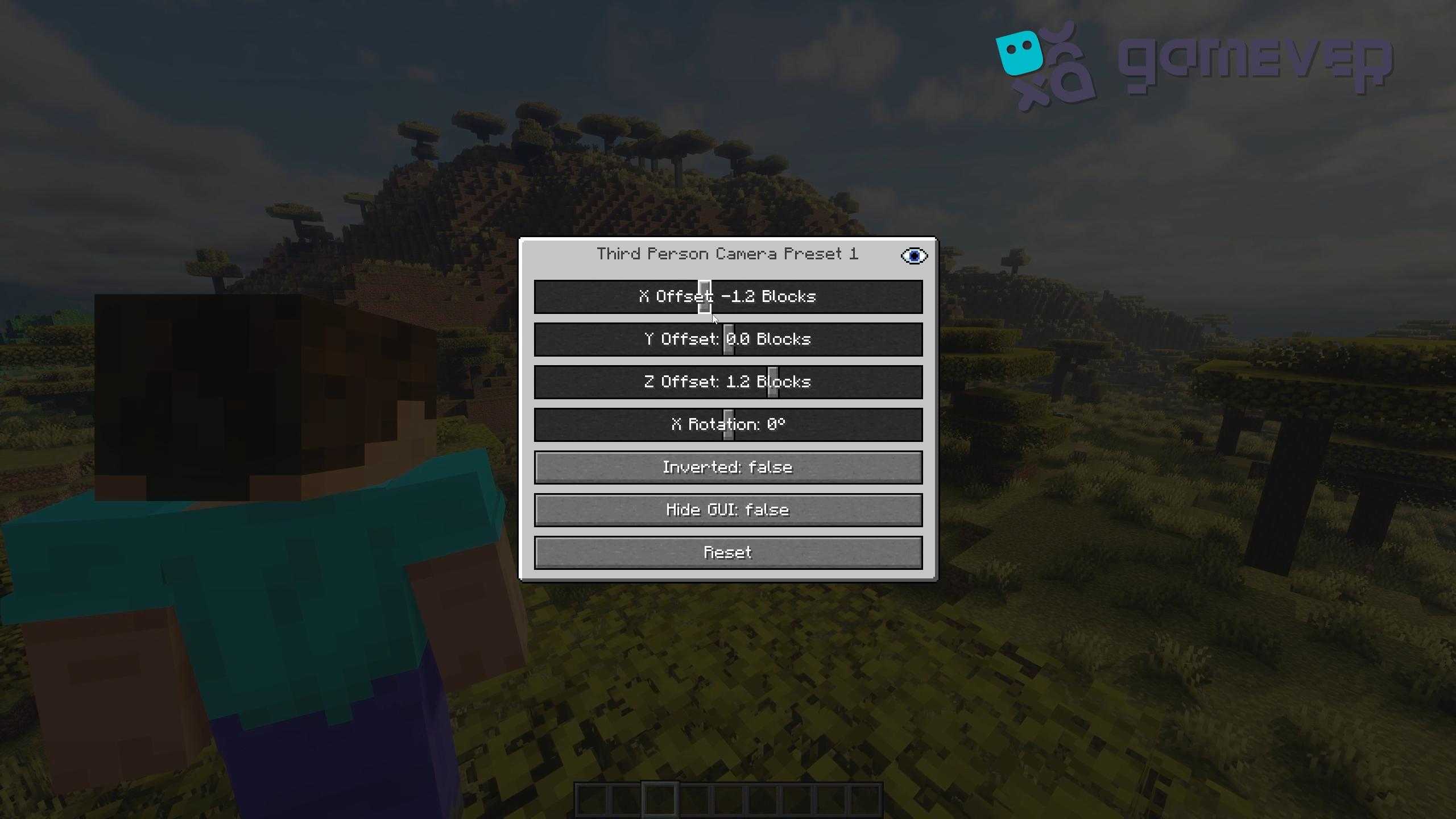
Camera Utils allows you to set two custom third-person perspectives by default with F6 and F7. To modify these perspectives, press Right Alt and the respective F key, and adjust the distance and angle for the perfect wide-angle shot.
4. Cinematic Camera Controls
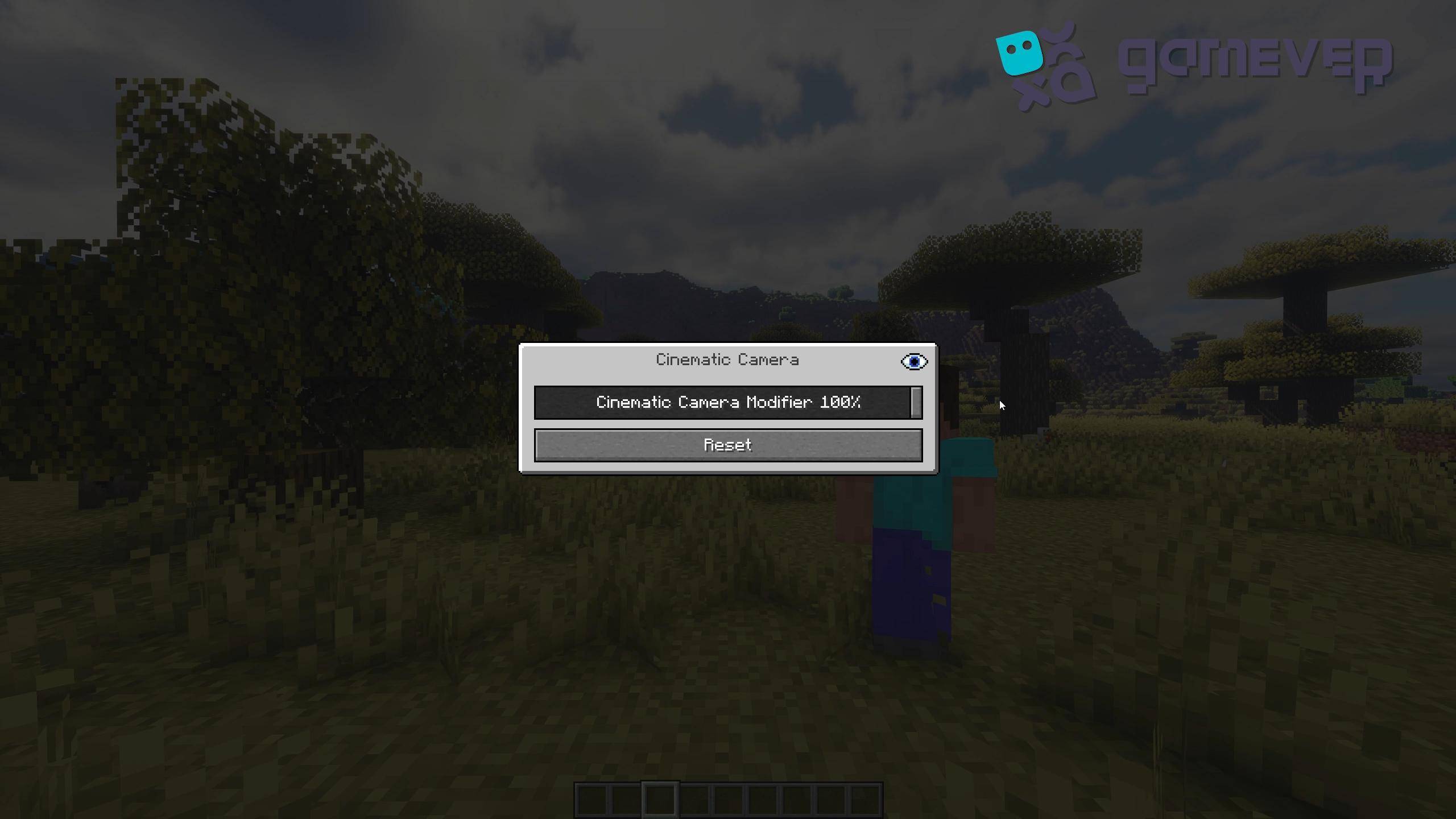
For smooth panning shots, use Right Alt + cinematic button to activate advanced cinematic camera settings. This feature helps create seamless, professional-looking videos with controlled camera transitions.
Benefits of Using Camera Utils on Gamever Servers
When playing on Gamever servers, Camera Utils becomes a fantastic tool for enhancing your multiplayer experience:
- Capture Group Builds: With dynamic zoom and detached views, you can easily record group builds or collaborative projects from the best angles.
- Create Cinematic Content: Use cinematic controls to capture in-game events, battles, or large projects on Gamever servers, turning them into stunning video content.
- Showcase Creations: Easily set up wide-angle shots of structures or landscapes, ideal for players who want to showcase their builds to the Gamever community.
Conclusion
The Camera Utils mod opens up a world of possibilities for Minecraft players who enjoy recording or photographing their in-game adventures. From smooth zooming to detached cameras and cinematic controls, this mod brings unparalleled camera functionality to Minecraft. When playing on Gamever servers, Camera Utils lets you capture multiplayer moments and creative builds like never before, providing you with the tools to create professional-quality content.