
Why Your Palworld Server Isn't Showing in the Community List

You set up your gamever Palworld server, open the in-game Community Servers browser, scroll... and it isn't there. This is one of the most common Palworld hosting questions, and on gamever the fix is usually a single setting rather than anything to do with launch flags or firewalls. This guide walks through why a server doesn't list and how to get it showing — plus the reliable way to get your group in while you wait.
The main cause: Community server is off
Palworld servers are joinable by IP by default, but they only appear in the public Community Servers list when the server is told to advertise itself. On gamever that's the Community server toggle, not a launch flag you add by hand.
Open Settings → Server settings and check the Community server field:
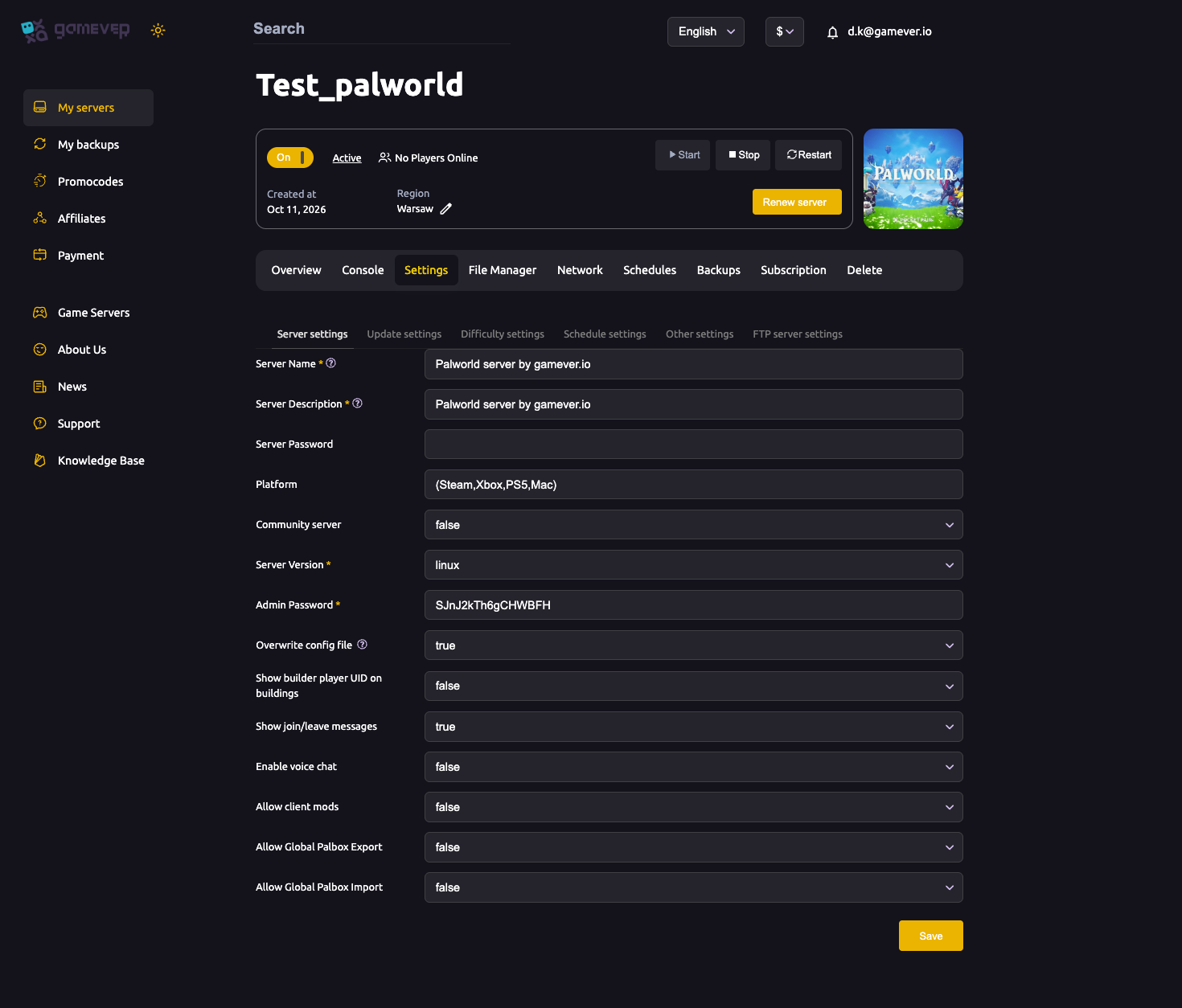
| Setting | Value | Effect |
|---|---|---|
| Community server | true | Server advertises itself and appears in the in-game Community Servers list |
| Community server | false | Server is hidden from the list; joinable by IP only |
| Server Name | set a name | The name players see and search for in the browser |
Set Community server to true, make sure a Server Name is set so there's something to find, then Restart the server from the Overview tab for the change to take effect.
Give it a few minutes
After a restart the server has to register with Palworld's community list and the browser has to refresh. It is normal for a freshly listed server to take a few minutes to appear — don't keep flipping the toggle. Close and reopen the Community Servers browser, or use the in-game search box with your exact Server Name, before assuming something is wrong.
Passworded servers
If you set a Server Password in Server settings, be aware that passworded community servers don't always show cleanly in the public browser, and even when they do, players still need the password to get in. If listing a passworded server is giving you trouble, the direct-join route below is the dependable option.
The reliable fallback: join by IP
Whether or not the server is listed, your group can always connect directly using the address from the Overview tab. For Steam clients this is the Steam address (the IP with port 28915):
- On Overview, copy the Steam address (your IP with port
28915). - In Palworld, each player chooses Join with IP / Connect and pastes it.
- Enter the Server Password if you set one.
Direct join doesn't depend on the community list at all, so it's the first thing to try if the browser is being slow to update — and the way to play while a fresh listing propagates.
Additional Tips
- Community server = true is the switch — it's the panel equivalent of making the server public; you never add launch flags on gamever.
- Set a Server Name so there's something to search for in the browser.
- Restart after changing Community server — the setting applies on restart.
- Wait a few minutes for a new listing to appear; refresh the browser rather than re-toggling.
- Join by the Steam address (port
28915) as a dependable fallback — it never relies on the list.
Conclusion
A Palworld server missing from the in-game Community Servers list is almost always the Community server toggle sitting on false. Flip it to true in Settings → Server settings, confirm a Server Name is set, restart, and give it a few minutes to appear. In the meantime — or any time the browser is slow — your group can always join directly by the Steam address from the Overview tab.
Rent your Palworld server at gamever.io — instant setup, one-toggle public listing, and a full control panel with no launch flags to memorize. Free trial, promo code WELCOME.