
V Rising: How to Fix Prewarming Shaders Crash
Are you pumped to dive into the vampire-infested world of V Rising but getting smacked with a crash every time those shaders start doing their thing? No worries! We've got your back with some nifty fixes to get you up and running faster than you can say "bloodthirsty."
Why Do Shaders Hate Me?
So, you've been eagerly awaiting your vampiric adventures, but every time those shaders start prewarming, it's like the game decides to take a nosedive straight to crash town. But fear not, it's not some spooky curse; it's just a couple of hiccups in the system.
Let's Get Fixin'!
Update or Install A Different GPU Driver Version
First things first, let's make sure your GPU driver isn't the culprit. Sometimes, they just don't vibe well with certain games, you know? Here's how to fix it:
Download the Right Driver: Head over to your GPU manufacturer's website and grab yourself a fresh driver.
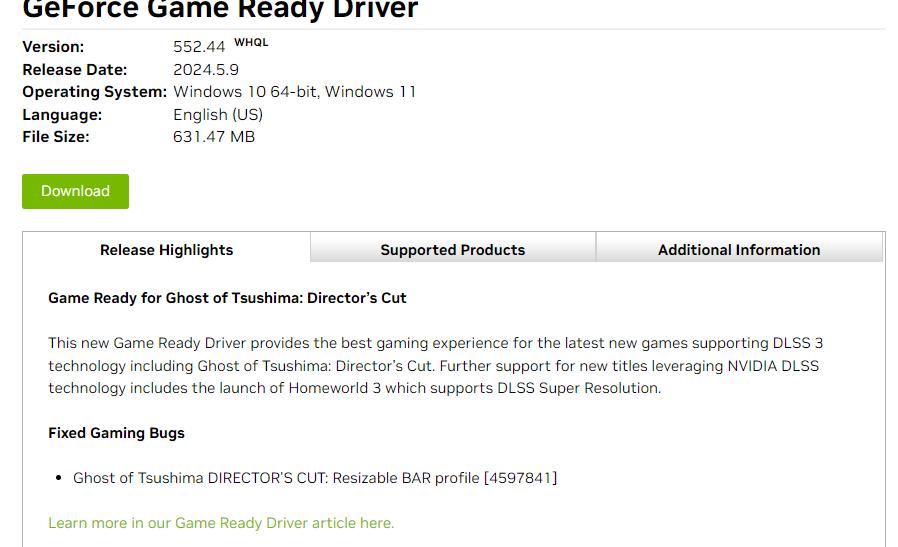
Uninstall the Old One: Bid farewell to your current driver. Give it the boot!
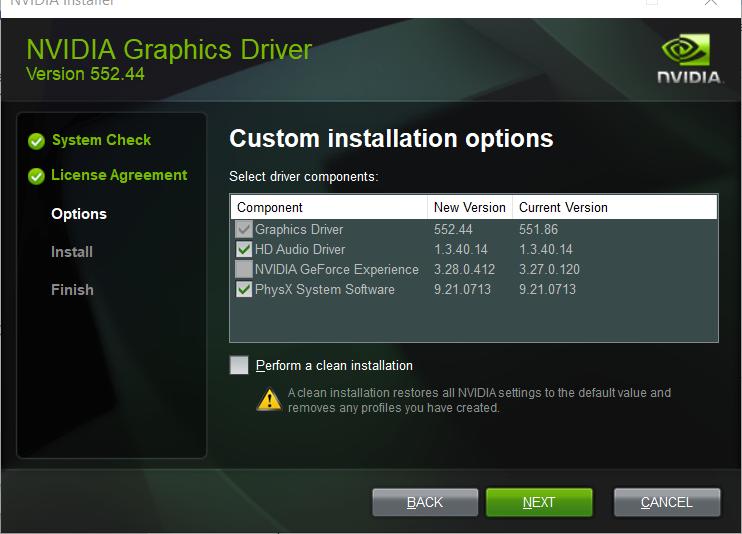
Clean Installation: When installing the new driver, make sure to select the option for a clean install. We want those shaders to have a fresh start!
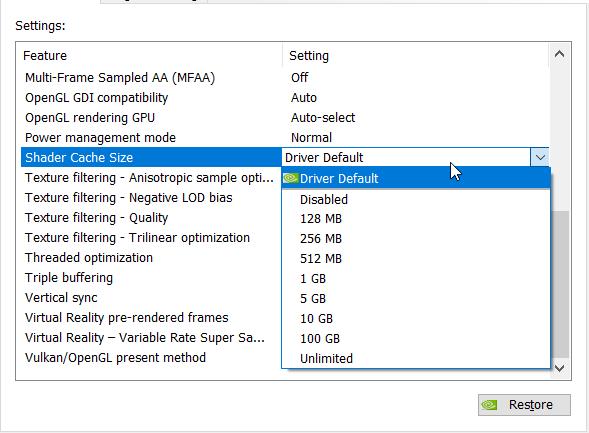
Increase Shader Cache Size
Those default shader cache sizes can be a bit stingy, can't they? Let's give those shaders some breathing room:
1. Open Nvidia Control Panel: Time to dive into the control panel. It's where the magic happens.
2. Adjust Global Settings: Navigate to Manage 3D Settings > Global Settings.
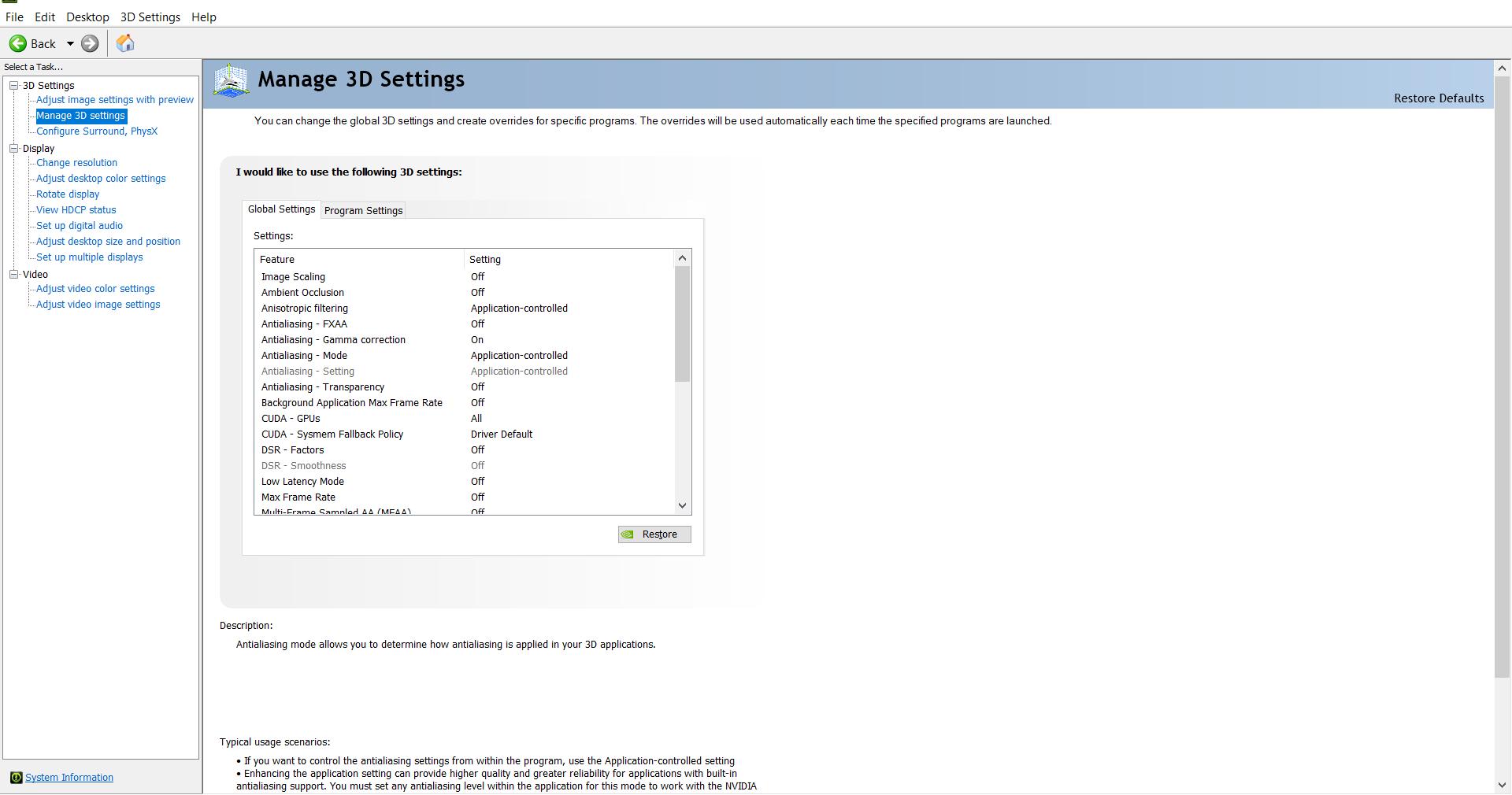
3. Boost That Cache: Find the Shader Cache option and crank it up to at least 10 GB. Let those shaders stretch their legs!
Disable Shader Compilation
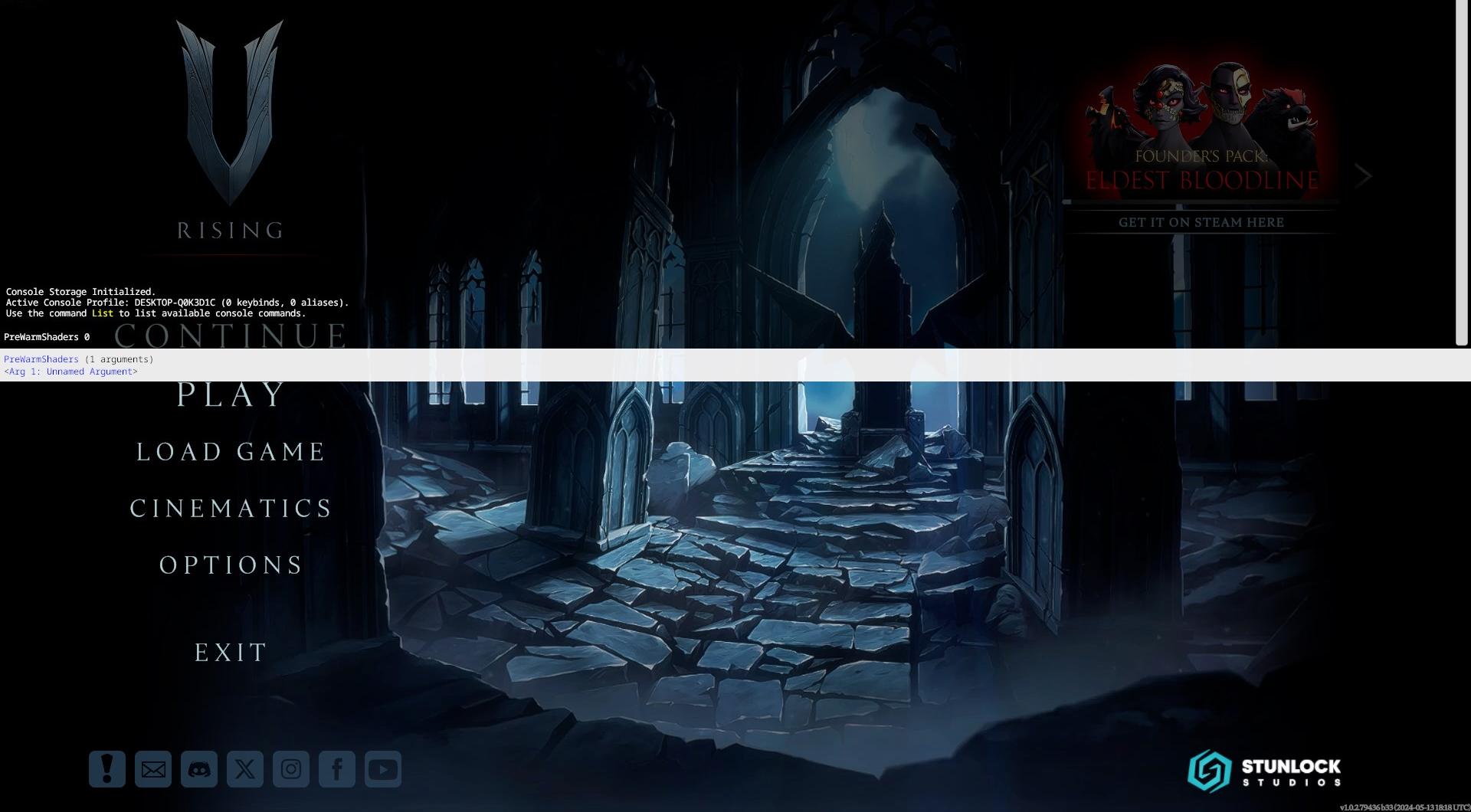
If all else fails, sometimes you just gotta tell those shaders to take a break. Here's how:
1. Enable the Console: Head to the game's options and make sure the console is enabled.
2. Summon the Console: Press that trusty Tilde key (~) to summon the console.
3. Work Your Magic: Type in "PreWarmingShaders 0" and hit enter. Voila! No more shader shenanigans.
And there you have it, fellow night-dwellers! No more crashes, just smooth sailing into the dark abyss of V Rising's world. Remember, every problem has a solution, even if it means tweaking a few settings here and there. Now, go forth and conquer the night!