
V Rising How to Fix In-game Crash
Encountering in-game crashes while playing V Rising? Here are some quick fixes to get you back in the game without any interruptions.
Crash Fix
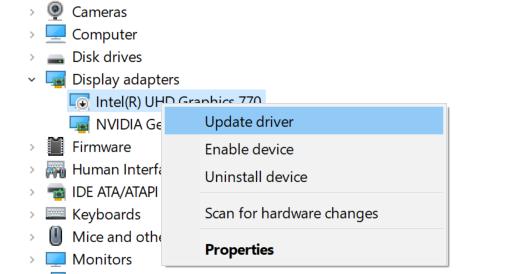
Is V Rising crashing during gameplay? Update your GPU driver first. If it's up-to-date, reset Nvidia Control Panel or AMD settings.
Third-party software like MSI Afterburner can also cause crashes, so disable them. In-game overlays like Steam or GeForce Experience could be culprits too, so turn them off.
Optimizing GPU Load
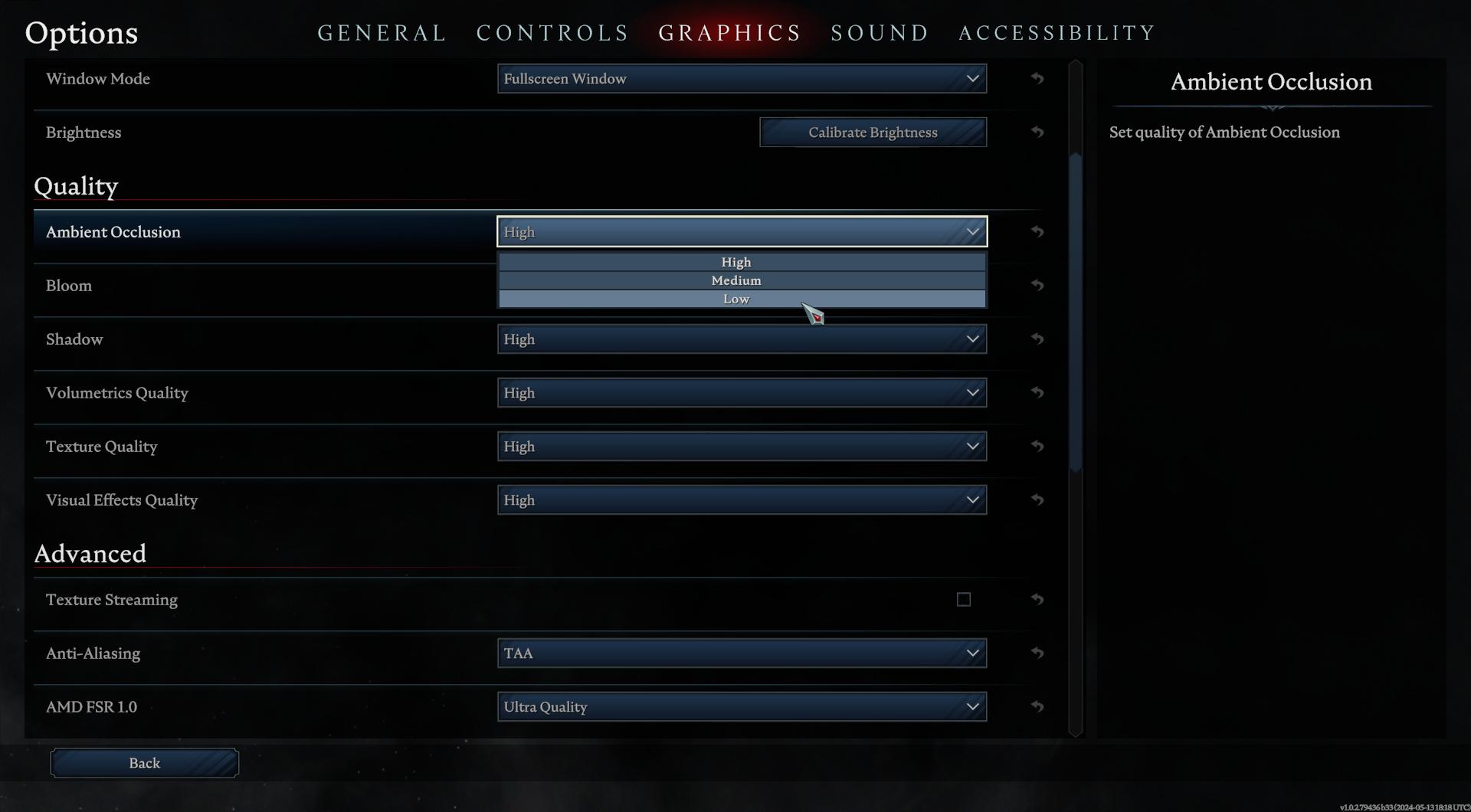
V Rising might be putting too much load on your GPU.
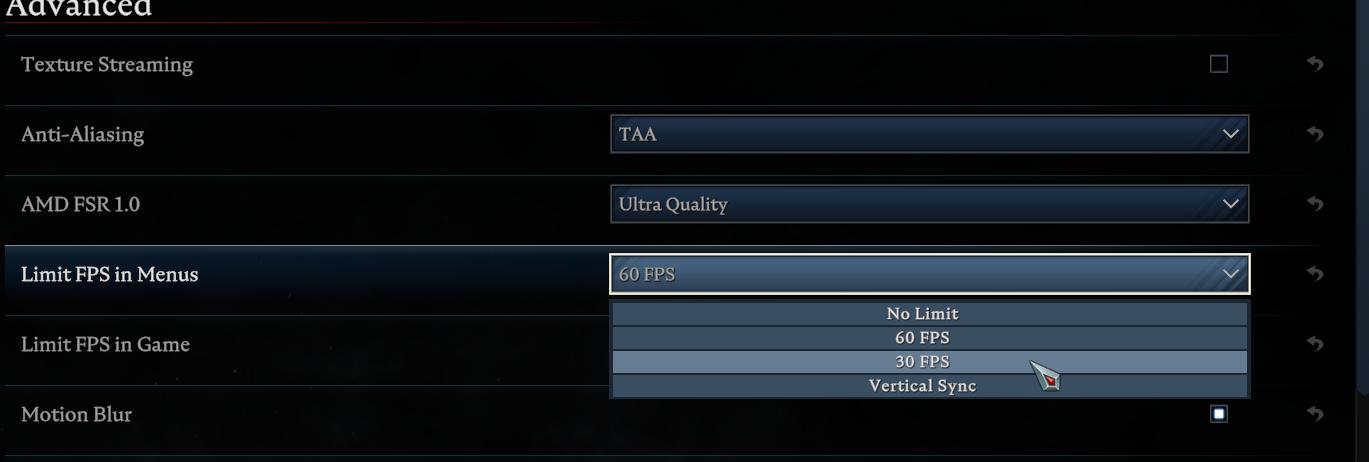
Lower graphics settings or limit max FPS. In Nvidia Control Panel, manage 3D settings for V Rising, enable Max FPS Limit, and set it to 30 FPS if targeting 60 FPS, or 60 FPS if FPS is unlocked.
Game Not Starting, Crash At Startup Fix
Facing issues with V Rising not launching? Ensure you're using Windows 10 64-bit. Delete the game files, including folders in Steam and AppData directories, then reinstall. Your antivirus might be blocking the game, so disable real-time protection or exclude the game folder.
In the world of V Rising, technical issues can sometimes throw a wrench into your gameplay. But fear not! With the handy fixes provided in this guide, you'll be back to exploring the vampire-infested lands in no time. Remember, you're not alone in this adventure. Join the vibrant V Rising community, share your experiences, and together, let's conquer every challenge that comes our way. So, what are you waiting for? Dive back into the game, unleash your inner vampire, and let the fun begin!