
Uploading an Existing World to Your Abiotic Factor Server
If your group already started a campaign — on someone's PC, or on another host — you don't have to leave it behind. You can upload that existing world/save onto your gamever Abiotic Factor server and carry on where you left off. This guide covers doing it over FTP and the File Manager, including the panel's built-in helper.
Start with the helper
On the File Manager tab, gamever points you straight at this:
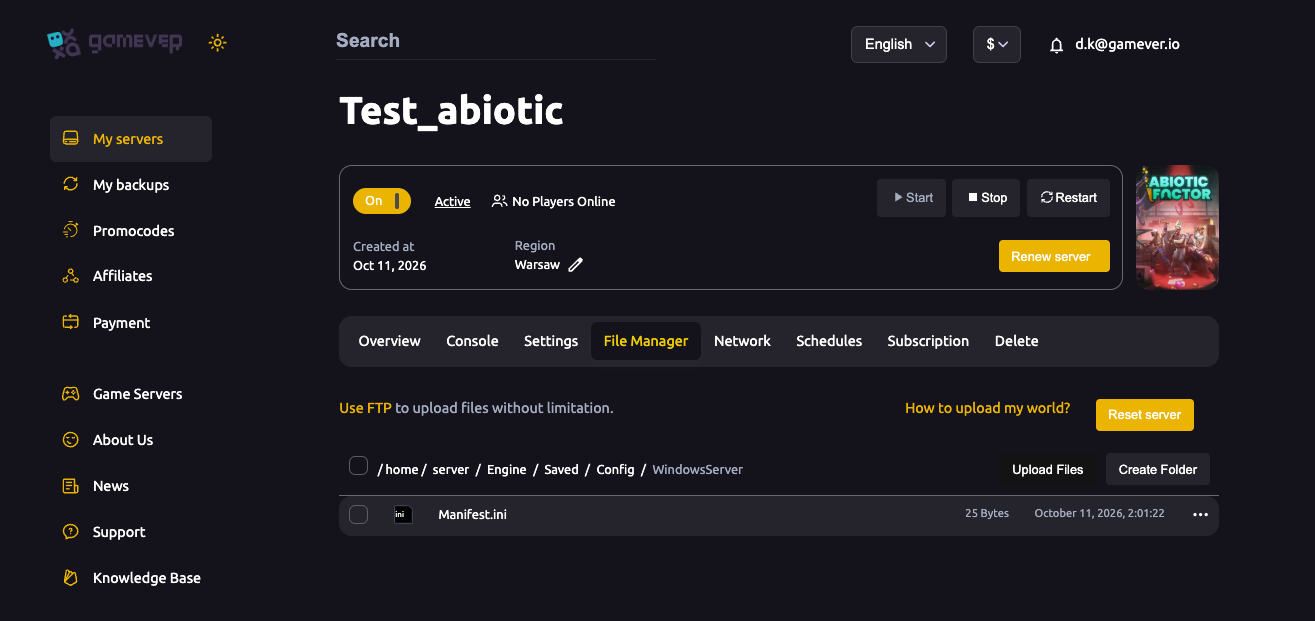
- "How to upload my world?" — a direct helper link for exactly this task; start there if you want the guided version.
- Use FTP — the note on the page ("Use FTP to upload files without limitation") is the reliable route for a full world, since FTP handles large files the in-browser upload may not.
Uploading over FTP
- Locate your world locally. Find the Abiotic Factor save/world folder for the campaign you want to move.
- Stop the server from Overview, so you're not writing over a live save.
- Connect over FTP using your FTP User / FTP Password from Settings and the FTP address (
62.112.222.133:28545) from Network. - Upload your world into the Abiotic Factor save tree, in place of (or alongside) the existing one.
- Point the server at it — make sure the World name on Settings matches the world you uploaded.
- Start the server. It loads your uploaded world.
Match the World name to your uploaded save, or the server will load (or create) a different world instead of the one you just moved.
Smaller files via the File Manager
For small files the File Manager also has an Upload Files button and a Create Folder option, which you can use directly in the browser. For a full world, though, FTP is the recommended path — it won't choke on size.
Additional Tips
- Use the "How to upload my world?" link for the guided walkthrough.
- FTP for full worlds, the in-browser uploader for small files.
- Stop the server first so you don't overwrite a live save.
- Match the World name on Settings to the world you uploaded.
- Back up the server's current world first in case you want it back (see backup & restore).
Conclusion
Bringing an existing Abiotic Factor world onto gamever is a stop-upload-start job: connect over FTP with your Settings login, drop your save into the Abiotic Factor save tree, make sure the World name matches, and start the server. The File Manager's "How to upload my world?" link walks you through it if you'd rather follow along — and your group keeps every hour of progress.
Rent your Abiotic Factor server at gamever.io — full FTP access and a guided world-upload helper, so your existing campaign moves over cleanly. Free trial, promo code WELCOME.