
Updating and Choosing the Version of Your 7 Days to Die Server
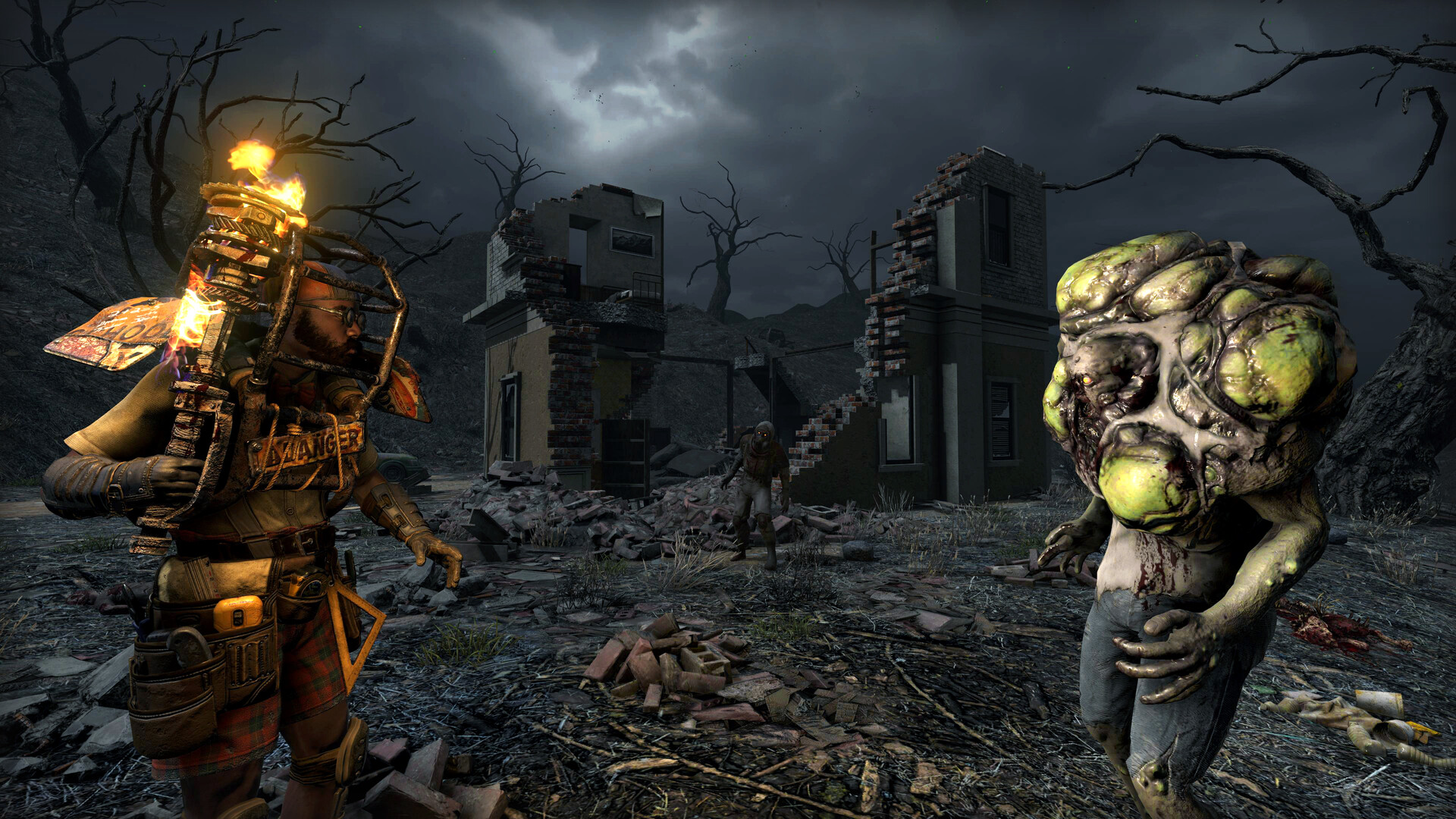
7 Days to Die gets regular updates, and each one can change recipes, blocks and systems. On your gamever server you choose the build with a single Version dropdown, and the update applies on restart. This guide explains how to pick a version, update safely, and keep your players in sync so no one gets locked out.
The Version dropdown
The build your server runs is set on Settings → Server settings:
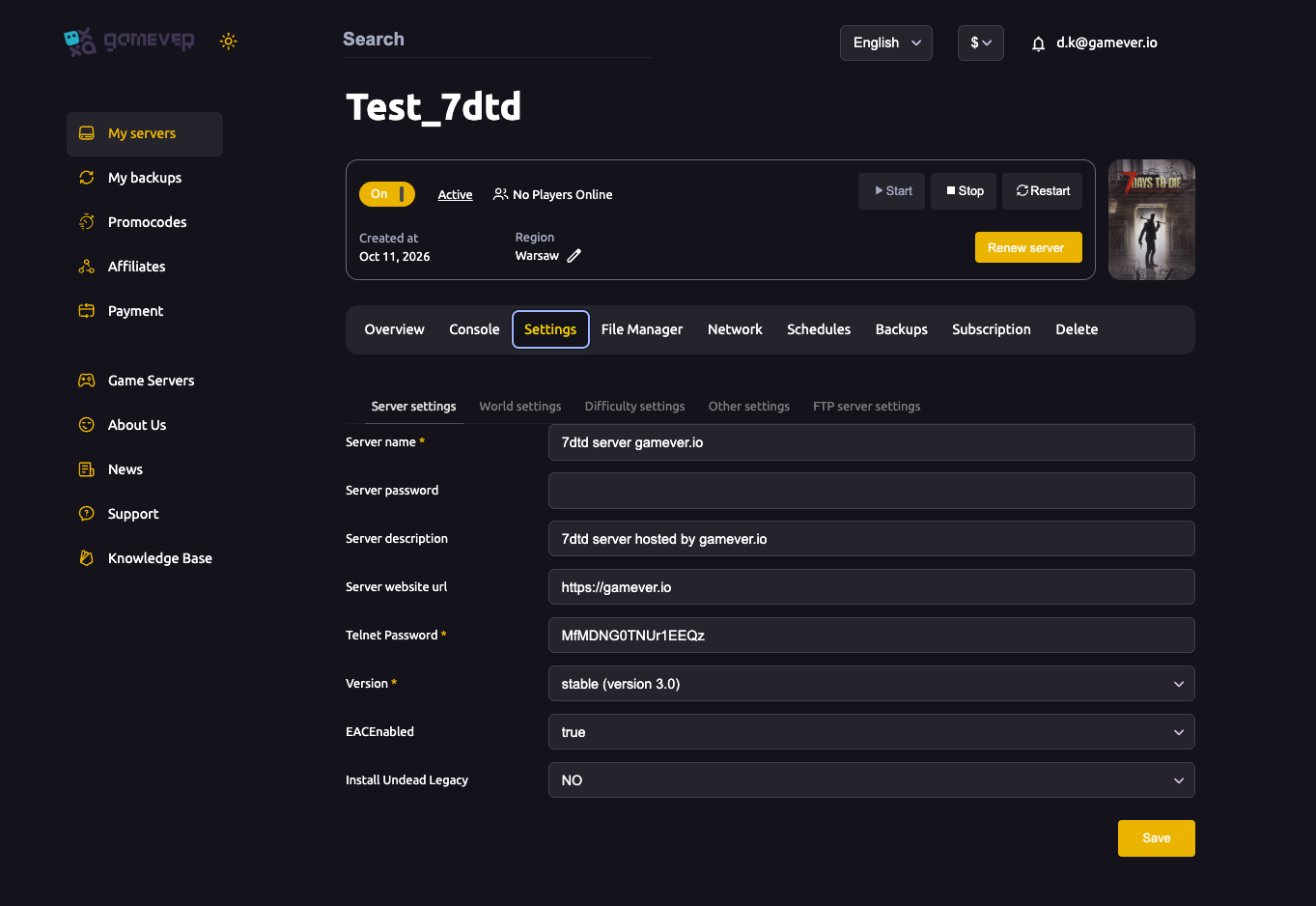
- Pick the build you want — for example stable (version 3.0).
- Click Save, then Restart from Overview. The server updates to that version on the restart.
Because you choose the version explicitly, your server doesn't lurch onto a new build without you — you decide when to move.
Update safely
A version change is one of the riskiest things you can do to a long-running world, so treat it with care:
- Back up first — see backup & restore. A new build can be incompatible with an old save.
- Change the Version, Save, and Restart.
- Watch the Console as the server updates and comes back up.
- Tell every player the new version before they try to join.
Players must match the build
This is the key rule: a 7 Days to Die client can only join a server running the same build. When you move the server to a new version, every player must update their own game to match — otherwise they get a version-mismatch error and can't connect. Announce the change ahead of time so your group updates together.
Versions and mods and anti-cheat
- If you run mods (see install mods), check they're compatible with the new build before you update — a version jump often breaks mods until they're updated too.
- Easy Anti-Cheat (EACEnabled) lives on the same tab; a version change doesn't flip it, but revisit your EAC/mod posture whenever you update.
Additional Tips
- Back up before every version change — new builds and old saves don't always mix.
- You control the version — the dropdown means no surprise auto-jumps.
- All players must update to match — warn them first.
- Check mod compatibility before jumping builds.
- Watch the Console through the update to catch problems early.
Conclusion
Updating your 7 Days to Die server is a deliberate, one-dropdown choice: pick the build on Server settings, back up, save and restart. The one thing never to forget is that your players must be on the same version to join — so back up first, announce the change, and move your whole group together. That turns every update into new content instead of a lockout.
Rent your 7 Days to Die server at gamever.io — pick your build from a dropdown, update on restart, and roll back from a backup if you ever need to. Free trial, promo code WELCOME.