
Understanding Game IDs and Setting a Permanent Game ID
On your gamever Core Keeper server, the Game ID is the primary way players join. It is a long join code your server prints to the Console when it boots, and anyone on Steam, Epic, GOG, the Microsoft Store or Xbox can paste it in-game to drop straight into your world. The catch: by default your server generates a new Game ID every time it starts, so every restart hands your group a different code to copy around. This guide explains why that happens and how to pin a permanent Game ID through your control panel's File Manager, so the join code stays the same for good.
Why the Game ID matters
Core Keeper's co-op is built around the Game ID. Rather than everyone hunting for your server in a browser, you share one code and friends use it to connect — it is the supported, cross-store way into your world. (Direct connect by IP is also available if you prefer, but the Game ID is what most groups use day to day.)
Because it is the thing your players actually keep, a Game ID that changes on every reboot is a nuisance: restart the server for an update, a crash or a scheduled task, and the old code stops working. Pinning the ID once solves that permanently.
Why it regenerates each boot
Your server reads its Game ID from a single key, gameId, in its ServerConfig.json. When that key is left blank, the server treats it as "no fixed ID" and generates a brand-new one at start — which is exactly why the code keeps changing. Setting gameId to a specific value instead tells the server to reuse that same ID on every boot.
The Core Keeper server has a few rules for a custom ID, confirmed from the dedicated-server documentation:
| Rule | Detail |
|---|---|
| Minimum length | At least 28 characters |
| Allowed characters | Alphanumeric, excluding Y, y, x, 0 (zero) and O |
| Blank or invalid | A new ID is generated at start |
The simplest, foolproof way to get a valid ID is not to type one from scratch — it is to let the server make one, then copy it back into the config so it sticks. That way you know the value is well-formed.
Where to read the current Game ID
Open the Console tab. On boot your server prints its session details, including the Game ID — the line that carries IP;port;gameId;password. The gameId portion there is exactly what players paste to join, and it is the value you will copy into the config in the next step. Start the server once and grab this before you do anything else.
Setting a permanent Game ID
The gameId key is not exposed on the Settings page, so this is a File Manager edit. Core Keeper only reads ServerConfig.json at boot, so the server must be stopped while you change it.
- Stop the server first — from the Console/Overview controls, press Stop. Editing a config the server is holding open won't apply cleanly.
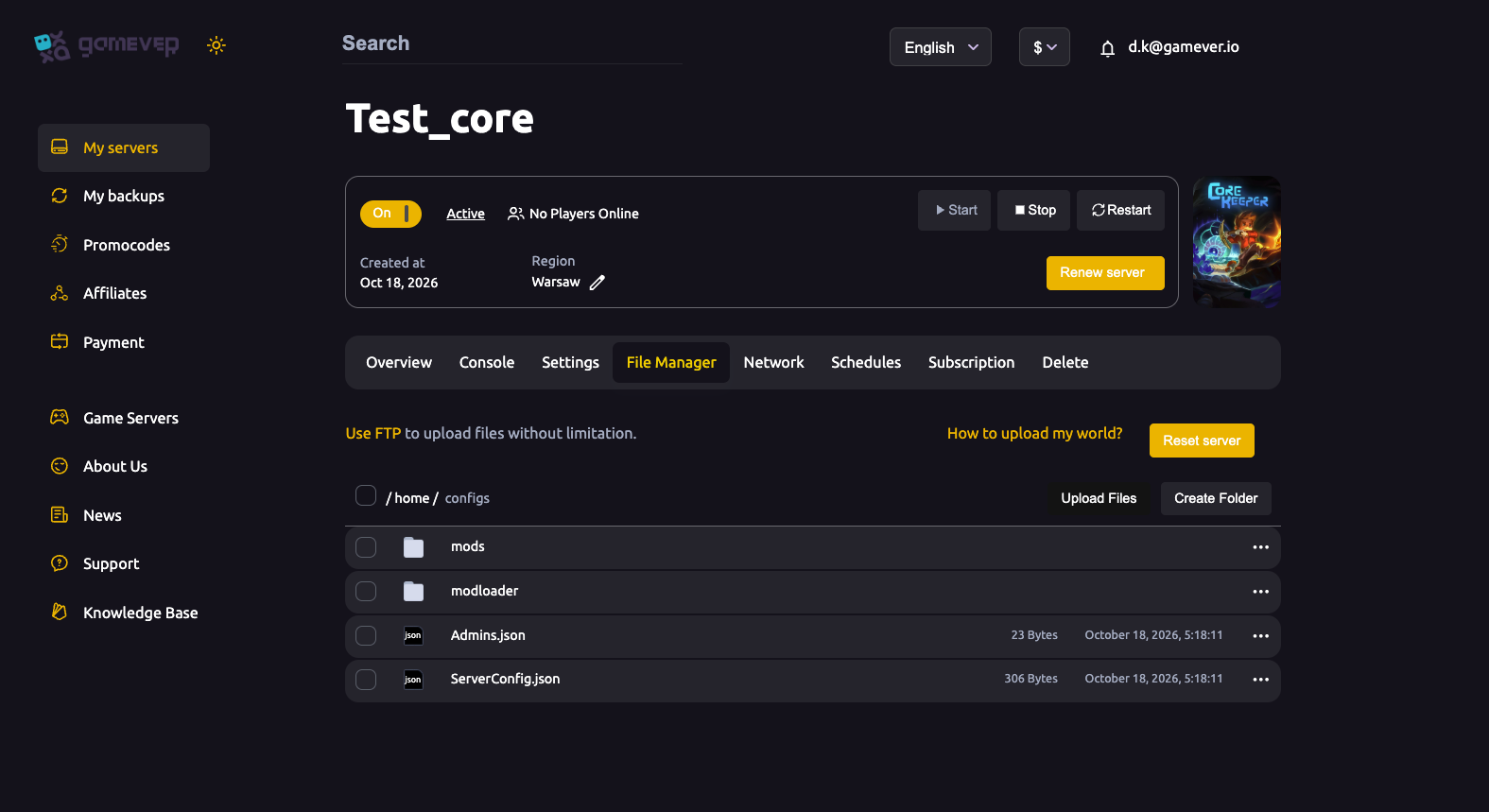
- Open the File Manager tab and browse to
/home/configs/. You will see themodsandmodloaderfolders alongsideAdmins.jsonandServerConfig.json. - Open
ServerConfig.jsonfor editing. - Set the
gameIdvalue to the code you copied from the Console — the ID the server generated on its last boot. Keep it inside the quotes and don't add spaces. - Save the file.
- Start the server again from the Overview controls.
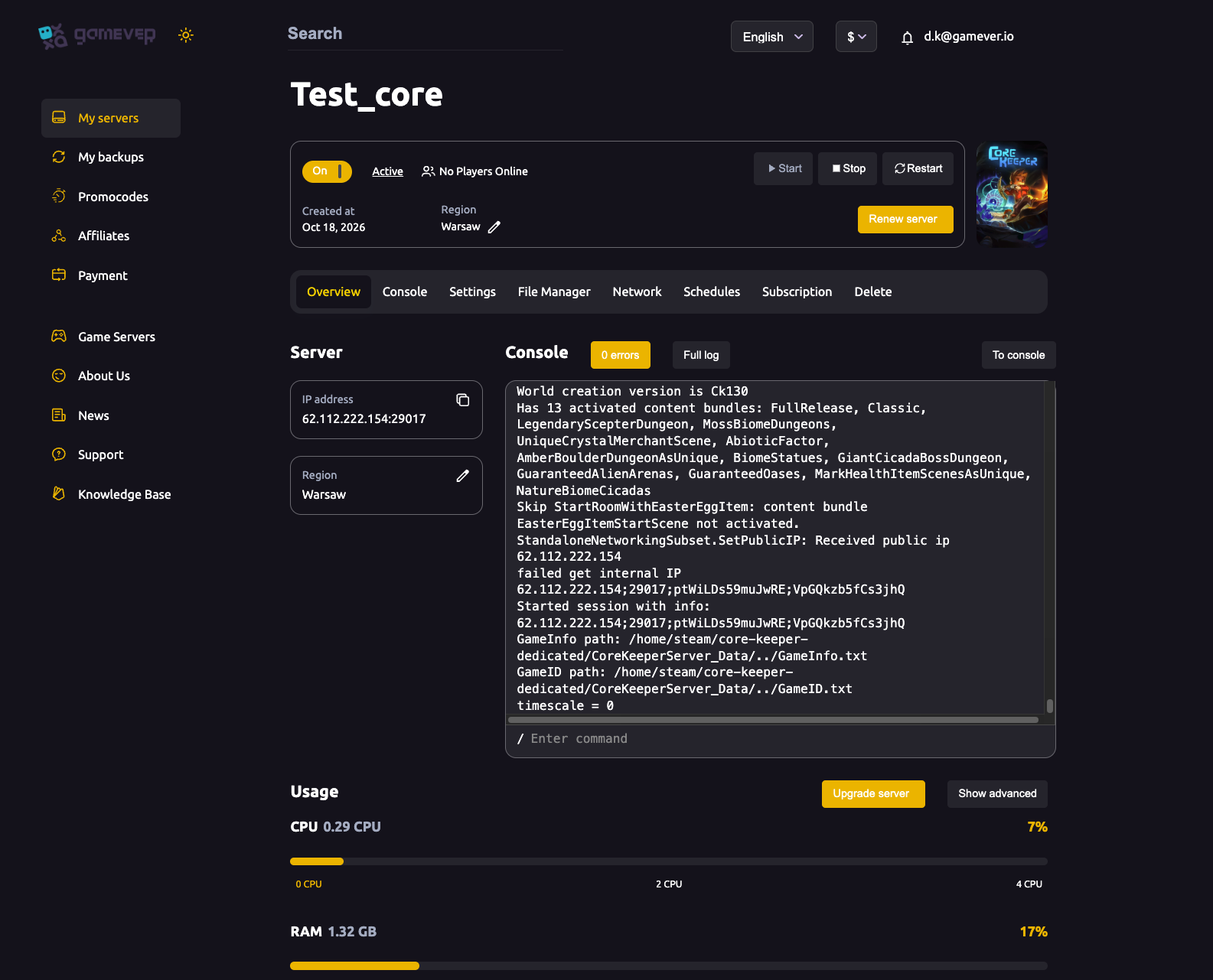
From now on the server reuses that same Game ID on every start. Check the Console after the reboot to confirm the session line shows the ID you pinned.
The payoff
Share the pinned Game ID with your group once and it survives restarts, updates, crashes and scheduled tasks. No more hunting for a fresh code after every reboot — your friends keep the same join code indefinitely, and you can drop it in a Discord pin or a saved note and forget about it.
Additional Tips
- Generate, don't invent. Let the server create the ID on first boot and copy it back into
gameId. That guarantees the length and character rules are met without you counting characters. - Keep a copy. Paste the pinned Game ID somewhere permanent (a Discord channel topic, a saved note) so you never have to dig it back out of the Console.
- Always stop before you edit.
ServerConfig.jsonis only read at boot — a change made while the server is running won't take effect until the next clean restart. - Mind the excluded characters. If you ever hand-edit the ID, avoid
Y,y,x,0andO; an invalid value makes the server fall back to generating a fresh one, undoing the pin. - The join password lives here too. The same
ServerConfig.jsonholds thepasswordkey — see server settings for the fields the panel does and doesn't expose. - Share the right thing. Give players the Game ID, not your raw IP — see how players connect with the Game ID for the in-game join steps.
Conclusion
The Game ID is the heart of joining a Core Keeper server, and by default it changes on every boot. Pinning it is a one-time job: start the server once, copy the generated ID from the Console, stop the server, set the gameId key in /home/configs/ServerConfig.json through the File Manager, save, and start again. After that your group has a single, permanent join code that outlives every restart. For the player's side of this, see connecting with the Game ID, and for the rest of the configurable fields, see Core Keeper server settings.
Rent your Core Keeper server at gamever.io — full File Manager and FTP access so you can pin your Game ID and tune your world your way. Free trial, promo code WELCOME.