
The V Rising Config Files Explained: ServerGameSettings.json vs ServerHostSettings.json
Most of your V Rising server's day-to-day options are on the Settings tab, but the full picture lives in two files in the File Manager. Knowing which file holds what lets you tune anything V Rising exposes — PvP/PvE, rates, clan size, castle decay, raid windows, blood pool — safely. This guide tours both files and the single most important rule for editing them.
The golden rule: stop or restart to apply
Edit the config, then Stop and Start (or Restart) the server so it reads the new values. Editing while the server runs won't take effect until a restart, and a running server can overwrite the file on save — so the safe sequence is:
- Stop the server (Overview → Stop).
- Edit the file in the File Manager or over FTP.
- Start the server.
Always keep the JSON valid — a stray comma or missing brace can make the server reject the file. Copy the text out before a big edit so you have a backup.
Where the files are
Open the File Manager and go to /home/configs/Settings/:
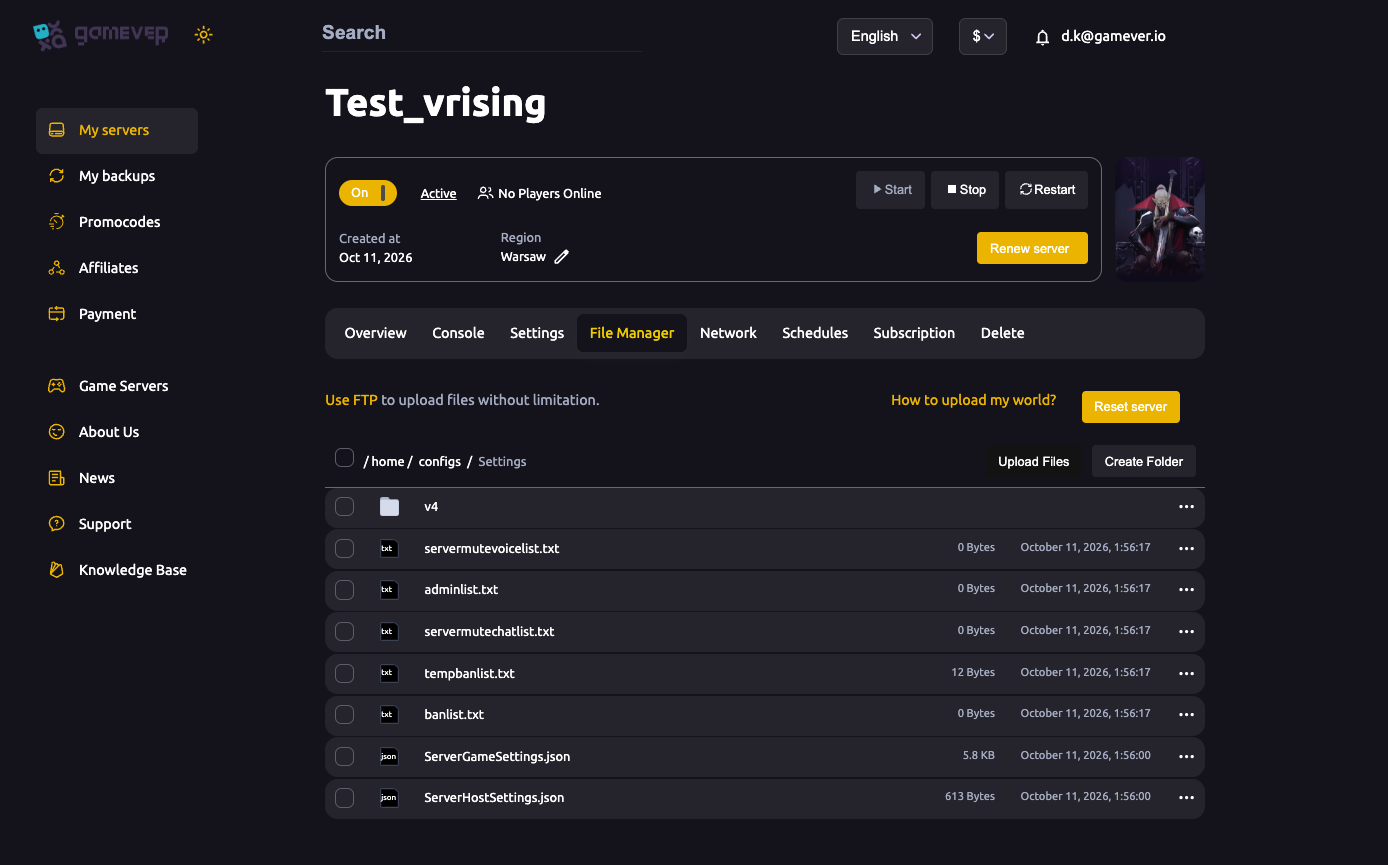
/home/configs/Settings/ServerGameSettings.json   (~5.8 KB)
/home/configs/Settings/ServerHostSettings.json   (~613 B)
The same folder also holds adminlist.txt, banlist.txt, tempbanlist.txt, servermutechatlist.txt, servermutevoicelist.txt and a v4/ folder. Edit in the panel editor, or over FTP (login on the Settings tab, address on the Network tab).
ServerHostSettings.json — the small one
This file (~613 B) holds host, network and identity settings — the same kind of thing as the Settings tab:
| Field (typical) | What it controls |
|---|---|
| Name | Server name (also on the Settings tab). |
| Description | The server's blurb. |
| Port / QueryPort | Network ports — pre-assigned on gamever (see the Network tab); don't change them. |
| MaxConnectedUsers | Player slots — see max players. |
| MaxConnectedAdmins | Reserved admin slots. |
| Password | Join password. |
| Save / AutoSave settings | Save name and interval — see backup & restore. |
| Rcon | RCON enable/password — see admins & bans. |
For these, prefer the Settings tab where a field is exposed, so a later panel Save doesn't revert your file edit.
ServerGameSettings.json — the big one
This file (~5.8 KB) is the real gameplay tuning — everything the panel doesn't show:
| Area | What it controls |
|---|---|
| GameModeType | PvP or PvE — see game modes. |
| Rates | Resource, loot, crafting and research speeds. |
| Clan settings | Max clan size. |
| Castle / decay | Castle limits and whether castles decay. |
| Blood | Blood pool and bloodbound behaviour. |
| Raids | When and how castle raids are allowed. |
| Day/night, durations | Time cycle and various timers. |
Set a Game Preset on the Settings tab to apply a whole bundle of these at once, or edit the file for custom values.
If the server won't start after an edit
- You likely broke the JSON (a comma or brace) — check the Console for a parse error and fix the syntax, or paste back your backup.
- The change may not have applied because you edited while running — redo it with the server stopped, then start.
Additional Tips
- Stop before editing, start to apply — the #1 rule.
- Keep valid JSON — one typo and the server rejects the file.
- Back up the text before a big change.
- Leave the ports alone — gamever pre-assigns them; see the Network tab.
- Host settings vs game settings — identity/network in HostSettings, gameplay rules in GameSettings.
Conclusion
Your V Rising server lives in two files: ServerHostSettings.json for identity and network, ServerGameSettings.json for the gameplay rules. Prefer the Settings tab and Game Presets where they cover a field, drop into the JSON for anything custom, and always edit with the server stopped and the JSON valid.
Rent your V Rising server at gamever.io — a browser file editor and full FTP so you can tune every last setting. Free trial, promo code WELCOME.