
Soulmask Server Settings Explained

When you rent a Soulmask server from gamever, the whole server is already installed and running for you — there's no dedicated-server download, no SteamCMD, nothing to compile. Everything you'd want to change about how your world presents itself lives on the Settings tab of your gamever control panel. This guide walks the Settings tab field by field: the Server Settings sub-tab, the Mod Settings sub-tab, and the FTP server settings sub-tab, plus how to apply your changes safely. Soulmask's dedicated server is Steam/PC-only with no crossplay, so everyone who joins is on PC.
Finding the Settings tab
From your server's panel, the tab bar across the top reads Overview · Console · Settings · File Manager · Network · Schedules · Subscription · Delete. Click Settings and you'll see the sub-tabs for Server Settings, Mod Settings and FTP server settings. Make your edits, then come back to the Overview tab to Restart — more on that below.
Server Settings sub-tab
This is the core identity of your server: its name, its passwords, and the mode and map it runs. Fields marked with an asterisk are required.
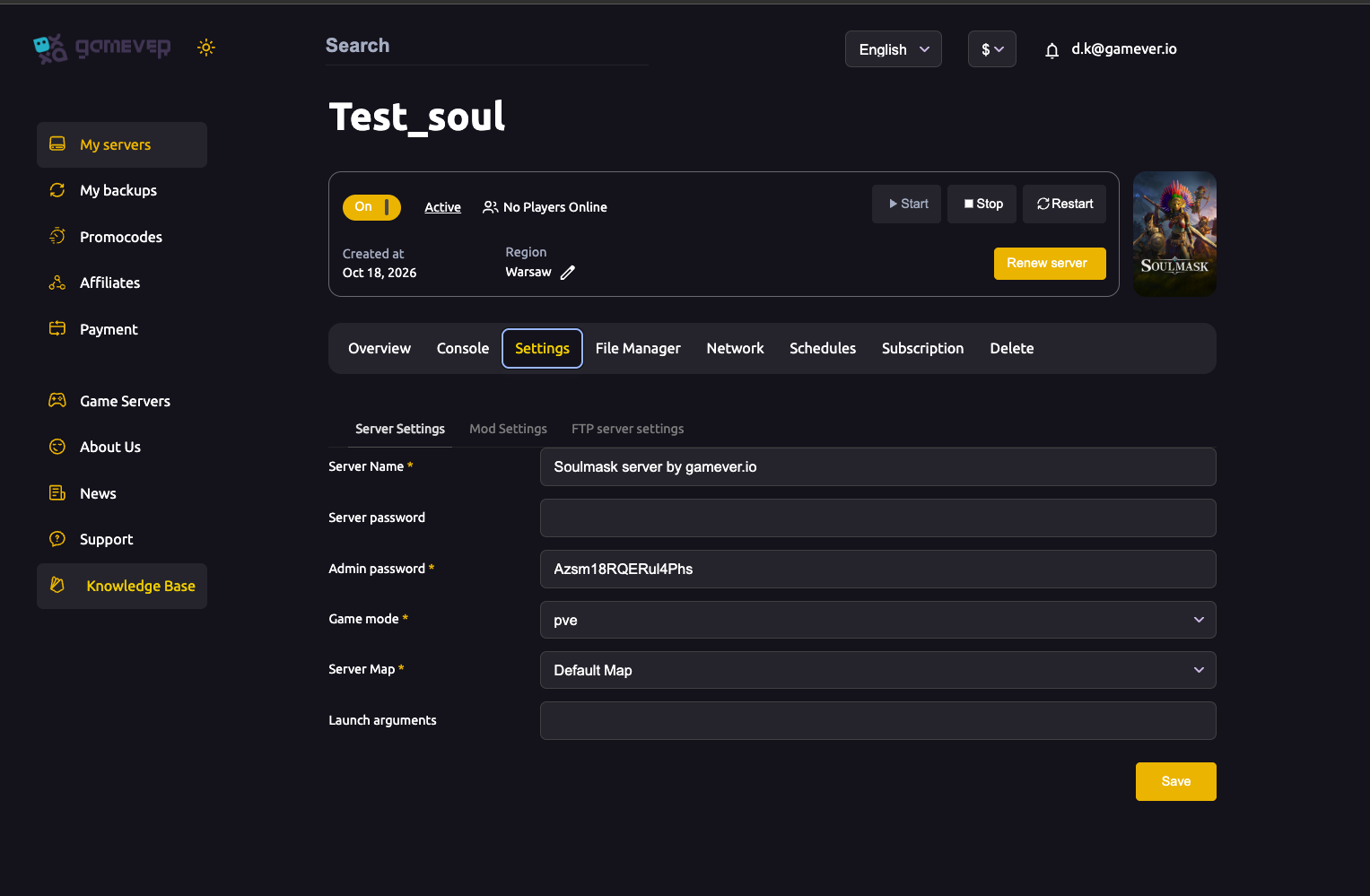
| Field | Type | What it does |
|---|---|---|
| Server Name * | text | The name shown in the in-game server browser, e.g. "Soulmask server by gamever.io". Make it recognisable so your group can find it. |
| Server password | text | Leave blank for a public server anyone can join; set a password to make it private — only players who know it can connect. |
| Admin password * | text | The server admin/GM password. You use this in-game to log in as admin, so keep it secret and distinct from the join password. |
| Game mode * | dropdown | Choose pve or pvp. PvE lets your civilization grow undisturbed; PvP opens players up to fighting rival chieftains. See the PvE vs PvP guide before you decide. |
| Server Map * | dropdown | The world your server loads, e.g. "Default Map". |
| Launch arguments | text | Extra startup flags passed to the server at boot. Leave this empty unless a flag you've verified calls for it. |
Set these once when the server is new, then Save. The Game mode choice in particular is a decision to make up front — switching between PvE and PvP later changes how the whole server behaves, so read the PvE vs PvP article first.
A note on player slots: your slot count comes with your plan (the Overview tab shows players as, for example, 0/20). If you need more slots than your plan allows, contact support rather than trying to force a higher number through a launch flag.
Mod Settings sub-tab
Soulmask has official Steam Workshop mod support, and the panel wires it straight into one field.
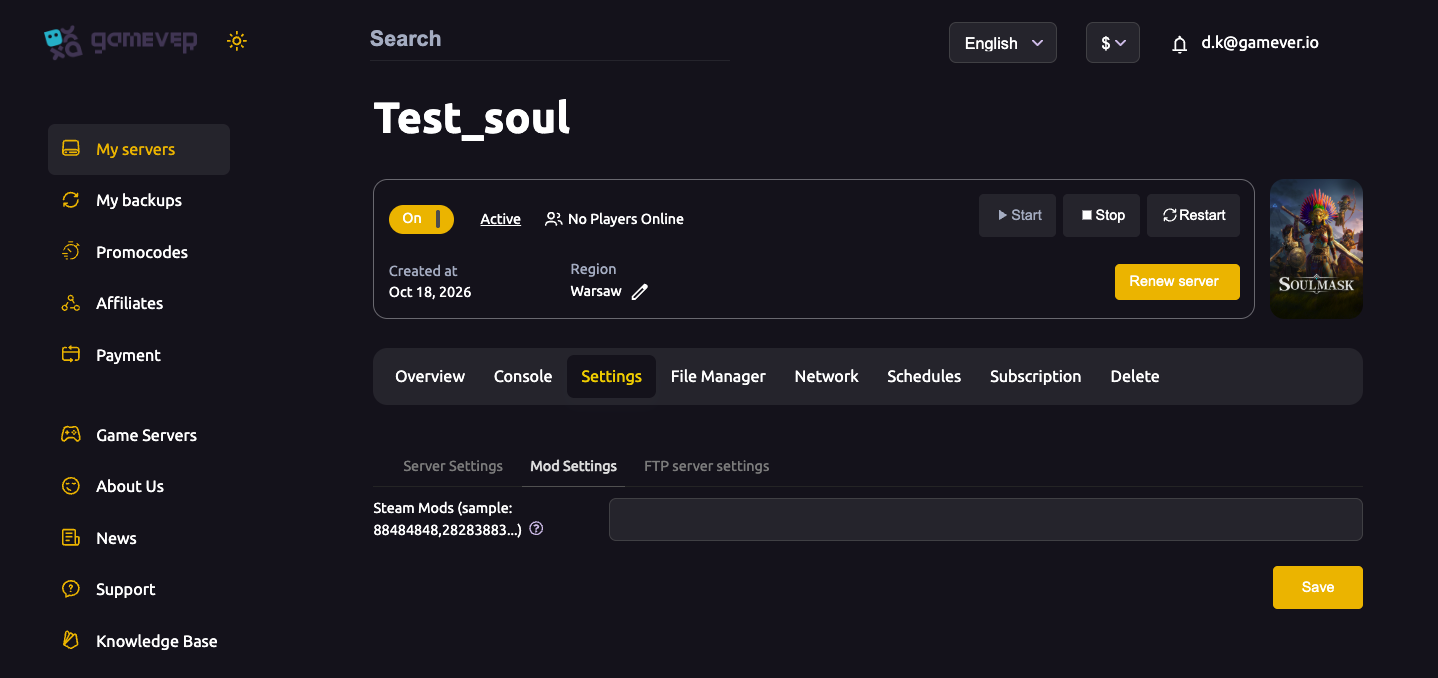
| Field | Type | What it does |
|---|---|---|
| Steam Mods | text | A comma-separated list of Steam Workshop IDs (the field placeholder shows the format, e.g. 88484848,28283883). The server downloads and loads each listed mod. |
To add a mod, find it on the Soulmask Steam Workshop, copy its numeric ID, paste the IDs into Steam Mods separated by commas, Save, then Restart. Every player must run the same mods for a clean join — our dedicated install mods guide covers finding IDs and keeping clients in sync.
FTP server settings sub-tab
This sub-tab holds the credentials for connecting an FTP client to your server's files — useful for bulk uploads, swapping a world save, or editing config files the Settings tab doesn't expose.
| Field | What it does |
|---|---|
| FTP User | Your FTP username (e.g. user-vAZm). |
| FTP Password | The matching FTP password. |
The FTP host and port aren't here — they live on the Network tab alongside your server and Steam query addresses (the panel assigns every port automatically; you never port-forward). Point your FTP client at that address with the user and password from this sub-tab and you're connected to the same files you see in the File Manager.
Save, then Restart to apply
Nothing you change on the Settings tab takes effect until you do two things in order:
- Click Save on the sub-tab you edited.
- Go to the Overview tab and click Restart.
A Soulmask server reads these settings at boot, so a running server won't pick up a changed name, password, mode or mod list until it restarts. For changes to config files you edit by hand in the File Manager, stop the server before editing so the game doesn't overwrite your file, then start it again.
Deeper gameplay tuning lives in the templates
The Settings tab covers identity and access, but it doesn't expose the fine-grained multipliers — harvest rates, experience, decay and the like. Those are governed by Soulmask's GameXishu template files, which live under /home/server/WS/Config/GameplaySettings/ (you'll see files such as GameXishu_Template_PvE_20P_3x.json). To run custom multipliers, Soulmask requires the server's difficulty to point at a custom template. Because the exact keys inside those templates change with the game, we keep that to its own walkthrough — see the custom gameplay settings guide for editing the GameXishu templates safely over the File Manager or FTP.
Additional Tips
- Set the Admin password before you open the server. It's your in-game GM login — don't leave it blank, and don't reuse the join password for it.
- Decide Game mode early. PvE and PvP shape the entire experience; settle it before players build anything they'd hate to lose.
- Keep mods in sync. After editing Steam Mods, every player needs the same Workshop items — a mismatch is the usual cause of failed joins.
- Read your own Network tab. The addresses shown there are yours specifically; don't rely on example values from a guide.
- Back up before big changes. Use My backups in the left sidebar before swapping maps, changing mode, or editing templates.
- Restart, don't just Save. A Save without a Restart leaves the live server running the old settings.
Conclusion
The Soulmask Settings tab is the front door to your server: Server Settings sets its name, passwords, mode and map; Mod Settings wires in Steam Workshop mods through a single comma-separated field; and FTP server settings hands you the login to reach every file. Change what you need, hit Save, then Restart from the Overview tab to apply it — and when you're ready to tune the deeper gameplay multipliers, step over to the GameXishu templates.
Rent your Soulmask server at gamever.io — a fully managed panel with Settings, File Manager, FTP and one-click backups, so you spend your time leading a tribe, not maintaining a box. Free trial, promo code WELCOME.