
Satisfactory Server Ports and "Can't Connect" Troubleshooting
On gamever your Satisfactory server's ports are already open and mapped — you don't configure a firewall or forward anything. This guide explains which ports your server uses, where to find the address players actually need, and how to work through the handful of reasons a connection fails.
Your ports (already open)
Open the Network tab in your gamever panel. You'll see the addresses assigned to your server:
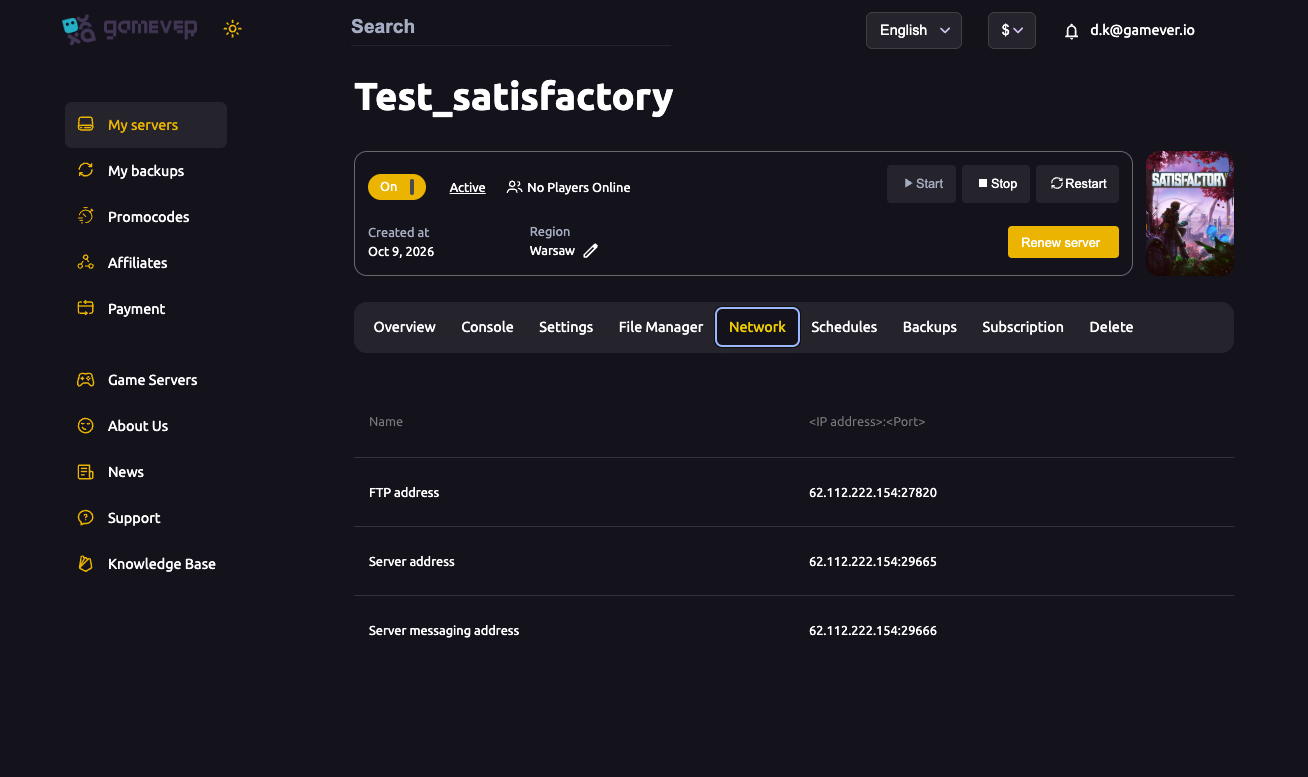
| Port / address | Purpose |
|---|---|
Server address (IP:29665) | The game port — this is what you add in-game to join. |
Messaging port (29666) | Used by the server's API/handshake alongside the game port. |
FTP (IP:27820) | File access for configs, saves and backups (not used to join). |
These are panel-assigned and already open on gamever's network — there is nothing to forward. Always use the exact values shown on your Network tab, not generic Satisfactory defaults.
How players actually join
Satisfactory has no server browser. Everyone joins by adding the Server address (IP:29665) inside the game's Server Manager — see connecting and claiming. If a friend says they "can't find" the server, that's expected: they must add it by address, not search for it.
"Can't connect" — work through this list
- Server still starting. After a Start or Restart, Satisfactory takes a minute or two to come up. Check the Overview tab shows Active with the server On before trying to join.
- Wrong address or port. Copy the Server address straight from the Network tab — a typo or the wrong port is the most common cause.
- Using the FTP or messaging port. Join on the game port (
29665), not27820(FTP) or29666(messaging). - Client/game version mismatch. If your client updated (or is on a beta branch) and the server didn't, the join fails — see updating and branches to line them up.
- Wrong password. If you set a client (join) password, players need it; an admin needs the Admin Password. Blank = open.
- Server crashed or off. Look at the Console tab for errors, then Restart from Overview.
Still stuck?
Restart the server from the Overview tab and watch the Console for the "server ready" lines. If the server reaches Active and you're using the exact Server address on the game port, players will connect. If it keeps failing, our support team can check the server from our side.
Additional Tips
- No port forwarding on gamever — ports are open already; never edit a firewall.
- Join by address, not search — Satisfactory has no browser; add
IP:29665in Server Manager. - Wait for Active after a restart before blaming the connection.
- Match versions — client and server must be on the same build/branch.
- Copy the address from the Network tab every time to avoid typos.
Conclusion
Connecting to a Satisfactory server comes down to one address — the Server address (IP:29665) from your Network tab, added in the in-game Server Manager. gamever opens every port for you, so when a join fails it's almost always timing (server still starting), a typo, a password, or a version mismatch. Walk the list above and you'll be back in your factory fast.
Rent your Satisfactory server at gamever.io — all ports open out of the box, with a Console and support team when you need them. Free trial, promo code WELCOME.