
Rust Crash When Joining Server
Rust, the beloved online multiplayer survival game, offers players an exciting open-world experience, filled with challenges, building opportunities, and engaging interactions with other players. However, there's a frustrating glitch that can leave you stranded – the game crashes when you attempt to join a server.
Common Culprits for Rust Crashes
Several factors can trigger crashes when attempting to join a Rust server.
1. Outdated Graphics Drivers: The graphics driver plays a crucial role in the game's stability. An outdated driver can often lead to crashes in Rust and other games.
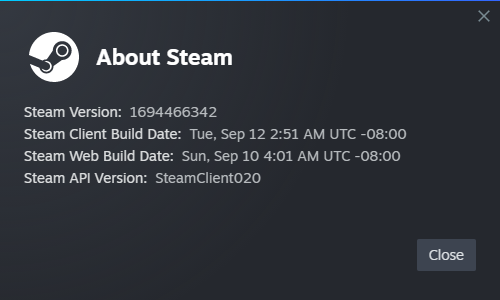
2. Outdated Steam Client: Ensuring that your Steam client is up-to-date is essential. An outdated client can lead to instability, affecting your ability to connect to servers.
3. Low Virtual Memory: Inadequate virtual memory can be a significant cause of game crashes. Properly managing your virtual memory settings can help alleviate this issue.
4. Missing Game Files: Corrupt or missing game files can disrupt the game's functioning and prevent successful server connections.
5. Discord Overlay: While a handy feature, the Discord overlay can sometimes conflict with Rust, leading to crashes.
Now, let's dive into the solutions step by step to resolve these frustrating crashes:
Increase Your Virtual Memory Limit
If Rust crashes due to low virtual memory, you can follow these steps to increase it:
- Open the file manager and right-click on "This PC."
- Go to Advanced system settings (located in the top right).
- Under the Performance section, go to settings.
- Select "Advanced" at the top.
- Click "Change" under Virtual memory.

- Deselect "Automatically manage paging file size for all drives."
- Click on your drive and set a Custom size.
- Add 2048 to the currently allocated amount and enter this number into both Initial size and Maximum size.
- Click "Set," then "OK," followed by another "OK," and finally, "Apply."
- Restart your system and try running Rust again.
Update Graphics Drivers
Outdated graphics drivers can often lead to crashes in Rust. Make sure your graphics drivers are up-to-date to ensure optimal performance:
- Press the Windows + X keys to open the Quick Link Menu.
- From the list of options, click on Device Manager.
- In the Device Manager window, double-click on Display adapters to expand the section.
- Right-click on the dedicated graphics card you are using.
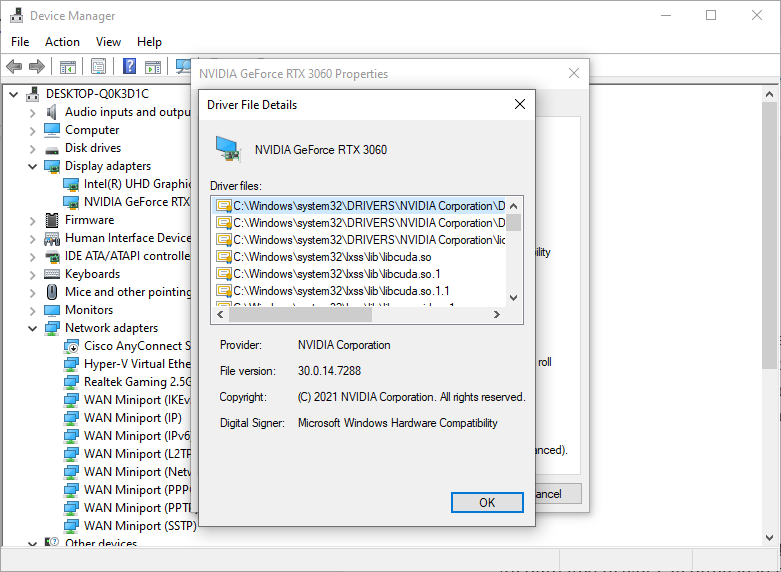
- Select "Update driver" from the context menu.
- Choose the option to "Search automatically for drivers."
- If an update is available, the system will automatically download and install it.
- Once the update process is complete, restart your computer.
For a more streamlined driver management process, consider using tools like Outbyte Driver Updater.
Verify the Integrity of Game Files
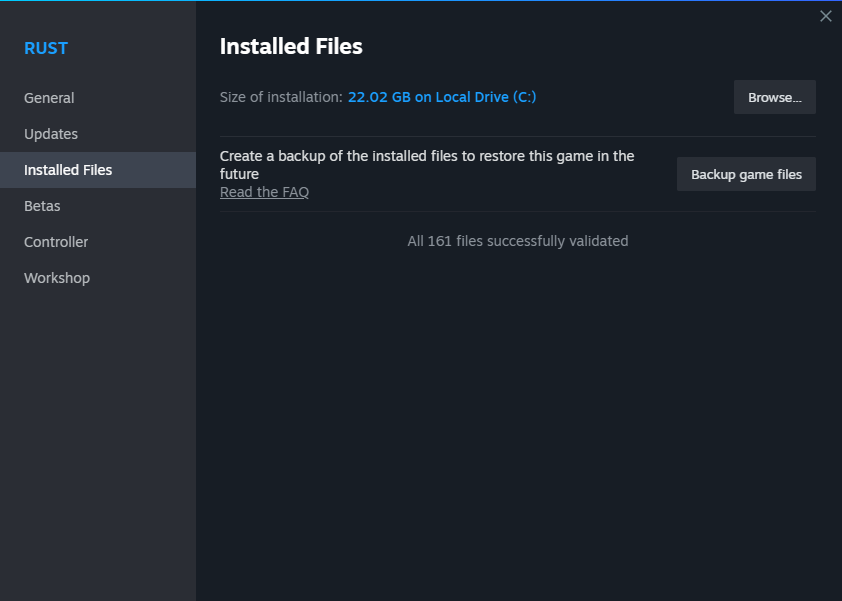
Verifying the integrity of game files is a crucial step in troubleshooting Rust crashes:
- Run Steam and go to your Library.
- Right-click on Rust.
- Select "Properties."
- Go to the "Local Files" tab.
- Click the "Verify Integrity of Game Files" button.
Conclusion
These solutions should help you overcome the frustrating issue of Rust crashing when trying to join a server. Get back into the action and enjoy the game to the fullest!