
Running a Dragonwilds Server on Linux With systemd: Auto-Update, Auto-Restart, Auto-Boot
A systemd unit turns a Dragonwilds dedicated server into something that starts on boot, updates itself through SteamCMD before every launch, and restarts automatically when it crashes. That is three of the four jobs a hosting panel does, for free, on any Debian box. The setup has one non-obvious prerequisite — the server needs 32-bit libraries even on a 64-bit system — and the community service file circulating for it contains a path bug that will silently break your updates. Here is the whole thing, corrected.
On sourcing. The procedure below comes from the community RuneScape: Dragonwilds wiki, tested on Debian 12 (Bookworm), and can change with any patch.
Prerequisites
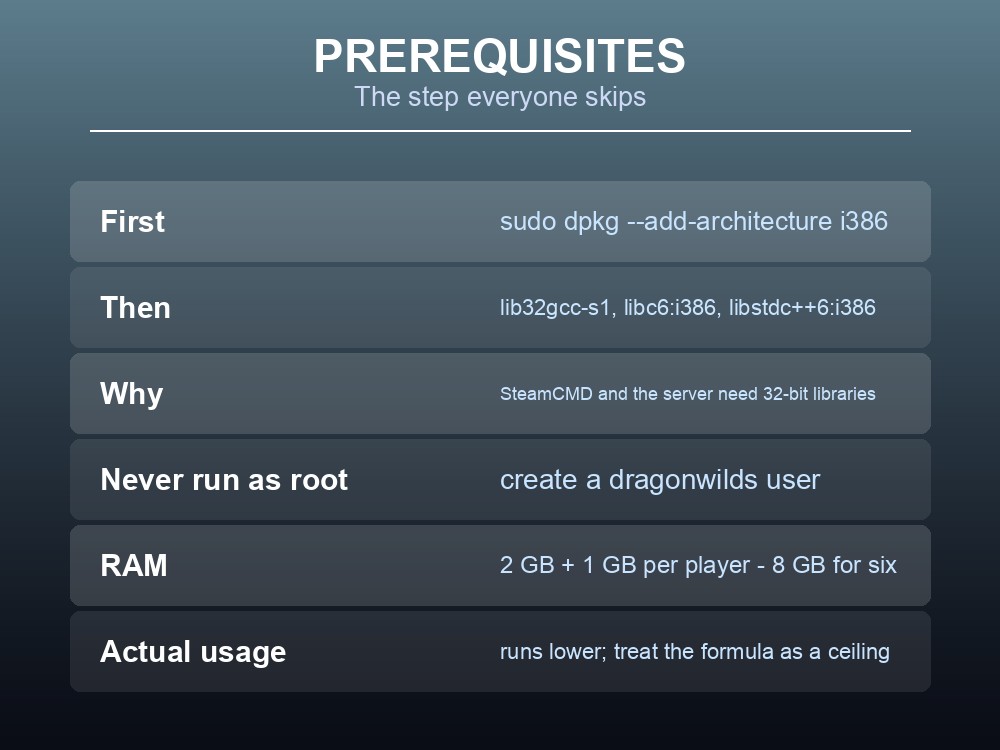
Do not run the server as root. The guide is explicit that it is a security risk, and the systemd unit assumes a dedicated user exists.
First, enable 32-bit support and install the dependencies:
sudo dpkg --add-architecture i386
sudo apt update
sudo apt install wget tar lib32gcc-s1 libc6:i386 libstdc++6:i386 -y
That dpkg --add-architecture i386 line is the step people skip. SteamCMD and the server binary both need 32-bit libraries, and without it the install fails in a way that does not obviously point at the cause.
Then create the user and the folders:
sudo useradd -m -s /bin/bash -U dragonwilds
sudo -u dragonwilds mkdir -p /home/dragonwilds/rs_server
sudo -u dragonwilds mkdir -p /home/dragonwilds/steamcmd
Sizing, from Jagex's own requirements: 64-bit only, 2 GB RAM plus 1 GB per player, so 8 GB for a full six-player world. Jagex have since said actual usage runs below that — their partner's plans allocate 3 GB for 2 players, 4 GB for 4 and 5 GB for 6 — so treat the formula as a ceiling.
Install and First Run
Switch to the dragonwilds user and install SteamCMD:
sudo su - dragonwilds
cd ~/steamcmd
wget https://steamcdn-a.akamaihd.net/client/installer/steamcmd_linux.tar.gz
tar -xf steamcmd_linux.tar.gz
./steamcmd.sh
Type quit at the Steam> prompt once it finishes setting itself up.
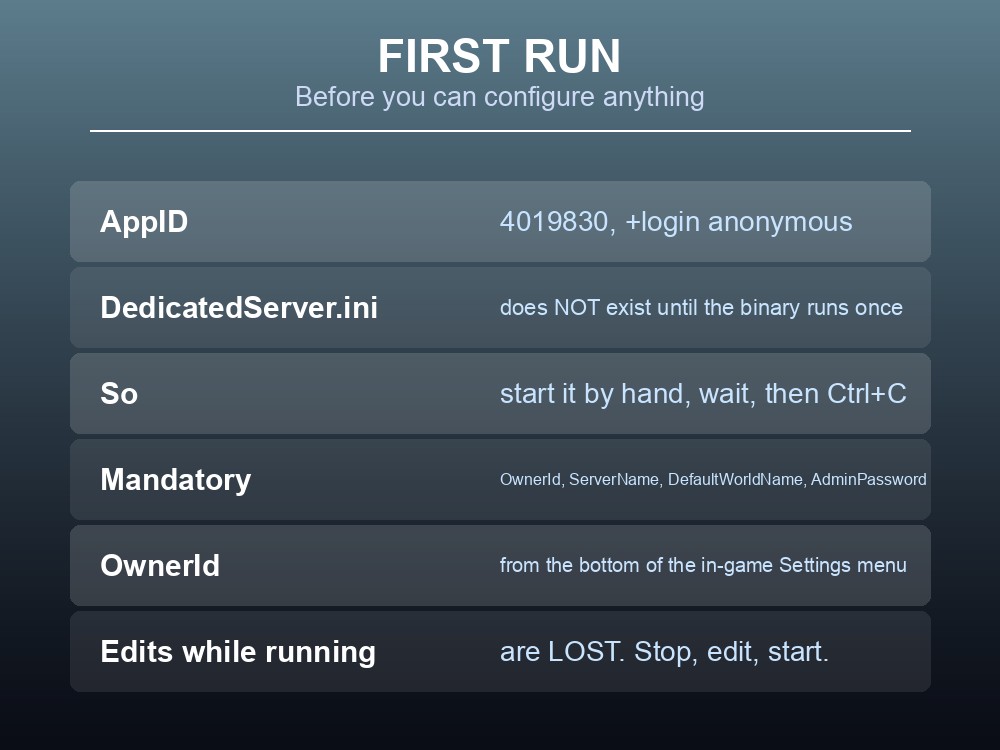
Then pull the server — AppID 4019830, anonymous login, no account needed:
cd ~/rs_server
~/steamcmd/steamcmd.sh +force_install_dir /home/dragonwilds/rs_server \
  +login anonymous +app_update 4019830 validate +quit
chmod +x /home/dragonwilds/rs_server/RSDragonwildsServer.sh
Now the step that trips people up: you must start the server once by hand before you can configure it.
~/rs_server/RSDragonwildsServer.sh -log -NewConsole -Port=7777
DedicatedServer.ini does not exist until the binary has run once. This first launch creates it — with a freshly generated ServerGuid — and a default Standard world save. Both are expected. Wait for startup to finish, then stop with Ctrl+C.
Then edit the config:
nano ~/rs_server/RSDragonwilds/Saved/Config/LinuxServer/DedicatedServer.ini
| Setting | Required? | Notes |
|---|---|---|
| OwnerId | Mandatory | Your Player ID, from the bottom of the in-game Settings menu. The server will not start without it |
| ServerName | Mandatory | The server's name, independent of which world it runs |
| DefaultWorldName | Mandatory | What the auto-created world is called |
| AdminPassword | Mandatory | Anyone with it gets Server Management access from the pause menu |
| WorldPassword | Optional | Supersedes any password stored in the world; leave empty for open access |
And the rule that costs people their settings: changes made while the server is running are lost. Always stop, edit, start — never edit live.
The Service File
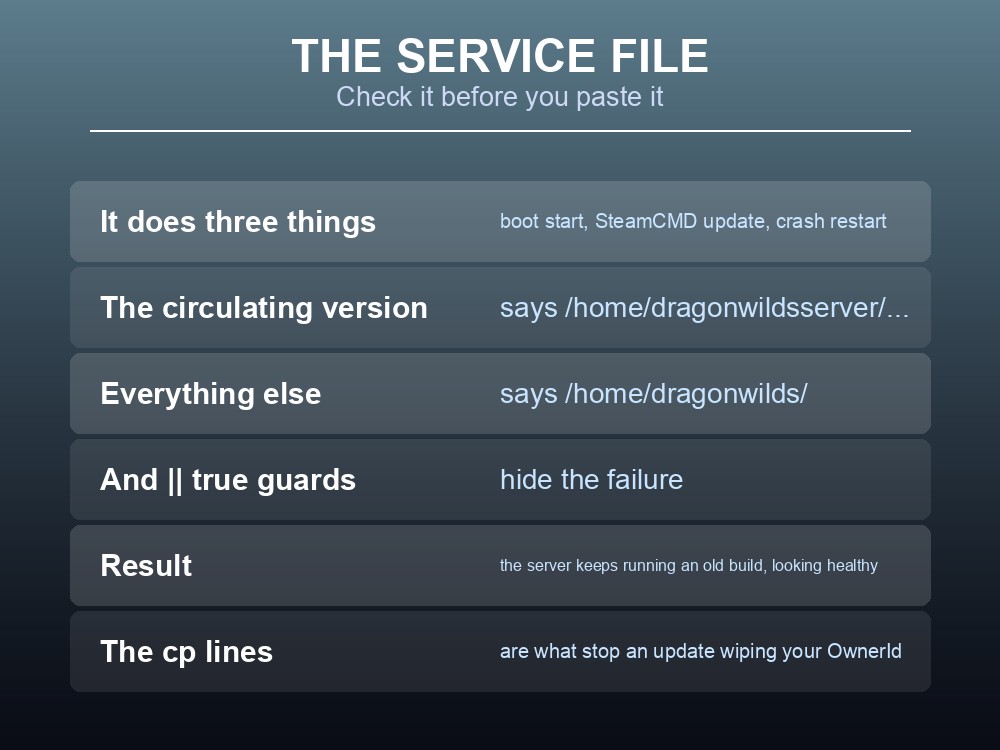
The unit does three jobs: start on boot, update via SteamCMD before every start, and restart on crash. Create it with sudo nano /etc/systemd/system/dragonwilds.service:
[Unit]
Description=RuneScape Dragonwilds Dedicated Server
Wants=network-online.target
After=network-online.target

[Service]
Type=simple
User=dragonwilds
Group=dragonwilds
TimeoutStartSec=10min
WorkingDirectory=/home/dragonwilds/rs_server

ExecStartPre=/bin/mkdir -p /home/dragonwilds/dragonwilds_backups
ExecStartPre=/bin/bash -c "cp /home/dragonwilds/rs_server/RSDragonwilds/Saved/Config/LinuxServer/DedicatedServer.ini /home/dragonwilds/dragonwilds_backups/DedicatedServer.ini.bak || true"
ExecStartPre=/home/dragonwilds/steamcmd/steamcmd.sh +login anonymous +force_install_dir /home/dragonwilds/rs_server +app_update 4019830 validate +quit
ExecStartPre=/bin/bash -c "cp /home/dragonwilds/dragonwilds_backups/DedicatedServer.ini.bak /home/dragonwilds/rs_server/RSDragonwilds/Saved/Config/LinuxServer/DedicatedServer.ini || true"
ExecStartPre=/bin/bash -c "chmod +x /home/dragonwilds/rs_server/RSDragonwildsServer.sh"

ExecStart=/home/dragonwilds/rs_server/RSDragonwildsServer.sh -log -NewConsole -Port=7777

Restart=always
RestartSec=15

[Install]
WantedBy=multi-user.target
One correction worth flagging. The version of this file circulating in the community writes the SteamCMD line as /home/dragonwildsserver/steamcmd/steamcmd.sh with +force_install_dir /home/dragonwildsserver/rs_server — dragonwildsserver, not dragonwilds, while every other line in the same file uses dragonwilds. If you paste it unchanged, the update step points at a directory that does not exist, and because the surrounding || true guards mask failures, your server will keep starting on an old build while looking healthy. The paths above are corrected to match the user created earlier — but check them against your own directory names before enabling the unit.
Then enable it:
sudo systemctl daemon-reload
sudo systemctl start dragonwilds
sudo systemctl enable dragonwilds
The config backup-and-restore around the update matters more than it looks. SteamCMD's validate can overwrite files in the install tree, and DedicatedServer.ini lives inside it. Those two cp lines are what stop an update wiping your Owner ID.
Day-to-Day Operation
| Task | Command |
|---|---|
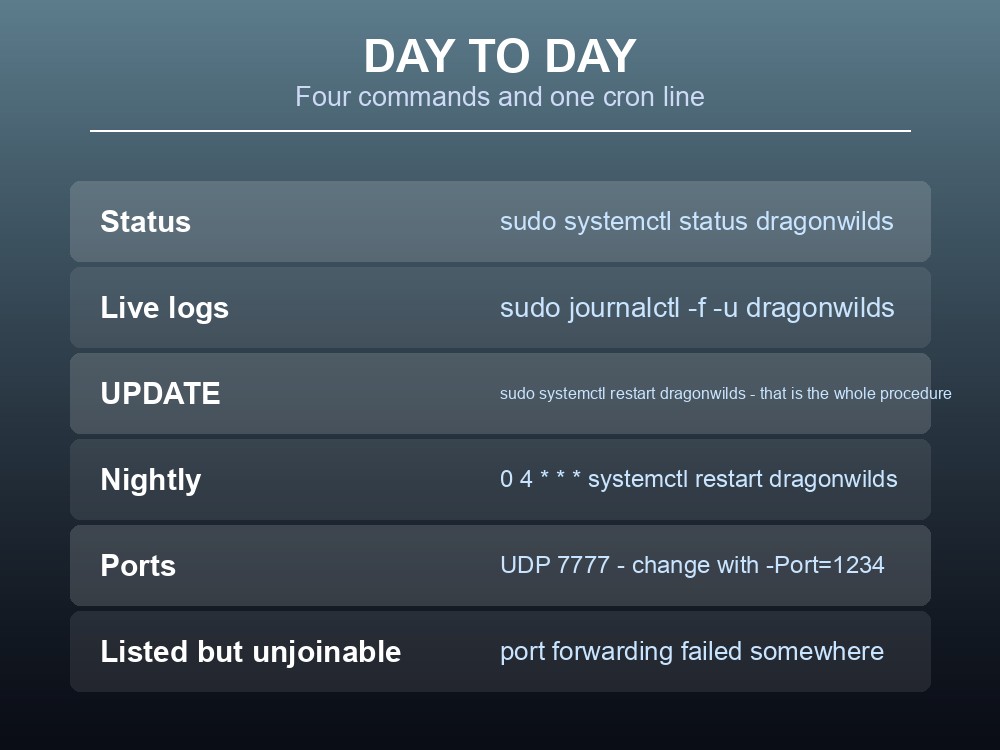
| Check status | sudo systemctl status dragonwilds |
| Stop | sudo systemctl stop dragonwilds |
| Restart — and update | sudo systemctl restart dragonwilds |
| Watch logs live | sudo journalctl -f -u dragonwilds |
Updating is just a restart. Because SteamCMD runs as an ExecStartPre, restarting the service pulls the latest build and restores your config afterwards. There is no separate update procedure.
Version mismatch is the most common reason a server vanishes from the browser, and it happens "any time an update or hotfix is released" — so a scheduled restart is worth adding:
sudo crontab -e
# then add:
0 4 * * * systemctl restart dragonwilds
That keeps the server on the current build without touching your config or saves.
Two more operational notes:
Port forwarding is UDP, not TCP. The server listens on UDP 7777 by default, and every router between the machine and the internet needs the forward. Change it by passing -Port=1234 to the startup script. The diagnostic tell: if the server appears in other players' lists but is not joinable, the forward failed somewhere. For local play, connect directly to the machine's LAN address — find it with ip a.
Resetting to a fresh world is a folder deletion. On startup the server loads the newest .sav it finds; if the folder is empty it generates a new world from the current config:
sudo systemctl stop dragonwilds
rm -rf ~/rs_server/RSDragonwilds/Saved/Savegames/*
sudo systemctl start dragonwilds
Back up that folder before you do it. It is the same folder a world import goes into, and there is no undo.
Practical tips
- Enable i386 before installing — SteamCMD and the server need 32-bit libraries.
- Never run as root. Create a
dragonwildsuser.- AppID 4019830,
+login anonymous.- Start the binary once by hand —
DedicatedServer.inidoes not exist until you do.- OwnerId is mandatory; the server will not start without it.
- Stop, edit, start. Config changes made while running are lost.
- Check the SteamCMD path in the community service file — it says
dragonwildsserver.systemctl restartis the update procedure. Add a 4 a.m. cron line.- UDP 7777. Listed but unjoinable means port forwarding failed.
Running your own RuneScape: Dragonwilds server
All of the above is a weekend of work plus ongoing responsibility for updates, port forwarding and backups — which is the trade-off worth making consciously. A gamever Dragonwilds server keeps Ashenfall available around the clock for up to six players, updates automatically so client and server versions never drift, and takes one-click backups before disruptive changes.
Conclusion
A Dragonwilds server on Linux runs cleanly under systemd once three things are right. First the prerequisites: enable the i386 architecture and install the 32-bit libraries, create a dedicated non-root user, and size the box at 2 GB plus 1 GB per player. Second the first run — DedicatedServer.ini is only created after the binary has executed once, so start it by hand, stop it, then fill in the mandatory OwnerId, ServerName, DefaultWorldName and AdminPassword, remembering that edits made while the server is running are discarded. Third the unit itself, which backs up the config, runs SteamCMD, restores the config and starts the server, with Restart=always for crashes and systemctl enable for boot. Check the SteamCMD path before pasting — the widely shared version of the file uses dragonwildsserver where everything else uses dragonwilds, and the || true guards will hide the failure. After that, systemctl restart is the entire update process, and a daily cron restart keeps you on the current build so client and server versions never drift.
Want the systemd unit to be somebody else's problem? Rent a Dragonwilds server at gamever.io — instant setup, one-click backups and updates, and 24/7 uptime. Start with a free trial and use promo code WELCOME.