
Project Zomboid Server Settings Explained
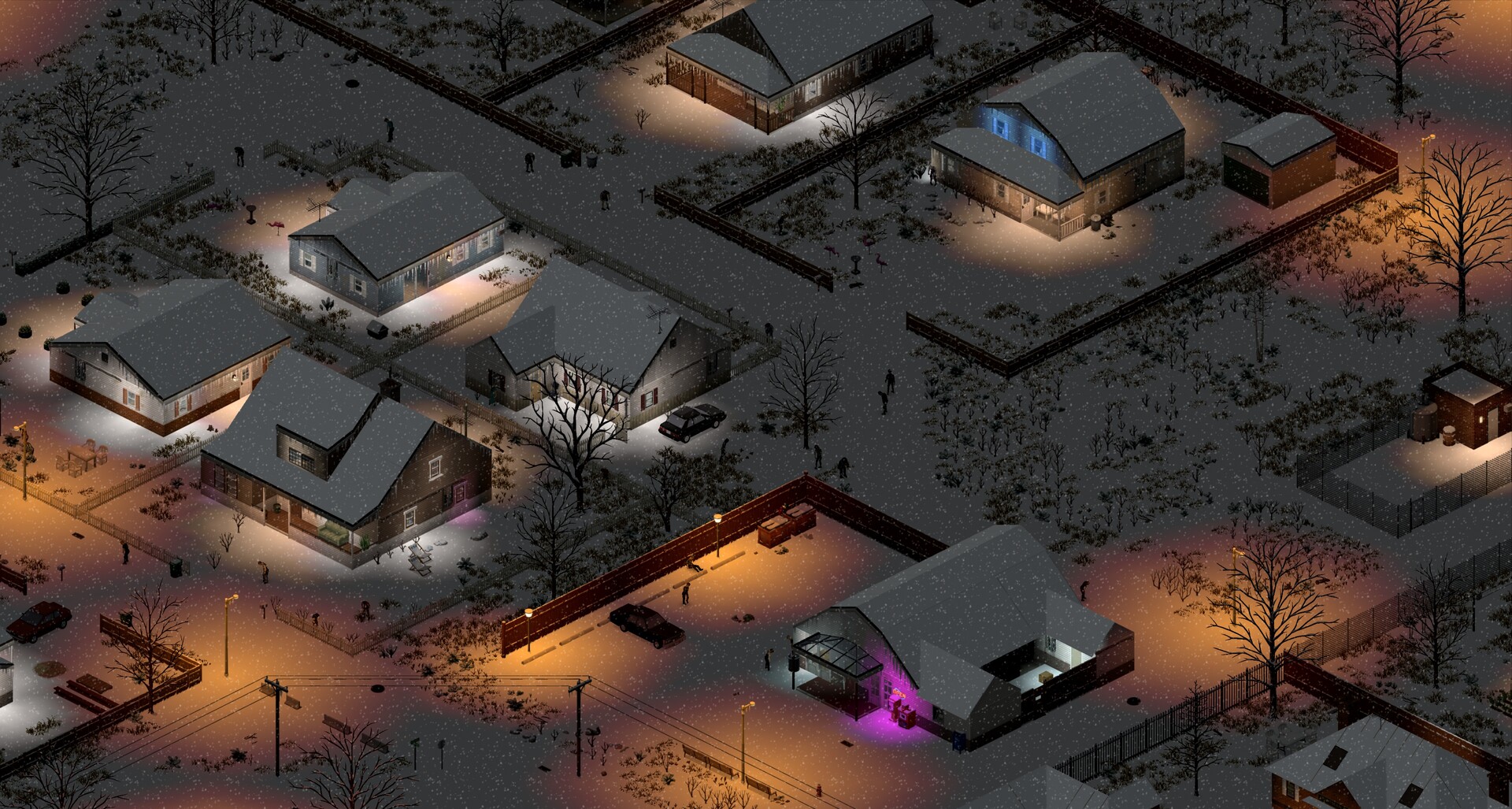
The heart of your Project Zomboid server lives on one page: Settings → Server Settings. This is where you name the server, set its passwords, create your admin account, decide whether it's listed publicly and choose the map. This guide explains every field so you can set the server up exactly how you want it.
Server Settings
Open Settings → Server Settings:
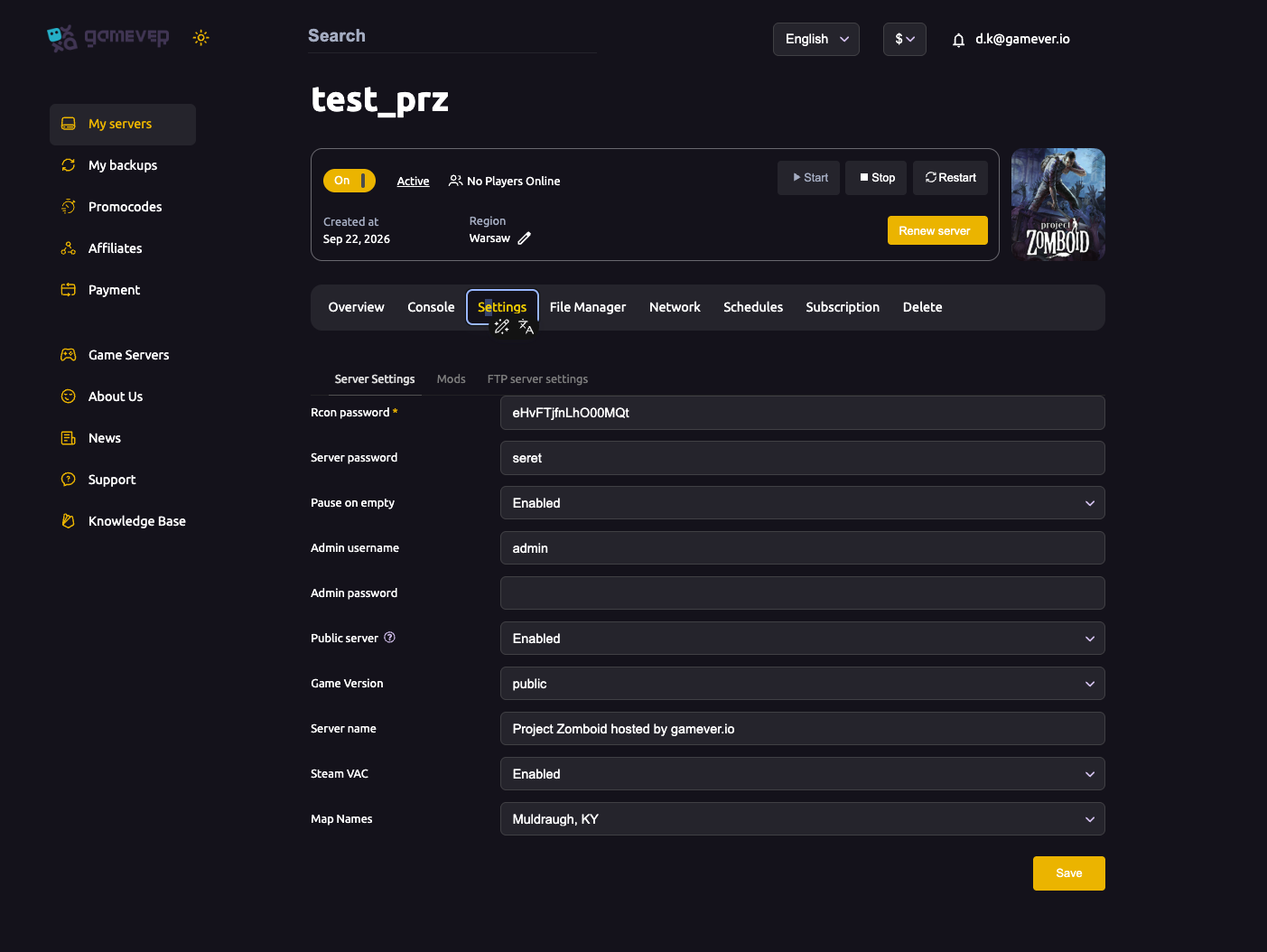
| Field | What it does |
|---|---|
| Server name | The name shown for your server. |
| Server password | The password players must enter to join. Leave it blank for an open server, or set one for a private group — see passwords & admin. |
| Rcon password | The password for remote console (RCON) administration. |
| Pause on empty | Enabled pauses the world while no one is online (saving CPU and freezing time); Disabled keeps it running 24/7. |
| Admin username | The in-game admin account name. |
| Admin password | That account's password — used to log in as admin and run admin commands. |
| Public server | Enabled lists your server in the in-game browser; Disabled keeps it private (players join by IP only). |
| Game Version | Which branch the server runs (for example public). |
| Steam VAC | Enabled turns on Valve Anti-Cheat; Disabled turns it off. |
| Map Names | The map(s) the server loads, for example Muldraugh, KY — see change map. |
Change what you want, Save, then Restart the server to apply.
What's set elsewhere
A few things live on their own sub-tabs or files rather than here:
- Mods — on Settings → Mods (both the Workshop IDs and the mod names), see install mods.
- FTP login — on Settings → FTP server settings, see upload a world.
- Sandbox difficulty (zombie population, loot, XP rates, day length) — in the
_SandboxVars.luafile via the File Manager, see sandbox settings.
Additional Tips
- Save then Restart — most changes only take effect after a restart.
- Set a server password for a private group; leave it blank for open play.
- Create your admin account (username + password) before you need it.
- Pause on empty saves CPU but freezes time — turn it off if you want the world to keep ticking.
- Public server off keeps you off the in-game browser — share the IP directly instead.
Conclusion
Your Project Zomboid server's core behaviour is a single page on gamever: name it, set a server and RCON password, create your admin account, choose whether it's public, pick the branch and set the map. Save, restart, and the server runs the way you want. For mods, sandbox difficulty and world uploads, follow the linked guides.
Rent your Project Zomboid server at gamever.io — every key setting in one panel, with full file access for the rest. Free trial, promo code WELCOME.