
Project Zomboid Mod Load Order: Workshop IDs vs Mod IDs
Once your Project Zomboid server runs more than a couple of Workshop mods, load order starts to matter. Two mods that both touch the same item, recipe or script can't both win — one has to override the other, and which one wins comes down to the order they load in. This guide explains the difference between the two values every mod needs, why order decides conflicts, and how to track down a single mod that's stopping your server from booting. It's all done from the gamever panel — no files to edit by hand. If you're installing your first mod, start with our install mods guide; this article is about getting a list of mods to play nicely together.
Two different IDs — and why they're not the same
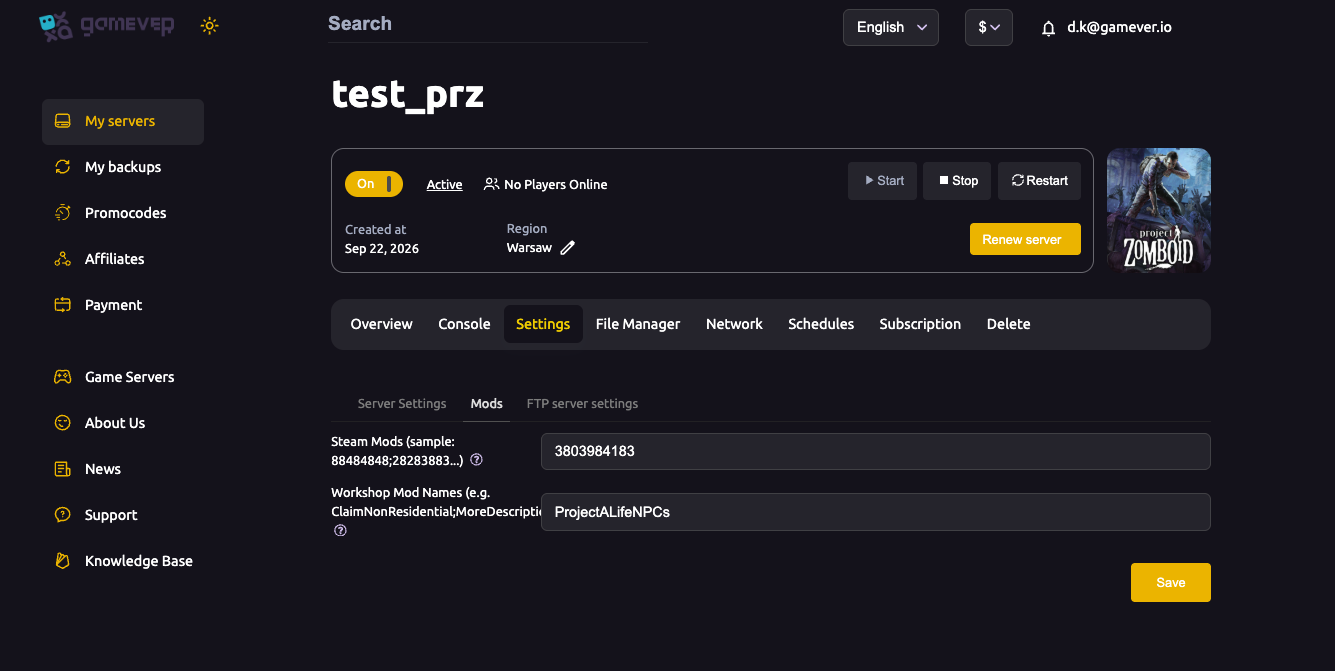
Every Workshop mod needs two values, and they are almost never the same string. On a gamever server both live under Settings → Mods:
| Panel field | Config key | What it is | Its job |
|---|---|---|---|
| Steam Mods | WorkshopItems | The Steam Workshop IDs — the number at the end of a Workshop page URL (.../?id=<number>). | Tells the server which items to download. |
| Workshop Mod Names | Mods | The internal Mod IDs from each mod's mod.info file (not the display name you see on Steam). | Tells the game which mods to actually load. |
The split is the single biggest source of confusion. The Workshop ID downloads the files; the Mod ID switches the mod on. Fill in only the Workshop ID and the files land on disk but nothing loads; fill in only the Mod ID and the server tries to enable something it never downloaded. Both fields, every time.
One wrinkle that matters for ordering: a single Workshop item can contain more than one Mod ID, so the two lists don't always have the same number of entries. One Workshop ID in Steam Mods can need two or three Mod IDs in Workshop Mod Names. Check the mod's Workshop description — many authors print both "Workshop ID" and "Mod ID" lines there.
Why order matters
Project Zomboid loads the mods in your Workshop Mod Names list from first to last. When two mods change the same thing, the one loaded later overrides the one loaded earlier. So position in the list is a priority setting, not just a list — move a mod later (further right) and its version of a shared file wins.
A reliable order to aim for:
- Libraries and frameworks first. Anything other mods depend on has to load before them. If a mod's Workshop page lists "Required Items", those dependencies go ahead of it.
- Maps next, before any mod that adds items or buildings to those maps.
- Content and overhaul mods in the middle.
- Patches and compatibility mods last, so their fixes override whatever they're patching.
Because order lives in the semicolon-separated lists themselves, you set it simply by arranging the entries — the first Mod ID loads first, the last loads last.
Keep the two lists aligned
The cleanest way to avoid mistakes is to keep Steam Mods and Workshop Mod Names in the same order, so each Workshop ID lines up with its Mod ID:
Steam Mods:          3803984183;2200148440;2875848298
Workshop Mod Names:  ProjectALifeNPCs;Brita;Brita_2
Note the third line: that middle Workshop item ships two Mod IDs, so it takes two slots in Workshop Mod Names even though it's one download. Keeping the lists parallel makes it obvious at a glance which name belongs to which ID, and makes reordering a matter of moving a pair together.
Troubleshooting a mod that breaks the server
When the server won't start, crashes on boot, or a mod silently does nothing after you added it, work through this in order:
- Did you fill in both fields? A mod that "downloaded but won't turn on" is almost always missing from Workshop Mod Names. A mod that "can't be found" usually has the wrong Mod ID — remember it's the internal
mod.infoID, not the Steam title. - Check the Build. Project Zomboid Build 42 is stricter about mods than Build 41 was, and a mod built only for Build 41 can fail or crash on a Build 42 server (and vice-versa). Confirm your Game Version matches what the mod supports — see the mod's Workshop page.
- Missing dependency. If the mod needs a library or framework, that dependency has to be in both lists and loaded before it. A missing required item is a classic boot-time crash.
- Isolate the culprit. Remove the last mod you added from both fields, then save and restart. If the server comes back, that mod (or a conflict with it) is the problem. Re-add mods one at a time to find the clash.
- "Workshop item version is different." This is a timing issue, not a load-order bug: Steam updated the mod but the server is still serving the previous version. Restart the server so it pulls the latest copy.
- A conflict between two working mods (both load, but one breaks the other's feature) is resolved by order: put the mod whose behaviour you want to win later in the list, or add a dedicated compatibility patch at the very end.
Read the server log after a failed boot — it names the mod it choked on, which usually points straight at the offender.
Additional Tips
- Reorder by editing the lists in Settings → Mods, then Save and Restart — changes apply on restart.
- Back up before a big reorder. Save a copy of your world over FTP first — see backup & restore.
- Every player must subscribe to the same Workshop mods in Steam, or they can't join a modded server.
- For map load order specifically, which map "wins" overlapping tiles depends on order too — see change map.
- Follow the Workshop page's own load-order notes. Some authors state exactly where their mod must sit relative to others; those instructions beat any general rule.
Conclusion
Mod load order on Project Zomboid comes down to two ideas: every mod needs both its Workshop ID (Steam Mods, to download) and its Mod ID (Workshop Mod Names, to load), and when mods clash, the one loaded later wins. Put libraries and dependencies first, patches last, keep the two lists in matching order, and when something breaks, pull the last mod you added and read the log.
Rent your Project Zomboid server at gamever.io — a clean Mods panel and full FTP so you can run and tune any Workshop load order you like. Free trial, promo code WELCOME.