
Palworld Crossplay Server Settings: Play Across Steam, Xbox, PS5 and Mac
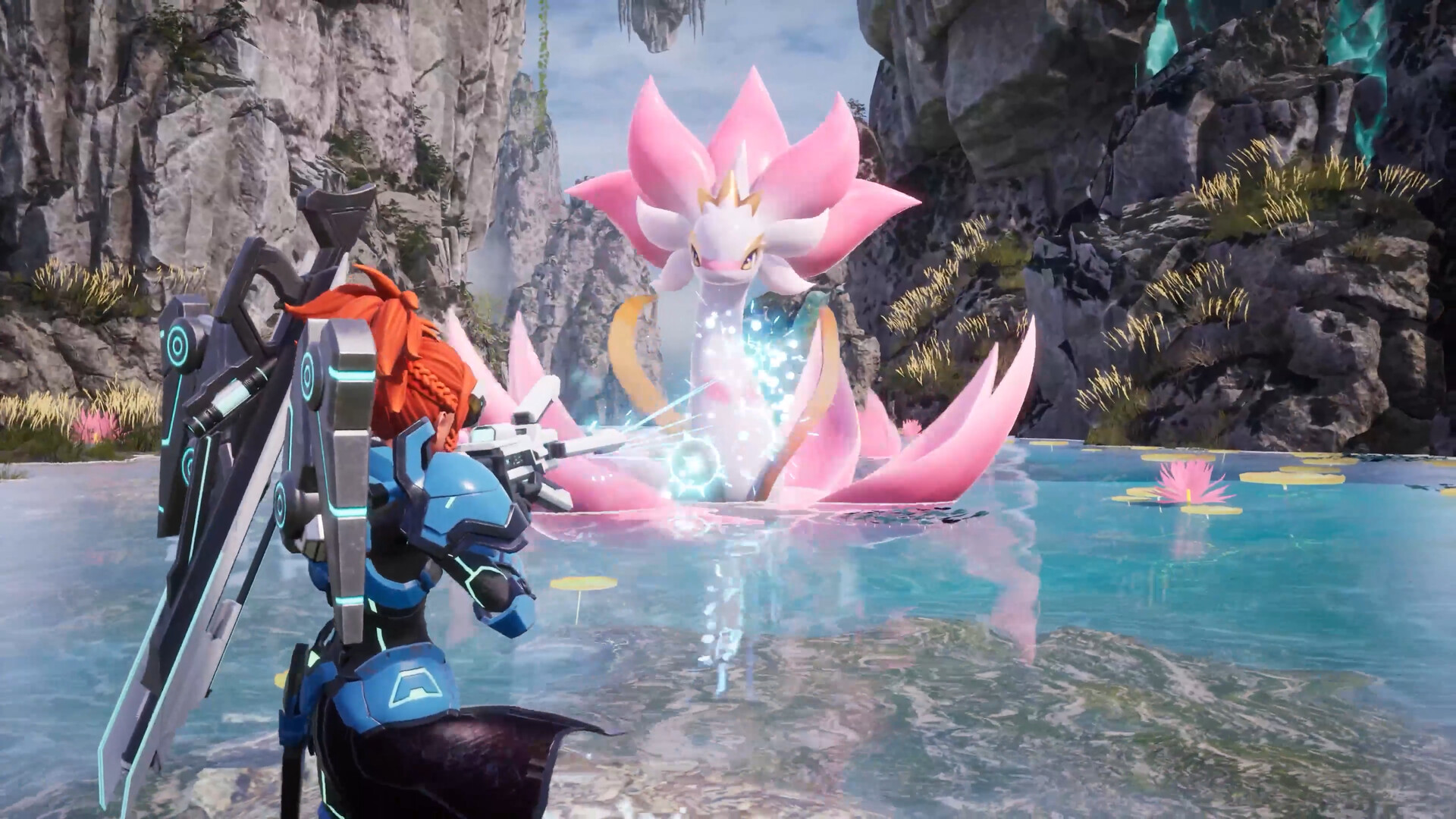
One of Palworld's best features is crossplay: friends on Steam, Xbox, PlayStation 5 and Mac can all share the same world. On a gamever-hosted server that works out of the box, but two settings decide who can get in — the Platform field (which platforms are allowed to connect) and the Community server toggle (how console players find you). This guide explains which platforms can play together and how to set both in the gamever control panel, with no launch flags to memorise.
Which platforms can play together
Palworld supports crossplay between four platforms, and by default a dedicated server allows all of them. The allowed list is controlled by the CrossplayPlatforms setting in PalWorldSettings.ini, whose official default is (Steam,Xbox,PS5,Mac). On gamever you don't edit that file by hand — the setting is surfaced as the Platform field in Server settings.
| Token | Platform |
|---|---|
Steam | PC via Steam |
Xbox | Xbox consoles and PC Game Pass (Microsoft Store) |
PS5 | PlayStation 5 |
Mac | Steam on macOS |
Anyone on a platform in the list can join and play together in the same world. (Note: the older AllowConnectPlatform option is deprecated — the current game uses CrossplayPlatforms instead, which is exactly what the panel's Platform field writes.)
Set the Platform field
Open Settings → Server settings and find the Platform field. It holds the platform list in the same format as the config file:
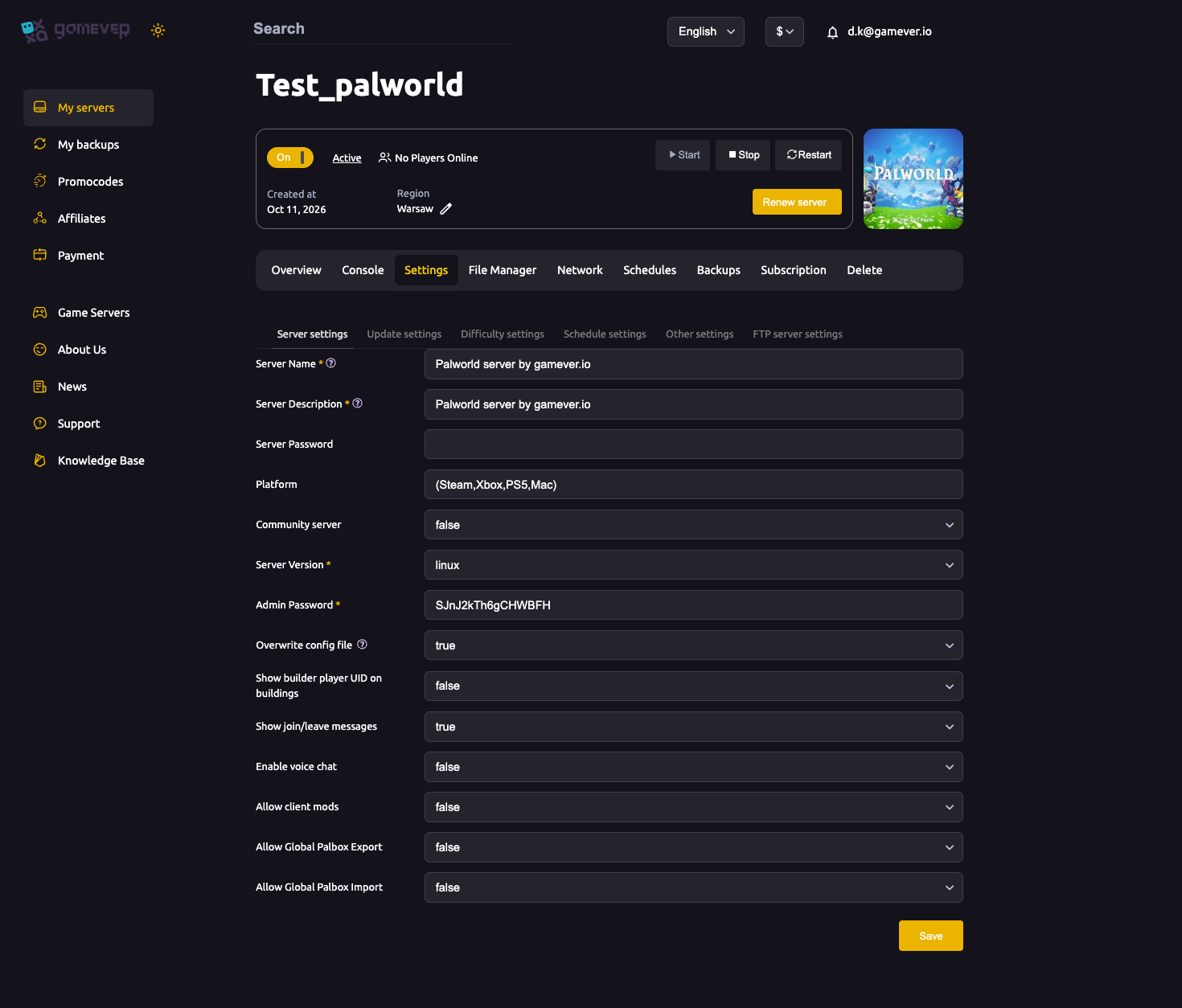
Leave it at (Steam,Xbox,PS5,Mac) for full crossplay. To restrict the server to specific platforms, remove the ones you don't want and keep the parentheses and comma format:
| Goal | Platform field value |
|---|---|
| All platforms (default, full crossplay) | (Steam,Xbox,PS5,Mac) |
| PC only (Steam + Mac) | (Steam,Mac) |
| Steam only | (Steam) |
| Everything except PlayStation | (Steam,Xbox,Mac) |
After editing the field, click Save and Restart the server from the Overview tab so the change is applied.
Let console players find your server
Here's the catch that trips most people up: Xbox and PlayStation 5 players join from the in-game Community Servers browser, not a direct-IP box. That means your server has to be listed in that browser for console friends to find and join it — allowing their platform under Platform isn't enough on its own.
On gamever, listing your server is a single toggle rather than a launch argument. In Settings → Server settings, set Community server to true, make sure a Server Name is set so there's something to search for, then restart. A freshly listed server can take a few minutes to appear, so have console players search by your exact Server Name and refresh the list rather than re-toggling the setting. For the full walkthrough and troubleshooting, see why your server isn't showing in the Community list.
Steam and Mac players can also join by IP
PC players on Steam (and Mac) have an extra option consoles don't: a direct Join with IP connect. This is the dependable way to get your Steam group in while a fresh community listing propagates.
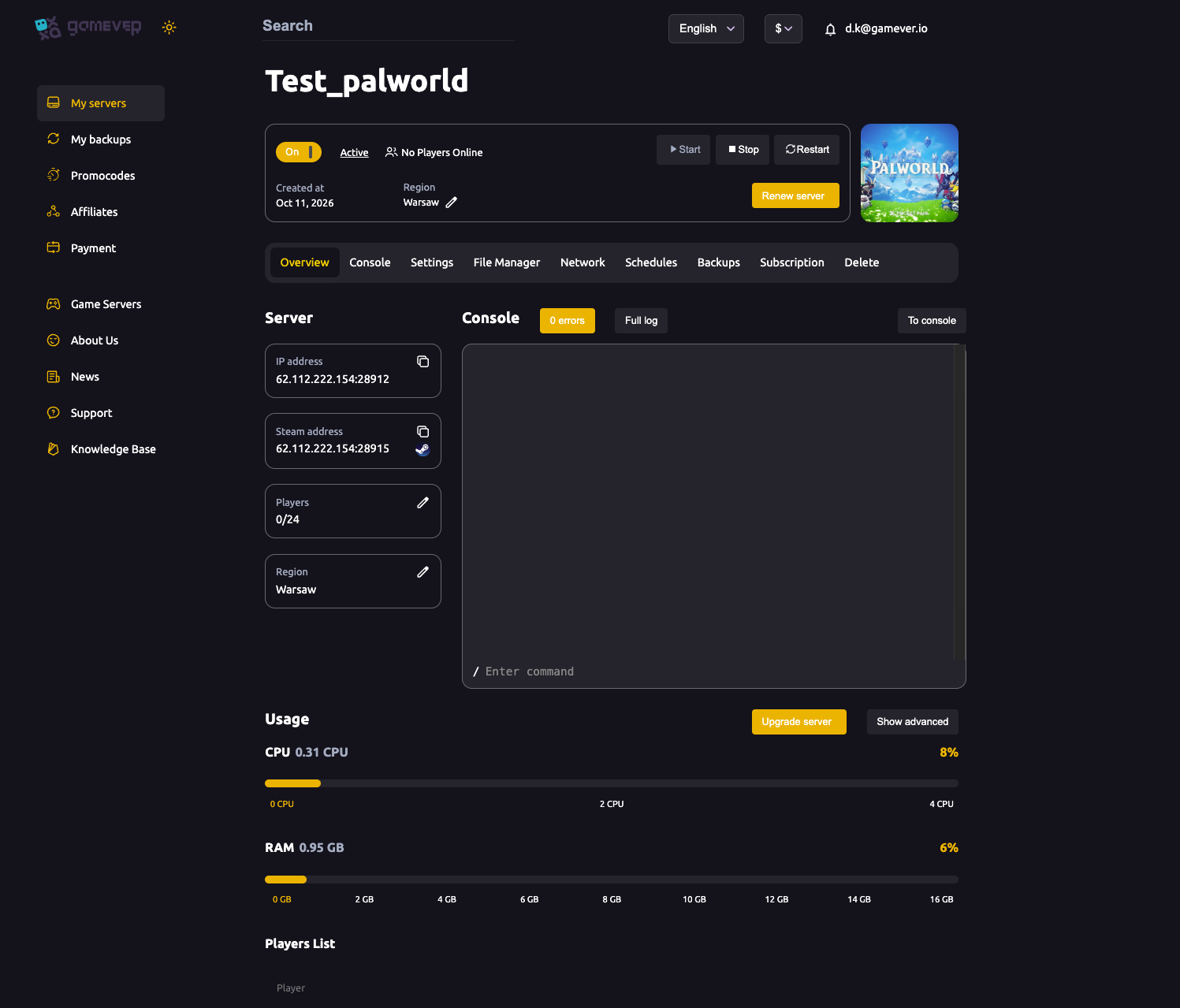
On the Overview tab, copy the Steam address — your server IP with port 28915 — and have each Steam player paste it into Join with IP / Connect, entering the Server Password if you set one. Console players can't use this route, which is exactly why the Community server toggle matters for them.
Additional Tips
- Full crossplay is the default — leave the Platform field at
(Steam,Xbox,PS5,Mac)unless you specifically want to lock a platform out. - Platform and Community server are two different jobs: Platform decides who is allowed, Community server decides who can find you in the browser. Console friends usually need both.
- Keep the parentheses-and-comma format when editing the Platform field, and restart after any change for it to take effect.
- Set a distinctive Server Name — generic names are almost impossible to spot in a browser full of thousands of servers.
- Mismatched versions block joins: console and Steam updates can land on different days, so if players hit a version error after an update, update or restart the server. See fixing connection timed out.
Conclusion
Palworld crossplay is on by default, so most groups never have to touch the Platform field — but when you want to add console friends, remember the two-part rule: allow their platform under Platform, and flip Community server to true so Xbox and PS5 players can actually find the server in the in-game browser. Steam and Mac players can always fall back on the Steam address for a direct join.
Rent your Palworld server at gamever.io and get crossplay across Steam, Xbox, PS5 and Mac out of the box — one-toggle public listing and a full control panel, no launch flags required. Free trial, promo code WELCOME.