
Moving a Valheim World Onto Your Server: The .db and .fwl Pair
Moving an existing Valheim world onto a server is a two-file operation, and both files have to travel together. The .db holds your map data. The .fwl holds the world's name and seed. Upload one without the other and you get either a world with no terrain or terrain with no identity — and the folder you take them from is not the folder a dedicated server reads.
On sourcing. Iron Gate do not publish system documentation. The figures below come from the community wikis and can change with any patch.
The Two Files
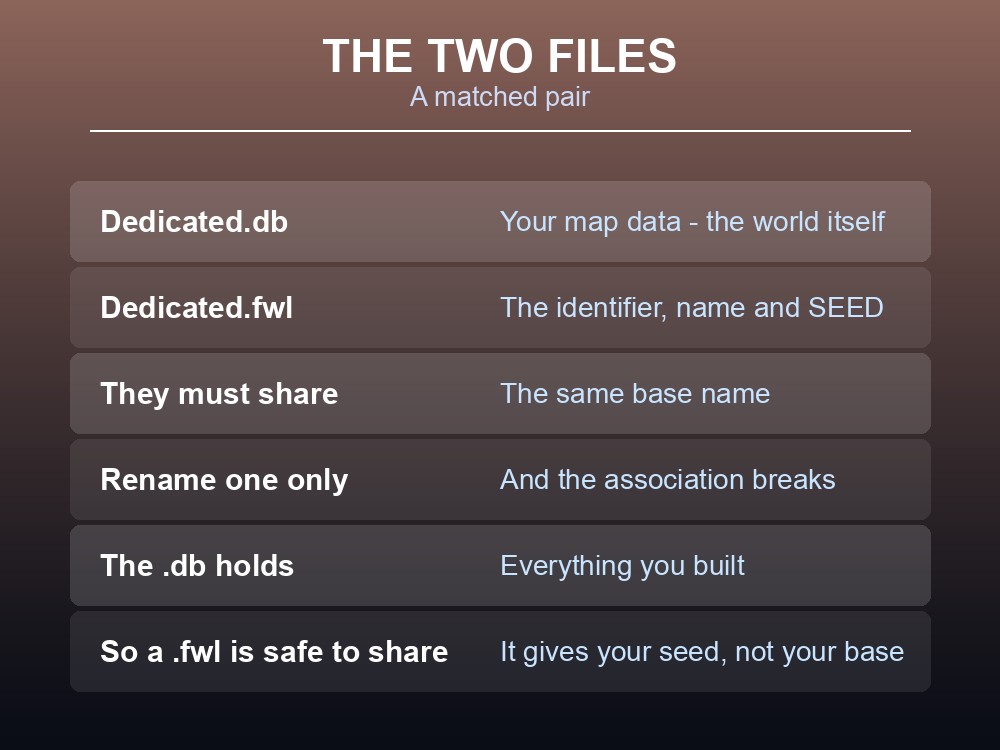
| File | Contains |
|---|---|
Dedicated.db | Your map data — the world itself |
Dedicated.fwl | Your identifier, including the world name and seed |
They are a matched pair and must keep the same base name. MyWorld.db needs MyWorld.fwl beside it; renaming one and not the other breaks the association.
The seed lives in the .fwl, and the wiki makes a specific point of this:
The seed is stored in the .fwl file, that is the only one required if you want to force a seed.
That is a genuinely useful trick. If you want a server to generate a fresh world on a specific seed, you upload the .fwl alone and let the server build the .db itself. Uploading both gives you the existing world; uploading only the .fwl gives you a new world on the same seed.
Two Different Folders
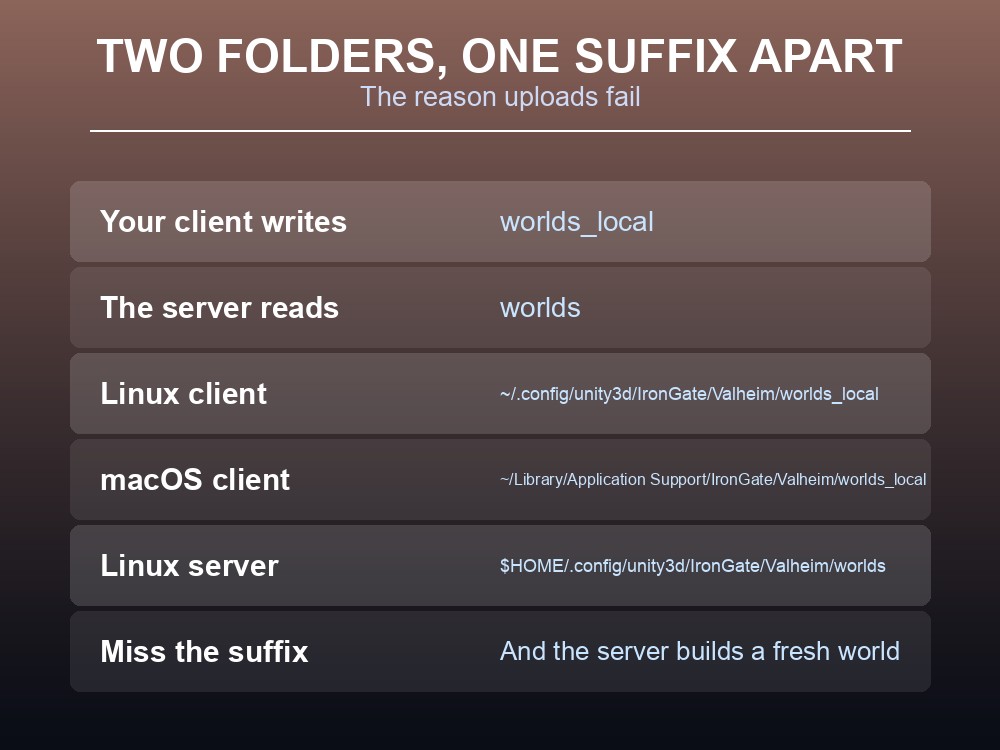
This is the step that trips people up: your single-player worlds and a dedicated server's worlds are in different folders.
Your local worlds — worlds_local:
| OS | Path |
|---|---|
| Linux | ~/.config/unity3d/IronGate/Valheim/worlds_local |
| macOS | ~/Library/Application Support/IronGate/Valheim/worlds_local |
| Windows | Under your user profile's Valheim folder |
A dedicated server's worlds — worlds:
| OS | Path |
|---|---|
| Linux | $HOME/.config/unity3d/IronGate/Valheim/worlds |
Note the folder names differ by the _local suffix, and that single difference is the reason "I uploaded my world and the server made a new one" happens. The server reads worlds; your client writes worlds_local.
Take the pair from worlds_local and place it where the server expects it, which on a hosted panel is usually a dedicated world-upload slot rather than a raw path.
The Sequence That Works
- Stop the server first. A running server holds the world open and may overwrite what you upload on its next save.
- Find both files in
worlds_local, matching base names. - Upload both, keeping the names identical to each other.
- Point the server at that world name — the server's world setting must match the file name, not the display name inside the
.fwl. - Start the server and check the map, not just that it booted.
Step 4 is the second most common failure. A world called MyWorld.db will not load if the server is configured to open Dedicated. The names have to agree.
Back Up Before You Overwrite
Valheim's own save system generates backups, and the wiki notes there is no need for third-party tools to handle world transfers — the files are plain and portable.
That does not mean skipping a backup. Before uploading a world onto a server that already has one, take a copy of what is there. The overwrite is silent and the old world is not recoverable from the game.
Two habits worth keeping:
- Copy, do not move. Keep your local
worlds_localpair intact until the server has demonstrably loaded the world. - Verify by exploring, not by connecting. A server can load a fresh world under your world's name and look correct until you notice the terrain is different.
Forcing a Seed Without Bringing a World
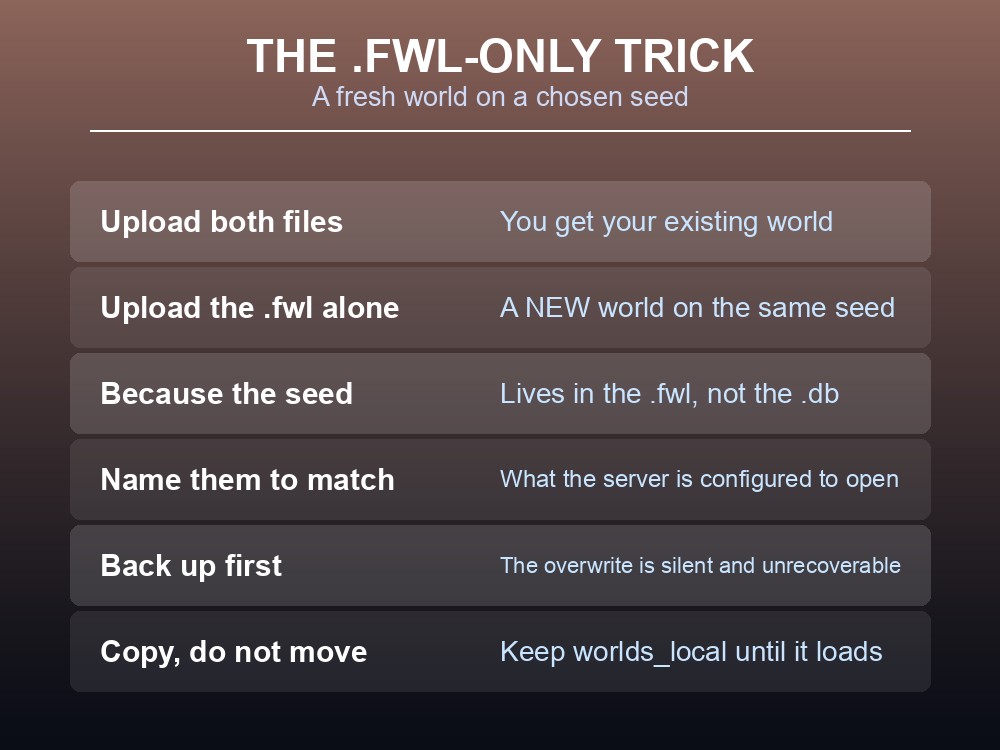
Worth restating because it is the most useful thing on this page: to start a server on a specific seed without importing an existing world, upload only the .fwl.
The server reads the seed from it and generates fresh map data. You keep the seed and lose the progress, which is exactly what you want when a group has scouted a seed in single-player and wants to start properly together.
That also means a .fwl is safe to share. Handing someone your .fwl gives them your seed, not your base — the .db is where everything you built lives.
Running your own Valheim server
World transfer is a five-minute job when the panel has an upload slot and a stop button, and an evening when it does not. A gamever Valheim server gives you both, for up to 10 players, with one-click backups.
Conclusion
A Valheim world is two files that travel together: the .db holds the map data and the .fwl holds the world name and seed. They must keep matching base names, and the folder matters — your client writes to worlds_local while a dedicated server reads worlds, a one-suffix difference that is the usual cause of "the server made a new world instead". The sequence that works is stop the server, upload both files, set the server's world name to match the file name, then start and check the map — with the world-name mismatch being the second most common failure after the folder. Because the seed lives in the .fwl alone, uploading only that file starts a fresh world on a chosen seed, which is the right move when a group has scouted a seed and wants to begin together — and it means a .fwl is safe to hand out, since the .db is where everything you built actually lives.
Want an upload slot instead of an FTP session? Rent a Valheim server at gamever.io — instant setup, up to 10 players, one-click backups and updates, and 24/7 uptime. Start with a free trial and use promo code WELCOME.