
Minecraft World Types: Flat, Large Biomes, Amplified and Custom (level-type)
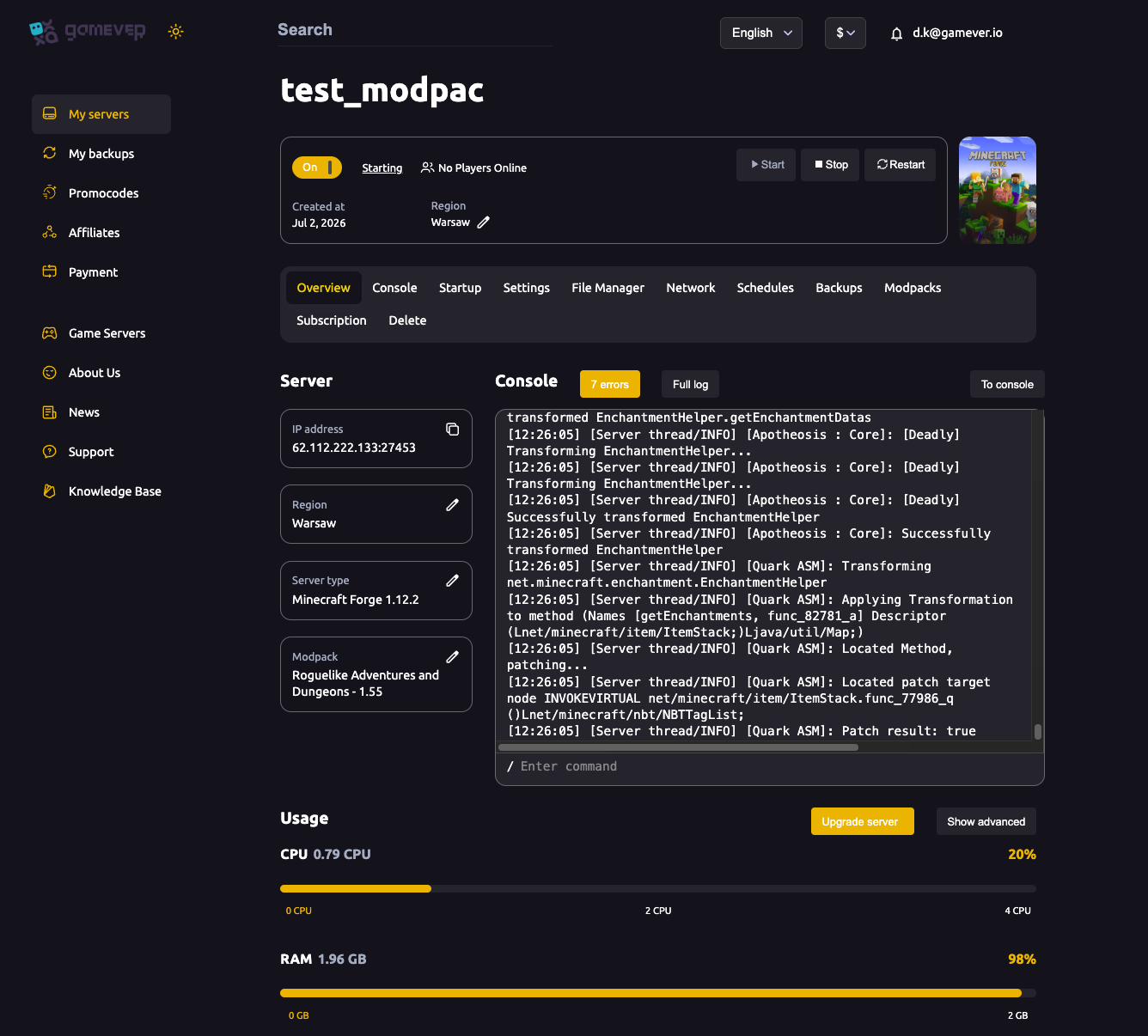
Not every server wants the standard overworld. A creative or minigame server often runs on a flat world; a survival server might want large biomes or the dramatic terrain of amplified; and with a little JSON you can build a custom superflat preset with exactly the block layers you choose. All of this comes down to one server.properties option — level-type — plus generator-settings for the custom cases. This guide covers each world type, how to set it on your gamever Minecraft (Java) server, and the one rule that trips everyone up: changing the world type only affects newly generated chunks.
Where the world type lives
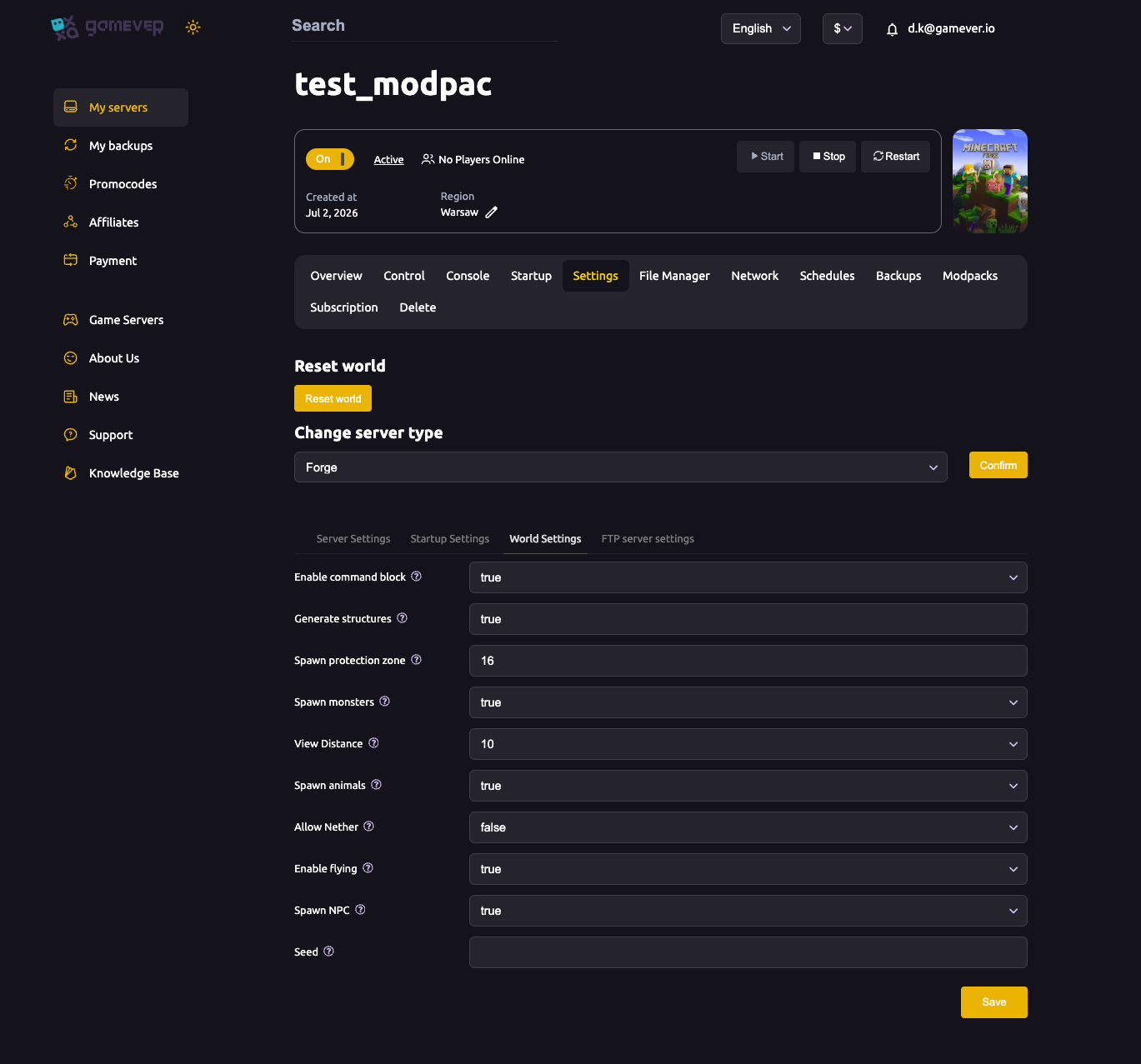
Most of the day-to-day world options — spawn protection, view distance, mob toggles and the Seed — sit on the Settings → World Settings sub-tab (see world settings). The world type itself is the level-type line in server.properties, which you edit directly in the panel File Manager:
- Stop the server (so your edit isn't overwritten on shutdown).
- Open the File Manager and the
/home/directory. - Open
server.propertiesand find thelevel-typeline. - Change the value (see the table below), Save, and Start the server.
The built-in world types
Minecraft 1.19 (snapshot 22w11a) moved level-type to namespaced world-preset IDs. The minecraft: prefix can be omitted, so both minecraft:flat and flat work.
level-type value | What it generates |
|---|---|
minecraft:normal | Standard world with hills, valleys, water and the usual terrain. This is the default. |
minecraft:flat | A flat, featureless world (superflat). Can be customised with generator-settings. |
minecraft:large_biomes | The same as normal, but every biome is larger. |
minecraft:amplified | The same as normal, but with a much greater world-generation height — tall, dramatic terrain. |
minecraft:single_biome_surface | A world made of a single biome. Can also be customised with generator-settings. |
So for a plain flat world, set:
level-type=minecraft:flat
Setting the seed
The seed is a separate option, level-seed, and it is exposed as the Seed field on the World Settings sub-tab. Leave it blank for a random world, or enter a value for a specific, reproducible one. As with the world type, the seed only shapes a newly generated world.
level-seed=
Custom superflat with generator-settings
The generator-settings option customises how a world is generated; what it accepts depends on your level-type. Its default is an empty object, {}. For level-type=minecraft:flat, it takes a JSON object describing your superflat world:
biome— the biome ID for the whole world, e.g."minecraft:plains".layers— an array of layer objects, listed from the bottom up. Each layer has ablock(block ID) and aheight(how many of that block to stack).
For example, the classic flat preset — one layer of bedrock, two of dirt, one of grass, on a plains biome — is:
generator-settings={"biome":"minecraft:plains","layers":[{"block":"minecraft:bedrock","height":1},{"block":"minecraft:dirt","height":2},{"block":"minecraft:grass_block","height":1}]}
Edit this on the same server.properties line in the File Manager, alongside level-type=minecraft:flat. Keep it on a single line — it's one JSON string.
Note on older versions: before the JSON form, superflat presets used a compact preset-code string (a comma-separated list of blocks with a
Number*IDrepeat syntax and a biome after a semicolon). If you're following an old guide, prefer the modern JSON object shown above on a current server.
Changing the world type on an existing server
This is the part people miss: level-type and generator-settings only affect chunks that haven't been generated yet. Changing the value does not reshape terrain your players have already explored — you'll just get a seam where the new type begins at the edge of the explored area.
To genuinely switch the whole world to a new type, generate a fresh world:
- Back up first — download the
world/folder over FTP, or take a snapshot from the Backups tab. This is irreversible. - Set your new
level-type(andgenerator-settings/Seed) while the server is stopped. - Reset the world so a brand-new world generates on the next start.
If you only want to test a world type before committing, spin one up on a throwaway server or a snapshot server first.
Additional Tips
- Stop the server before editing
server.properties— a running server can overwrite your change on shutdown. - Flat worlds are great for creative and minigame servers — no terrain to fight, instant building room.
- Omit the namespace if you like —
flatbehaves the same asminecraft:flat; the newer namespaced form is just explicit. - Keep
generator-settingsas one line of valid JSON. A broken object falls back to default generation — if your flat preset looks wrong, re-check the JSON. - Changing the type needs a fresh world to take full effect — back up, then reset.
- Switching to a modded server type is a different setting from
level-type— one picks the server software, the other the world shape.
Conclusion
Your Minecraft world's shape is one line away. level-type gives you normal, flat, large_biomes, amplified or a single_biome_surface world, and generator-settings lets you hand-build a custom superflat preset block-by-block in JSON. Edit both in server.properties through the panel File Manager, set your Seed on the World Settings sub-tab, and remember the golden rule: a new world type means a fresh world, so back up first.
Rent your Minecraft Java server at gamever.io — full File Manager and FTP access for server.properties, a clean settings panel, and one-click backups so experimenting with world types is always safe. Free trial, promo code WELCOME.