
Minecraft Server Settings Explained (MOTD, Difficulty, Game Mode, PVP)
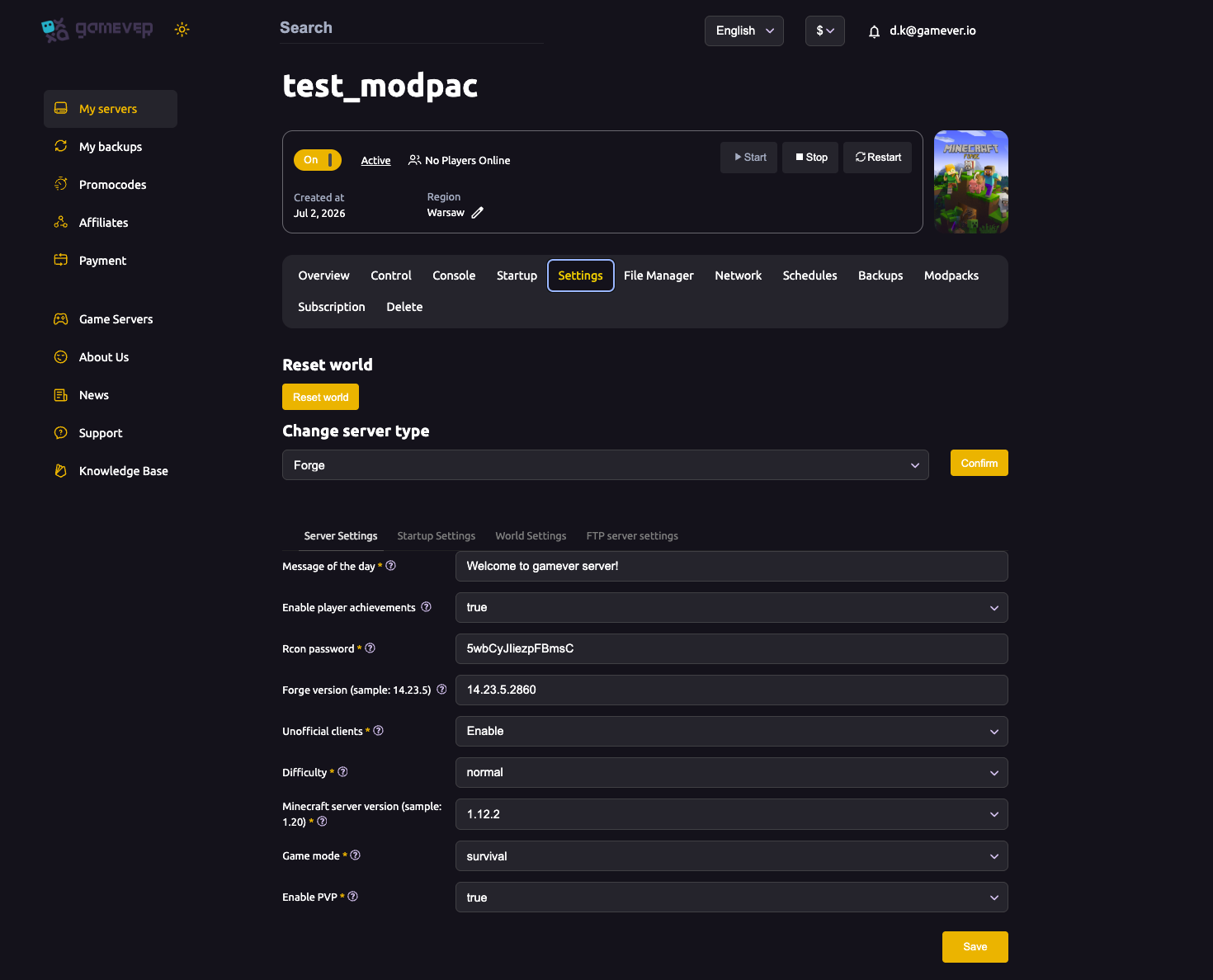
The Server Settings sub-tab is where you set how your Minecraft server plays day to day: what players see when they join, how hard the game is, whether PVP is on, and which version you're running. This guide explains every field, what it does, and the handful of things to get right the first time.
Where to find it
Open the Settings tab, then the Server Settings sub-tab (the other sub-tabs are Startup Settings, World Settings and FTP server settings). Change what you want, click Save, then Restart the server so the changes take effect.
The Server Settings fields
| Setting | What it does |
|---|---|
| Message of the day | The server description shown in the Multiplayer list (e.g. Welcome to gamever server!). Pure cosmetic — set it to anything. |
| Enable player achievements | true / false. When true, players earn advancements/achievements normally. |
| Rcon password | The password for remote console access (Rcon). Keep it private; it's pre-filled with a strong value. The Rcon port is on the Network tab. |
| Forge version | The Forge build your server runs (e.g. 14.23.5.2860). Only relevant on a Forge server — see startup & Java. |
| Unofficial clients | Enable = allow offline/cracked clients (online-mode off); Disable = require genuine Mojang/Microsoft accounts (online-mode on). Keep it Disable for a secure, whitelisted server. |
| Difficulty | peaceful / easy / normal / hard. Peaceful removes hostile mobs and hunger damage; hard makes mobs tougher and hunger can kill. |
| Minecraft server version | The game version your server targets (e.g. 1.12.2). Players must use a matching client. Changing it here is a version change — see startup & Java. |
| Game mode | survival / creative / adventure. The default mode new players spawn into. |
| Enable PVP | true / false. When true, players can damage each other; when false, friendly fire is off. |
The settings people ask about most
- Difficulty vs. Peaceful. On
peaceful, hostile mobs never spawn and players regenerate health — great for a pure building server. For survival gameplay,normalis the usual choice. - Unofficial clients. Leave this Disabled unless you specifically need to allow non-genuine accounts. With it enabled, anyone can join under any username, which makes whitelisting essential.
- Game mode. Setting
creativehere puts everyone in creative by default; you can still change individuals in-game with/gamemode. - PVP. Turn it off for a co-op/building server so players can't grief each other with combat.
Change server type and reset world
At the top of the Settings page (above the sub-tabs) there's a Change server type dropdown — switch between Vanilla, Forge, Paper, Fabric and more (see change server type) — and a Reset world button to start a fresh world (see reset world). These sit apart from the per-field settings because they're larger, world-affecting actions.
Additional Tips
- Always Save then Restart — most settings only apply after a restart.
- Keep Unofficial clients Disabled for a secure server, and pair it with a whitelist.
- The MOTD is cosmetic — use it to label the server or post a quick rule.
- Difficulty affects mob spawns and hunger — not just damage numbers.
- Match the server version to what your players (and mods) use — see startup & Java.
Conclusion
The Server Settings sub-tab is the heart of how your Minecraft server plays: set the MOTD, pick a difficulty and game mode, decide on PVP and whether unofficial clients are allowed, and keep the version in line with your players. Save, restart, and your server behaves exactly the way you want.
Rent your Minecraft Java server at gamever.io — every core setting in one clear panel, with a browser config editor and FTP for the rest. Free trial, promo code WELCOME.