
Minecraft Commands Guide: How to use team and teammsg to manage groups and multiplayer interactions
Sometimes you need more than just players running around on their own - you need order. Maybe it’s a PvP arena with red and blue teams, or a co-op puzzle map where players must stay grouped, or a story where factions compete. That’s where the `/team` and `/teammsg` commands come into play. They let you build full team systems with names, colors, rules, and logic. You can decide who can hit whom, who can see nameplates, and even send messages that only teammates can read.
Working with the /team command
The `/team` command lets you manage named teams and assign players to them. You can set properties like color, friendly fire, visibility of name tags, and collision rules. Teams are part of the scoreboard system and are powerful for organizing multiplayer gameplay, faction quests, and cooperative roles.
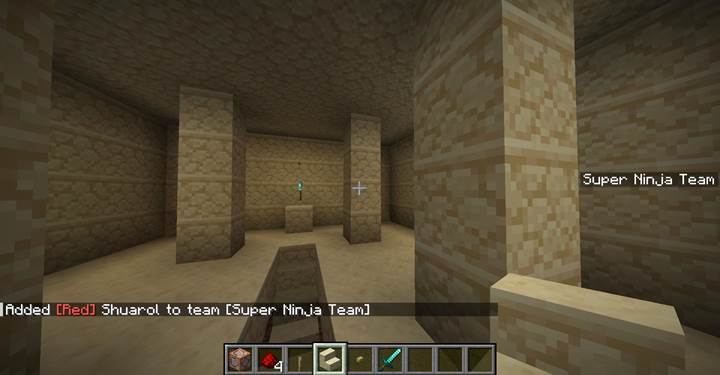
Syntax:
/team <subcommand> <args...>
The base structure includes creating, removing, joining, leaving, and modifying teams.
Here’s a full breakdown of all team subcommands:
|
Subcommand |
Description |
Example |
|
add <team>
|
Creates a new team
|
/team add red_team
|
|
remove <team>
|
Deletes the team
|
/team remove red_team
|
|
join <team> <players>
|
Adds players to a team
|
/team join red_team @a
|
|
leave <players>
|
Removes players from all teams
|
/team leave @p
|
|
list
|
Lists all teams
|
/team list
|
|
list <team>
|
Lists players in a specific team
|
/team list blue_team
|
|
empty <team>
|
Clears all players from a team
|
/team empty blue_team
|
|
Changes a setting
|
see table below
|
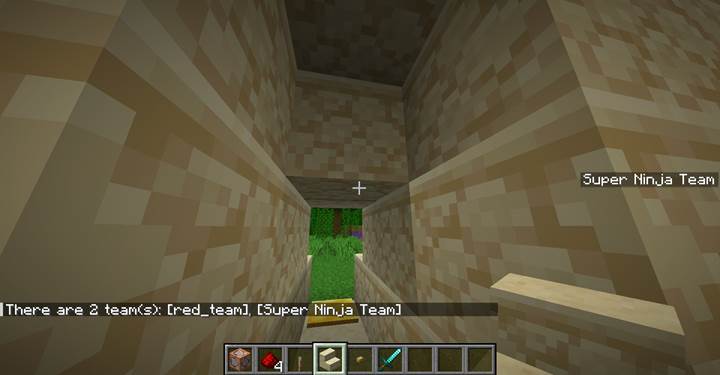
You can customize team behavior with the modify option:
|
Option |
What it controls |
Values |
|
color
|
Team name color and chat style
|
red, blue, green, etc.
|
|
friendlyFire
|
Can teammates hurt each other
|
true, false
|
|
seeFriendlyInvisibles
|
Can teammates see invisible teammates
|
true, false
|
|
nametagVisibility
|
When nameplates are visible
|
always, never, hideForOtherTeams, hideForOwnTeam
|
|
deathMessageVisibility
|
When death messages show
|
always, never, hideForOtherTeams, hideForOwnTeam
|
|
collisionRule
|
Whether teammates push each other
|
always, never, pushOtherTeams, pushOwnTeam
|
|
prefix
|
Adds text before team members’ names
|
"» "
|
|
suffix
|
Adds text after team members’ names
|
" [Lux]"
|

Using /teammsg for team-only chat
The `/teammsg` command (or `/tm` as shorthand) sends a private message to all players on the same team. This is great for PvP games, faction coordination, or secret objectives.
Syntax:
/teammsg <message>
or
/tm <message>
For example:
/teammsg Don’t move!

Where and how to use
Use `/team` to assign roles in mini-games, set up opposing sides in battle arenas, or divide players into groups during quests. You can style their name colors, hide their name tags, and prevent them from hurting each other. You can even give special effects or roles based on team membership using selectors like:
/effect give @a[team=red_team] minecraft:strength 10 1
Or use it for RPG systems:
/team add mages
/team add warriors
/team join mages @p
/title @p title {"text":"You have joined the Mage Guild!","color":"aqua"}
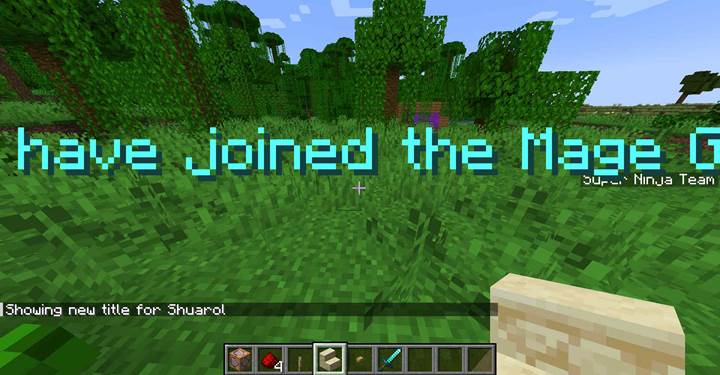
In a puzzle game, you can allow or restrict progress to a specific team only. In a co-op quest, team-only nameplates and chat let players stay coordinated without giving away info to others.
Co-op puzzle with team-based interaction and logic using /team
Let’s build a multiplayer puzzle where two or more teams must solve parts of a riddle in separate chambers. Each team sees only their own clues, must activate their own mechanism, and once all teams succeed, the main door opens. The /team command is used to assign roles and manage visibility, while /execute, /title, and /scoreboard handle logic. This kind of scenario works perfectly in mini-games or adventure maps where cooperation and separation matter.
Step 1: setup teams and join players
Before the puzzle starts, assign players to their teams with command blocks or in a setup room.
/team add red_team
/team add blue_team
/team join red_team @a[tag=role_red]
/team join blue_team @a[tag=role_blue]
/team modify red_team color red
/team modify blue_team color blue
/team modify red_team nametagVisibility hideForOtherTeams
/team modify blue_team nametagVisibility hideForOtherTeams
This makes each team clearly marked, hides other teams' name tags for immersion, and creates a sense of secrecy.
You can assign the tags (role_red, role_blue) manually or based on position when players enter chambers.
Step 2: separate rooms and clues
Each team is placed in a different chamber. For example, red_team sees a clue about lever order, blue_team sees color sequences. Use /execute to send messages only to the correct team:
/execute as @a[team=red_team] run title @s subtitle {"text":"Hint: Pull levers in order 2 - 1 - 3","color":"red"}
/execute as @a[team=blue_team] run title @s subtitle {"text":"Hint: Match blue, yellow, green","color":"blue"}
They can’t see each other and must work independently—but in sync.
Step 3: each team activates a trigger
Place a pressure plate, lever, or interaction point in each chamber. When pressed, it activates a scoreboard objective:
/scoreboard objectives add team_ready dummy
/execute as @a[team=red_team] at @s run scoreboard players set red_ready team_ready 1
/execute as @a[team=blue_team] at @s run scoreboard players set blue_ready team_ready 1
Or in a command block:
/scoreboard players set red_ready team_ready 1
Once both are set, a repeating command block checks:
/execute if score red_ready team_ready matches 1 if score blue_ready team_ready matches 1 run function puzzle:open_door
Step 4: reveal the reward and reset
In the puzzle:open_door function:
/fill 100 64 100 100 66 100 air
/title @a title {"text":"Puzzle Solved!","color":"green"}
/playsound minecraft:block.piston.extend block @a ~ ~ ~ 1 1
/scoreboard players set red_ready team_ready 0
/scoreboard players set blue_ready team_ready 0
This removes the barrier between rooms and lets both teams continue. By resetting the scores, the puzzle can be reused.
The /team and /teammsg commands let you organize, customize, and control multiplayer gameplay with precision. You can split players into factions, run team-based challenges, restrict PvP damage, and give players unique identities.