
Minecraft Commands Guide: How to use particle, playsound, and stopsound for immersive effects
Ever wanted your dungeon to rumble when a boss appears? Or maybe make a mysterious forest sparkle with glowing particles when a puzzle is solved? That’s exactly what these commands are made for. With /particle, /playsound, and /stopsound, you can make your map feel alive. You can trigger ambience, simulate explosions, cast spells, or send chills down the player’s spine - all with a single command block. These commands don’t change the world physically, but they change how it feels, which is just as powerful for storytelling and immersion.
Particle command
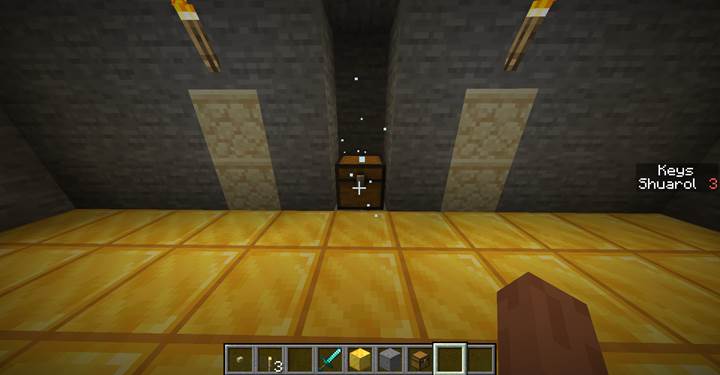
This command creates visible particle effects at any location. You can use it for magic, smoke, fire, portal energy, or anything else that needs a visual pop. The syntax is:
/particle <name> <x> <y> <z> [dx] [dy] [dz] [speed] [count] [force|normal] [viewers]
The name is the particle ID. Coordinates place the effect. dx/dy/dz define how far the particles spread. Speed changes movement behavior. Count is how many particles to spawn. Force makes it show to all players regardless of distance, while normal only appears if the player is close.
For example: /particle minecraft:portal ~ ~1 ~ 0.3 0.3 0.3 0.01 20 force
This creates 20 portal particles in a small puff around the player. You can also aim the particles in a direction or simulate beams and clouds.
Playsound command
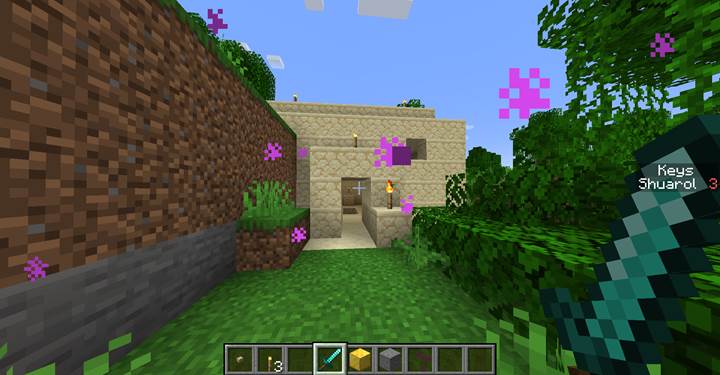
This one plays a specific sound for a player or group of players. It works for ambience, footsteps, mob sounds, UI beeps, or anything else. The syntax is:
/playsound <sound> <source> <targets> <x> <y> <z> [volume] [pitch] [minVolume]
The sound is the sound ID, like `minecraft:entity.wither.spawn`. The source is one of the sound categories: master, ambient, weather, block, hostile, neutral, player, music, record, voice. You choose targets with a selector, and coordinates for where the sound comes from. Volume is how loud it is (1 is normal), pitch changes tone (0.5 is low, 2.0 is high), and minVolume ensures it can still be heard at a distance.
Example: /playsound minecraft:ambient.cave ambient @a ~ ~ ~ 1 1
That plays the creepy cave sound to all players nearby.
Stopsound command
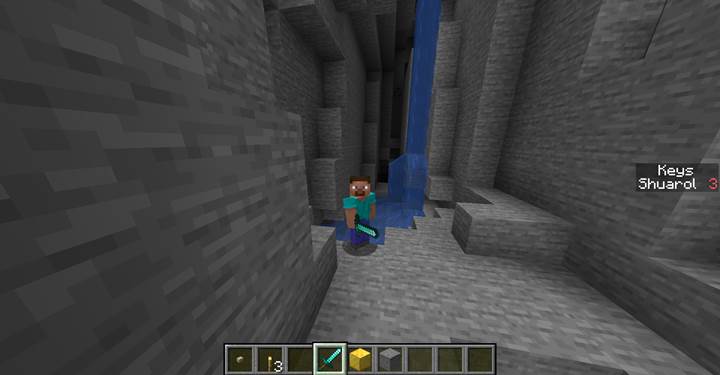
This command stops one or more sounds currently playing. It’s useful if you want to cut off music, cancel looping effects, or silence a moment for dramatic pause. The syntax is:
/stopsound <targets> [source] [sound]
You specify who to stop sound for, optionally filter by source (like music or ambient), and optionally target a specific sound ID.
Example: /stopsound @a music minecraft:music.overworld
This stops the overworld music for all players. You can also stop all ambient noise like this:
/stopsound @a ambient
Common uses
These commands are most often used in cutscenes, puzzles, boss fights, and environmental storytelling. Want thunder to crash as the boss enters? Play a thunder sound and spawn lightning particles. Want players to feel like they stepped into a cursed zone? Change the biome and add soul particles plus a deep ambient hum. Want to reward a puzzle with fireworks or glowing sparkles? Particle + sound = magic moment. They also work great in combo with /clone or /fill to signal that something big just happened.
Particle types table
|
Particle Name |
Visual Effect |
|
minecraft:smoke
|
Black puffs
|
|
minecraft:flame
|
Fire sparks
|
|
minecraft:portal
|
Purple swirls
|
|
minecraft:end_rod
|
Glowing trail
|
|
minecraft:explosion
|
Boom effect
|
|
minecraft:heart
|
Floating hearts
|
|
minecraft:splash
|
Water splash
|
|
minecraft:sneeze
|
Green sneeze cloud (pandas)
|
|
minecraft:soul
|
Pale blue soul spark
|
|
minecraft:dust
|
Colored particle (can tint with RGB)
|
|
minecraft:block
|
Break effect of specific block
|
|
minecraft:sweep_attack
|
Sword sweep arc
|
Sound categories and examples
|
Sound ID |
Description |
Source category |
|
minecraft:ambient.cave
|
Creepy cave ambience
|
ambient
|
|
minecraft:entity.wither.spawn
|
Wither summoning sound
|
hostile
|
|
minecraft:block.anvil.land
|
Heavy metal impact
|
block
|
|
minecraft:item.totem.use
|
Totem activation burst
|
player
|
|
minecraft:music.nether.basalt_deltas
|
Spooky Nether background music
|
music
|
|
minecraft:ui.button.click
|
Menu button sound
|
master
|
|
minecraft:entity.ender_dragon.growl
|
Deep dragon roar
|
hostile
|
|
minecraft:weather.rain
|
Rainfall loop
|
weather
|
|
minecraft:block.portal.travel
|
Portal woosh
|
block
|
Mysterious shrine awakening with particles and sound
Let’s create a cinematic moment inside a puzzle dungeon where the player activates an ancient shrine—and everything starts to change. This sequence uses all three commands: /particle for visual magic, /playsound for immersive audio, and /stopsound to control the atmosphere as the shrine awakens.
Imagine the player solves a riddle by placing an item or pressing a button. That action triggers a command block sequence. First, you want to silence the area, cutting off ambient sounds and background music:
/stopsound @a ambient
/stopsound @a music
Then the shrine begins to glow. Place a repeating or chain command block that spawns soft glowing particles around it:
/particle minecraft:end_rod 150 65 150 0.2 0.4 0.2 0.01 20 force
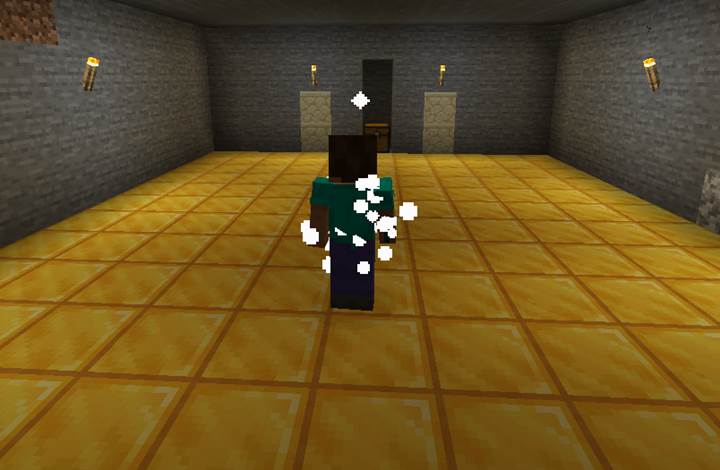
This creates a gentle swirl of white light. At the same time, start layering in mysterious sound using:
/playsound minecraft:item.totem.use player @a[x=150,y=65,z=150,distance=..8] 150 65 150 1 1
Add a delay, then increase tension with portal sounds and a dark ambient drone:
/playsound minecraft:block.portal.ambient ambient @a[x=150,y=65,z=150,distance=..8] 150 65 150 1 0.8
/playsound minecraft:ambient.cave ambient @a[x=150,y=65,z=150,distance=..8] 150 65 150 1 0.5
Next, spark some energy by blasting flame and dust particles upward:
/particle minecraft:flame 150 65 150 0.5 1 0.5 0.02 40 force
/particle minecraft:dust 1 0 0 1 150 65 150 0.3 0.5 0.3 0 30 force
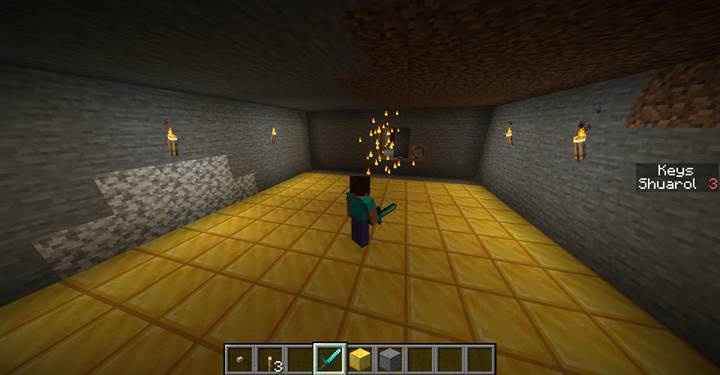
Finally, you can clone in a hidden chamber or raise a block with /setblock or /clone, revealing the reward or the next path:
/setblock 150 66 150 gold_block
/playsound minecraft:block.amethyst_block.chime block @a[x=150,y=65,z=150,distance=..8] 150 66 150 1 1.2
With just a few command blocks and timing, this sequence feels like a living world responding to the player’s action. The shrine comes alive, the air hums, the light shifts—and you’ve turned a simple puzzle into a moment they’ll remember. Want to expand this into a full dungeon awakening or add boss entry effects next? Let’s build on top of this!
With /particle, /playsound, and /stopsound, you have full control over how your world feels. These commands don’t just decorate—they immerse. Use them often, mix them with storytelling, and your world will come alive like never before.