
Minecraft Commands Guide: How to use Item Components for Names, Lore, and Visual Effects
Ever wanted your sword to have a name that echoes through legend? Or maybe you’re building an adventure map where items whisper their own story? In this guide, we’ll explore the components that define how your item talks to the player - through names, descriptions, and colorful effects.
Custom name
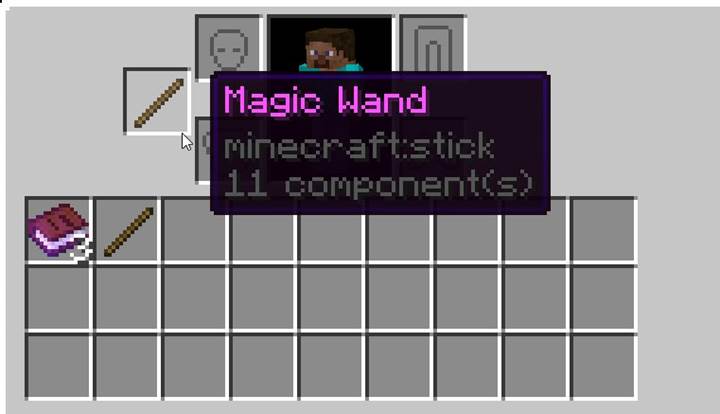
The custom_name component lets you set a styled name for any item. You can color it, turn off italics, and even use full JSON formatting to get fancy.
Example:
/give @s stick[custom_name={"text":"Magic Wand","color":"light_purple","italic":false}]
That command gives you a stick named Magic Wand in purple, non-italic text. Without italic:false, names default to slanted. Want to rename a sword? Just swap the item.
Lore
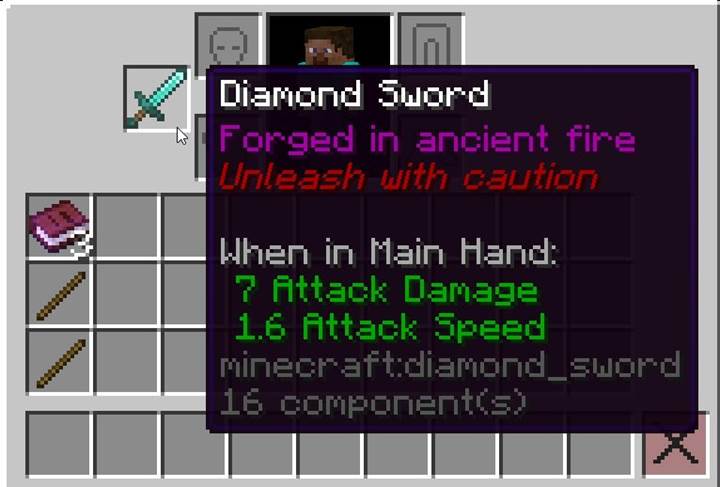
lore is your way of telling stories below the item name. Every entry is a separate line, with optional color and style. Add crafting clues, funny jokes, or dramatic legend.
Example:
/give @p diamond_sword[lore=[{"text":"Forged in ancient fire","italic":false},{"text":"Unleash with caution","color":"dark_red"}]]
You can add up to 256 lines, but honestly, 2–3 lines usually hit the sweet spot.
Rarity
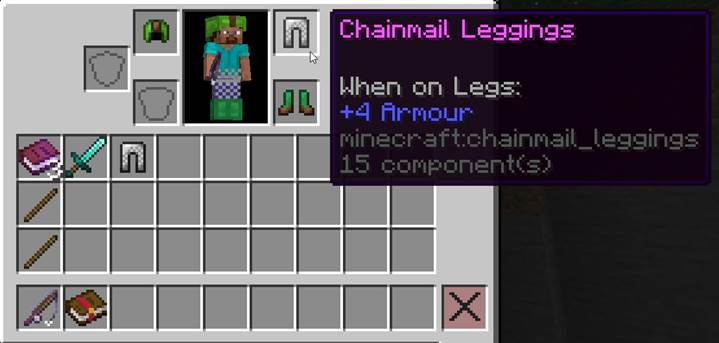
The rarity component changes the color of the item’s name - common (white), uncommon (yellow), rare (aqua), and epic (light purple). It’s purely visual but perfect for loot tiers.
Example:
/give @p iron_sword[rarity=epic]
This gives the sword a glowing purple name, making it feel like a legendary drop even if it’s not enchanted.
Tooltip display
Want a cleaner UI or a secret weapon? tooltip_display hides part or all of the item’s tooltip. You can target specific components or suppress everything.
Example:
/give @p diamond_sword[tooltip_display={hidden_components:["minecraft:enchantments"]},enchantments={sharpness:1}]
This shows no enchantments in the tooltip - even though they’re active. Or:
/give @p diamond_sword[tooltip_display={hide_tooltip:true}]
This hides the tooltip entirely. Perfect for cursed items or mysterious artifacts.

Tooltip style
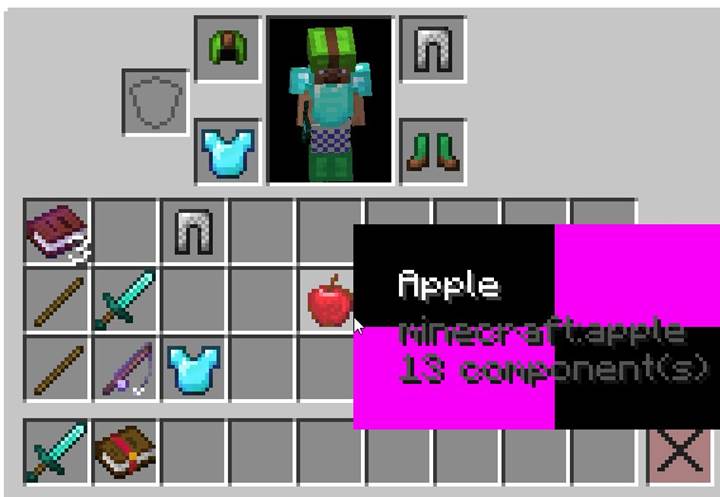
If you’ve got a custom resource pack, you can even define a visual frame and background for your item’s tooltip.
Example:
/give @p apple[tooltip_style="my_pack:golden_tooltip"]
This assumes you have matching textures in your resource pack. Without them, the command won’t break anything, but you won’t see a difference either.
Minecraft Item components summary
|
Component Name |
Effect Description |
Command Example |
|
custom_name |
Defines the custom name shown on the item |
/give @s stick[custom_name="Magic Stick"] |
|
lore |
Adds descriptive lines to the item tooltip |
/give @s stick[lore=["This Stick is very sticky."]] |
|
rarity |
Sets the color of the item name depending on rarity tier |
/give @s iron_sword[rarity=epic] |
|
tooltip_display |
Hides tooltip elements from specified components |
/give @s sword[tooltip_display={hidden_components:["minecraft:enchantments"]}] |
|
tooltip_style |
Specifies a custom visual style for the tooltip |
/give @s apple[tooltip_style="my_pack:glow"] |
This first batch of components is all about storytelling. From naming your pickaxe to hiding unwanted details, you now have the power to make every item feel like part of your world. In the next guide, we’ll dive into how items look and behave, from model swapping to glint control and more. Your creative arsenal is just getting started.