
Minecraft commands
The widely played sandbox game Minecraft allows for endless exploration and invention. But did you realize that using Minecraft commands could improve your game experience even more? With the help of these practical game mods, you can explore fascinating new gaming worlds and advance from novice to master of Minecraft.
Our guide to Minecraft commands will provide you with insight into these game-altering codes. By understanding and using these commands, you can harness the full potential of Minecraft, transform your gameplay, and become a true architect of your digital world.
Launch Your Game
Start a new game in Minecraft or load an existing one. In the game options, make sure cheats are enabled if you're starting a new game. To utilize commands on a multiplayer server, you must be an operator.

How do I write commands?
Launching the chat window: To access the chat window, press the "T" key on your keyboard. You should enter all of your commands here.
All commands in Minecraft begin with the forward slash character (/). By doing so, the player informs the game that what comes next is a command and not a chat message.
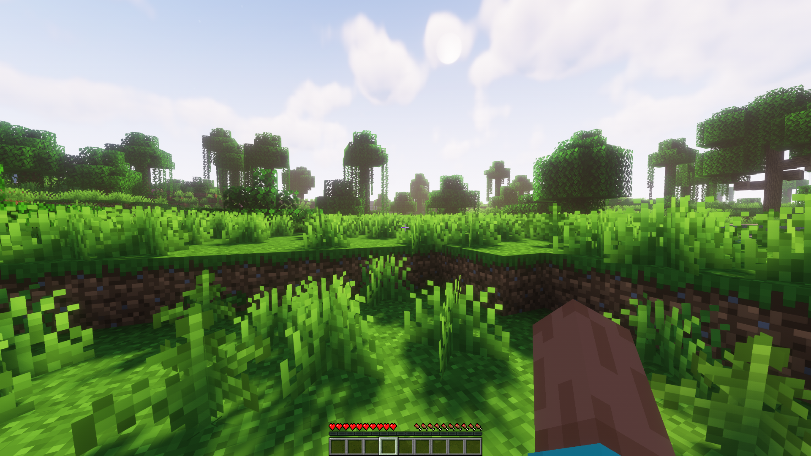
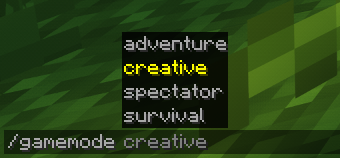
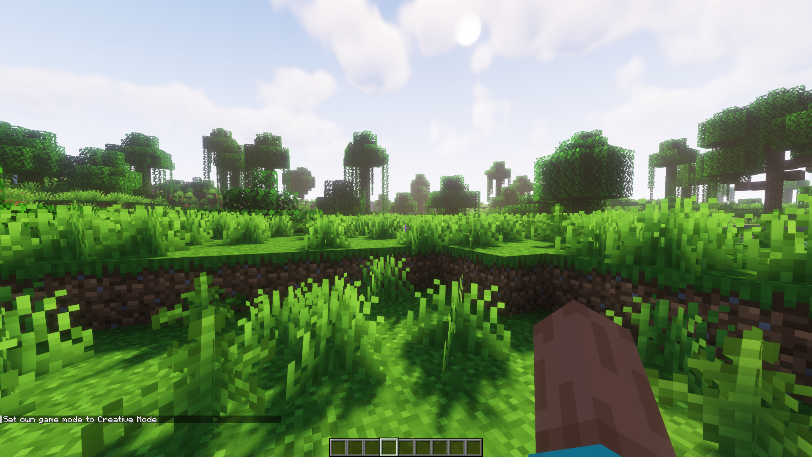
Type the command: Type the command you wish to use after the slash. For instance, you would type "gamemode creative" if you wished to switch to the creative game mode.
Include Arguments if Necessary: Many commands need arguments, or more data, to work. These arguments could include things like coordinates, a player's name, the kind of block, etc.
Once you have typed the command, press the Enter key to put it into action. If the command is legitimate and you have the required permissions, the game will carry out the stated action.
What should I do if the command is invalid?
Please double-check your syntax and spelling if a command isn't working. Keep in mind that if cheats are disabled or you don't have operator privileges, some commands may not function for you.

What Minecraft commands are actually useful?
Here is a quick rundown of some of the most important and often used Minecraft commands. When entering commands into the Minecraft chat, keep in mind that they all begin with a forward slash (/).
1. /gamemode: This command allows you to change the game mode. You can pick between spectator, creative, adventure, and survival. You could switch to the creative game mode by typing /gamemode creative.
2. /tp [target player] [destination player]: This is the teleport command. The target player is teleported to the destination player.
3. /give [player] [quantity]: This command distributes a specific amount of an item to the player who is specified. For example, typing /give Steve diamond 64 would send 64 diamonds to Steve.
4. /summon [entity]: This command allows you to summon any entity you want.
5. /weather [type]: This command allows you to alter the Minecraft weather. Types may be thunder, rain, or clear.
6. /setworldspawn: This command places the world's spawn point at your present location for all players.
7. /time set [value]: This command sets the time of the day. Values can be a specific tick value, day, noon, midnight, or night.
8. /difficulty [level]: This command alters the game's degree of difficulty. Levels can be easy, hard, normal and peaceful.
9. /kill [player]: You can kill another player or yourself using this command.
10. /enchant [player] [enchantment] [level] command, you can apply the chosen enchantment and level to a player's selected item.
Virtually limitless options exist when using Minecraft commands, from altering how the game functions to simplifying challenging tasks. With your newfound understanding, you are now prepared to create the Minecraft universe exactly the way you want it. So, get in, engage your imagination, and get the most out of your play. Remember that in the vast universe of Minecraft, you serve as the architect, explorer, and commander. Enjoy your gaming!