
Manual UE4SS Mods on a Palworld Server: The IsServer Rule That Decides What Runs
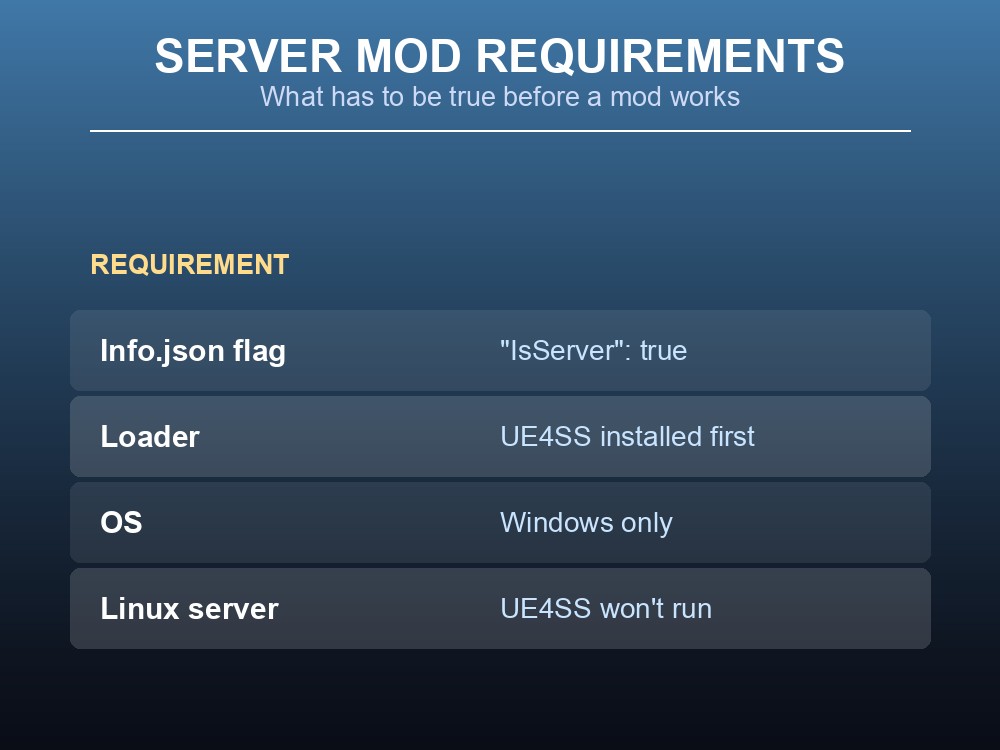
This guide covers the manual UE4SS route for off-Workshop Lua/script mods on a Palworld server — installed by hand rather than through Steam Workshop, with UE4SS as the loader those mods depend on. The fact that decides whether any of this works: only a mod whose Info.json sets "IsServer": true runs on a dedicated server. Upload a client-only mod and the server will start and run, but simply won't use it. Everything below assumes you're working on a server you already have, through your host's FTP, not standing one up from scratch.
What UE4SS Server Mods Can (and Can't) Do
UE4SS itself is just the loader — it doesn't add anything by itself, but every Lua/script mod needs it running before it can load at all. Once it's installed, a given mod still only works server-side if its own Info.json opts in: "IsServer": true. A mod built for the client that you drop into the server's mod folder will sit there inert — it just does nothing on the server.
The second hard limit is the operating system. Palworld's own server documentation is direct about it: "server-side mods work only on the dedicated server with Windows edition." UE4SS is not officially supported on Linux — the modding wiki notes that running it there means running the server under Windows via Wine or Proton, not a native Linux install. If your host's control panel only shows you a Linux folder layout, stop here: UE4SS will not function, no matter how carefully you follow the rest of this guide.
Installing UE4SS onto the Server
Installing UE4SS is a file drop, done with the server stopped. Extract the UE4SS release and upload the ue4ss folder and dwmapi.dll directly into the server's Pal\Binaries\Win64 folder — not nested inside another folder first, they need to sit in Win64 itself. If you took the manual download, MemberVariableLayout.ini goes inside the ue4ss folder too. Get the release from UE4SS's own GitHub (github.com/UE4SS-RE/RE-UE4SS), not a third-party mirror.
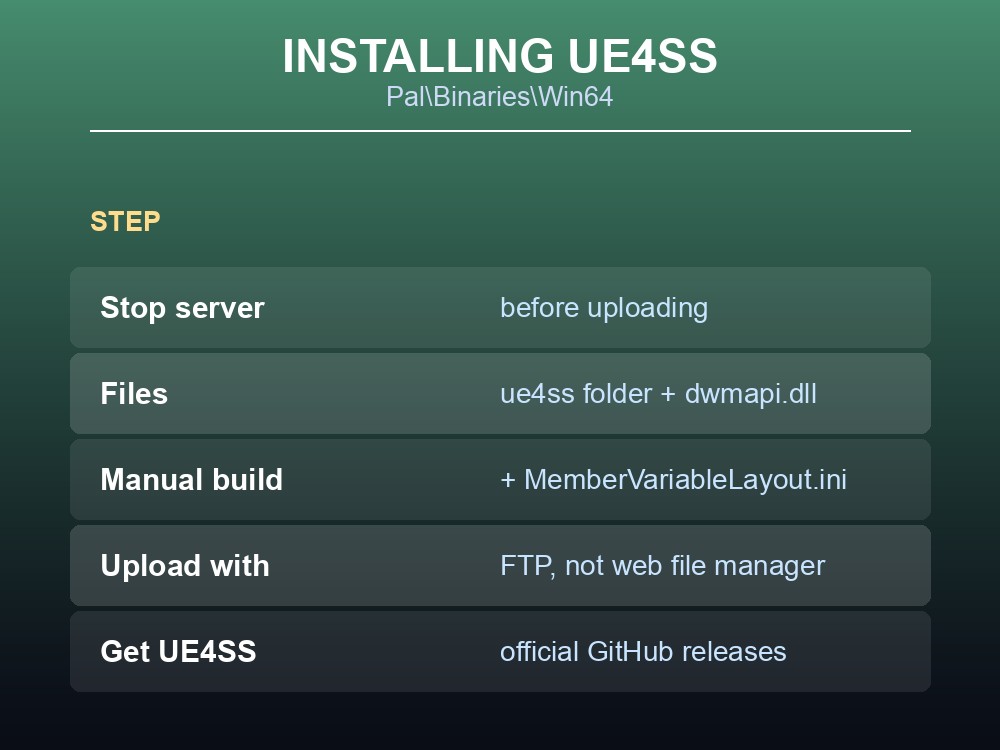
Upload with an FTP client — WinSCP or FileZilla — rather than a browser-based web file manager, which can corrupt files partway through a large upload. And if your host advertises a one-click "auto-install UE4SS" toggle, doing it yourself manually is still the safer move: automated installers can run an outdated or incompatible UE4SS version.
Adding and Enabling Lua Mods
Once UE4SS is in place, each server Lua/script mod gets its own folder directly inside Pal\Binaries\Win64\ue4ss\Mods\ — for example ue4ss\Mods\SmartTransport. The one mistake that silently breaks loading is double-nesting: ue4ss\Mods\SmartTransport\SmartTransport instead of the mod's files sitting straight in the first-level folder. Don't rename that folder either, unless the mod's own page tells you to — UE4SS matches mods by folder name, so a renamed folder is a mod UE4SS can no longer find.
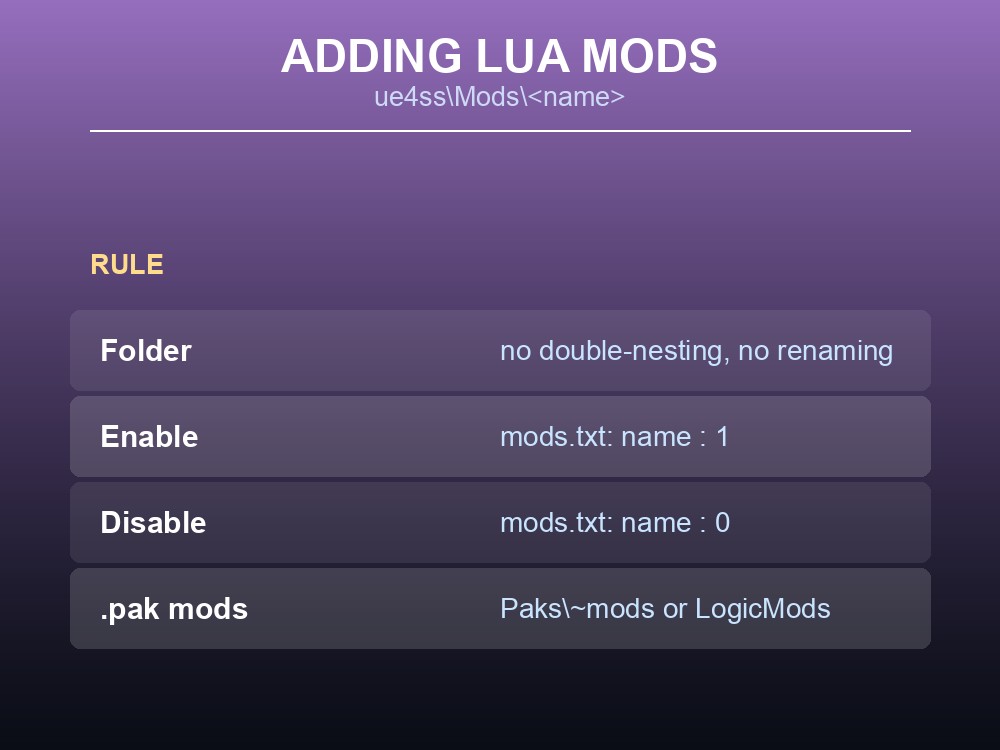
Some mods need an explicit enable step through mods.txt, at Pal\Binaries\Win64\ue4ss\Mods\mods.txt. Add a line with the mod's exact folder name followed by : 1 to turn it on ( : 0 to turn it off) — the name has to match what's on disk, not the mod's display name.
Not every mod needs any of this, though. Pure .pak mods skip UE4SS entirely and go straight into Pal\Content\Paks\~mods (create that folder if it isn't there), though some .pak mods specifically require Pal\Content\Paks\LogicMods instead — check the individual mod's instructions for which one.
Restart, Back Up, and Verify
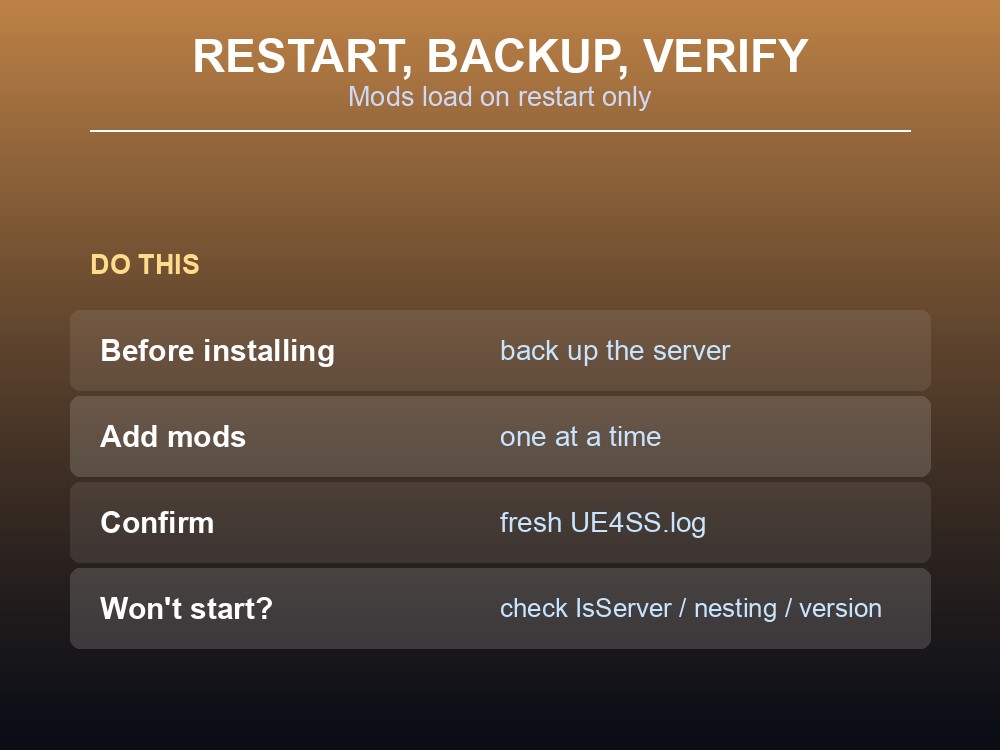
Nothing here takes effect while the server is running — mods apply on restart, so every file you add or edit happens with the server stopped, followed by a restart to load it. Back the server up before you install anything: Pocketpair's own documentation warns mods "may cause save-data corruption or crashes," and a backup taken before you start is your way back if a mod corrupts the save. Add one mod at a time, too — restart, confirm it works, then move to the next, so a failed start is easy to trace to a single change instead of a pile of them.
To confirm UE4SS actually initialised, check for a fresh UE4SS.log in Pal\Binaries\Win64 after the restart. If the server won't start once a mod is in, the usual suspects are the three things covered above: a client-only mod without "IsServer": true, a mod folder that got double-nested or renamed, or a UE4SS build that's out of date for what the mod needs. Remove the last mod you added and restart to confirm the server is healthy again before troubleshooting further.
Practical tips
"IsServer": truein a mod'sInfo.jsonis the only thing that makes it run server-side — check this before uploading anything.- UE4SS and its Lua mods are Windows-only; a Linux server folder layout is a dead end.
- UE4SS files go straight into
Pal\Binaries\Win64— no extra nested folder.- Lua mods live in
ue4ss\Mods\<exact folder name>— never double-nested, never renamed unless told to.- Enable mods in
mods.txtwith the folder name plus: 1.- Back up before installing, and add mods one at a time.
Running your own Palworld 1.0 server
Because everything above only works on Windows, the single decision that determines whether server-side UE4SS mods are even possible is the operating system your server runs. On a gamever Palworld server, you choose that OS yourself — pick Windows and UE4SS, ue4ss\Mods, and mods.txt all work exactly as described here, instead of hitting the Linux dead end this guide keeps warning about. You also get direct file access for the FTP upload step and one-click backups taken before changes, so a mod that causes the save-corruption Pocketpair warns about is a restore, not a rebuild. Rent a Palworld server at gamever.io and use promo code WELCOME.
Conclusion
Manual UE4SS installation is a separate path from the Steam Workshop route: you install UE4SS yourself into Pal\Binaries\Win64, drop each Lua mod's folder into ue4ss\Mods\ without nesting or renaming it, and enable it in mods.txt if the mod calls for it. Pure .pak mods skip UE4SS and go in Paks\~mods or Paks\LogicMods instead. None of it works without two things checked first: the mod's Info.json has to declare "IsServer": true, and the server has to be running Windows — UE4SS has no official Linux path. Change files with the server stopped, back up before you start, add mods one at a time, and confirm each restart with a fresh UE4SS.log.