
Installing Mods on Your 7 Days to Die Server
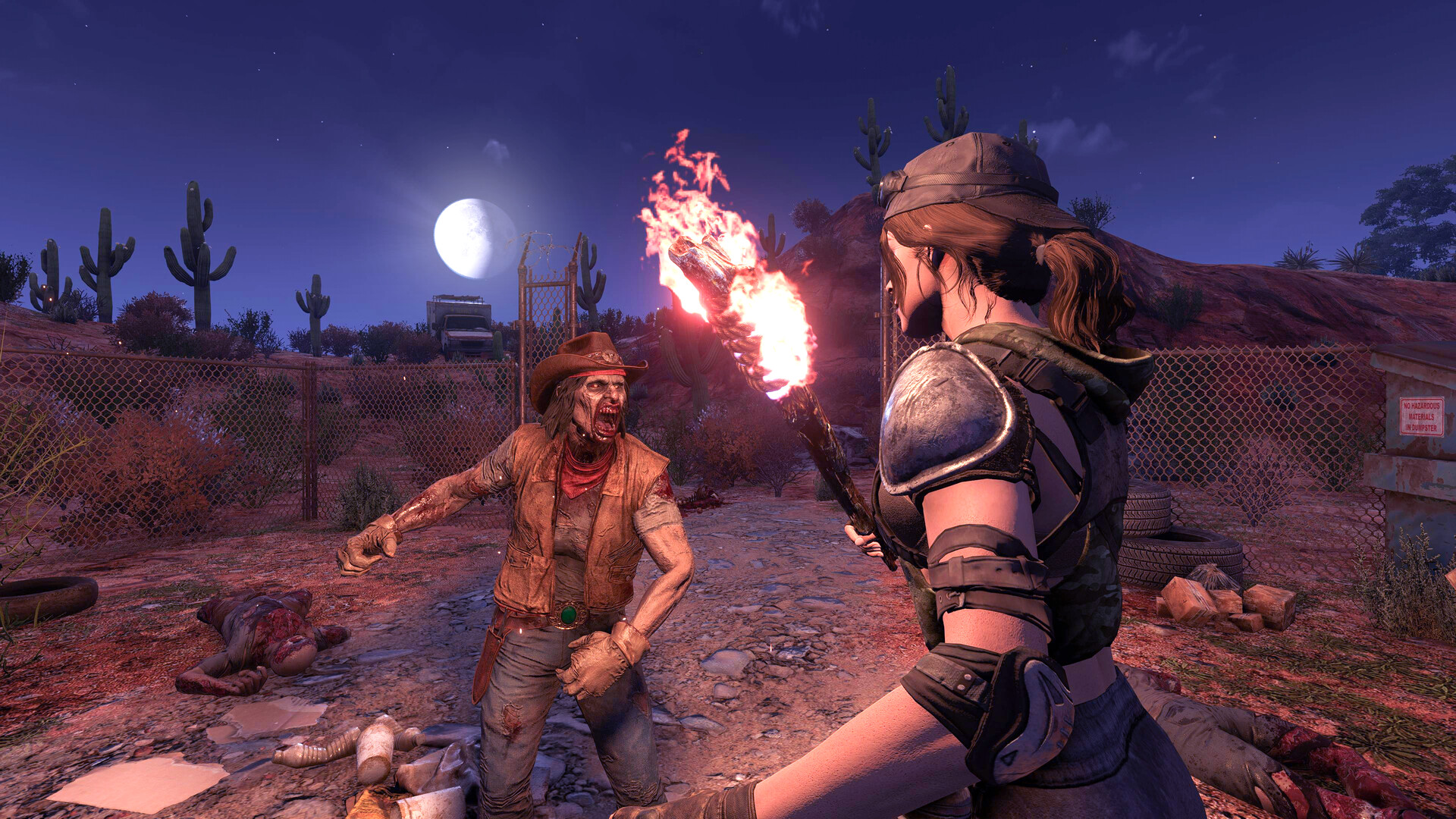
7 Days to Die has a deep modding scene, from total overhauls that rework the whole game to small quality-of-life tweaks. Your gamever server supports both a one-click overhaul toggle and manual mod installs over FTP. This guide covers both routes and the three things that trip people up: anti-cheat, matching clients, and backups.
Before you start: three ground rules
- Back up first. Mods change your world and files — take a backup before any mod work. See backup & restore.
- EAC usually has to be off. Most mods that change gameplay won't run with Easy Anti-Cheat enabled. You'll set EACEnabled to
falseon Server settings — accepting the reduced protection that comes with it. - Clients must match the server. This is the big one — 7 Days to Die mods that change game content must be installed on every player's game too, matching the server's mods. A server-only install of a content mod means players can't join or see things correctly. Be honest with your group about this before you commit.
Option 1: Install Undead Legacy (one click)
The easiest route to a full overhaul is the built-in toggle. On Settings → Server settings:
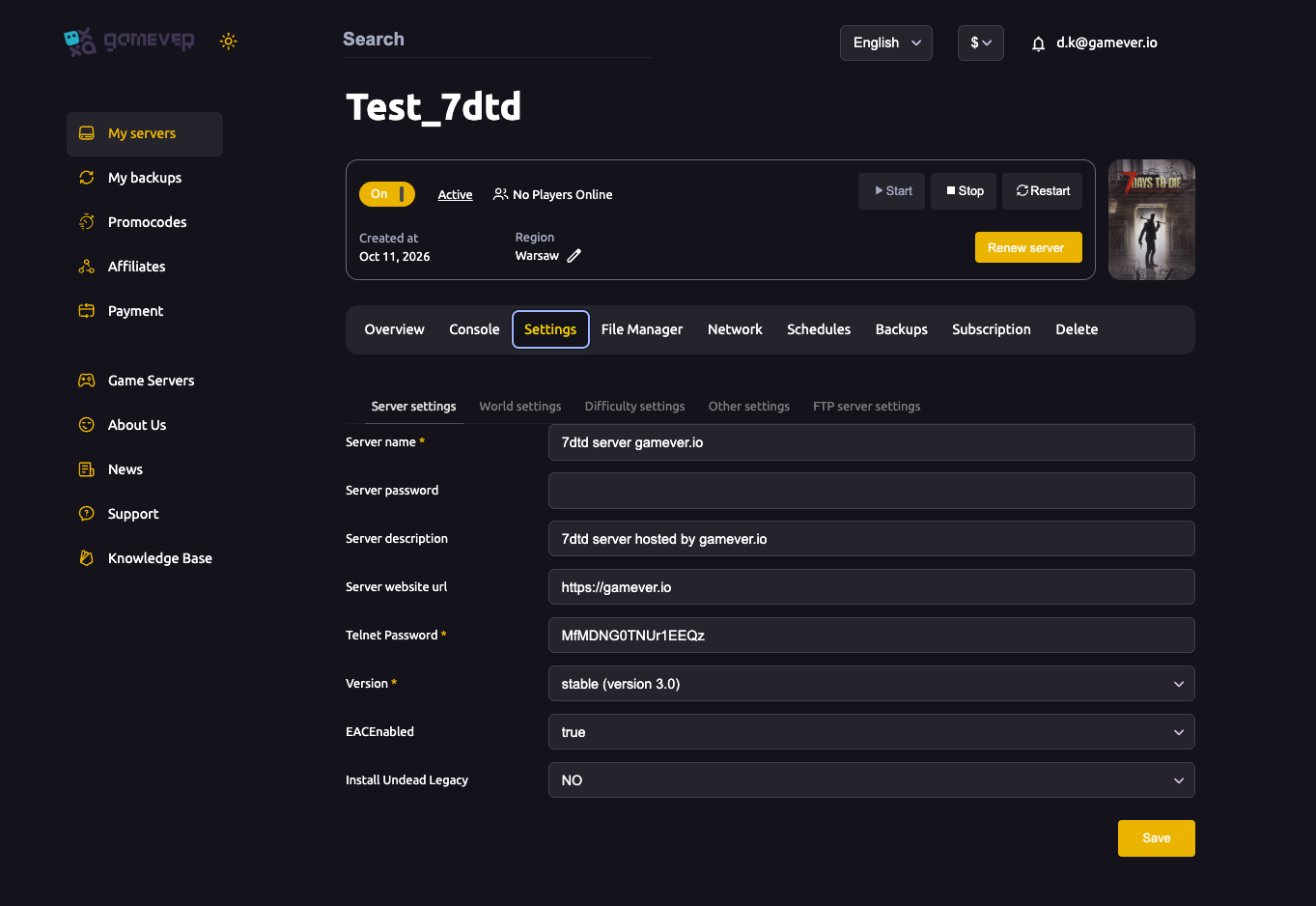
- Set Install Undead Legacy to YES to install the Undead Legacy overhaul mod on the server.
- Save, then Restart.
- Each player then installs the matching Undead Legacy build on their own game so they can join.
This is the simplest way to run a big overhaul without touching files.
Option 2: Manual mods over FTP
For hand-picked mods, install them yourself into the server's Mods folder:
- Back up and stop the server.
- Get your FTP credentials from Settings → FTP server settings.
- Connect with an FTP client and find (or create) the Mods folder in the server files.
- Upload each mod into its own subfolder inside Mods.
- Set EACEnabled to
falseif the mod requires it. - Start the server and watch the Console for load errors.
- Make sure every player installs the same mods locally.
The File Manager can also handle smaller uploads directly in the browser.
If something breaks
- Players can't join after modding — almost always a client/server mod mismatch, or EAC still on. Line the mods up and set EAC off.
- Server won't start — a bad or incompatible mod; check the Console, remove the offending mod over FTP, and restart. Restore your backup if needed.
Additional Tips
- Back up before and after a successful mod setup.
- EAC off is the price of most mods — expect it, and know it lowers protection.
- Every player needs matching mods for content changes — no exceptions.
- One mod per subfolder in Mods keeps things tidy and easy to remove.
- Watch the Console on first start to catch load errors early.
Conclusion
Modding your 7 Days to Die server is straightforward: flip Install Undead Legacy to YES for a one-click overhaul, or upload hand-picked mods into the Mods folder over FTP. Just remember the three rules — back up first, turn EAC off when a mod needs it, and make sure every player runs the same mods. Do that, and your server is as custom as you want it.
Rent your 7 Days to Die server at gamever.io — a one-click overhaul toggle plus full FTP for custom mods, with backups a tab away. Free trial, promo code WELCOME.