
How to Wipe Your ARK Server for a Fresh Start

Sooner or later every admin wants a clean slate: a new map, a new mod list, a reset economy, or just a fresh server for a new season with the tribe. Wiping your ARK server deletes the current world and everyone's progress so the server generates a brand-new one on the next start. This guide shows the two safe ways to do it in the gamever control panel — deleting the save files in the File Manager, or using the panel's Reset server — and the one step you must never skip. It works the same on ARK: Survival Evolved and ARK: Survival Ascended.
What a wipe actually removes
A wipe clears the saved world and all progress tied to it. On a gamever server that world lives in the file manager at:
/home/server/ShooterGame/Saved/SavedArks/
Three kinds of file make up the save:
| File | What it holds |
|---|---|
<MapName>.ark | The world itself — terrain state, structures, dropped items (e.g. TheIsland.ark). |
<SteamID>.arkprofile | One per player: character, level and inventory. |
<TribeID>.arktribe | One per tribe. |
Delete these and you remove the world, every base, every tame and every character — the server rebuilds a fresh world from scratch on the next start. Your server settings (rates, rules, mod list) are stored separately and are not wiped, so your configuration carries over to the new world unless you change it too.
On ARK: Survival Ascended the world file carries a
_WPsuffix — for exampleTheIsland_WP.ark— so look for that exact name inSavedArks/. ASE files have no suffix.
Back up first — always
A wipe is permanent. Before you delete anything, take a snapshot so you can undo it if you change your mind (or want the old world back for a future event).
Open your server → the Backups tab → Make Backup. That bundles the whole SavedArks/ save into one restore point; Download Backup also saves a copy to your own PC for off-site safekeeping. If you ever want the old world back, Install Backup rolls it straight back. See our backups & schedules guide for the full flow.

Method 1 — delete the save files (File Manager)
This is the precise option: it clears the world but leaves your configuration and mods in place.
- Stop the server. ARK rewrites the live
.arkconstantly, so never touch save files while it's running — stop it first on the Overview or Control tab. - Open the File Manager and browse to
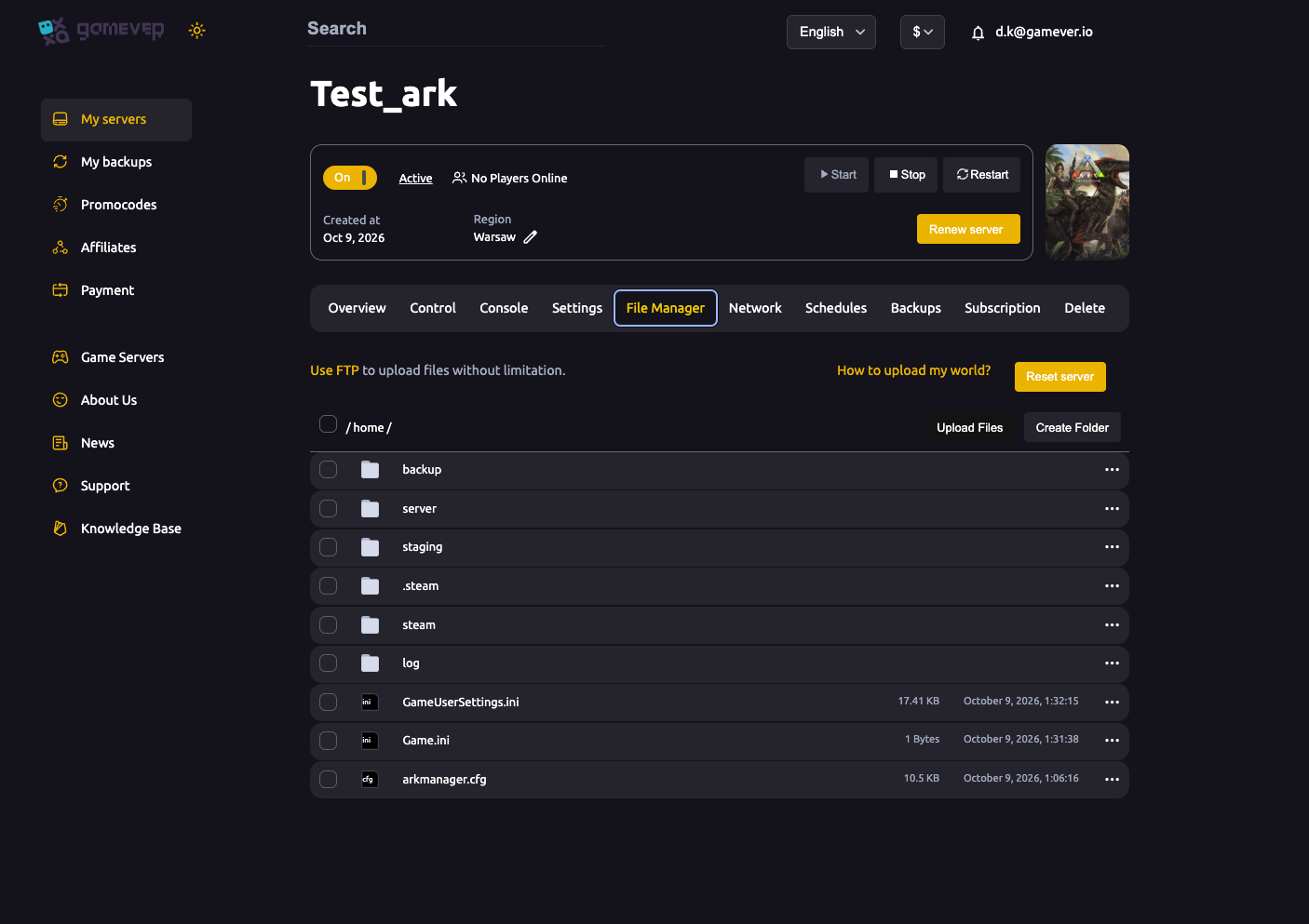
/home/server/ShooterGame/Saved/SavedArks/. - Delete the
.arkworld file (and, if you want a total reset of characters and tribes, the.arkprofileand.arktribefiles too). - Start the server. With no world file present, ARK generates a brand-new one on boot — watch the Console tab until it finishes loading.
Method 2 — Reset server (panel reinstall)
The File Manager also has a Reset server button that wipes the install back to a fresh state in one click — handy when you want everything clean, not just the world. It's the heavier hammer, so treat it with care: make sure your backup is downloaded first, since this resets more than the save alone. After it finishes, start the server and it comes up fresh.
Starting a fresh world
Once the old save is gone, this is the moment to set up the new season before the first boot:
- Pick the map. Set Settings → Server Settings → Server Map to the map you want the fresh world to generate (the new world is named after it). See our server settings guide.
- Adjust rates and rules while you're there — a fresh start is the natural time to retune XP, harvesting and taming.
- Review your mods (Settings → Mod Settings) — add or remove mods now, before any new progress is tied to them.
- Start the server and let the Console confirm the new world has loaded.
If instead of a blank world you want to drop in an existing save (a single-player world, or one from another host), see our upload-world guide — same SavedArks/ folder, opposite direction.
Additional Tips
- Always back up before a wipe. A downloaded snapshot is the only way back if you change your mind — it costs seconds and saves seasons.
- Stop the server before deleting files. Editing or removing
SavedArks/on a running server can corrupt the write in progress. - Match the
_WPsuffix on ASA. Look for<Map>_WP.arkon Survival Ascended; plain<Map>.arkon Survival Evolved. - Keep or clear profiles deliberately. Delete the
.arkprofile/.arktribefiles only if you want everyone to start as fresh characters too — leaving them keeps characters but orphans them from the new world. - Tell your players. Announce the wipe ahead of time with a Broadcast (Console or Control tab) so nobody loses progress by surprise.
Conclusion
Wiping an ARK server is simple once the order is right: back up, stop the server, delete the save in SavedArks/ (or use Reset server for a full clean install), then set your map and mods and start fresh. Do the backup first and the whole thing is risk-free — a brand-new world for the next season, with the old one safely in your pocket.
Rent your ARK server at gamever.io with a built-in file manager, one-click backups and instant restores — wipe, reset or restore your world in seconds, online 24/7. Free trial, promo code WELCOME.