
How to use the CurseForge Launcher to install mods in Minecraft?
The CurseForge Launcher is a popular and versatile tool in the Minecraft community for managing and installing mods, which enhance and expand the game's capabilities. Whether you're looking to improve graphics, add new gameplay mechanics, or explore fresh content, CurseForge provides a streamlined, user-friendly platform to revitalize your Minecraft experience. This comprehensive guide will walk you through the process of using the CurseForge Launcher to install mods in Minecraft. Additionally, we will explore how playing on Gamever servers can enhance your modded Minecraft adventures, allowing you to share these experiences with friends.
Understanding Mods and the CurseForge Launcher
Mods (short for modifications) are alterations or extensions of the game’s original content, created by the community to add variety and depth to the gameplay. The CurseForge Launcher acts as a hub for accessing these mods, providing tools to easily manage and install them without the hassle of manual file handling.
Why use CurseForge?
CurseForge is preferred by many players for several reasons:
Vast Selection: Access thousands of mods across various categories and Minecraft versions.
Ease of Use: The interface is intuitive, making mod management accessible to players of all skill levels.
Safety: CurseForge generally vets mods, making them safe to download and lowering the risk of downloading harmful files.
Updates: The launcher automatically notifies you of mod updates, ensuring your mods are always current.
Step-by-step guide to using CurseForge to install Minecraft mods
1. Installing CurseForge Launcher
Download the Launcher : Visit the CurseForge website and download the launcher compatible with your operating system.
Installation : Follow the on-screen instructions to install the launcher. Once installed, open the launcher and navigate to the Minecraft tab.
2. Setting Up Your Minecraft Instance
Create a New Profile : Click on “Create Custom Profile” at the center of the launcher. Here, you can name your profile, select the Minecraft version, and choose a mod loader (usually Forge).

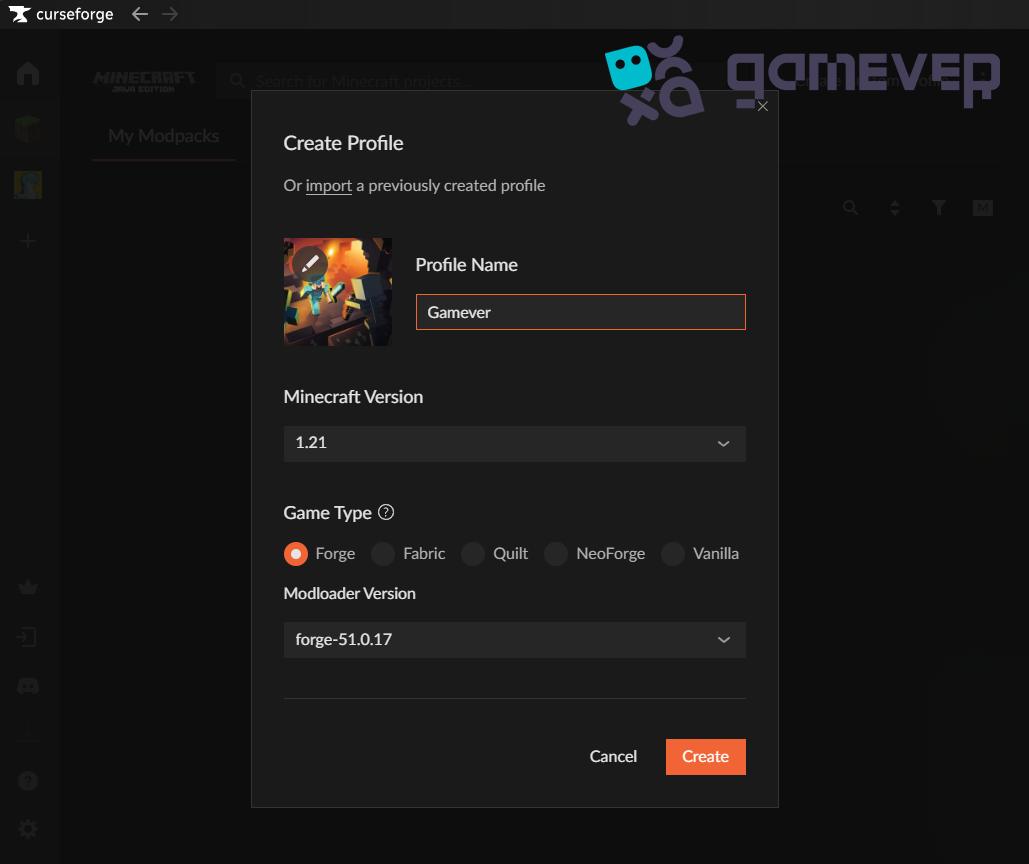
Profile Customization : Customize your profile settings according to your preferences. This setup dictates how mods will interact with your Minecraft installation.

3. Installing Mods
Browse and Install Mods: After setting up your profile, select "Add More Content" to explore the available mods. You can use the search function to find specific mods. To install a mod, simply click the “Install” button next to the mod description.

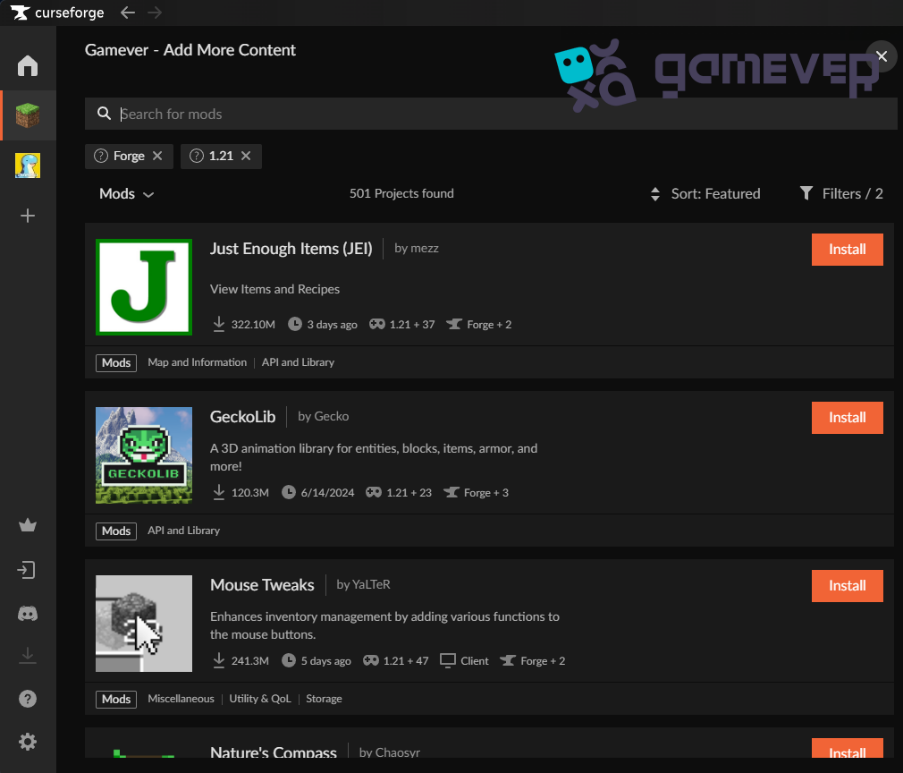
Managing Mods: The "Mods" tab lists installed mods. You can enable, disable, or update mods from here.

4. Launching a modded Minecraft
Start the game : With your mods installed, click “Play” on the profile you created. CurseForge will launch Minecraft with all the installed mods active.
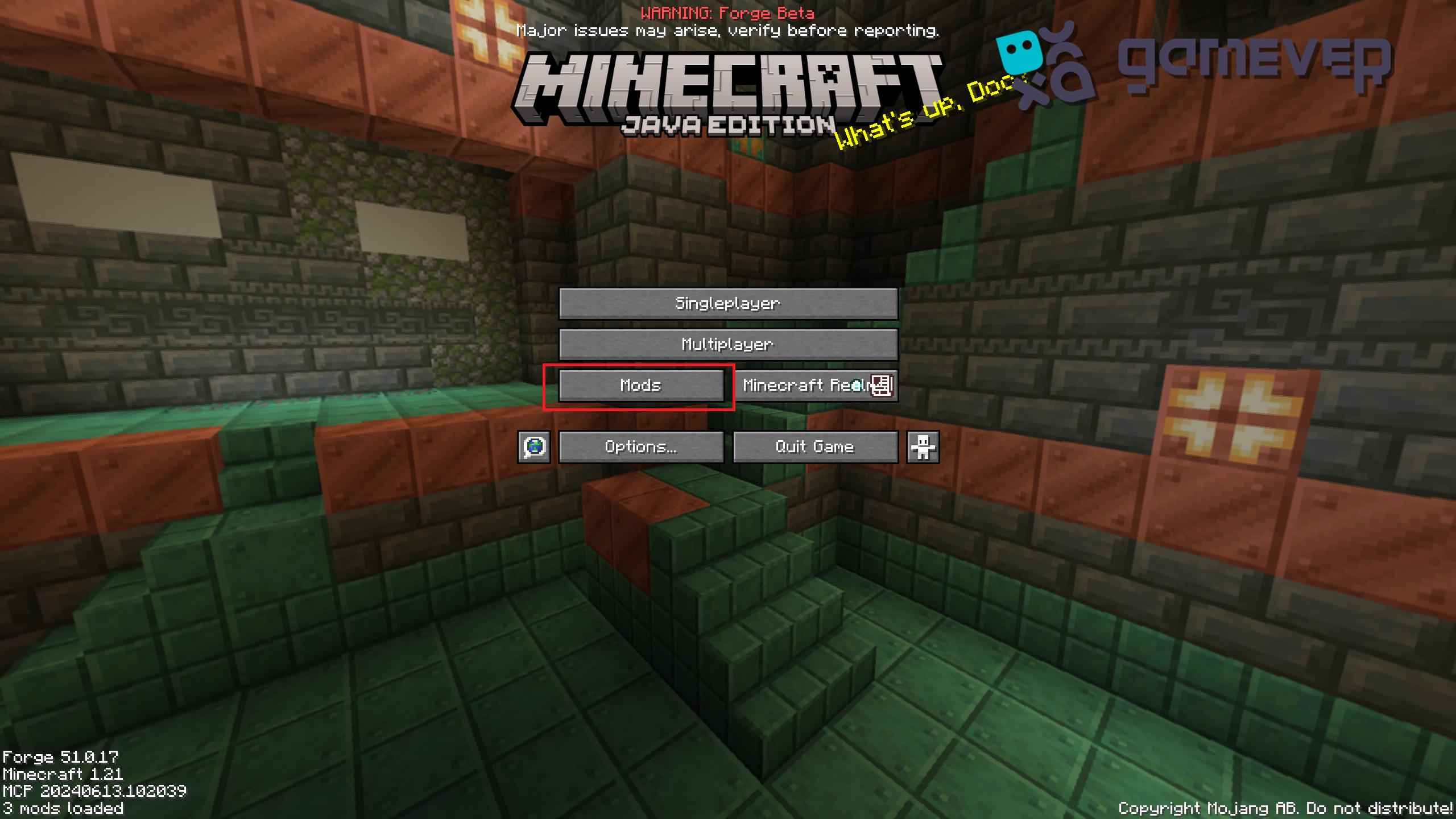
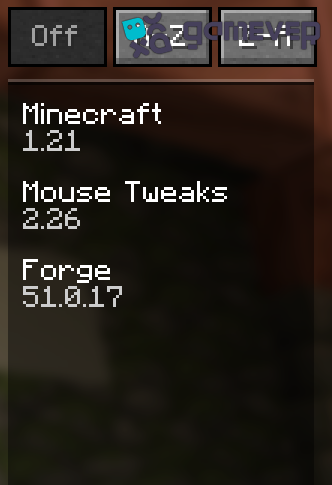
Verify Mod Installation: After entering the game, navigate to the Mods menu on the main screen to verify that your mods are loaded.
Best Practices for Using Mods
Compatibility Checks : Ensure mods are compatible with each other and with your version of Minecraft to avoid crashes and conflicts.
Read Mod Descriptions : Before installing, read the mod descriptions and installation instructions on CurseForge to understand their functionality and requirements.
Backup Your Saves: To protect against potential issues, always backup your Minecraft saves before adding new mods.
Playing on Gamever Servers with Mods
Installing mods can transform your Minecraft experience, and sharing this experience on Gamever servers can further enhance it:
Join Modded Communities : Gamever servers often host communities that play with specific mod packs, offering a shared modded experience.
Stable and Reliable : Gamever’s robust server infrastructure ensures that your modded gameplay is smooth and uninterrupted.
Collaborative Play: Join friends on modded adventures, explore new content, and tackle challenges together.
Conclusion
Using the CurseForge Launcher to install mods in Minecraft simplifies the process, making it accessible and enjoyable. By following the steps outlined in this guide, you can easily enhance your Minecraft experience with mods. Additionally, consider joining Gamever servers to maximize the enjoyment of your modded gameplay, where you can share experiences, resources, and adventures with a vibrant community.