
How to Use Blueprints in Satisfactory
Getting Started with Blueprints
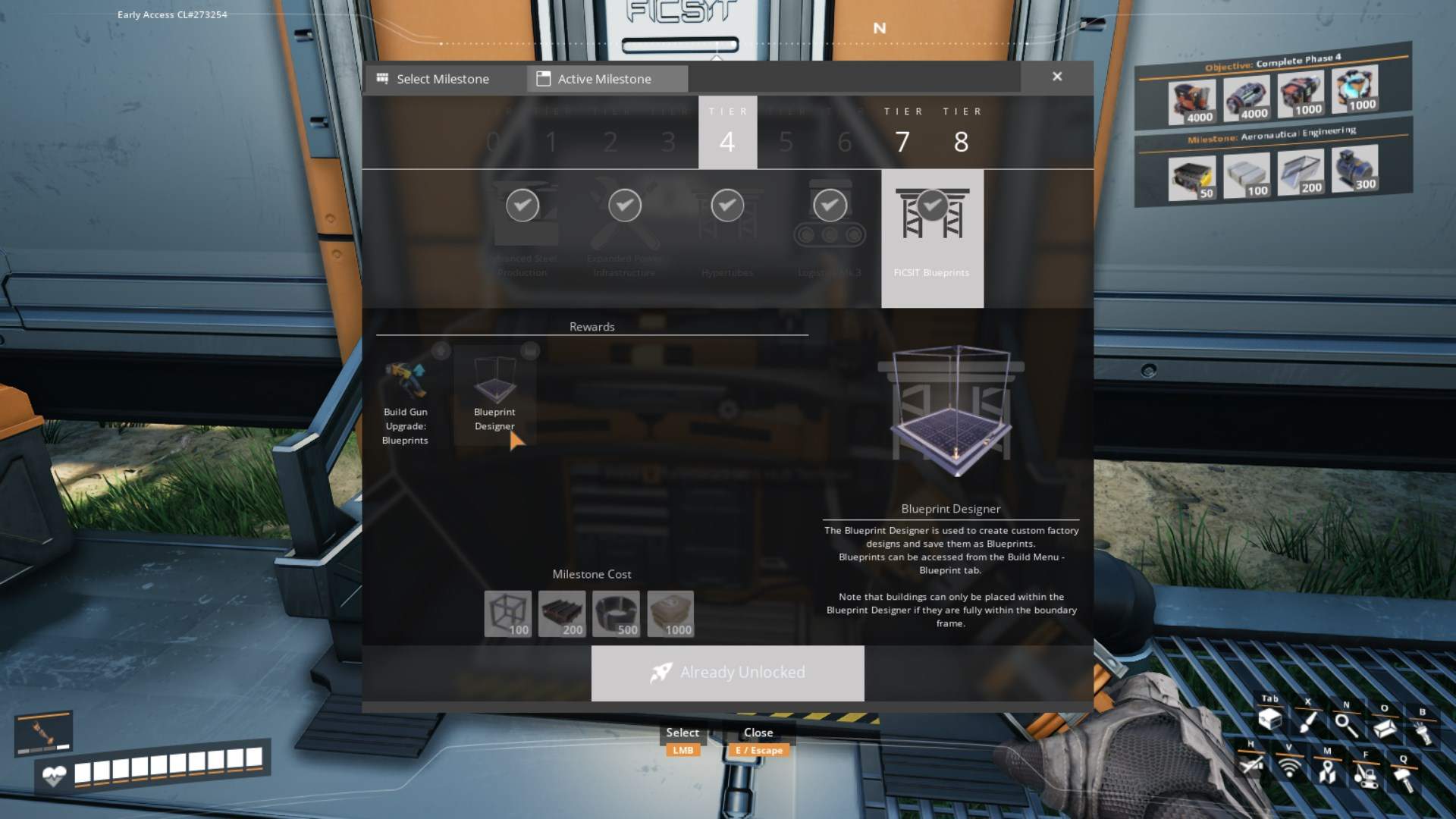
First off, to unlock the Blueprint feature, you need to reach Tier 4 and complete the "Fix It Blueprints Milestone." Once you've done that, you’ll find the Blueprint Designer in your Builder Menu. This special tool lets you design and save intricate builds to use and reuse as you see fit.
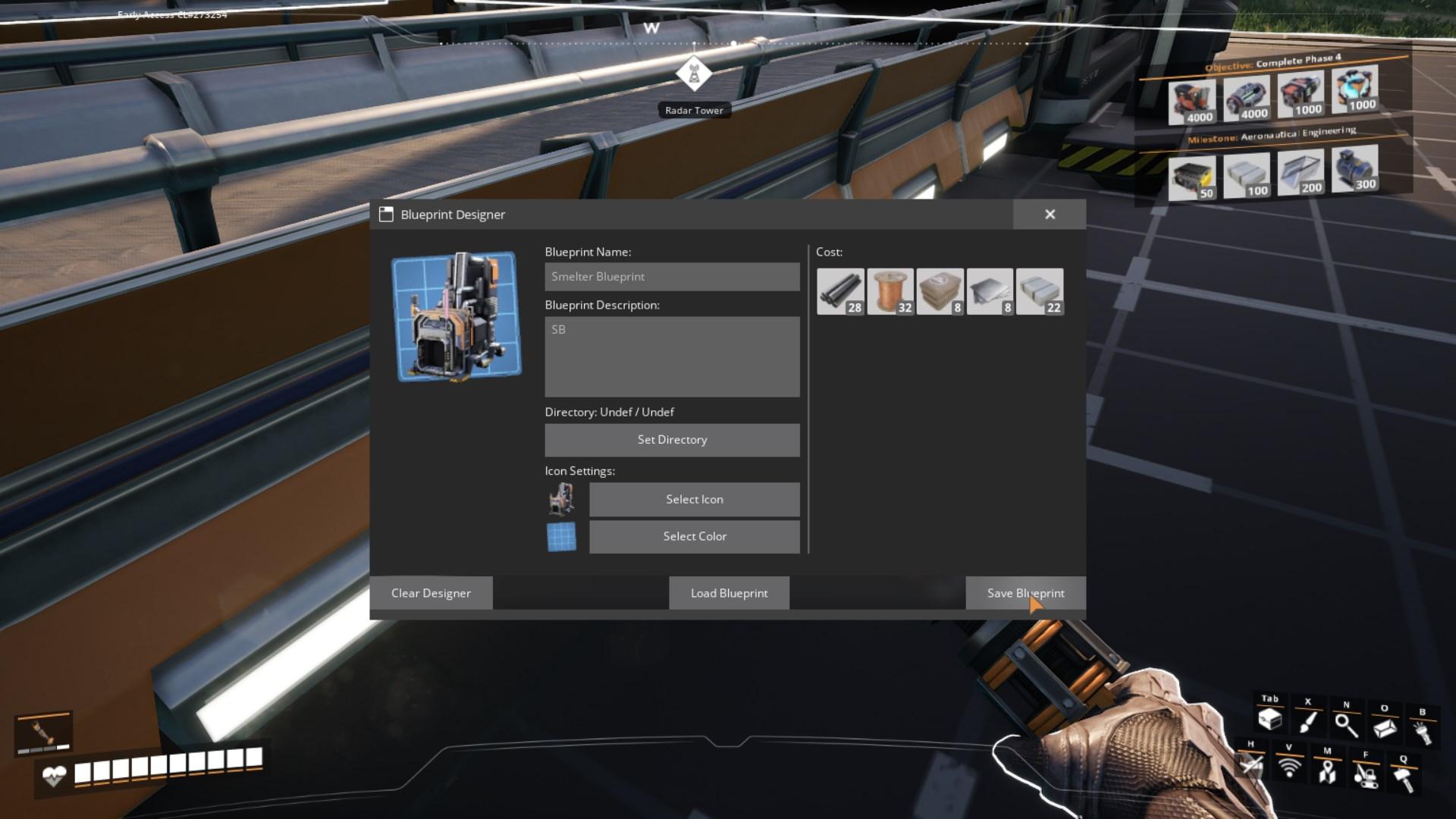
When you interact with the Blueprint Designer, you’ll see a user-friendly interface. Here’s where you’ll name your blueprint, select its icon, and choose a background color. This is also where you set up categories and subcategories to keep your blueprints organized. Just click “Edit” to create new categories or subcategories, and customize them with different icons.
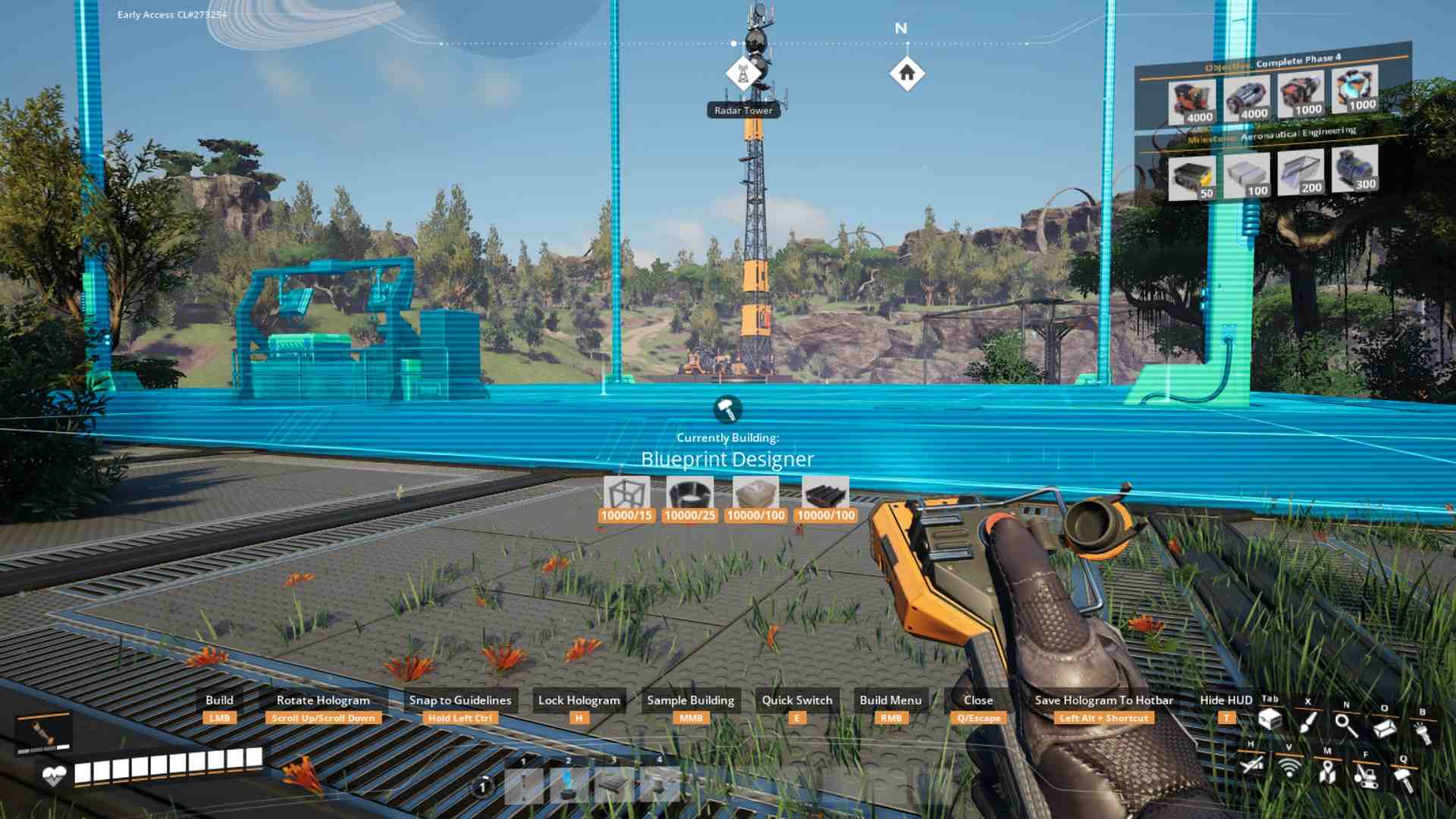
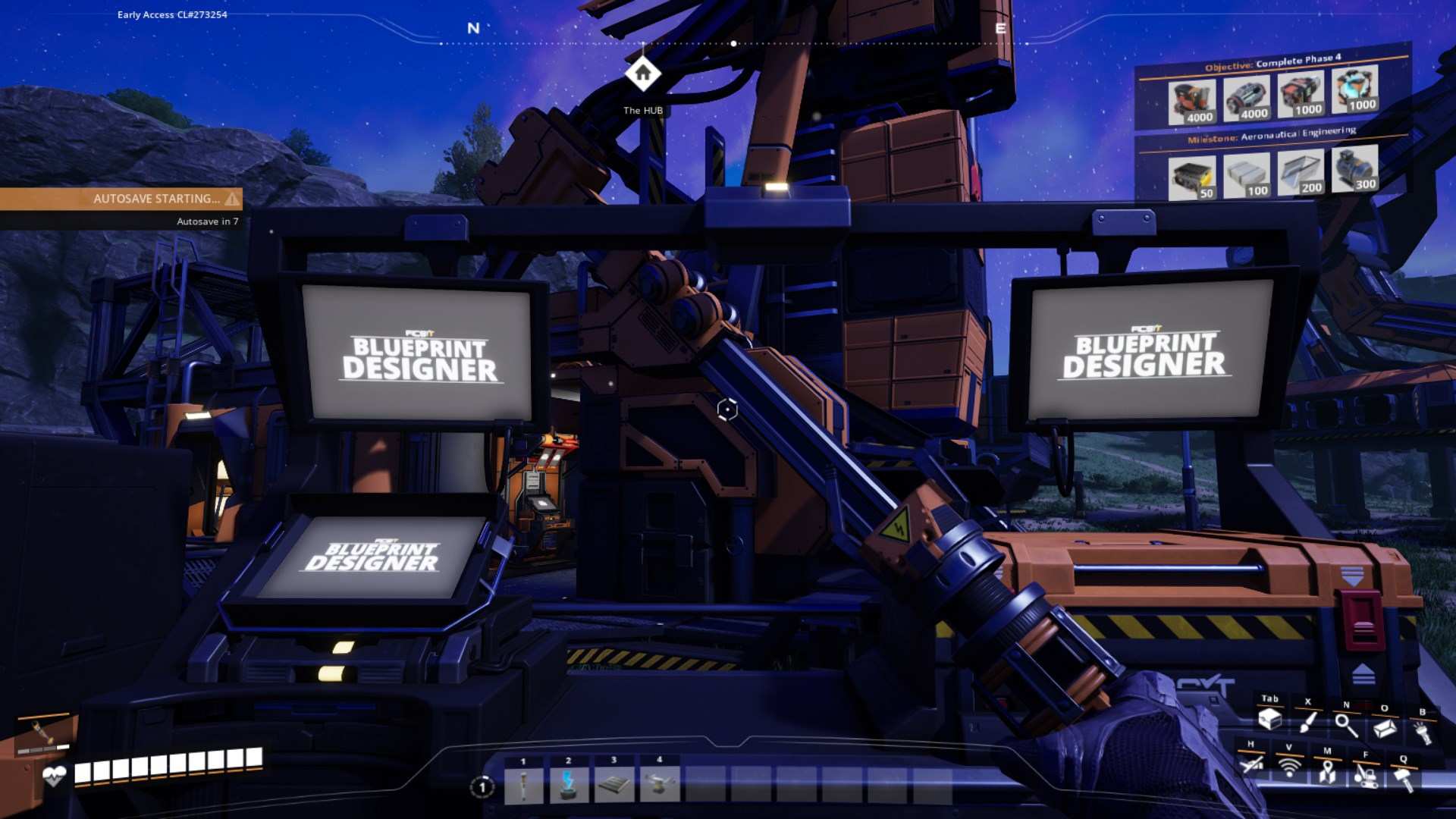
The Designer includes a Storage Box for all your blueprint materials. As you build within the Blueprint Designer, it will first pull resources from this box before dipping into your personal inventory. If the box is full, it’ll place extra materials into an overflow crate. This setup helps keep things organized and ensures you don’t run out of materials mid-build.
Creating and Managing Blueprints
Blueprints are saved in two parts: the Blueprint Module (.sbp) and the Blueprint Config File (.sbpcfg). The Module contains the layout and design, while the Config File holds details like the blueprint’s description and icon settings. You can find these files in your save directory, and they are specific to each game session.
To save a blueprint, simply finalize it in the Blueprint Designer. You can also move blueprints between different save files by copying them into the appropriate directory in your game’s save folder. This is handy if you want to use a design across multiple games or share it with friends. Just remember, blueprint files are not synced across cloud services, so manual backups are essential.
Using Blueprints in Your Builds
Placing a blueprint is easy. Open the build menu, select “Blueprints,” and choose the one you want to use. You can assign blueprints to your Hotbar for quick access. There are two build modes: Default and Blueprint. In Blueprint Mode, blueprints snap together neatly based on the center of your design, making it super easy to align them.
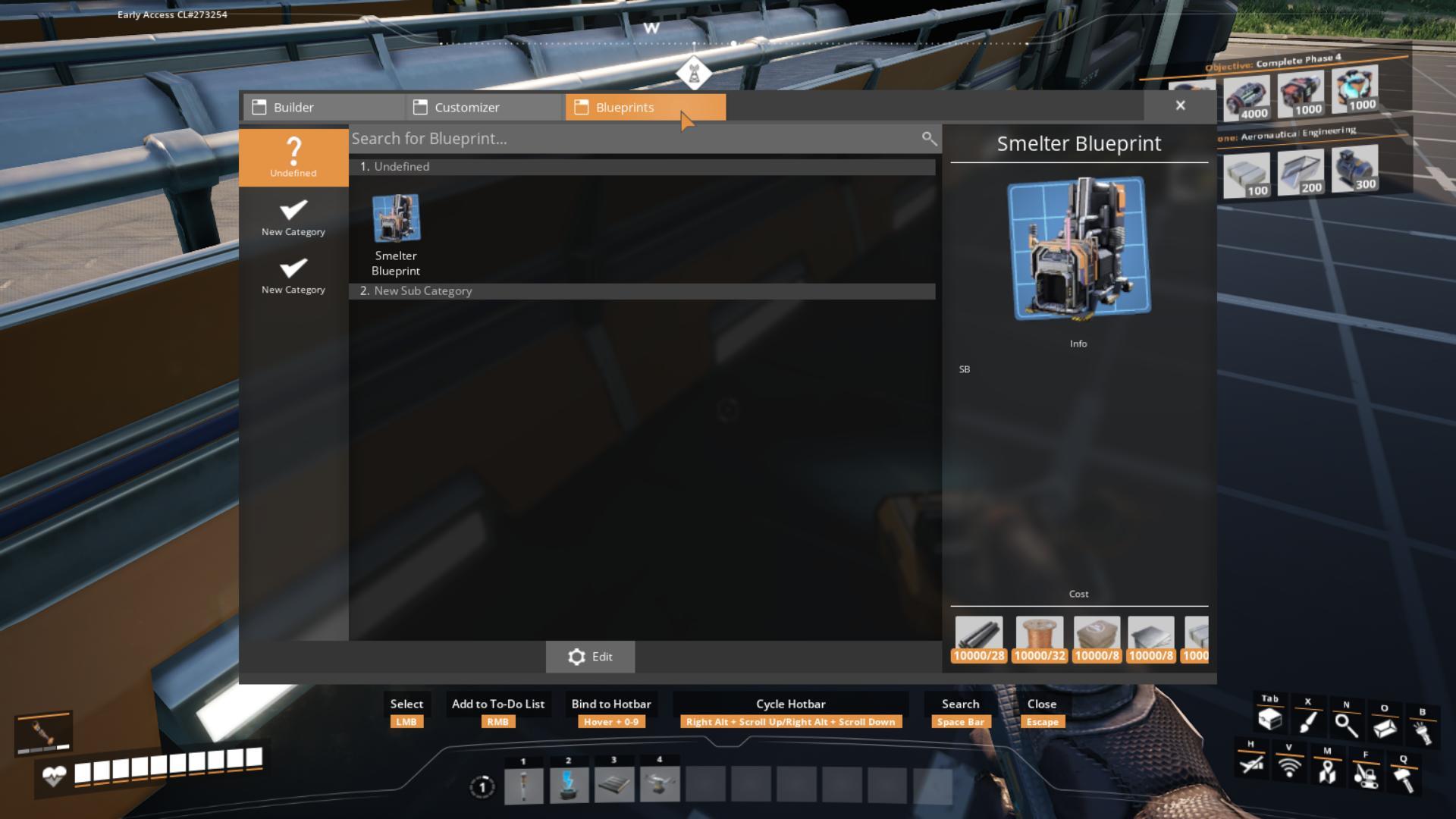
Blueprints snap to a 1 x 1 meter grid, and when using Blueprint Mode, they align based on pre-set snapping points. To avoid alignment issues, create a base grid using world foundations before placing blueprints on top. This ensures everything lines up perfectly without any awkward gaps.
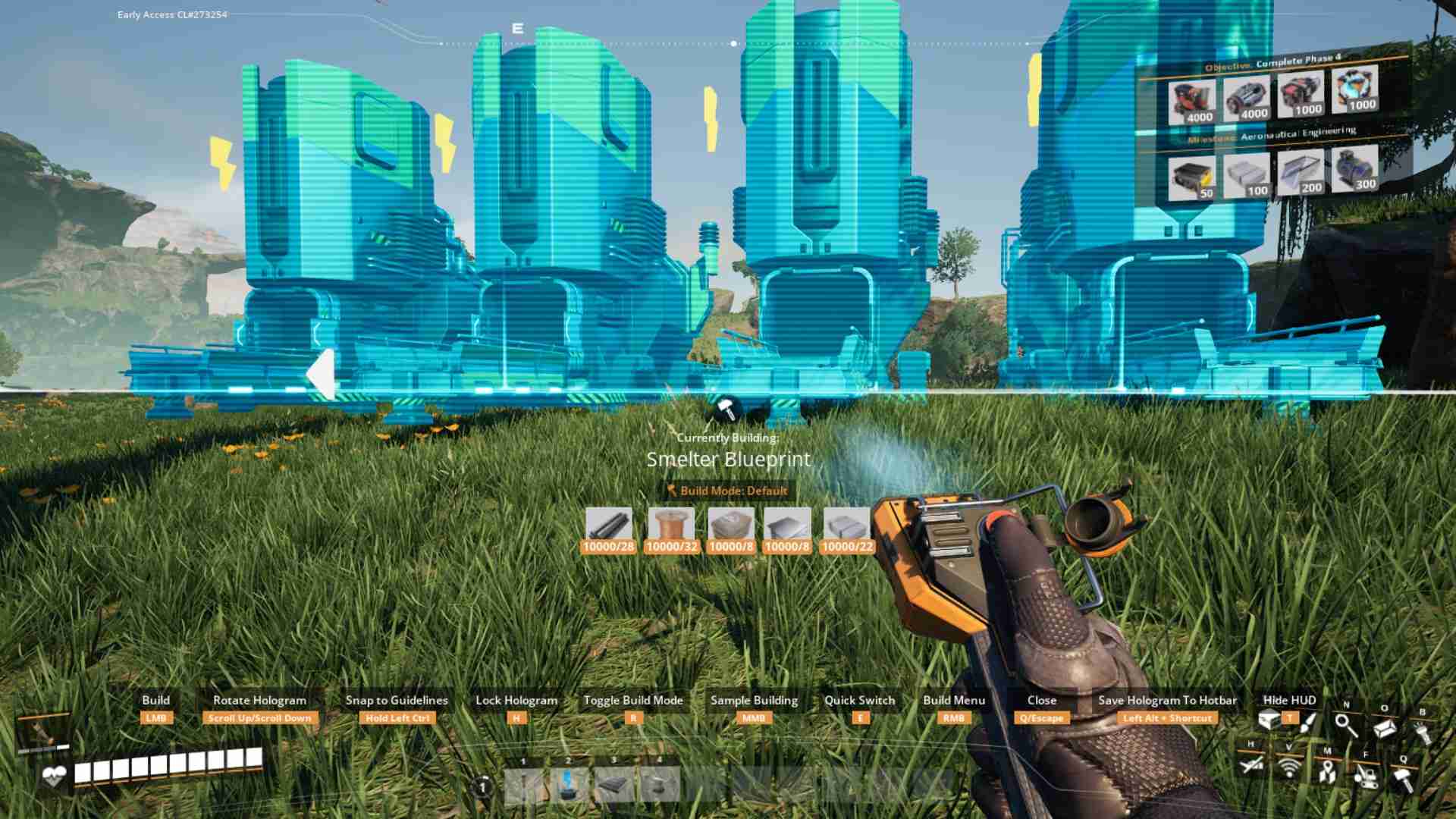
While blueprints are fantastic, they do have some limitations. Belts, pipes, and railways won’t automatically connect across different blueprints. You’ll need to manually align them. Additionally, blueprints can be tricky to use with curved sections or floating structures, but with some creativity, you can work around these issues.

Tips
1. Design Smart: Spend time making your first blueprint detailed and well-designed. This will save you loads of time later on.
2. Use Subcategories: Keep your blueprints organized by using categories and subcategories. This makes it easier to find what you need.
3. Experiment with Sizes: If your builds are larger than the standard grid, consider using mods like the Blueprint Designer Plus for bigger blueprint sizes.
Blueprints in Satisfactory are a game-changer, making it faster and easier to build complex and beautiful factories. By following these steps, you’ll be able to create, manage, and use blueprints like a pro, turning your factory dreams into reality with minimal fuss. So go ahead, experiment with designs, and see how much more efficient and fun your Satisfactory experience can be!