
How to Use an FTP Client with Your Palworld Server
The gamever panel handles most things through buttons, but sometimes you want direct file access — to copy a save, edit the config, or move a world between servers. That's what FTP is for. This guide shows where to find your FTP details, how to connect with a client like FileZilla or WinSCP, where your Palworld files live, and how to upload and download without corrupting anything.
Step 1 — get your FTP details
You need three things, split across two tabs.
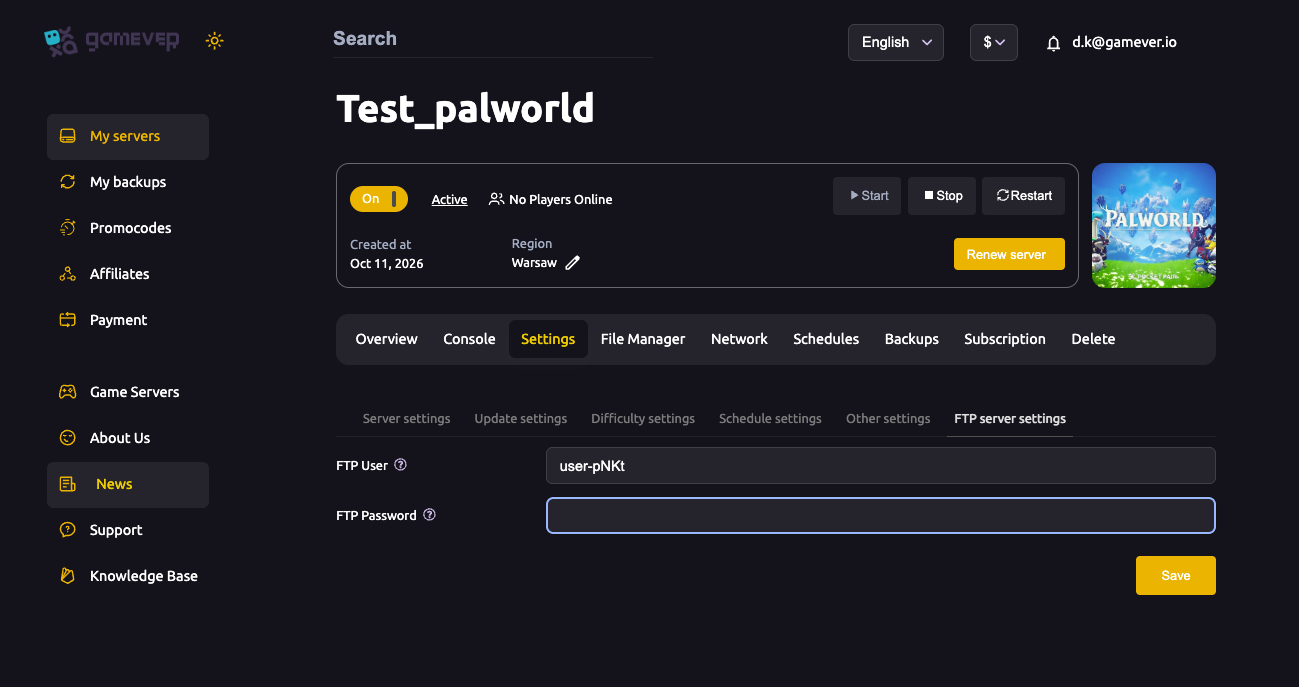
The login is on Settings → FTP server settings:
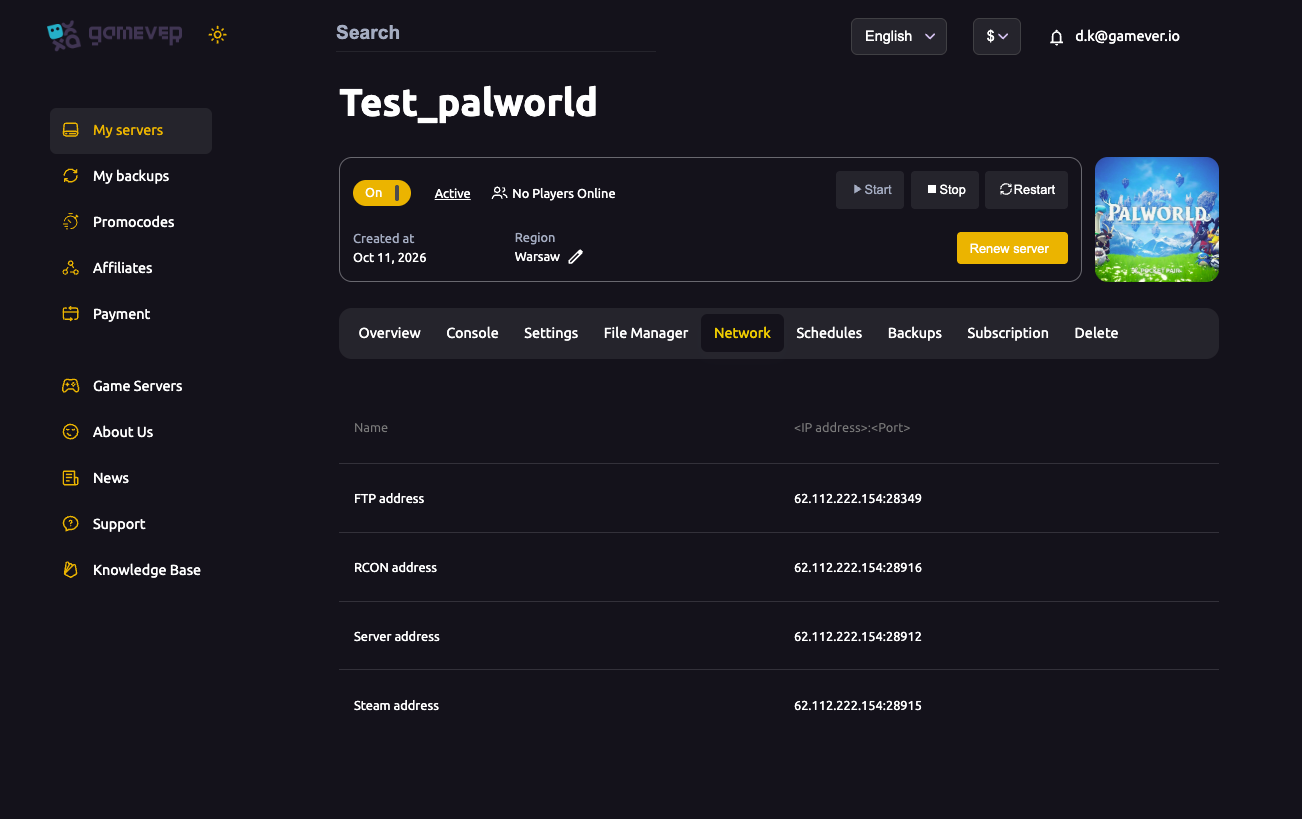
The address and port are on the Network tab:
| Field | Where | Value |
|---|---|---|
| Host / FTP address | Network tab | your server IP, port 28349 |
| Username | Settings → FTP server settings | your FTP User |
| Password | Settings → FTP server settings | your FTP Password |
Step 2 — connect with a client
Any standard FTP/SFTP client works — FileZilla and WinSCP are the usual picks. In the client:
- Enter the Host (your IP) and Port
28349. - Enter the Username and Password from the FTP settings tab.
- Connect. You'll land in your server's file tree.
If you prefer not to install anything, the panel's built-in File Manager browses, uploads and downloads the same files from your browser — no client required.
Step 3 — know where things live
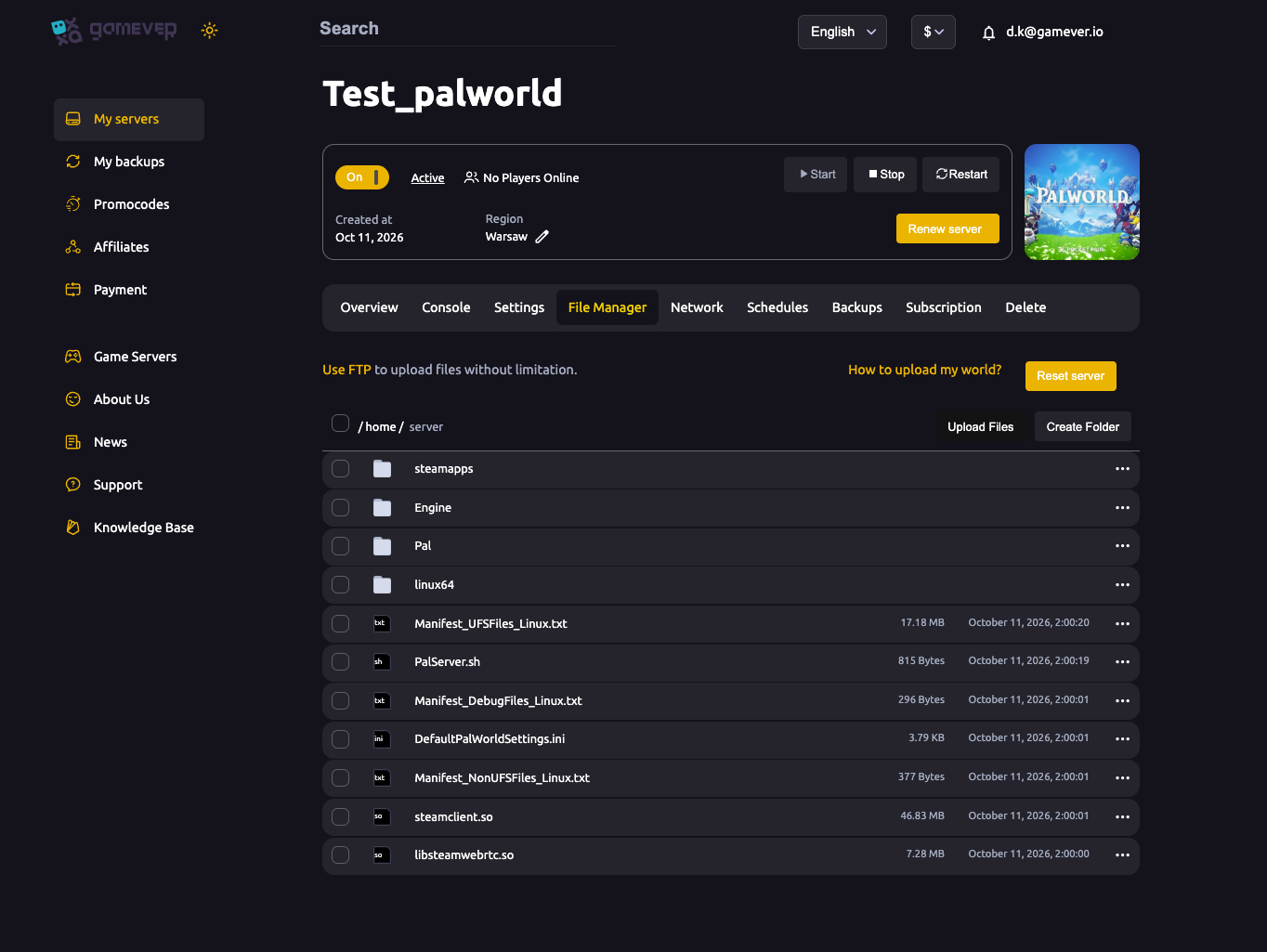
Your server root is /home/server/, containing steamapps/, Engine/, Pal/, linux64/, PalServer.sh and DefaultPalWorldSettings.ini:
The two paths you'll use most:
| What | Path |
|---|---|
| Live config | Pal/Saved/Config/LinuxServer/PalWorldSettings.ini |
| World + character saves | Pal/Saved/SaveGames/<SteamID>/<WorldID>/ (world data, plus Players/ for characters) |
Note that DefaultPalWorldSettings.ini in the root is a template, not the live config — the file the server actually reads is the one under Pal/Saved/Config/LinuxServer/.
Step 4 — upload and download safely
A few rules keep FTP from corrupting your world:
- Stop the server before touching saves. Downloading or replacing files in
SaveGameswhile the server is running risks copying a half-written, inconsistent save. Stop, transfer, then start. - Keep the folder structure intact. Character saves in
Players/are tied to their<SteamID>/<WorldID>/path — don't rename or flatten those folders. - Mind the config overwrite. If you hand-edit
PalWorldSettings.iniover FTP, set Overwrite config file (Settings → Server settings) tofalsefirst — otherwise the panel rewrites the file from its own fields on the next restart and your edits are gone. - Download a copy before you change anything, so you have a rollback (see restore a backup).
Additional Tips
- FTP address = your IP + port
28349(from the Network tab). - Login is on Settings → FTP server settings — User and Password.
- No client needed — the panel File Manager does the same job in-browser.
- Stop the server before copying or replacing saves.
- Edit the live config under
Pal/Saved/Config/LinuxServer/, not the root template. - Set Overwrite config file = false before hand-editing
PalWorldSettings.ini.
Conclusion
FTP gives you direct control of your gamever Palworld server's files: grab the FTP User/Password from Settings → FTP server settings, the address and port 28349 from the Network tab, and connect with FileZilla, WinSCP — or skip the client and use the panel's File Manager. Your config lives at Pal/Saved/Config/LinuxServer/PalWorldSettings.ini and your saves under Pal/Saved/SaveGames/. Stop the server before touching saves, keep folder names intact, and watch the overwrite setting, and FTP is a safe, powerful tool.
Rent your Palworld server at gamever.io — full FTP access, a browser-based File Manager, and automatic backups so you can edit with confidence. Free trial, promo code WELCOME.