
How to use all functions of Photo mode in Satisfactory 1.1 Update
It’s no longer just point and click. With a full suite of options including depth of field, color grading, focus control, and even posing tools, this feature finally puts serious creative power into your hands. Let’s walk through how it works, what each option does, and how to get the most out of your virtual photography sessions in the wild and wonderful world of Satisfactory.
How to activate photo mode
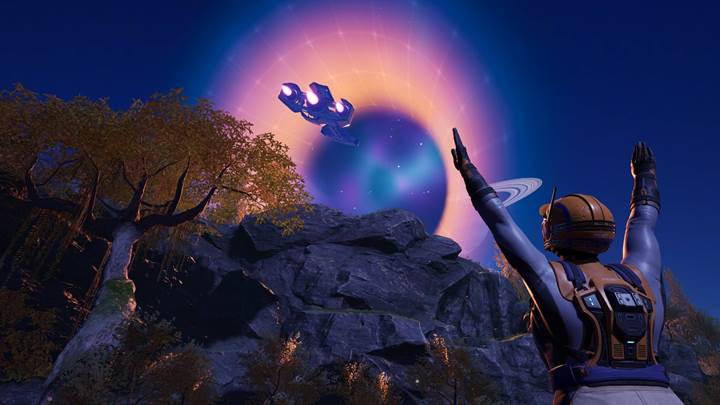
To get started, just press F - that’s the default key to launch the Photo mode. Right away, you’re in control of the camera, and by pressing R, you can decouple it from your character. That means you’re free to fly around, rotate, and find the best angle without being stuck in first-person view. Use your mouse wheel to zoom in or out, and click the left mouse button when you’re ready to take your shot. It’s quick, easy, and a lot more fun than it used to be.
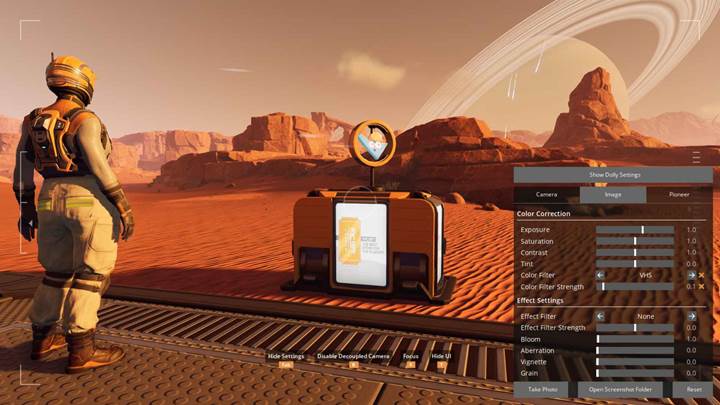
For the real magic, press Tab. This opens the advanced camera interface with three main tabs: Camera, Image, and Pioneer. In the Camera tab, you can fine-tune everything about your viewpoint. Choose between First Person or Decoupled mode, and set your Zoom and Roll to adjust framing and perspective. You can manually adjust Focus Distance or use the Auto Focus feature to keep the subject sharp. Aperture settings let you blur the background for a cinematic look. You’ll also find Grid and Crop tools here - useful for aligning your shots or setting up tight thumbnails.
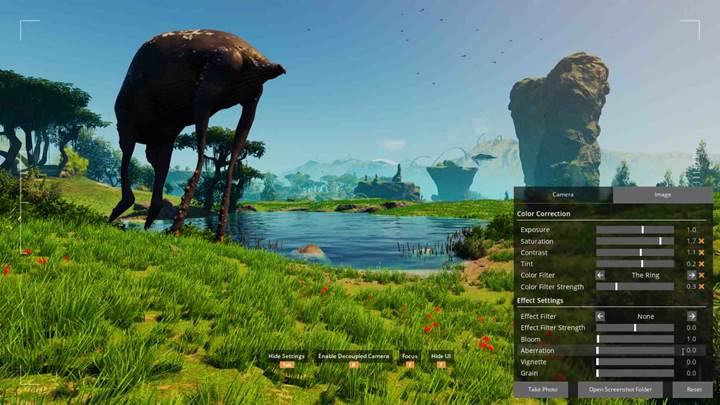
Image tab and color correction
Now let’s switch to the Image tab. This is where your inner artist can run wild. The Color Correction settings let you change Exposure, Saturation, Contrast, and Tint to match the mood of your shot. But the real fun starts with Color Filters.
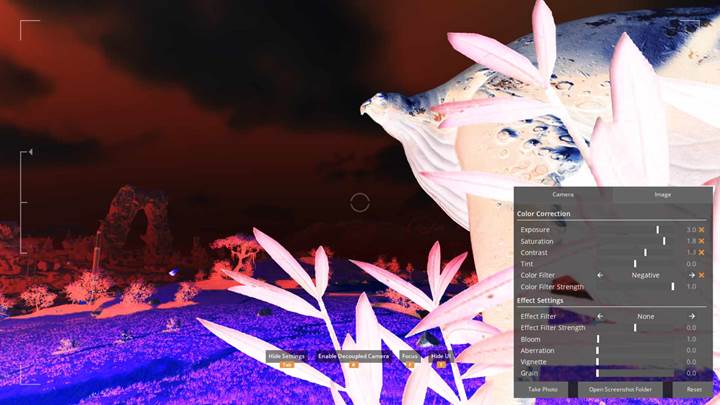
There’s a massive list: Sepia, Vibrant, Sunset, Lonely, Negative, Good Ol’ Days, 2007, Somebody’s Sky, Cheese Times, Metro, The Ring, End of Times, LCD, Mercer, Stark, Vice, Orange and Purple, Orange and Teal, and VHS. Adjust the Color Filter Strength slider to control how intense the effect is. These filters aren’t just gimmicks - they help bring out mood, tone, and storytelling in your images.
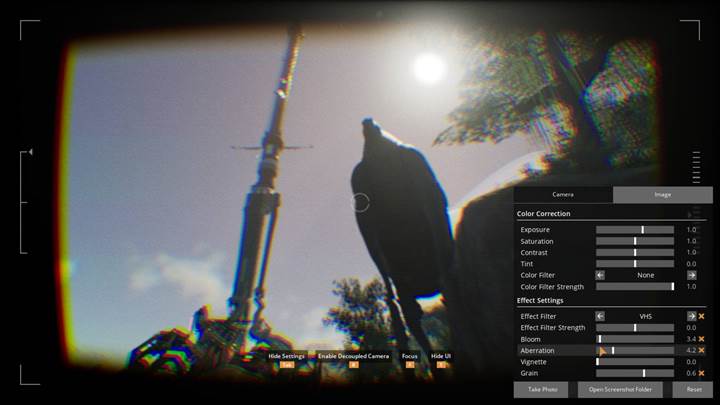
Next up is the Effect Settings panel. This is where things get wild. You’ve got options like Posterized, Noire, Pixel Posterized, Pixel, Kuwahara, Poster, Comic, Fresnel, VHS, Crosshatch, Outline - each giving your screenshot a whole different visual style. Bloom makes light glow, Aberration adds chromatic edge blur, Vignette darkens corners for focus, and Grain gives it that gritty feel. You can combine these with the filters for totally unique looks. Want a glitchy VHS shot of your power plant? Or maybe a sleek noir pose on the top floor of your mega factory? This is where you make that happen.
Character posing and Pioneer tab
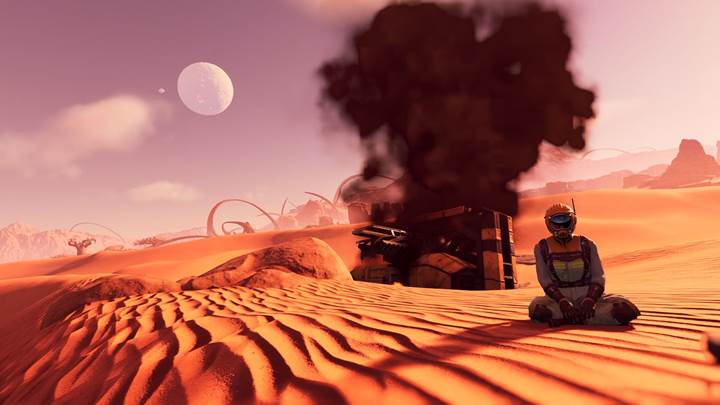
In the Pioneer tab, you’ll find a bunch of poses to choose from. You can face the camera, look away, rotate your character, or shift them around for the perfect group shot or solo portrait. Combine this with the in-game character customization from the HUB, and you can create full-blown photo shoots. It’s a great way to show off your suit, helmet, and gear - especially when you’re striking a dramatic pose in front of a sunset over the alien jungle.
Animation paths and cinematic tools
If you want to go even further, set a start and end point for the camera and let it move between them automatically. It’s perfect for animated screenshots or even video recording. After setting your first point, zoom and aim to your desired final angle, then set the end point and duration. The camera glides smoothly between the two. You can use this to create slow pans, dramatic reveals, or factory fly-bys.
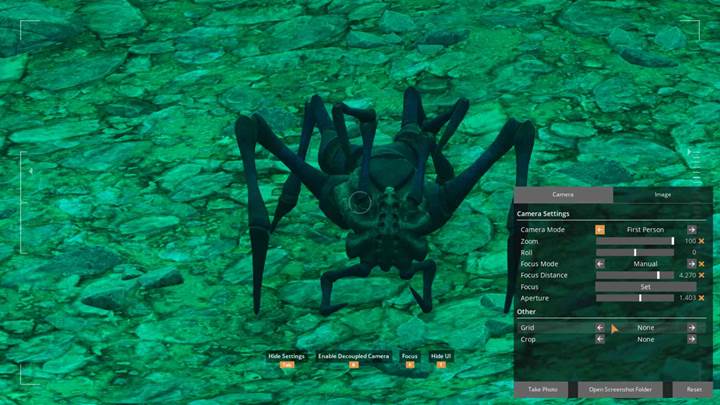
Photo mode in Satisfactory 1.1 is no longer just a fun extra — it’s a full creative suite. So hop into your factory, press F, and start experimenting. With a little time and imagination, you’ll be amazed at what kind of visuals you can create right in-game.