
How to Upload Your ARK World via FTP (Single-Player → Server)
Spent weeks on a single-player base and now want to play it with friends? You can move that exact world — map, structures, tames and your character — onto your ARK: Survival Evolved server. This guide covers connecting via FTP, where the save files live, and the exact steps (including the one rename everyone forgets). Works for moving any existing world between machines.
Two ways to move files in
gamever gives you two upload routes:
- File Manager (browser) — quick for small files, but size-limited. Good for
.iniedits and small uploads. - FTP (e.g. FileZilla) — the panel literally notes "Use FTP to upload files without limitation." A world
.arkcan be large, so FTP is the right tool for uploading a world.
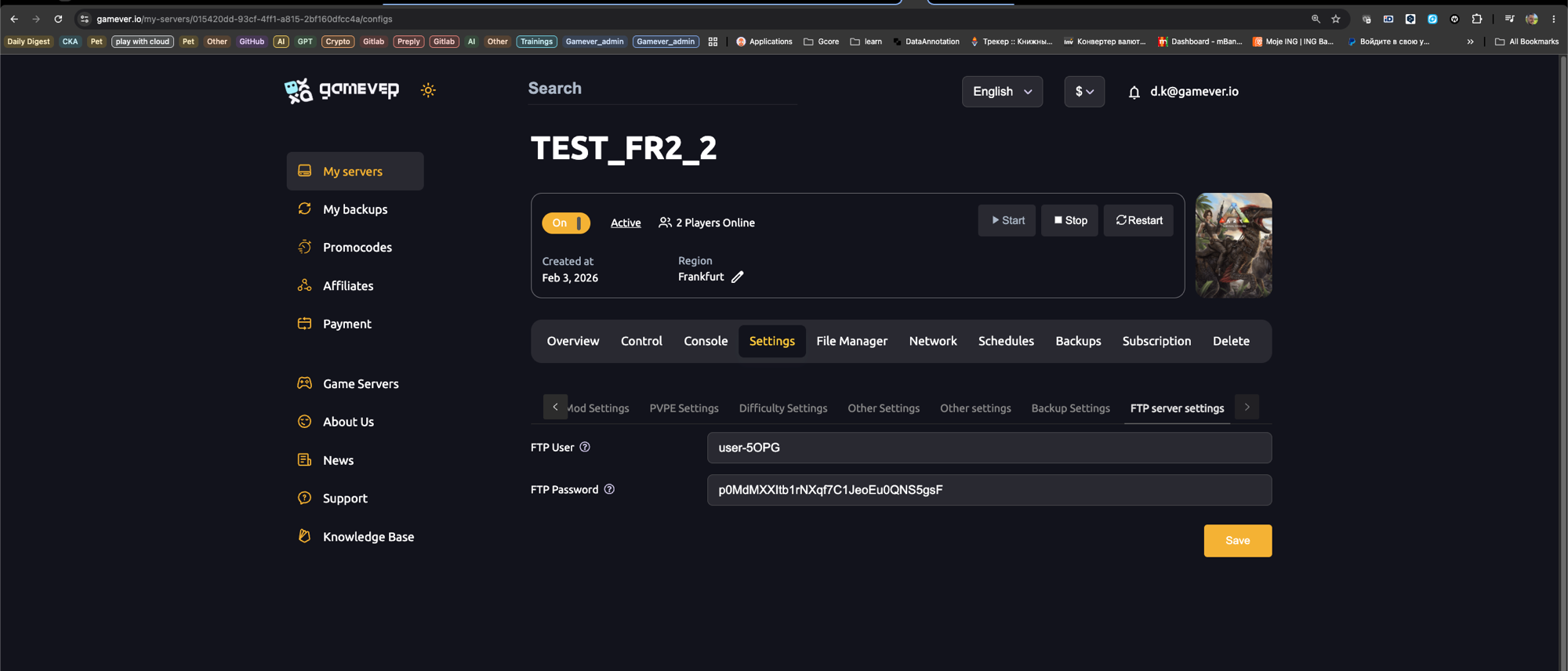
Step 1 — Get your FTP details
In the panel:
- Settings → FTP server settings — your FTP User and FTP Password.
- Network tab — the FTP address (host and port, e.g.
85.234.69.112:27612).
Put those into an FTP client like FileZilla: Host = the IP, Port = the FTP port, plus your user and password, and connect.
Step 2 — Know what you're uploading
ARK saves live on the server at:
/home/server/ShooterGame/Saved/SavedArks/
Three kinds of file make up a world:
<MapName>.ark— the world (e.g.TheIsland.ark).<SteamID>.arkprofile— your character (one per player).<TribeID>.arktribe— your tribe (one per tribe).
Your single-player save sits locally at:
...\Steam\steamapps\common\ARK\ShooterGame\Saved\SavedArksLocal\
with the same trio of files — note the local folder is SavedArksLocal, while on the server it's SavedArks.
On ARK: Survival Ascended, world files use a
_WPsuffix (e.g.TheIsland_WP.ark) — match that exact name on the server. The same steps also work for an official save: download the official.ark, match the server's map, and upload it just like a single-player world.
Step 3 — Upload the world (the right order)
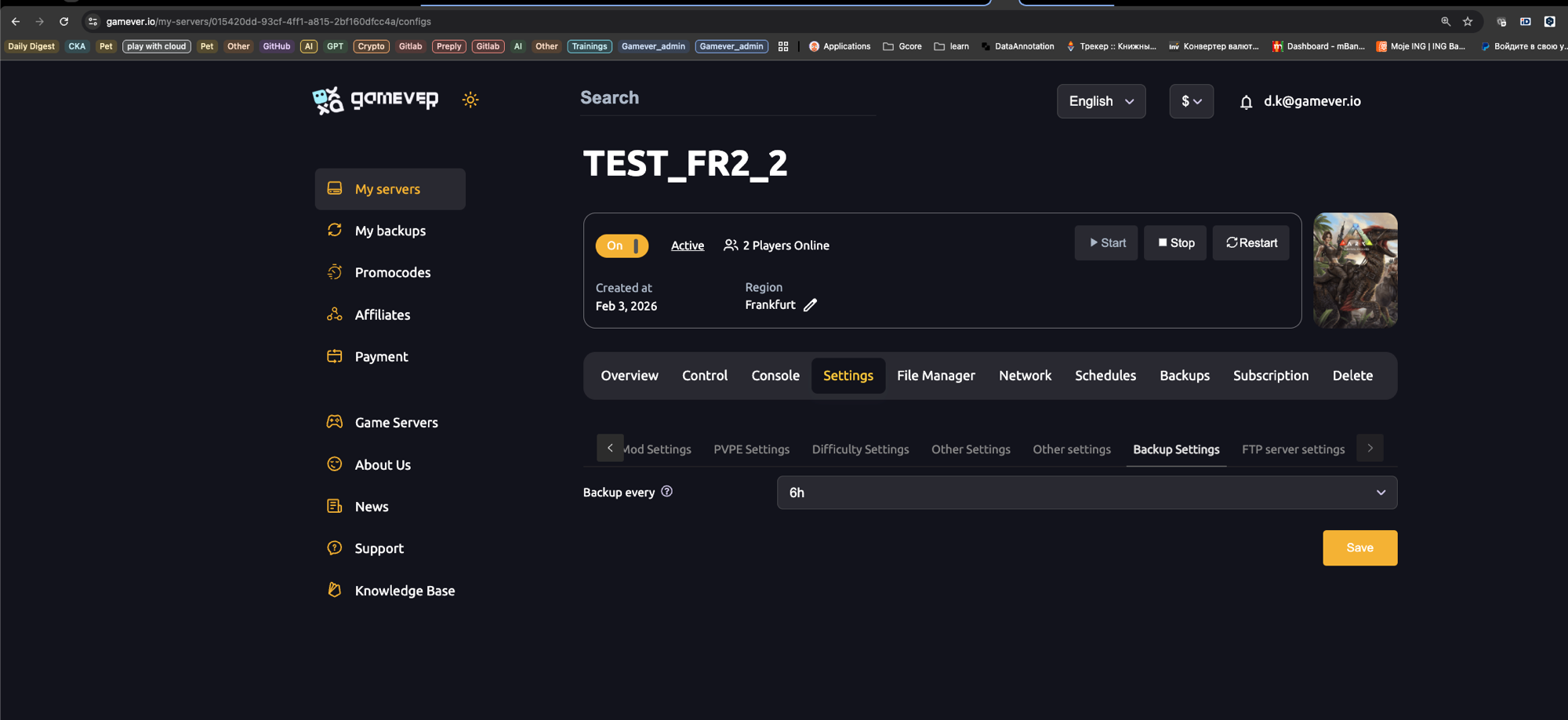
Back up first. Take a snapshot on the Backups tab before overwriting anything — see our backups guide. If the import goes wrong, Install Backup puts you right back.
- Match the mods first. If your single-player world used Steam Workshop mods, install the same mods on the server before loading the save (Settings → Mod Settings — see our mod guide). Load a modded save without its mods and that content is stripped permanently.
- Set the same map. The world file is named after its map, so set Settings → Server Settings → Server Map to match your save (e.g. The Island for
TheIsland.ark). - Stop the server. ARK rewrites the live
.arkconstantly — overwriting it mid-write is a reliable way to corrupt the world. Always upload to a stopped server. - Upload the files from your local
SavedArksLocal\into the server'sSavedArks/over FTP — the.ark, your.arkprofile, and the.arktribe. Overwrite the existing<MapName>.ark. - Rename your profile. Single-player uses
LocalPlayer.arkprofile; a dedicated server expects each profile named after the player's 17-digit SteamID64. RenameLocalPlayer.arkprofile→<YourSteamID64>.arkprofile, or you'll spawn as a fresh character. - Start the server. Watch the Console until it loads — your world should come up exactly as it was.
Troubleshooting
| Problem | Fix |
|---|---|
| Server won't load after upload | Usually missing mods or a version mismatch — install the same mods, match the build. See our can't-join guide. |
| You spawn as a new character | The profile wasn't renamed to your SteamID64 (Step 5). |
| World loads but map is wrong / empty | The server's Server Map doesn't match the uploaded <MapName>.ark (Step 2). |
| Upload fails / times out in the browser | The browser File Manager has a size cap — use FTP instead. |
| Tames/structures gone | A modded save loaded without its mods — restore your backup, install the mods, re-import. |
Don't touch "Reset server." The File Manager's Reset server button wipes the install back to fresh — not what you want when importing a world.
Conclusion
Moving a world is really just three things done in order: install the same mods, upload the .ark + profile + tribe to SavedArks/ on a stopped server, and rename your profile to your SteamID64. Back up first and the whole thing is risk-free — your single-player empire, now online for the tribe.
Rent your ARK server at gamever.io with full FTP access and a built-in file manager — upload your world, restore from backups, online 24/7. Free trial, promo code WELCOME.