
How to Upload an Existing World to Your Project Zomboid Server
Already have a Knox County you love — a single-player save or a world from another host? You don't have to start over. You can upload your existing world and config to your gamever Project Zomboid server over FTP. This guide covers the files involved and how to move them across safely.
What you're uploading
Two kinds of files make up your server:
- Config — lives under
/home/configs/. This includesoptions.ini(server options) and, under/home/configs/Server/, the main<Server name>.ini, the sandbox file<Server name>_SandboxVars.lua, and the spawn files. - World / save data — the
Saves/data that holds the actual explored map, buildings and characters.
Here's the config area in the File Manager:
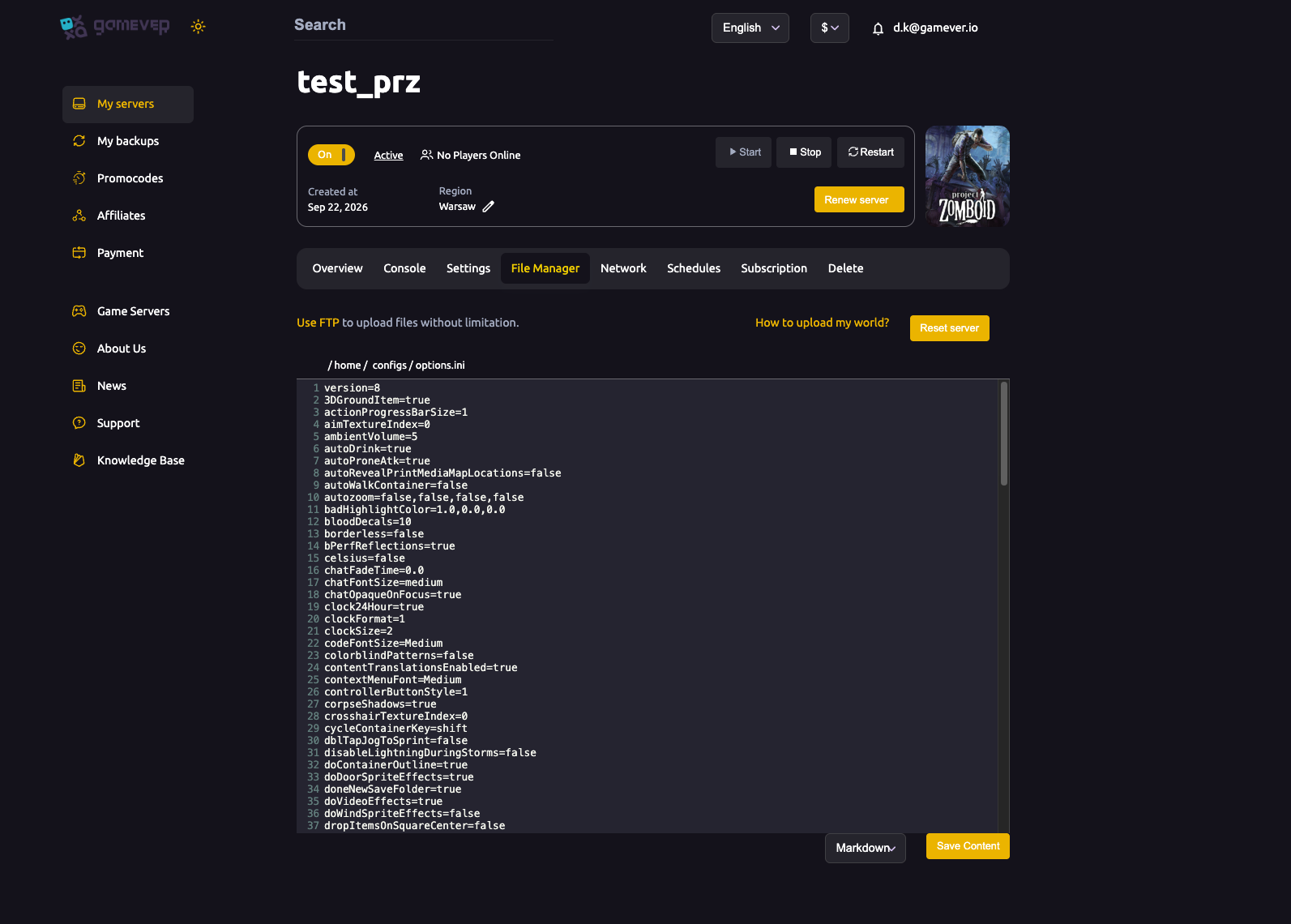
The File Manager also offers a "How to upload my world?" link to guide you through it.
Connecting over FTP
Get your FTP login from Settings → FTP server settings:
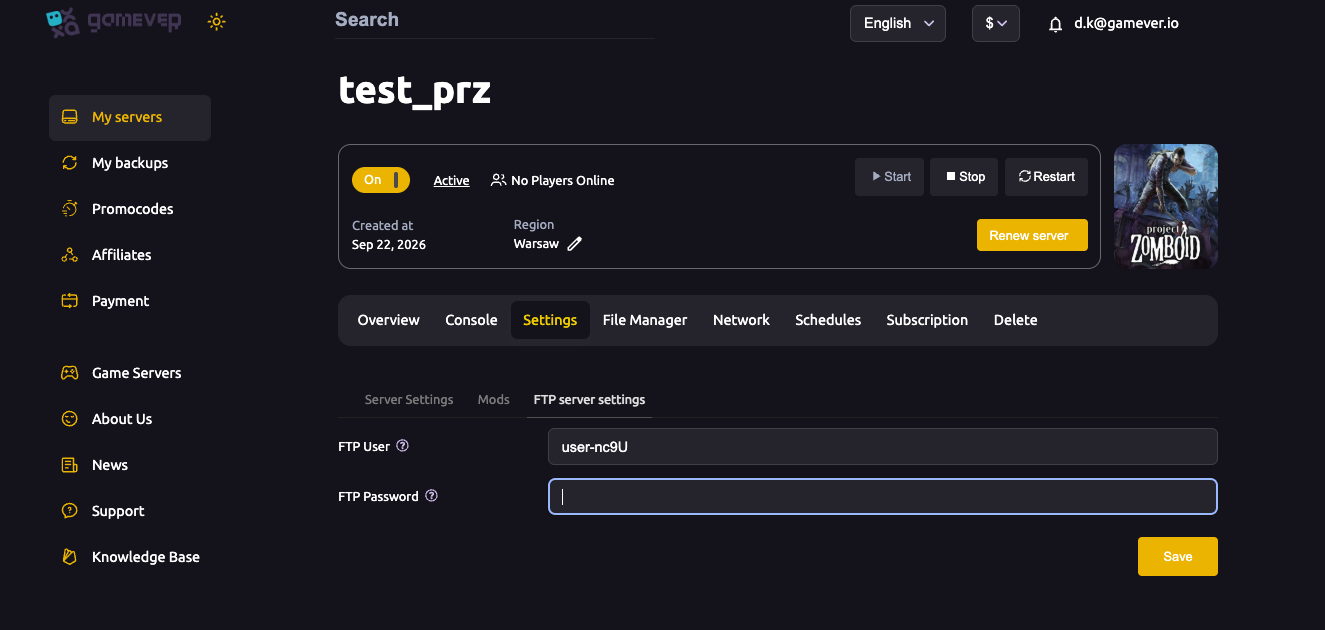
- Note your FTP User and FTP Password here.
- Find the FTP address (port
28811) on the Network tab, see ports & connection. - Connect with any FTP client.
Uploading your world — step by step
- Stop the server (Overview → Stop) so nothing is being written while you upload.
- Back up whatever is currently on the server first, see backup & restore.
- Upload your save/world data into the server's
Saves/location. - Upload your config to
/home/configs/—options.iniand theServer/files (.ini,_SandboxVars.lua, spawn files) — so the server loads your settings too. - Make sure the server name matches, since the
Server/files are named after it. - Start the server — it loads your uploaded world.
If you also used mods in the original world, install the same mods on the server before starting, see install mods.
Additional Tips
- Stop the server before uploading so files aren't in use.
- Upload both world and config — a world without its matching settings can misbehave.
- Match the server name to the
Server/file names. - Install the same mods the original world used.
- Keep a backup of what was there before, just in case.
Conclusion
Moving an existing Knox County to gamever is a stop-upload-start job: grab your FTP login from FTP server settings, stop the server, upload your Saves/ data and your /home/configs/ files, match the server name and mods, then start. The File Manager's "How to upload my world?" link is there if you need it — and your old world is back, online 24/7.
Rent your Project Zomboid server at gamever.io — full FTP and a browser file manager so you can bring any world with you. Free trial, promo code WELCOME.