
How to Upload an Existing Save to Your Sons of the Forest Server
If you've been playing Sons of the Forest on a friend's co-op session or another host, you don't have to start over — you can move that existing world onto your gamever server. The panel even has a "How to upload my world?" prompt for exactly this. It's an FTP (or File Manager) job, and the key is replacing the save files with the server stopped. This guide walks through it.
What makes up a Sons of the Forest world
Your world lives in the Saves/ folder in the File Manager at /home/server/userdata/, and the server's behaviour is set by dedicatedserver.cfg (the dedicated server config) in the same location:
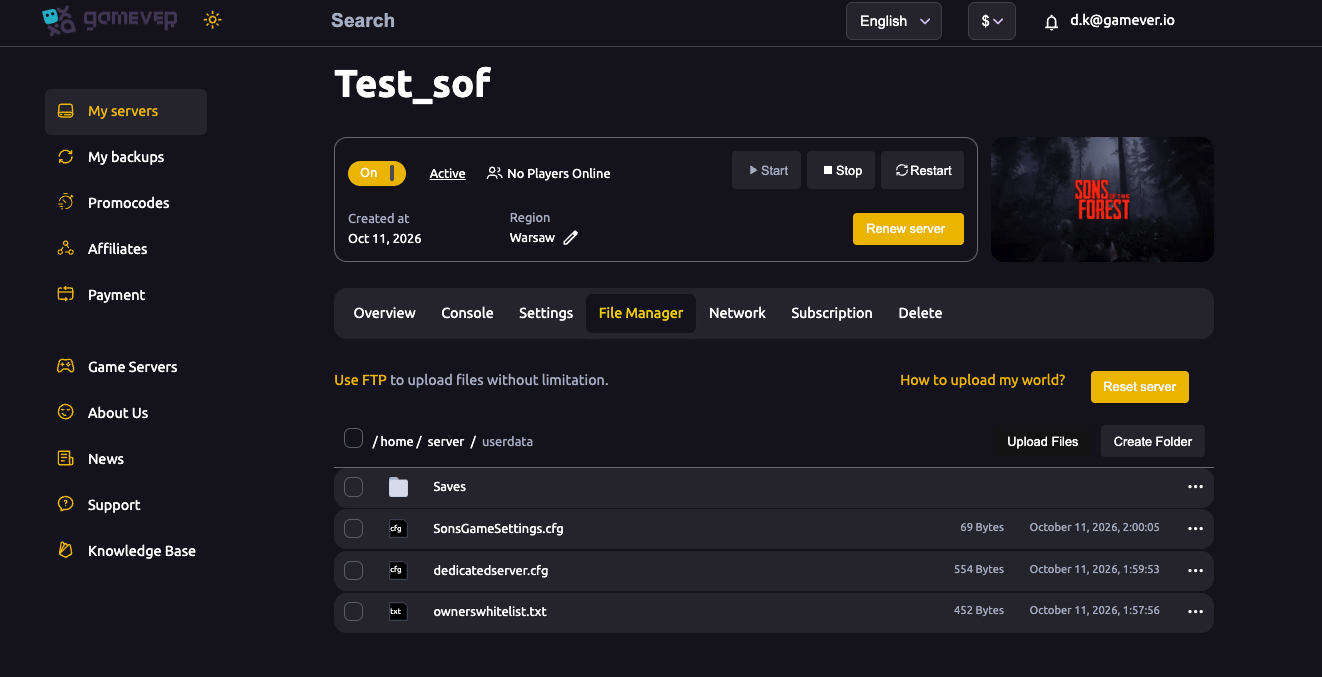
To move a world you copy that save data onto your server. You can optionally bring your dedicatedserver.cfg too if you want to carry settings across, but usually you'll just move the Saves/ data and set options fresh on the panel.
Step 1 — get the source save
From the old host or your own files, obtain the Saves/ world data you want to move. If the source is another gamever/dedicated server, download it over FTP with that server stopped.
Step 2 — stop your new server
On your gamever server: Overview → Stop. The world files must not be in use while you replace them.
Step 3 — upload over FTP
Get your FTP login from Settings → FTP server settings (FTP User and FTP Password) and the FTP address/port from the Network tab (FTP port 27329):
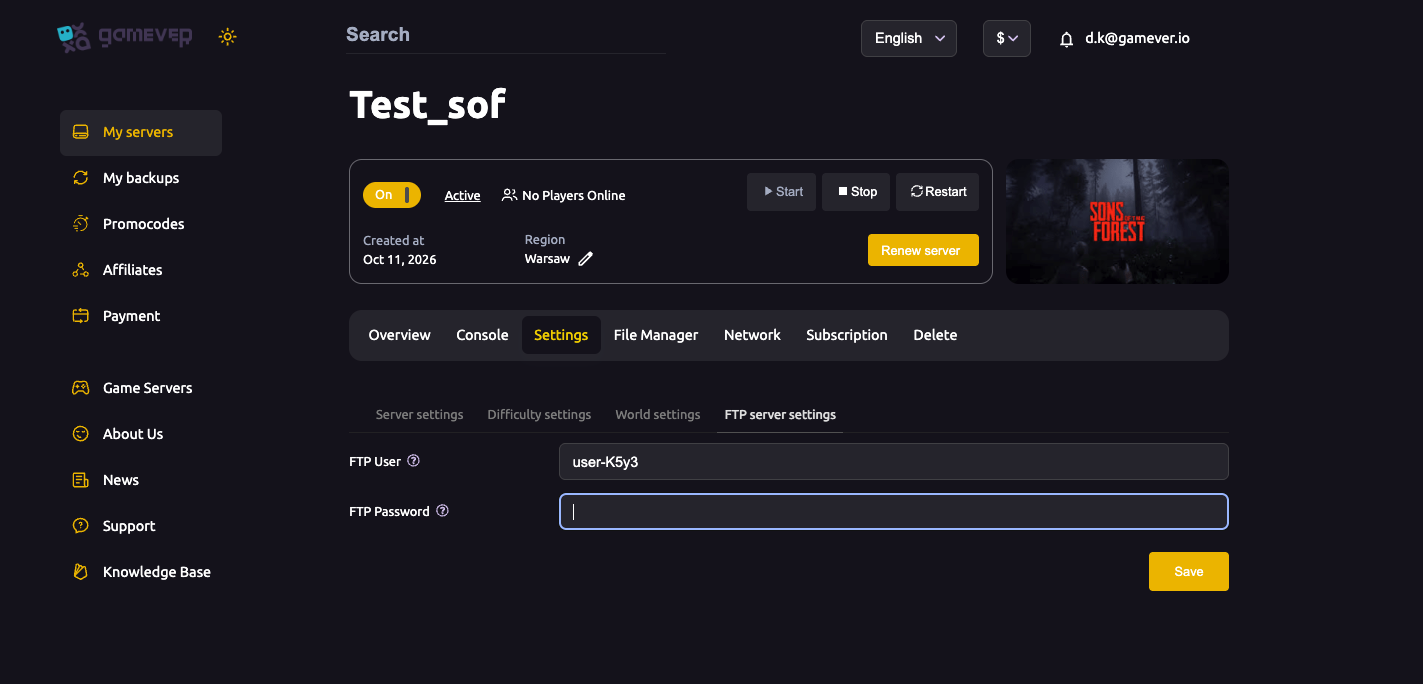
- Connect with an FTP client (e.g. FileZilla) to
/home/server/userdata/. - Upload your source
Saves/data, replacing the fresh world. - Optionally upload your
dedicatedserver.cfgtoo if you're carrying settings across.
The File Manager works for smaller uploads, but FTP is the reliable way for a full world.
Step 4 — start and verify
- Start the server (Overview → Start).
- Watch the Console for a clean load.
- Join and confirm your base and progress are there.
Back up before and after
- Take a backup of the fresh server before overwriting, so a bad import is reversible.
- Take another after a successful import so the imported world has its own restore point.
Additional Tips
- Stop the server before uploading — files in use won't replace cleanly.
- Use FTP for the full world — it's more reliable than the browser upload for large saves.
- Upload into
/home/server/userdata/— the same place the panel showsSaves/. - Back up the fresh server first so a bad import is reversible.
- Match versions — a world from a very different game build may not load; update one side if needed.
Conclusion
Moving an existing Sons of the Forest world to gamever is an FTP job: stop your server, upload your source Saves/ data (and optionally dedicatedserver.cfg) into /home/server/userdata/, then start and verify. Back up before and after, and your group's existing world is now hosted 24/7 — no starting over.
Rent your Sons of the Forest server at gamever.io — full FTP access to import your world and keep every base you've built. Free trial, promo code WELCOME.