
How to Upload an Existing Save to Your Satisfactory Server
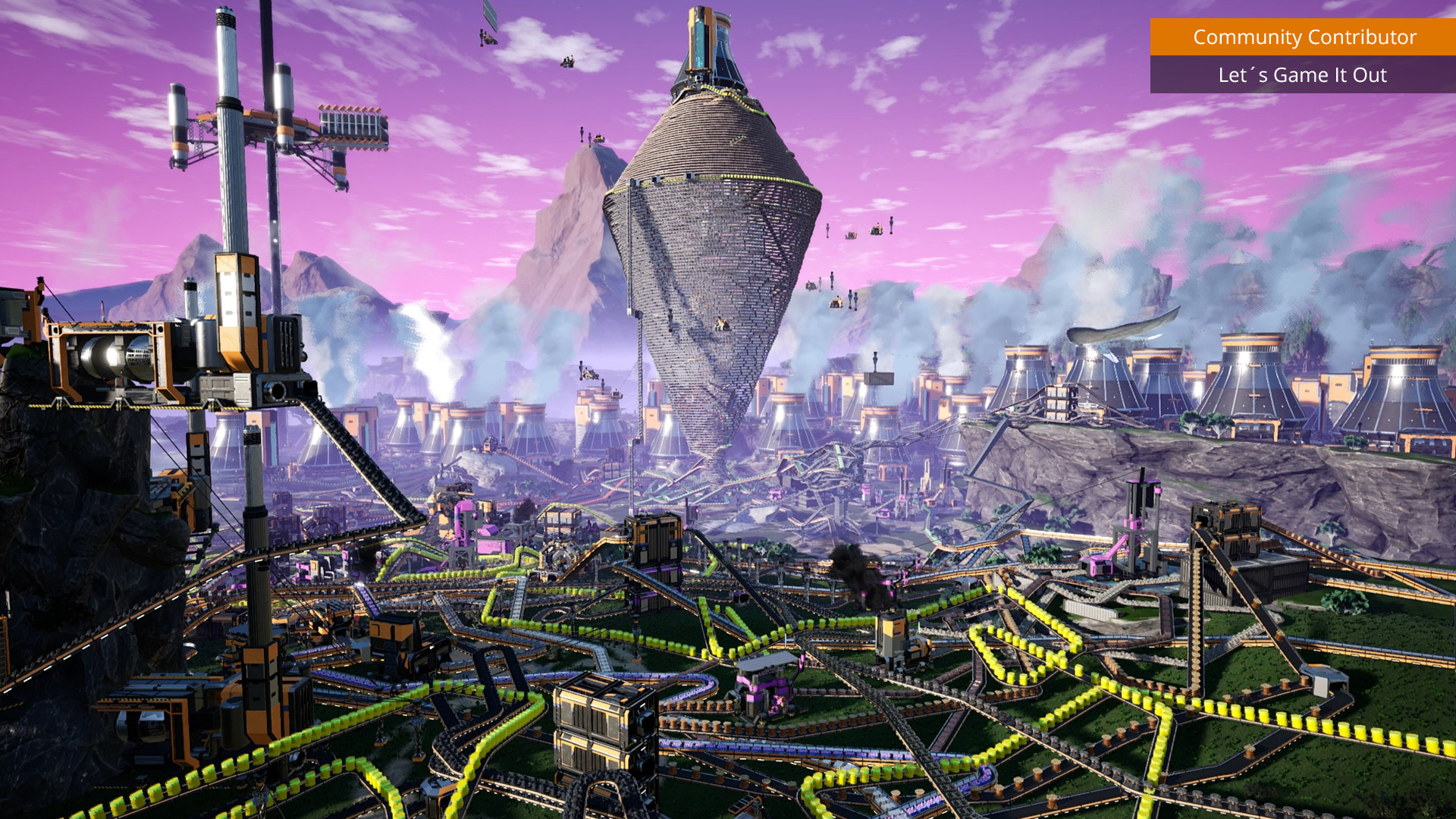
One of the best things about a dedicated server is bringing an existing factory to it — your single-player world, or a save from another host — so it's online 24/7 for the whole team. Satisfactory handles this through the in-game Server Manager, and gamever also gives you FTP access if you prefer to drop the file in directly. This guide covers both.
Where Satisfactory saves live
Your single-player saves are .sav files on your own PC, typically at:
%LOCALAPPDATA%\FactoryGame\Saved\SaveGames\<your-id>\
That .sav file is the whole factory — it's what you'll move to the server.
Method 1 — upload in-game (recommended)
- Connect to your server and open the Server Manager (see connecting and claiming).
- Go to the Manage Saves section for your server.
- Choose Upload Save and pick your local
.savfile. - Once uploaded, load it as the active session.
The server loads your factory and it's live. This is the simplest route — no file paths, and the game validates the save for you.
Method 2 — upload over FTP
If you'd rather place the file directly (useful for very large saves or migrating from another host):
- Get your FTP details from the Network tab (FTP address
IP:27820) and the Settings → FTP sub-tab for the login.
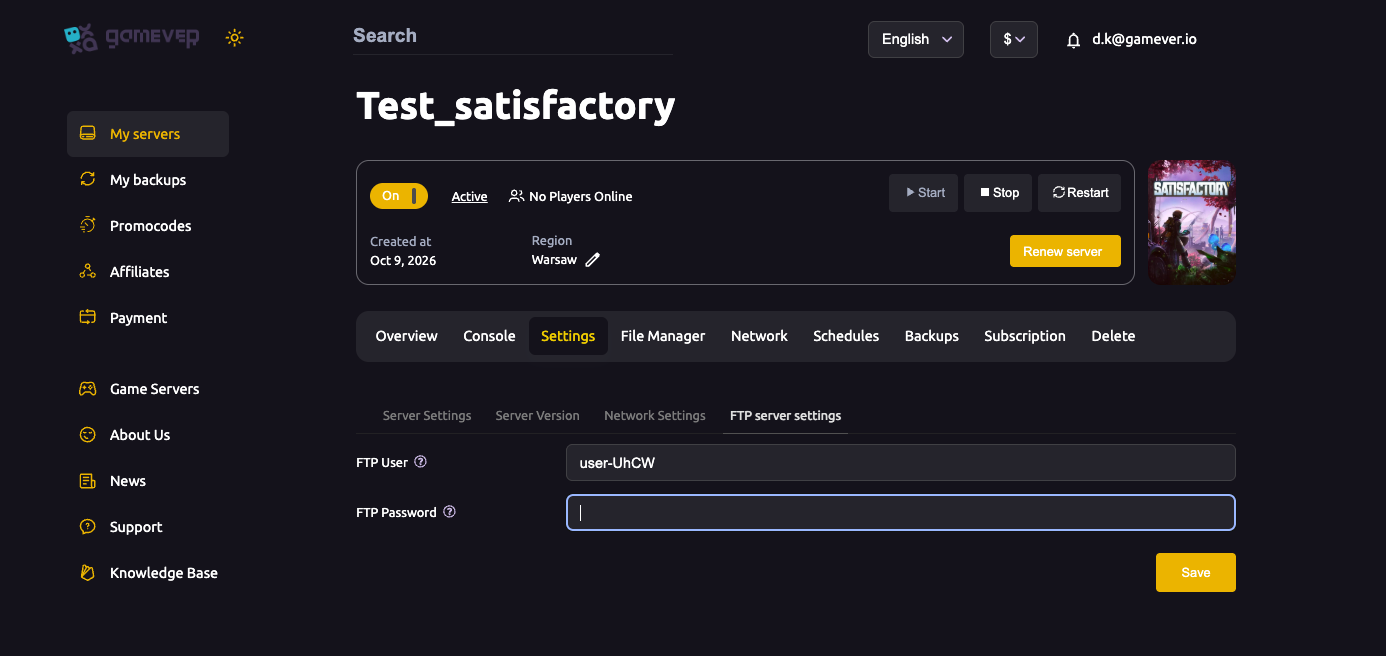
- Connect with an FTP client (e.g. FileZilla) and open the File Manager or navigate to the server's save folder:
/home/server/gamefiles/FactoryGame/Saved/SaveGames/server/
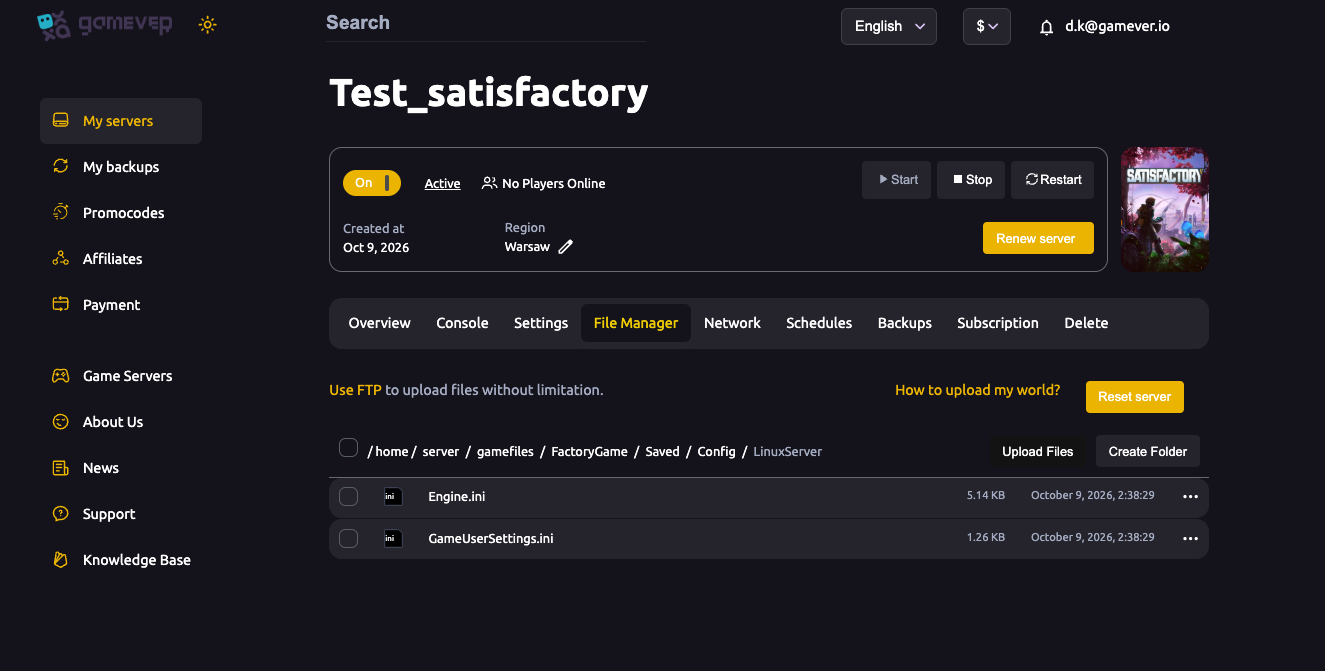
- Upload your
.savinto that folder. - Restart the server, then select the save from Manage Saves in-game to load it.
After loading
- Your factory, player inventories and research all come across — the
.savis the complete world. - If the save was made on a different game version/branch, update the server to match or you may get a load error — see updating and branches.
- Make a fresh backup once it's loaded and running well (see backup and restore).
Additional Tips
- Upload the
.savfile itself, not a folder or a zip. - In-game upload is easiest — use Manage Saves unless the file is huge.
- Match the version — a save from a newer/older build may refuse to load.
- Restart after an FTP drop so the server sees the new file.
- Back up right after a successful import so you have a clean restore point.
Conclusion
Moving a factory onto your gamever Satisfactory server is painless: use the in-game Server Manager → Manage Saves → Upload Save for the easy path, or drop the .sav over FTP into the server's SaveGames folder and load it from Manage Saves. Either way your single-player world becomes a 24/7 shared server your friends can join anytime.
Rent your Satisfactory server at gamever.io — upload your existing save in-game or over FTP and keep building together. Free trial, promo code WELCOME.