
How to Upload an Existing Save to Your Factorio Server
Already have a factory you love — a single-player megabase, or a world from an old server — and want everyone to build on it together? You don't have to start from a blank map. A Factorio save is a single .zip file, and moving it onto the server you rent from gamever is a matter of uploading that file through the control panel and pointing the server at it. This guide covers exactly that: how to get your existing save onto the server through the File Manager or FTP, and which Settings fields tell the server to load it instead of generating a fresh map. No self-hosting, no SteamCMD — everything happens in your panel.
Find your save file first
Factorio stores every save as a standalone .zip file in a folder named saves inside its user data directory. On your own PC that directory lives at %appdata%\Factorio on Windows, ~/Library/Application Support/factorio on macOS, or ~/.factorio on Linux — open the saves folder there and you'll see one .zip per world (plus the _autosave1/_autosave2 rolling autosaves).
| Platform | User data directory | Saves live in |
|---|---|---|
| Windows | %appdata%\Factorio | saves\ |
| macOS | ~/Library/Application Support/factorio | saves/ |
| Linux | ~/.factorio | saves/ |
Copy out the single .zip for the world you want to bring over. That one file is your factory — chunks, entities, logistics, research, the lot. If it came from another host, download it from that host's file browser the same way.
Back up what's on the server now
Before you overwrite anything, preserve the server's current save. The quickest route is My backups in the left sidebar (and the Schedules tab for automated snapshots) — see backups and restore for the full walkthrough. A thirty-second backup is cheap insurance against uploading the wrong file.
Stop the server before you upload
Factorio holds its active save open while it runs, and it only reads config at boot. Go to Overview and click Stop. Uploading a save to a live server either fails to replace the file cleanly or gets overwritten by the next autosave — stop first, every time.
Upload the .zip through File Manager or FTP
Open the File Manager tab. It opens on your server files, where the saves/ folder sits alongside the config/ folder (/home/server/config/ holds the JSON config such as server-settings.json).
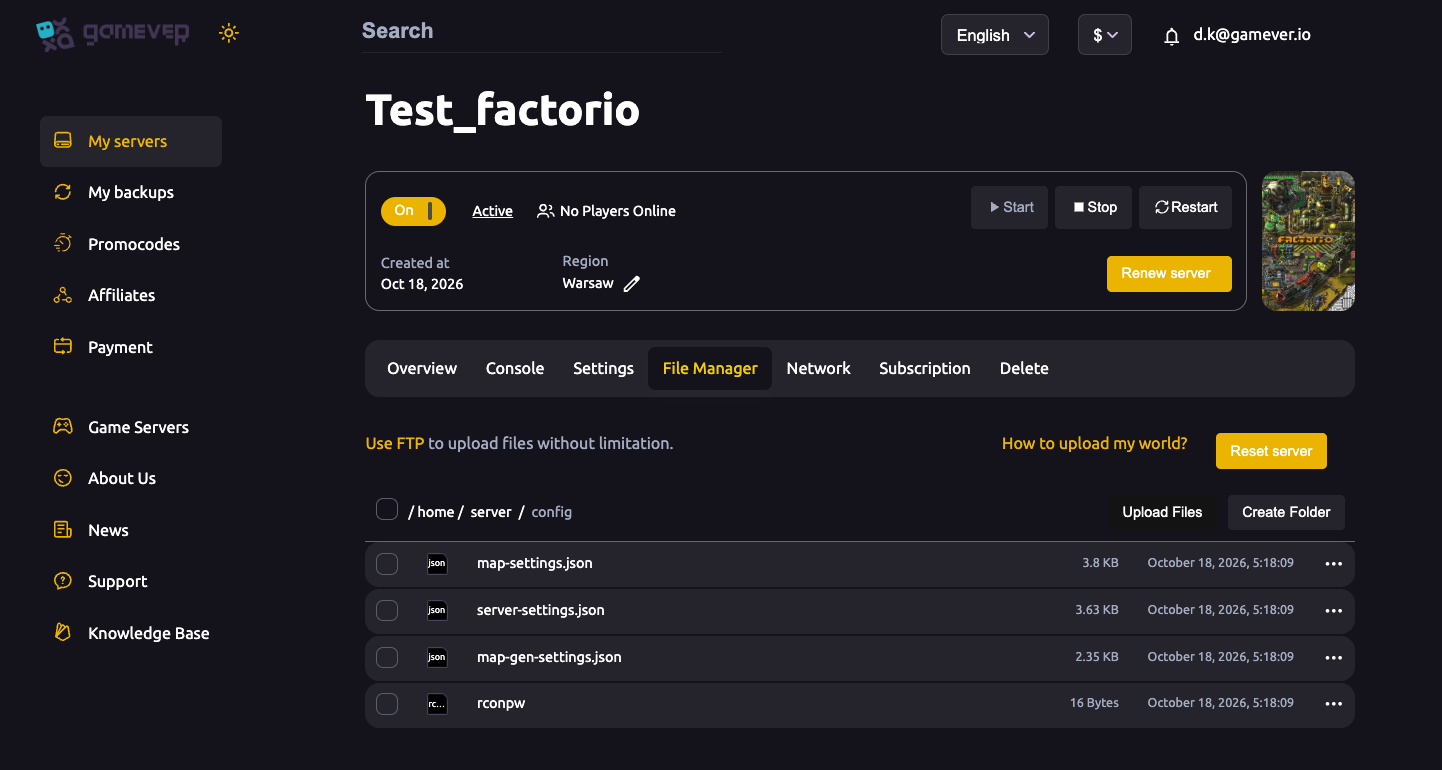
Open the saves/ folder and use Upload Files to add your .zip. For a large megabase, the panel notes that you can "Use FTP to upload files without limitation" — FTP has no browser upload cap and resumes better on big files. Your FTP login is under Settings → FTP server settings (FTP User + FTP Password), and the FTP host and port are on the Network tab (your server's FTP address, e.g. IP:28818 — read your own values). Point any FTP client at that address with those credentials, then drop the .zip straight into saves/.
Either way, upload the file as a .zip — don't unzip it. Factorio loads the compressed save directly, and extracting it breaks the format.
Point the server at your save
Uploading the file isn't enough — the server still has to be told to load it rather than build a new world. Open Settings → Server Settings.
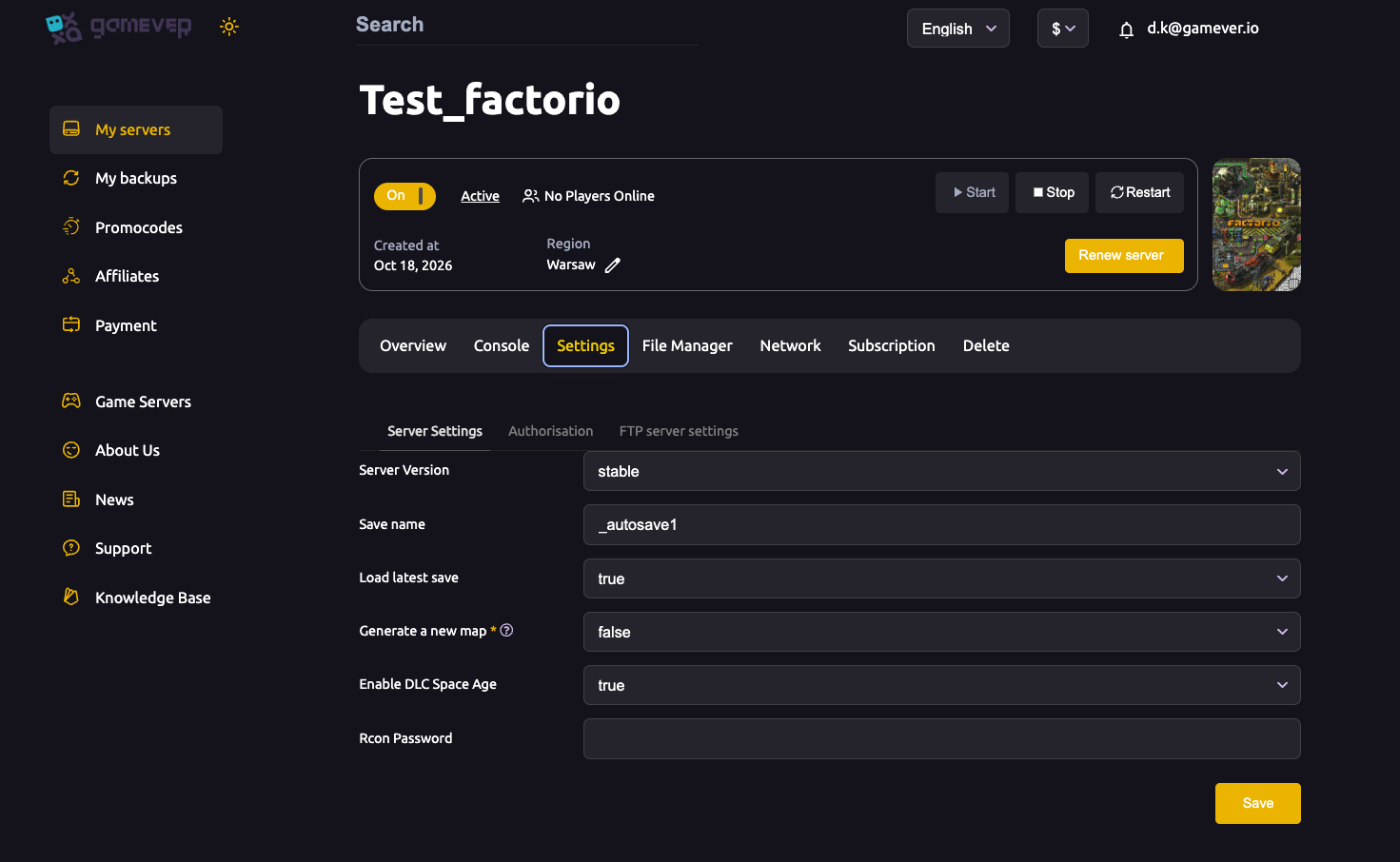
Set these three fields:
| Field | Set to | Why |
|---|---|---|
| Save name | the name of your uploaded save (the .zip filename) | tells the server which save file in saves/ to load |
| Load latest save | false | so the server loads your named save, not whichever file is newest (an autosave could otherwise win) |
| Generate a new map | false | stops the server creating a fresh world and ignoring your upload |
Leave Generate a new map on true and the server will build a brand-new map on start, which is exactly what you're trying to avoid here. When the three fields are right, click Save.
A note on Load latest save: setting it true is convenient for day-to-day running (the server just resumes the most recent autosave), but during an import it can quietly load an old autosave instead of your file — so set it false until you've confirmed your world loads, then switch it back if you prefer the latest-save behaviour.
Start and verify
Back on Overview, click Start. Open the Console tab and watch the boot log: a clean start will report loading your save and the map version. If the Console shows it generating a new map, re-check that Generate a new map is false and that Save name exactly matches your uploaded filename. Join the server in-game and confirm your factory is there before inviting anyone else.
Additional Tips
- Match the game version. A save made on a newer Factorio build won't load on an older server. Pin the Server Version (Settings → Server Settings) to the
stablebuild your save was made on, or newer. - Keep the file as a
.zip. Never extract it — Factorio reads the compressed save as-is. - Name it simply. Avoid spaces and odd characters in the filename so Save name matches cleanly; set Save name to the name without worrying about the autosave files.
- Mods must match. If your factory used mods, upload the matching
mod-list.jsonand mod files to the server'smods/folder (File Manager/FTP) first, or the save may fail to load. Verify your mod set before importing. - One backup before, one after. Take a backup before uploading and another once your world is confirmed running.
- Use FTP for big factories. The File Manager's browser upload has a size cap; FTP does not and is far more reliable for a mature megabase.
Conclusion
Bringing an existing world onto your gamever Factorio server is genuinely simple because a save is just one .zip file. Back up the current save, Stop the server, upload your .zip into the saves/ folder via File Manager or FTP, then set Save name to that file with Load latest save and Generate a new map both false, Save, and Start. Watch the Console confirm it loaded, and your factory is live for the whole group. For snapshots and rollbacks after you're set up, see backups and restore.
Rent your Factorio: Space Age server at gamever.io — full File Manager and FTP access so your saves are always yours to move, plus one-click backups. Free trial, promo code WELCOME.