
How to Upload an Existing Local Valheim World to Your Server
Already explored a map, raised a base and want friends to join it on a 24/7 server? You don't have to start over. A Valheim world is just a pair of files on your PC, and you can upload both to your gamever server so the dedicated world is your existing one. This guide shows how to find the pair, upload it through the panel's File Manager or FTP, and point the server at it. This is about moving a world — your character is a separate, client-side file, so see Back Up and Transfer Your Valheim Character for that.
The two files you're moving
A Valheim world is two files that share the same base name, and both have to travel together:
| File | What it holds |
|---|---|
<World>.db | The map data — terrain, your builds, chests, the world's state. |
<World>.fwl | The world's metadata — its name and seed. |
Upload one without the other and the world won't load correctly. MyWorld.db needs MyWorld.fwl beside it; the base names must match each other and the world name you set on the server. For a deeper look at why the .fwl matters (including how to force a seed with the .fwl alone), see Moving a Valheim World Onto Your Server.
Step 1 — Find the pair on your PC
Single-player worlds live in a worlds_local folder under your Valheim save directory:
| OS | Path |
|---|---|
| Windows | %USERPROFILE%\AppData\LocalLow\IronGate\Valheim\worlds_local |
| Linux | ~/.config/unity3d/IronGate/Valheim/worlds_local |
| macOS | ~/Library/Application Support/IronGate/Valheim/worlds_local |
On Windows the quickest way to open it is Win + R, paste the path and press Enter (the AppData folder is hidden by default). Inside, grab the <World>.db and <World>.fwl that match your world's name.
You'll also see files ending in .old or containing _backup — those are Valheim's own automatic recovery copies. Leave them; upload only the current .db / .fwl pair.
Don't see your world? If you use Steam Cloud saves, the world may not be in
worlds_localyet. In Valheim, open the world picker, choose Manage Saves, and use Move to Local to write the pair to disk first.
Step 2 — Upload both files to the server
Open your server in the gamever panel and stop it first — a running server holds the world open and can overwrite your upload on its next save. Then upload the pair into the server's worlds folder:
.config/unity3d/IronGate/Valheim/worlds_local/
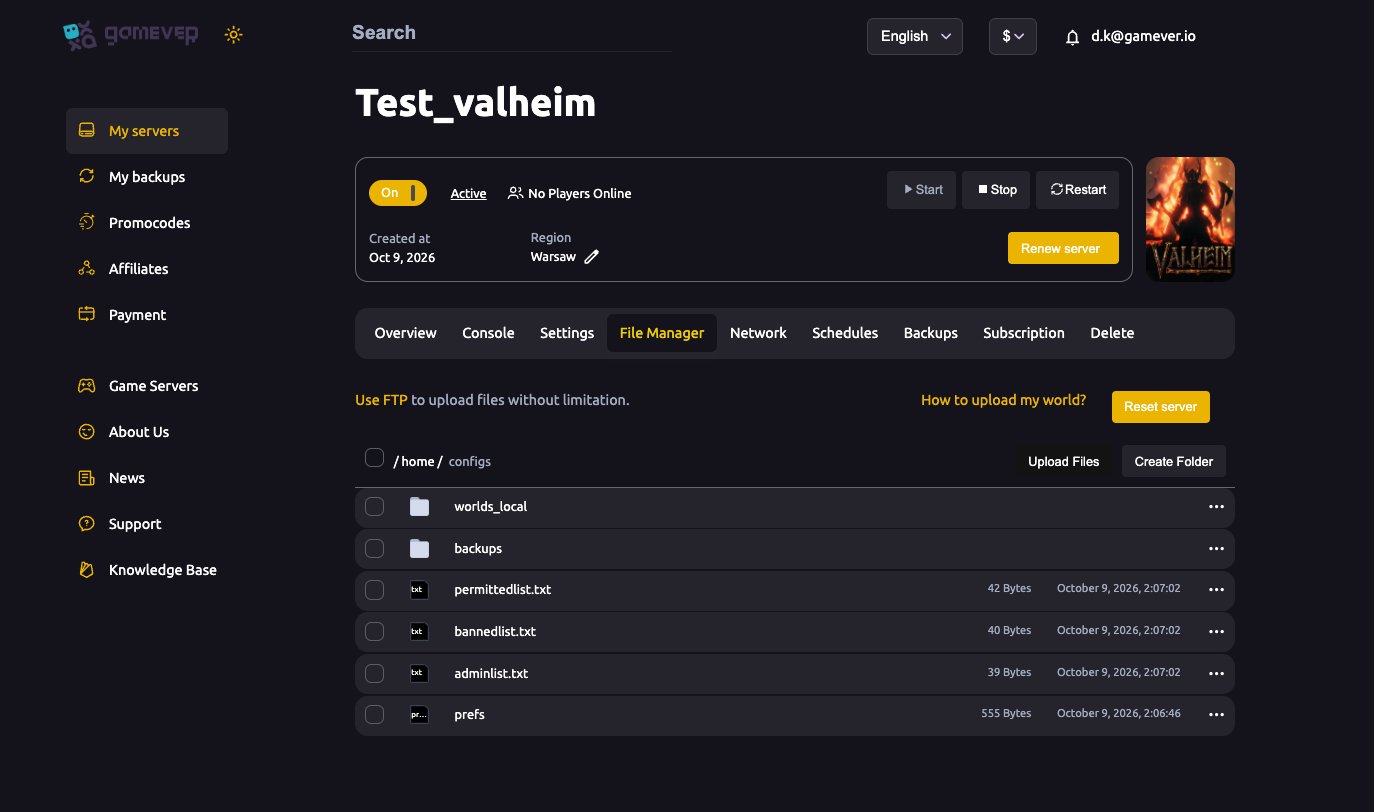
Option A — File Manager (easiest). Open the File Manager tab, browse to that folder, and upload both <World>.db and <World>.fwl.
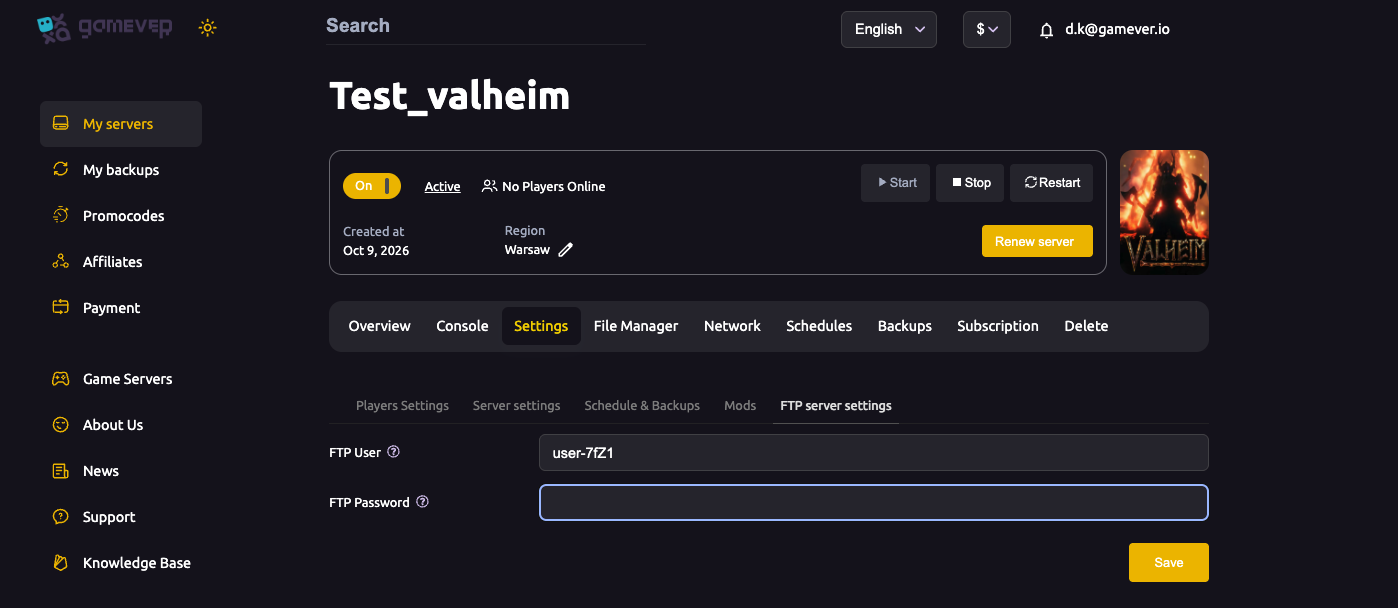
Option B — FTP (best for large worlds). A long-explored map can make a big .db, and FTP handles large transfers without a browser timeout. Your FTP address is on the Network tab (FTP port 27291), and the credentials are under Settings → FTP. Connect, open the same worlds_local folder, and upload both files.
Either way, keep the two filenames identical to each other — don't rename one and not the other.
Step 3 — Set the world name and restart
The server loads a world by name, so the world name in Settings → Server must match your uploaded file's base name (without the extension). If your files are MyWorld.db / MyWorld.fwl, set the server's world name to MyWorld — a mismatch is the most common reason the server boots but generates a fresh world instead of loading yours.
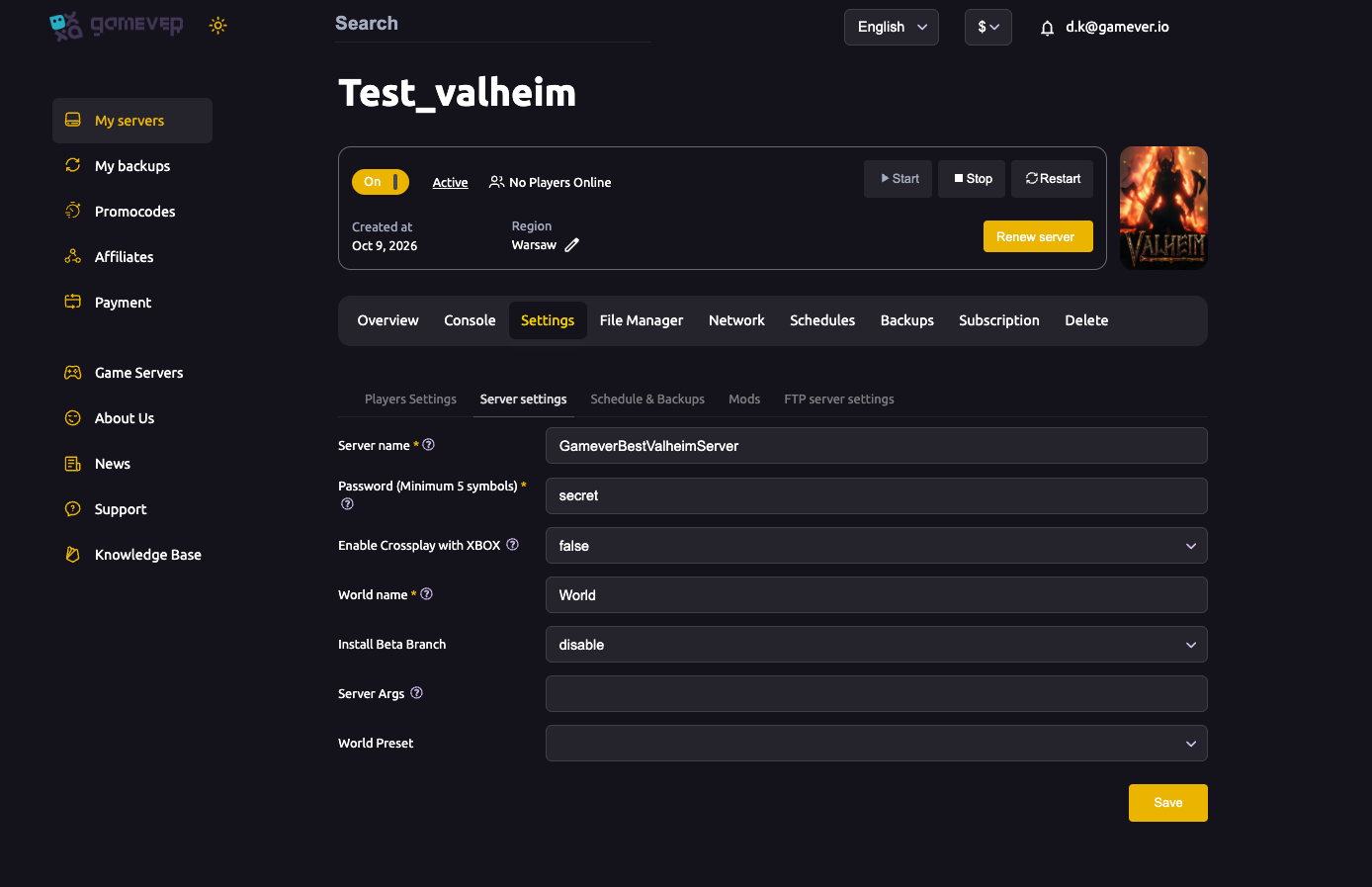
Save, then start the server. Once it's up, join and check the map — not just that it booted — to confirm it loaded your terrain and builds rather than a new world under the same name.
Additional Tips
- Copy, don't move. Keep the original pair in your PC's
worlds_localuntil the server has demonstrably loaded the world. - Stop the server before uploading, and start it only after both files are in place.
- Match the base names — the
.db, the.fwland the server's world name all have to agree. - Upload the live pair, not the
.old/_backupcopies. - Back up what's already there. If the server already has a world, download its current pair first — the overwrite is silent and the old world isn't recoverable in-game.
- Your character comes separately. It lives on your PC as a
.fchfile — see the character transfer guide.
Conclusion
Uploading a local Valheim world is a two-file job: take the matching <World>.db and <World>.fwl from your PC's worlds_local folder, drop both into your server's worlds folder via File Manager or FTP, set the server's world name to match, and restart. Keep the names in sync, stop the server before you upload, and verify by exploring once it's back up.
Rent your Valheim server at gamever.io — a built-in File Manager and FTP make importing your world a five-minute job, with one-click backups and 24/7 uptime for up to 10 players. Start with a free trial and use promo code WELCOME.