
How to Upload an Existing Icarus Prospect to Your Server

If you have been playing an Icarus prospect in single-player or on an older server and want to carry it onto the server you rent from gamever, you don't need to reinstall anything or build a dedicated server from scratch. A prospect is just a save file, and your gamever control panel gives you two supported ways to put it in place: the web File Manager or an FTP client. This guide walks through where Icarus keeps its prospects, how to copy your world onto our server safely, and the one rule that matters most — Icarus only runs one prospect at a time, so you stop the server, swap the file, and start it again.
Where Icarus keeps prospects
A prospect is a single .json file named after the prospect itself (for example MyBase.json). It is not a folder and not a binary blob, which is what makes transferring one straightforward. The location differs between your PC and the server.
| Source | Where the prospect .json lives |
|---|---|
| Local / single-player PC | %LocalAppData%\Icarus\Saved\PlayerData\<YourSteamID64>\Prospects\ |
| Dedicated server (ours) | Icarus/Saved/PlayerData/DedicatedServer/Prospects/ |
On your PC you can paste %LocalAppData%\Icarus\Saved\PlayerData into the Windows Run dialog to open the parent folder, then look inside the sub-folder named for your SteamID64 for the Prospects folder. Each file there is one world. Note that your character's talents and XP are stored separately (in Icarus' account/accolades data), not inside the prospect file — so this move carries the world, not your personal progression.
On the server, the matching folder is Icarus/Saved/PlayerData/DedicatedServer/Prospects/. If that folder does not exist yet, it is created the first time the server generates or loads a prospect; you can also create it yourself in the File Manager.
Step 1 — Back up the current prospect first
Before you overwrite anything, protect what is already on the server. Take a backup from My backups in the left sidebar, and for good measure download the existing prospect .json from the server's Prospects folder to your own PC. If the import goes wrong you can drop that file straight back. See backups and restore for the full routine. If you would rather start the server completely clean before importing, our reset and wipe guide covers that path.
Step 2 — Stop the server
Icarus reads its prospect at boot and holds the file open while running, so a live swap will not take cleanly and can corrupt the save. From the Overview tab, use the Stop button at the top of the panel and wait until the server is fully stopped before you touch any files.
Step 3 — Upload the prospect
With the server stopped, open the File Manager tab and browse to Icarus/Saved/PlayerData/DedicatedServer/Prospects/.
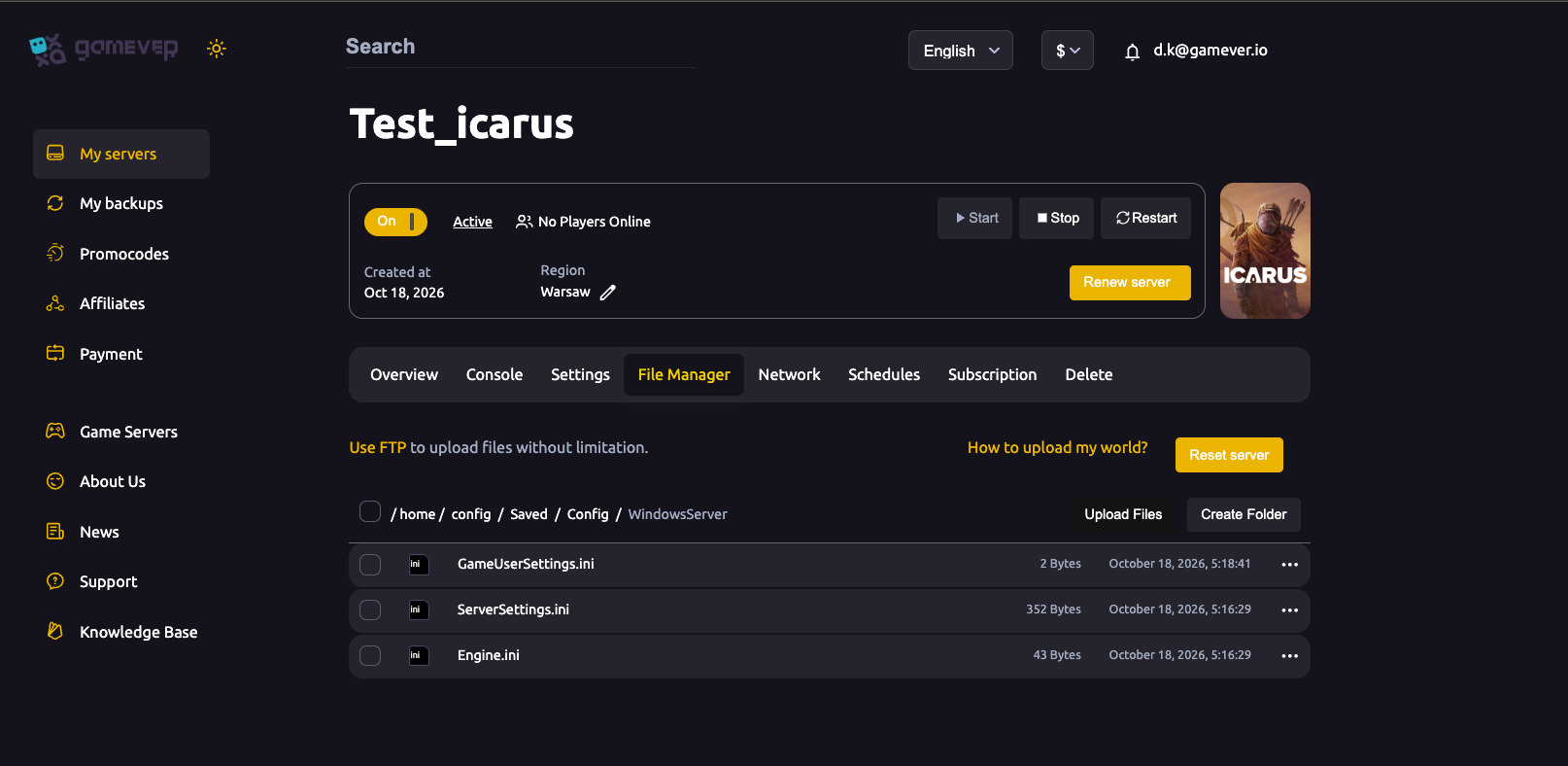
Use Upload Files to copy your prospect .json into that folder. Keep the original filename exactly — do not rename the file and do not edit its contents, as either can corrupt the prospect. If a file of the same name is already there and you intend to replace it, overwrite it (you backed it up in Step 1).
For large files, or if the File Manager's upload limit gets in the way, use FTP instead. Your FTP username and password are under Settings → FTP server settings, and the FTP host and port are shown on the Network tab (the FTP address row). Connect with any FTP client, navigate to the same Prospects folder, and drop the .json in.
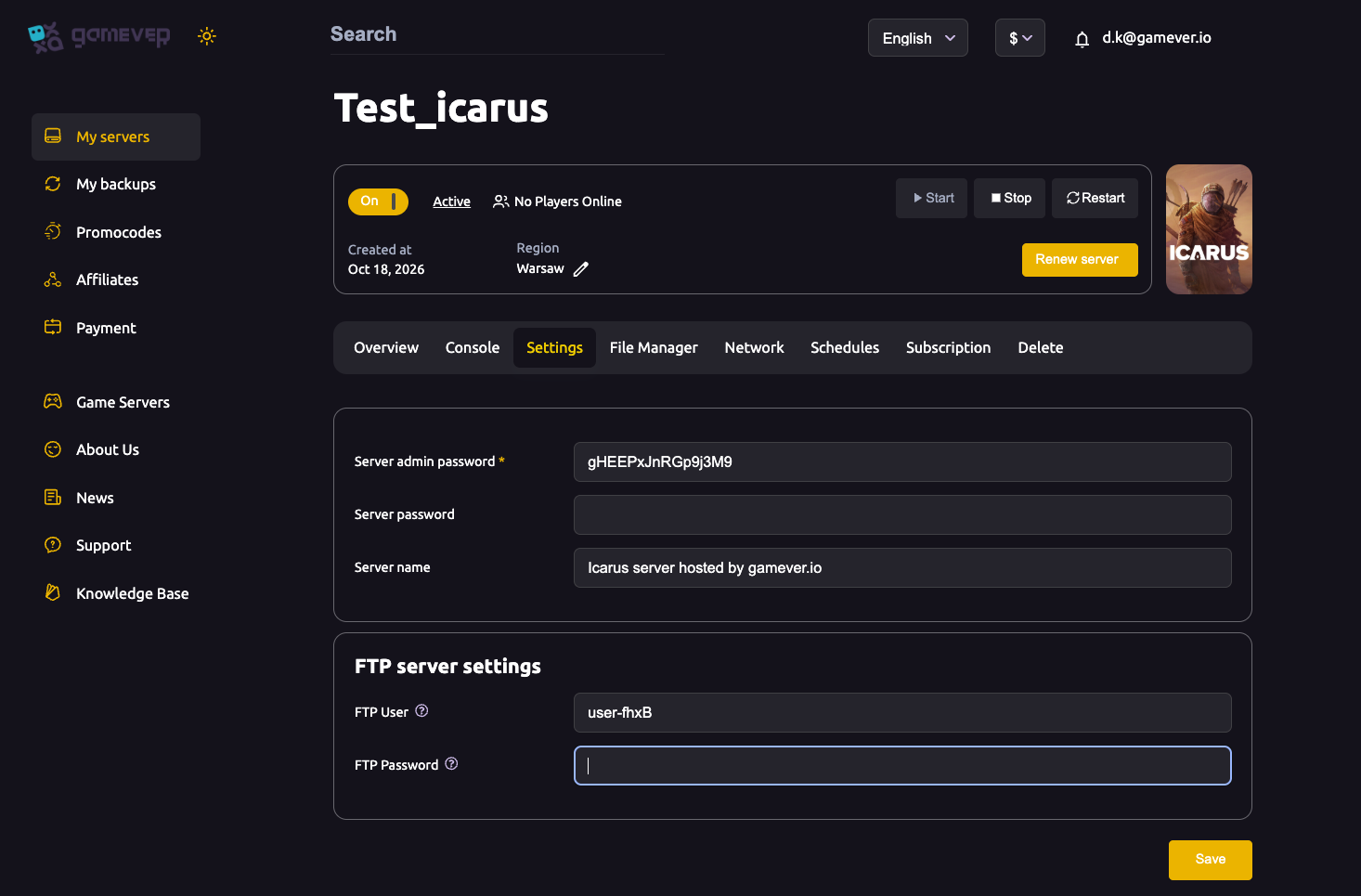
Step 4 — Point the server at your prospect, then start
Because Icarus loads one prospect at a time, the server needs to know which world to open. Which prospect loads on boot is governed by the server's ServerSettings.ini (in /home/config/Saved/Config/WindowsServer/), via its prospect fields such as LoadProspect / ResumeProspect. If your uploaded prospect is not the one the server starts, open ServerSettings.ini in the File Manager while the server is stopped and set it to load your prospect's name (match the filename without the .json). Verify the exact key names against current Icarus dedicated-server documentation before changing them, and edit only while the server is stopped. Save the file, then return to Overview and press Start.
Watch the Console tab as the server boots. A clean load means your world is live; an error here usually points to either a filename/typo mismatch or a version gap — a prospect saved on a much newer game build than the server runs can trip the server on start.
Additional Tips
- Keep the filename intact. Icarus identifies a prospect by its name; renaming the
.jsonbreaks the link between the file and the setting that loads it. - One prospect at a time. Uploading several
.jsonfiles does not merge them — the server opens only the one it is configured to load. - Match the build. Make sure your server is on the same (or newer) Icarus version as the save; downgrading a world rarely works.
- Watch for
.backupfiles. Icarus writes.backupcopies next to prospects. You can restore one by removing the.backupextension so it keeps the original name. - Progression travels separately. This moves the world, not your talents/XP — those live in your account data, not the prospect file.
- Test on a copy. If you are unsure, upload under a throwaway server name first and confirm it loads before overwriting your main prospect.
Conclusion
Moving an existing Icarus prospect onto your gamever server comes down to four unhurried steps: back up what's there, stop the server, drop your .json into Icarus/Saved/PlayerData/DedicatedServer/Prospects/ via the File Manager or FTP, and start again — with the server pointed at the right prospect, since Icarus only ever runs one at a time. Keep the filename unchanged, match the game build, and watch the Console on first boot. With full File Manager and FTP access, your saves are always yours to move.
Rent your Icarus server at gamever.io — full File Manager and FTP access so your worlds move with you, plus one-click backups before any swap. Free trial, promo code WELCOME.