
How to Update Your Soulmask Server
Soulmask gets regular patches from Qooland Games, and your server has to stay on the same build as your players. When Steam updates everyone's game but the server is still on the old version, clients hit a version mismatch and simply can't connect. The good news: on a gamever server you don't touch SteamCMD or download anything yourself. Your server runs from our managed server image, and the panel pulls the matching build for you — your job is just to apply it at the right time and confirm it took. This guide covers how updating works here, when to do it, and how to check you're on the current version.
How updating works on a gamever server
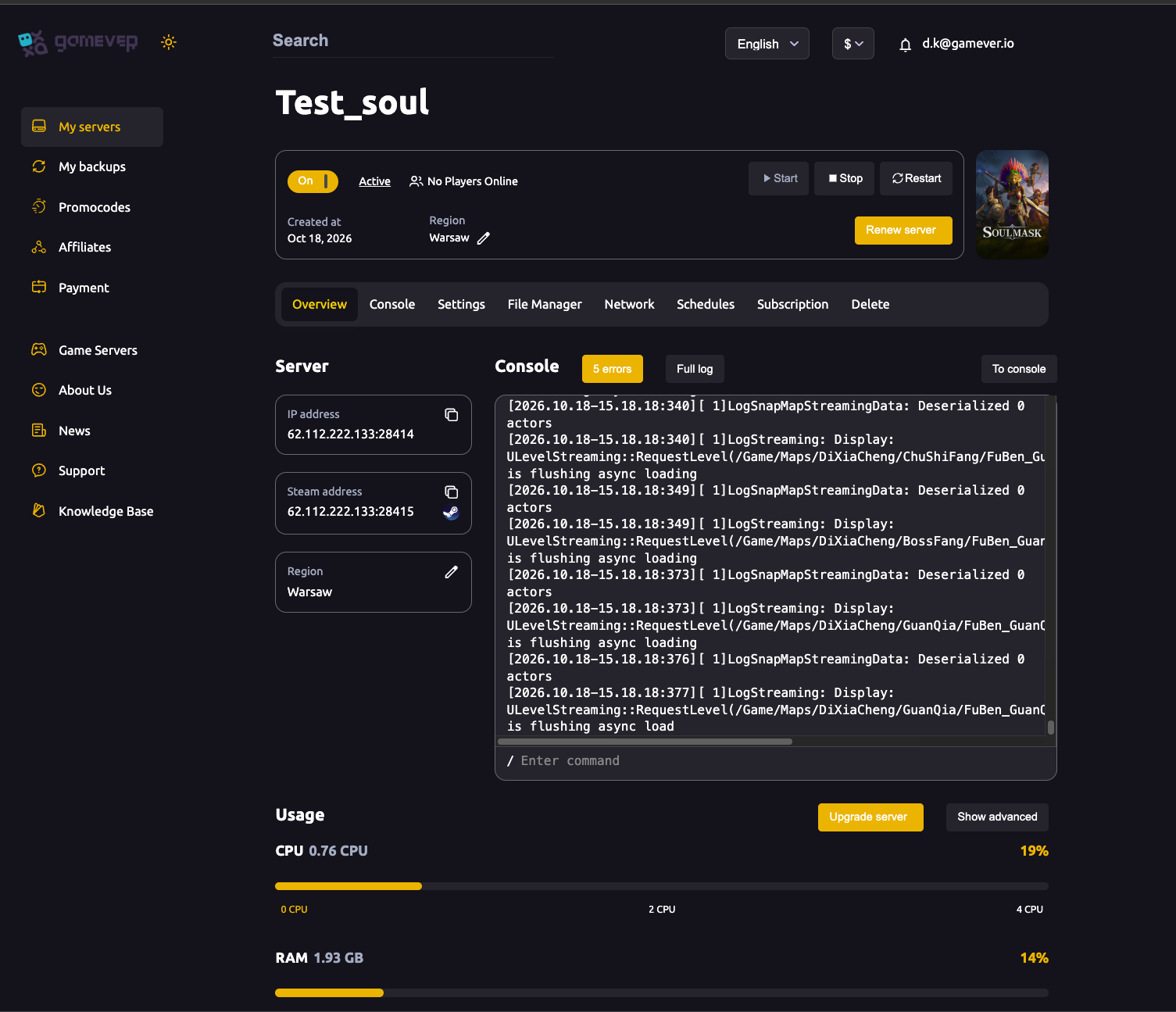
You will not find a "download the dedicated server" or SteamCMD step anywhere in this guide, because you don't need one. The panel manages the underlying SteamCMD update for you. To pick up a newer build, you apply it from the Overview tab:
| Action | Where | What it does |
|---|---|---|
| Restart | Overview (top controls) | Stops and relaunches the server; on relaunch it comes up on the current managed build. |
| Stop then Start | Overview (top controls) | The same effect done in two steps — use this if you want the server fully down while you back up first. |
In practice, a Restart is the one-click way to roll onto a new version. If you'd rather have the server cleanly offline while you take a backup, use Stop, do the backup, then Start. Either way there is no manual update command to run — the image handles the SteamCMD side under the hood.
Back up before a major update
Big updates — especially full version bumps — are exactly when you want a known-good copy of your world to fall back on. Before you apply a major patch:
- Ask players to disconnect so nothing is mid-write.
- Take a backup from My backups in the left sidebar (see backups & restore for the full walkthrough). Your world save lives under
WS/Saved/Worlds/, reachable in the File Manager or over FTP if you'd like a second copy. - Then apply the update with Stop → Start (or Restart).
Minor patches rarely cause trouble, but a backup costs you a minute and saves a world. Make it a habit before any update you'd call "major".
When clients updated but the server lagged behind
The most common update scenario isn't you choosing to patch — it's Steam auto-updating your players while the server is still on yesterday's build. Symptoms are classic: everyone's game launched fine, but they can't join your server, or it's missing from the browser. That's a version mismatch, and the fix is simply to bring the server onto the new build:
- Go to Overview and click Restart.
- Wait for it to come fully back up (watch the console preview).
- Have players try again.
If the server still won't start cleanly after a patch, the cause is usually a mod that hasn't caught up — see below — or an error in the launch sequence, which the Console will show you.
Check the Console for the version
After any update, confirm what build you're actually on from the Console tab (the live server console, with its / Enter command entry). The startup output reports the server's version as it boots, so a quick look at the Console right after a restart tells you whether the new build loaded. If a player reports a mismatch even after you restarted, compare the version shown in the Console against the patch number on Soulmask's Steam news page — if they differ, restart once more and watch the boot output. The console preview on the Overview tab also carries an error counter and a Full log link if you need to dig into a failed start.
Mods may need updating after a patch
If your server runs Steam Workshop mods, a game patch is the moment they're most likely to break. Mods are a frequent source of crashes right after an update, and a major version bump can invalidate a lot of older mods at once. A few things to know:
- Subscribed Workshop mods generally refresh to their latest version on their own, but a mod author has to update their mod for the new game build — that's out of your hands and the server's.
- If the server crashes or won't boot right after a game update, suspect mods first. Remove them one at a time from the Steam Mods field under Settings → Mod Settings, saving and restarting after each, to find the culprit. Full detail is in installing mods.
- Every player and the server must run the same mods; a mismatched mod list refuses the player and prompts them to subscribe to the right ones.
Additional Tips
- Patch during quiet hours, after asking players to log off.
- Always back up before a major version bump — minor patches are usually safe, big ones are not the time to gamble.
- A restart is the fix for most mismatches. "Can't connect after an update" is usually solved by a single Overview → Restart.
- Confirm the build in the Console, not by guessing — the boot output is the authoritative version check.
- Keep an eye on mods after every patch and don't re-add a mod until its author confirms it works on the new build.
- If a player still can't join after updating, see can't connect to rule out the other usual causes.
Conclusion
Updating a Soulmask server here is deliberately simple: there's no SteamCMD to run and nothing to download, because the panel pulls the matching build from our managed image. You apply it with a Restart (or Stop → Start) from the Overview tab, back up first for anything major, and confirm the new version in the Console. Keep the server on the current build and your players will keep connecting — and give any Workshop mods a check whenever Qooland ships a patch.
Rent your Soulmask server at gamever.io — managed updates, one-click backups and full File Manager and FTP access, so staying current is a single click. Free trial, promo code WELCOME.