
How to Update Your Satisfactory Server and Switch Branches
Satisfactory gets regular updates, and the number-one cause of "can't connect" is a server and client on different versions. gamever keeps your server current automatically, and gives you two switches on the Server Version sub-tab to control that behaviour and to move between the stable and experimental branches. This guide explains both.
The two settings
Open Settings → Server Version:
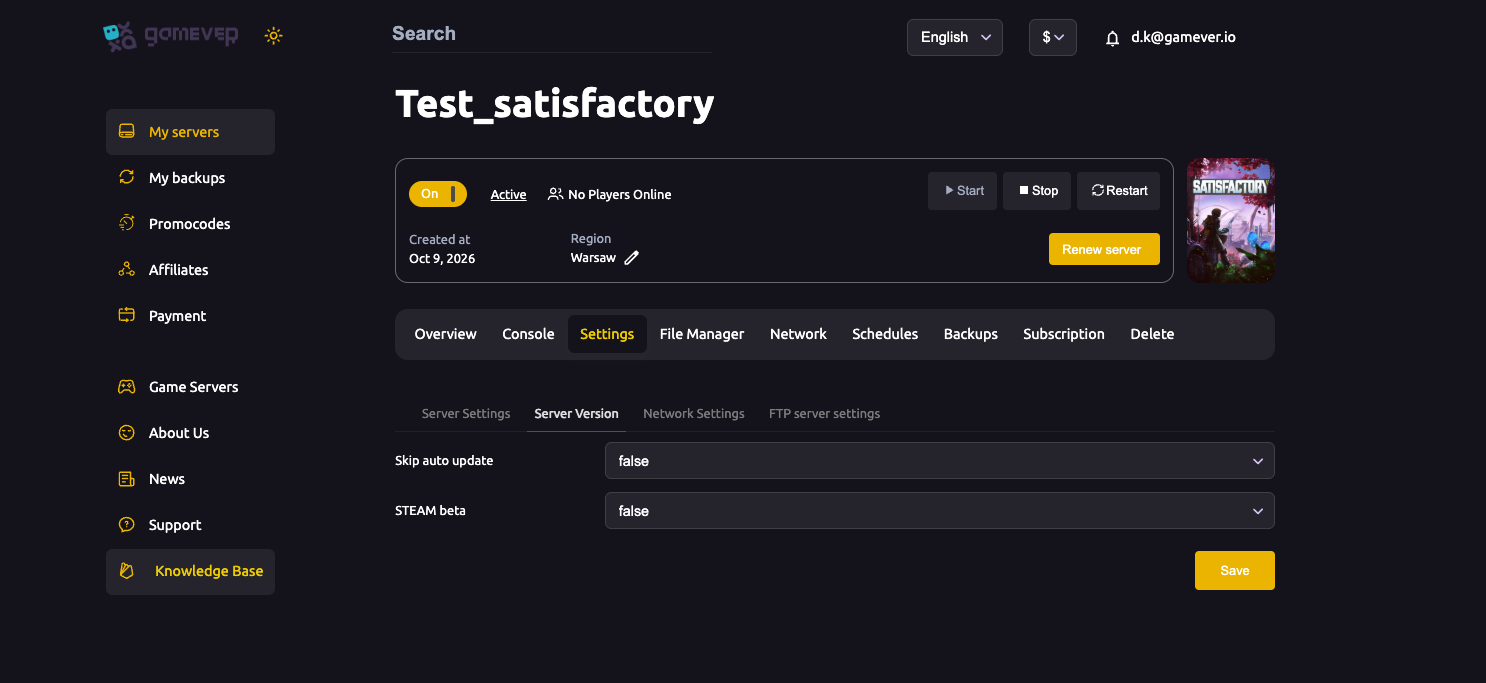
| Setting | What it does |
|---|---|
| Skip auto update | false (default) = the server updates itself to the latest build of its branch on restart. true = it stays on its current build and won't auto-update. |
| STEAM beta | false = the stable release branch. true = the experimental beta branch (early access to new content, less stable). |
After changing either, click Save and Restart.
Keep it current (most people)
Leave Skip auto update = false and STEAM beta = false. Your server tracks the live stable build and updates on restart, so it always matches players on the normal game version. This is the right choice for almost everyone.
Switch to experimental
Want the experimental branch (to test upcoming content)?
- Set STEAM beta = true.
- Save, then Restart — the server downloads the experimental build.
- Every player must also switch their game to Experimental in Steam (right-click Satisfactory → Properties → Betas → Experimental), or they won't be able to join.
To go back, set STEAM beta = false, Save, Restart — and have players switch their client back to the default branch too.
Pinning a version with Skip auto update
Set Skip auto update = true if you need the server to stay on its current build — for example to wait out a buggy patch, or to line up with players who haven't updated yet. Remember to set it back to false later so you don't fall behind.
Version mismatch — the usual fix
If players suddenly can't join after an update, the server and client are on different builds. Fix it by lining them up:
- Make sure Skip auto update = false, then Restart so the server pulls the latest build; or
- Confirm everyone is on the same branch (both stable, or both experimental via STEAM beta).
See ports & connection troubleshooting for the full "can't connect" checklist.
Additional Tips
- Default = auto-updating stable — leave both toggles false unless you have a reason.
- Experimental needs both sides — server STEAM beta and each client's Steam beta.
- Restart applies updates — the server pulls the build on restart, not instantly.
- Back up before a branch switch (see backup and restore) — experimental saves may not load back on stable.
- Un-pin eventually — don't leave Skip auto update on forever or you'll drift behind players.
Conclusion
Updating a Satisfactory server on gamever is automatic by default: with Skip auto update = false it tracks the latest build on restart, so it always matches your players. Flip STEAM beta = true (and have everyone switch their Steam branch too) to run experimental, or set Skip auto update = true to pin a build when you need stability. Two switches cover every version scenario.
Rent your Satisfactory server at gamever.io — auto-updating stable by default, one toggle for experimental, with backups a click away. Free trial, promo code WELCOME.