
How to Update Your Minecraft Server (and the 2026 Version-Numbering Change)
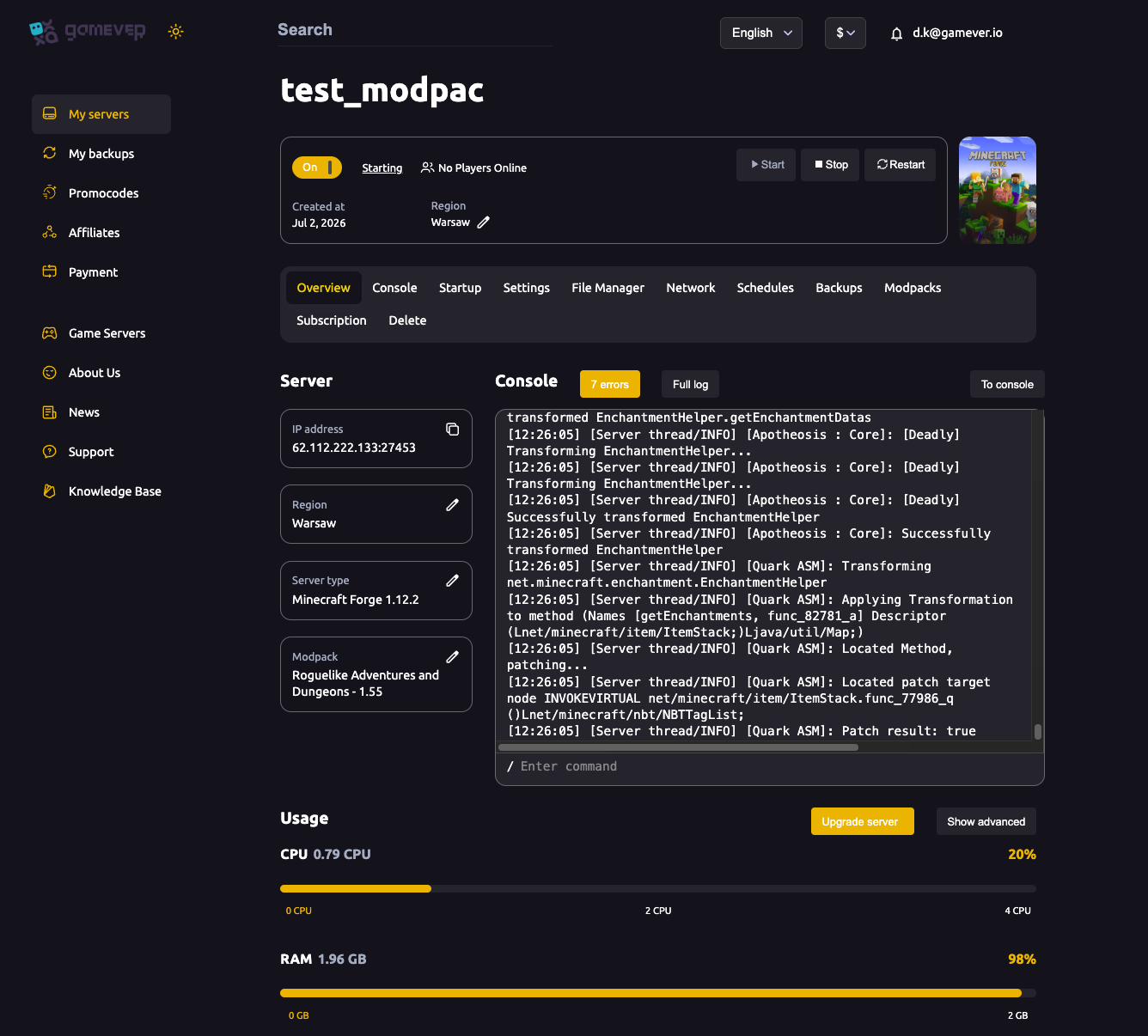
Keeping your Minecraft server current is mostly a matter of changing one field in the panel and letting the server reinstall — but doing it safely means backing up first and keeping your plugins or mods in step with the new version. On top of that, Mojang changed how Java Edition versions are numbered in 2026, so the version you type into the panel now looks different from the old 1.x you may be used to. This guide covers the safe update routine on a gamever-hosted server and explains the new numbering so you pick the right version.
The 2026 version-numbering change
For years, Java Edition climbed through 1.x numbers — 1.20, 1.21, and so on. In 2026 Mojang moved to a year-based scheme to match its "game drops" strategy of shipping smaller updates more often through the year. The important points for a server owner:
| Old scheme | New (2026) scheme | |
|---|---|---|
| Format | 1.MAJOR.PATCH (e.g. 1.21.4) | YEAR.DROP.HOTFIX (e.g. 26.1) |
| Last of its kind | 1.21.11 (December 2025) | — |
| First of its kind | — | 26.1 (the first 2026 drop) |
So the two-digit year comes first, then the drop number within that year, then a hotfix counter. The first release of a drop carries no hotfix number (for example 26.2), and its first fix would be 26.2.1. In practice this means there is no 1.22 — the release that would have been 1.22 is 26.1, followed later in the year by 26.2, and so on. Snapshots were renamed along the same lines so you can tell which drop a snapshot belongs to.
The one thing to watch as a host: some plugins, mods and launchers have version checks that assume a version starts with 1.. Keep your server software (Paper, Forge, Fabric builds) and plugins/mods matched to the exact version you install, and update them together — see install mods & plugins.
Bedrock Edition uses its own version numbers and its own release cadence — check the Bedrock patch notes for its current build rather than assuming it matches Java.
Where you change the version in the panel
On a gamever server the version lives on the Startup tab. Open it and set the Server Version field to the version you want to run (for example 26.2, or an older 1.x like 1.20.1 if a modpack needs it).
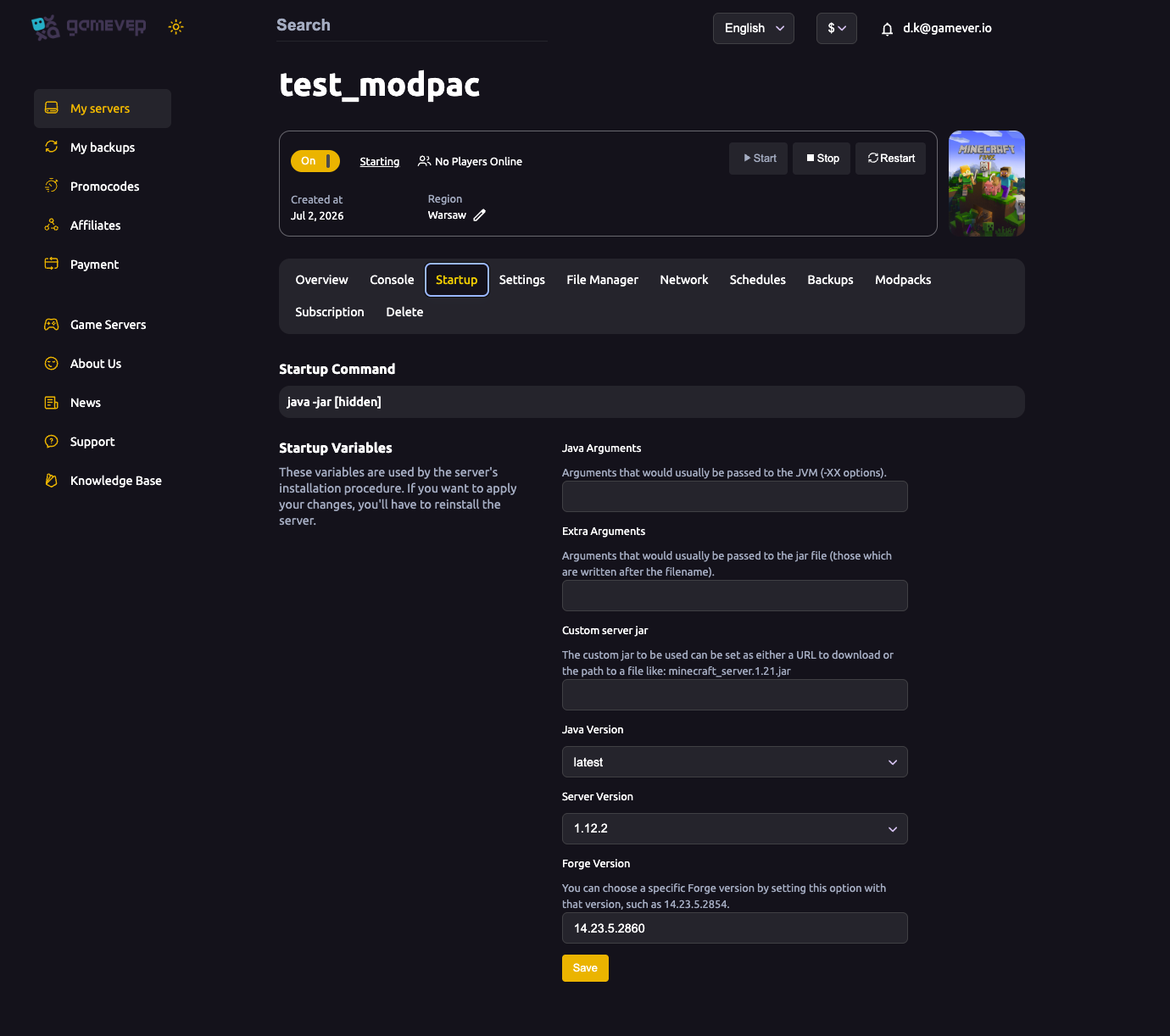
Two fields matter together here:
- Server Version — the Minecraft version the installer pulls.
- Java Version — keep this matched to your Server Version. Current releases need Java 17/21+, while older versions (1.12.2 and earlier) need an older Java. A mismatch is the most common reason a server won't boot after an update. See startup settings & Java for the full field reference.
As the panel itself notes, these variables are read by the installation procedure — changes apply on a reinstall, not a plain restart. Set the version, then let the server reinstall.
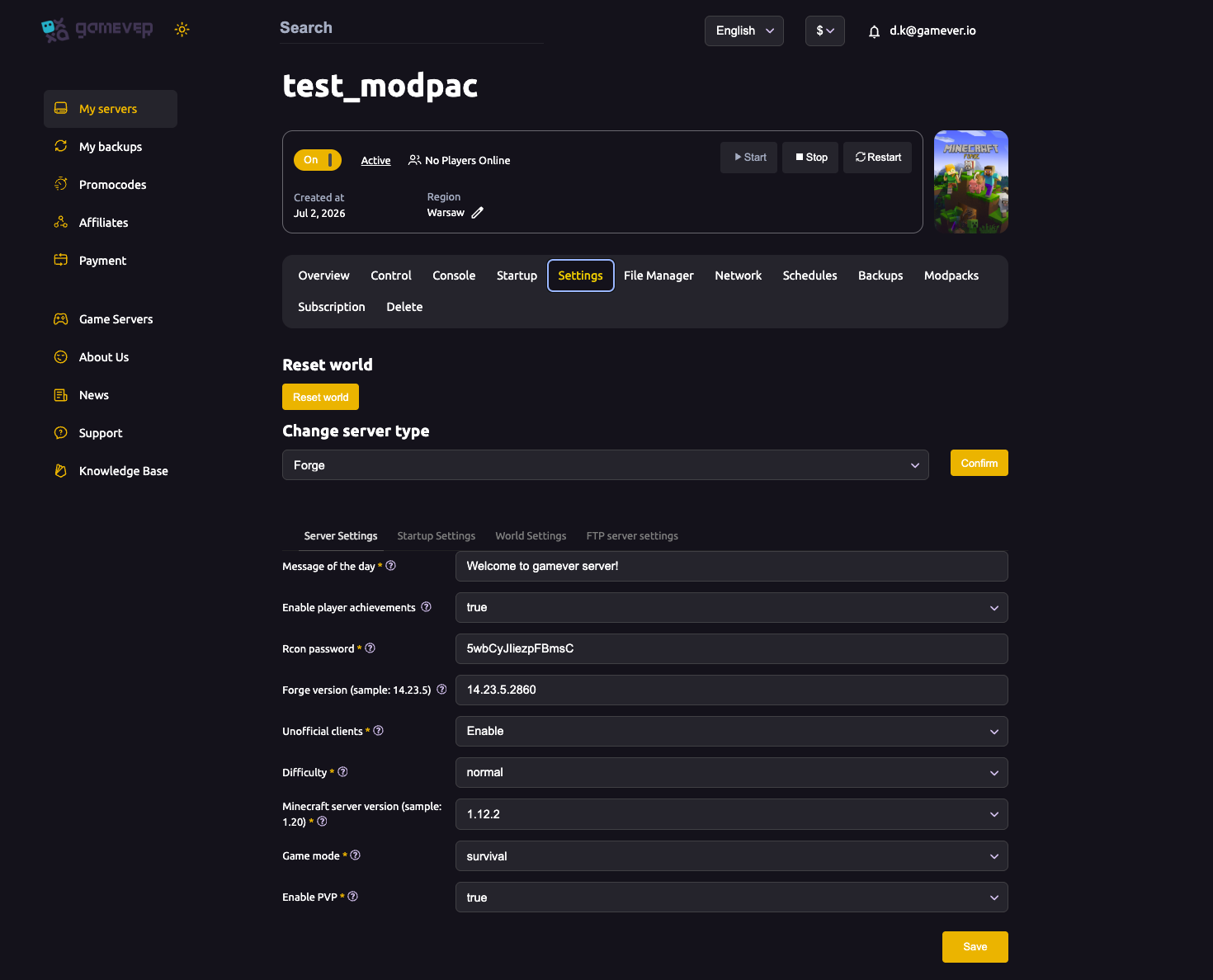
If you also want to move between Vanilla, Paper, Forge or Fabric at the same time, use the Change server type dropdown at the top of the Settings page first — see change server type. For a CurseForge modpack, install it from the Modpacks tab, which pins the matching version for you (install a modpack).
Update-day checklist
Run through these in order and an update is a five-minute job instead of a lost world:
| Step | What to do |
|---|---|
| 1. Back up first | Take a snapshot on the Backups tab (and/or download world/ over FTP) — see backup & restore. A new version can change world data. |
| 2. Check compatibility | Confirm your plugins/mods have builds for the target version. Don't update the server ahead of the mods that need to match it. |
| 3. Set the version | On the Startup tab, set Server Version (new 2026 number or legacy 1.x) and match the Java Version. |
| 4. Switch type if needed | Use Change server type on the Settings page for a Vanilla/Paper/Forge/Fabric move, or the Modpacks tab for a pack. |
| 5. Reinstall | Let the server reinstall so the new version is pulled — a restart alone won't apply it. |
| 6. Update plugins/mods | Drop in the matching builds for the new version before players reconnect. |
| 7. Test | Start the server, confirm the version on the Overview tab, and join to check your world and plugins load. |
Additional Tips
- Always back up before updating — the single best habit; restoring a snapshot is far quicker than rebuilding a corrupted world.
- Match Java to the Minecraft version — the number-one cause of a server that won't start after an update.
- Update one layer at a time — jump the server version only when your plugins/mods have matching builds ready.
- Remember there's no
1.22— the 2026 numbers (26.1,26.2, …) are the continuation, not a different game. - Reinstall to apply — version changes take effect on reinstall, not a plain restart.
- Keep a backup one version behind so you can roll back if a new drop breaks a mod.
Conclusion
Updating a Minecraft server comes down to a safe routine: back up, confirm your plugins and mods have matching builds, set the Server Version on the Startup tab (with a matching Java version), reinstall, and test. The 2026 switch to year-based numbers — 26.1, 26.2 and onward instead of 1.22 — doesn't change that routine; it just changes the number you type, so match your server software to it and you're set.
Rent your Minecraft Java server at gamever.io — change versions from the panel, with one-click backups, easy server-type switching and automatic modpack version matching. Free trial, promo code WELCOME.