
How to Update Your Icarus Server

Icarus is one of the most actively patched survival games around: RocketWerkz has shipped updates on a weekly cadence for years, passing well over 200 updates by late 2025. Every one of those patches bumps the game's build number, and that is the detail that decides whether your group can play together. When Steam updates each player's client but the server is still running the old build, joiners hit a version mismatch and simply can't connect. On a gamever server you don't run SteamCMD or chase down build files yourself — the update ships with our managed server image, and you apply it from the control panel. This guide explains how.
Why the version has to match
Icarus has no cross-build tolerance: the client and the dedicated server must be on the same game version. Steam updates player clients automatically and quietly in the background, so the moment a new weekly patch lands, every player's PC is on the new build within minutes of launching the game. The server, however, only picks up the new build when it is restarted onto the fresh image — it will keep happily serving the old build until then. That gap is the single most common reason a server that "worked yesterday" suddenly refuses joins the day a patch drops.
The symptom is specific: players who could connect fine before now get bounced at the connect screen, often with a build or version error, while the server itself looks healthy and online. If that describes what you're seeing, the fix is almost always an update, not a troubleshooting rabbit hole.
Applying an update from the panel
Because the new build arrives with our managed image, applying it is just a matter of cycling the server so it boots onto the current version. You do this from the Overview tab.
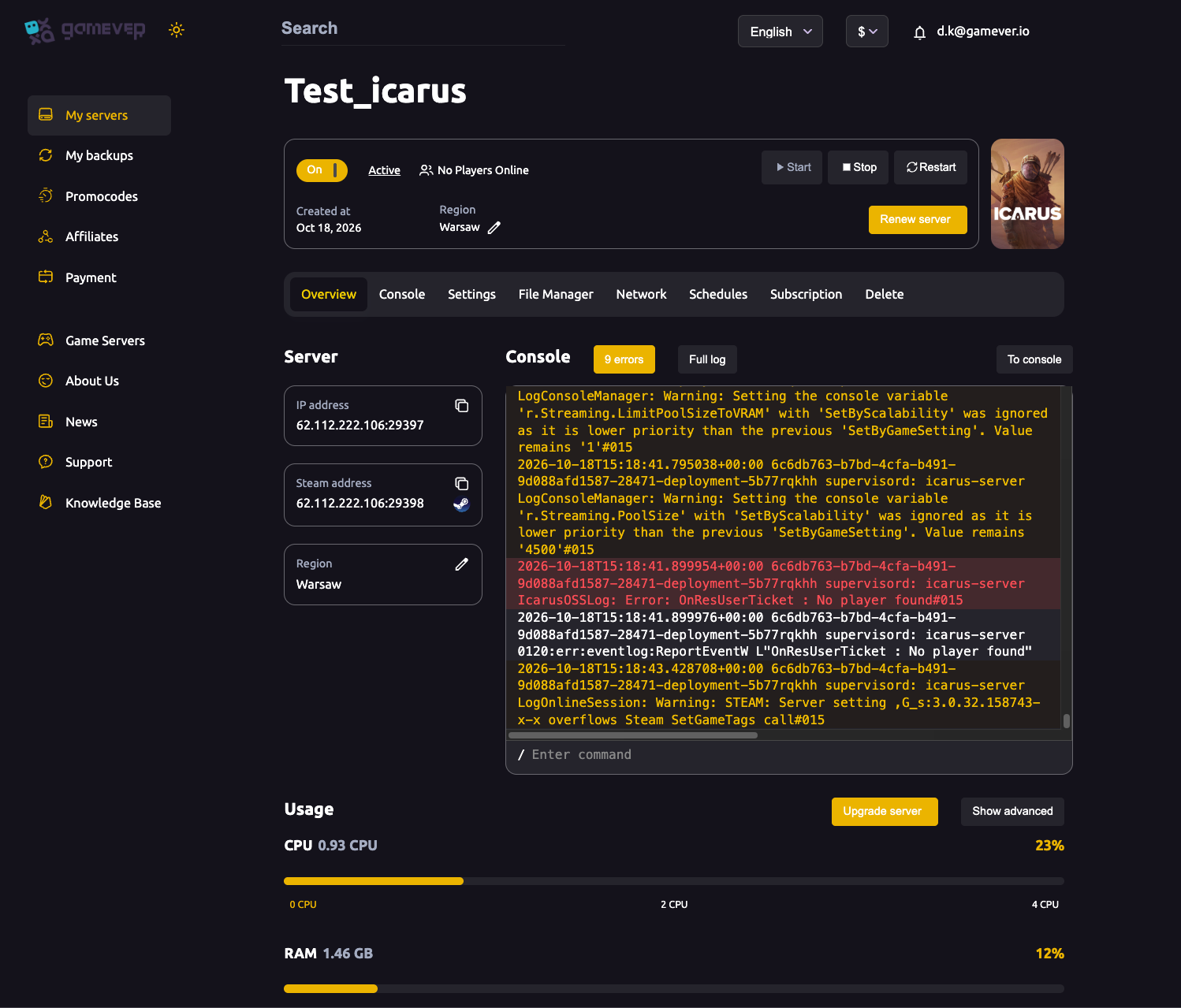
| Action | Where | What it does |
|---|---|---|
| Restart | Overview, top-right | The quickest way to apply a pending build — the server stops and comes back up on the current image in one step. |
| Stop then Start | Overview, top-right | The same result in two deliberate steps; use this when you want the server fully down (for example, before taking a manual backup) before it comes back on the new build. |
For a routine weekly patch, a single Restart is all it takes. For a major update — a new DLC map, a big content drop, or anything you'd call a milestone — use Stop, take a backup, then Start, so you have a clean restore point if the new build behaves unexpectedly. Either way, give the server a minute or two to come fully back up; Icarus servers do a bit of work on boot before they accept connections.
Confirming the server is on the new build
After the server restarts, open the Console tab (or read the console preview on the Overview page) and watch the startup log. The server reports its build and Steam game-version information as it comes up, so the Console is where you confirm the update actually took. If the server is back to Active with no boot errors and the logged version matches what the players are on, you're done — tell the group to reconnect.
If players updated through Steam but the server is still lagging a build behind, the Console will usually make that obvious, and the answer is the same: Restart the server so it boots onto the current image.
Back up before a major update
Before any large update, protect your current prospect (world). Icarus loads one prospect at a time, and its save files live server-side, so a bad patch or an interrupted update shouldn't be the thing standing between you and your progress. Take a snapshot from My backups in the left sidebar, or download the prospect over FTP, before you apply a major build. See backups and restore for the full walkthrough. For routine weekly patches a backup is optional, but it's cheap insurance and never a wasted minute.
Additional Tips
- Patch promptly on patch day. Steam updates clients the moment they launch, so the window where a stale server locks everyone out opens the instant a weekly update drops — restart soon after you see one land.
- Watch the Console on first boot. A clean startup with no error spike in the console preview means the new build loaded correctly; a wall of boot errors is your cue to look closer.
- Major update? Back up first. Treat DLC-map drops and big content patches differently from weekly fixes — back up the prospect before applying them.
- A mismatch is an update, not a config fault. If joins suddenly fail right after a Steam patch, update the server before you start changing settings — see can't connect for the wider checklist.
- Schedule a routine restart. The Schedules tab can run automated restarts, which doubles as a tidy way to keep the server freshly cycled.
- DLC maps need the DLC on both ends. Styx, Prometheus and Elysium are paid maps — an update alone won't let a player onto one they don't own.
Conclusion
Keeping an Icarus server current is simple on our hosting: the new build ships with the managed server image, and you apply it with a single Restart (or Stop → Start for the big ones) from the Overview tab — no SteamCMD, no manual downloads. Confirm the build in the Console, back up your prospect before any major update, and if clients have outrun the server after a Steam patch, a restart closes the gap. If joins still fail after that, work through can't connect.
Rent your Icarus server at gamever.io — managed builds you apply with one click, one-click backups before every big patch, and full Console and File Manager access. Free trial, promo code WELCOME.