
How to Update Your Factorio Server and Pin a Version (Stable vs Experimental)
In Factorio multiplayer, the server and every player must run exactly the same game version to play together — the official wiki states plainly that "all game instances need the installation of exactly the same game-versions and mods." That makes the server's build the thing everyone else has to match. If your server jumps to a newer version than your group's clients (or the other way round), the mismatch is what stops people connecting. On a server you rent from gamever you don't download anything or touch SteamCMD: the Server Version control in the panel picks the build, and the panel handles the update under the hood. This guide explains the stable/experimental choice and how to change it safely.
Where the version lives: Settings → Server Settings
Open your server in the gamever control panel and go to the Settings tab, then the Server Settings sub-tab. The first field is Server Version, a dropdown that pins which build your server runs.
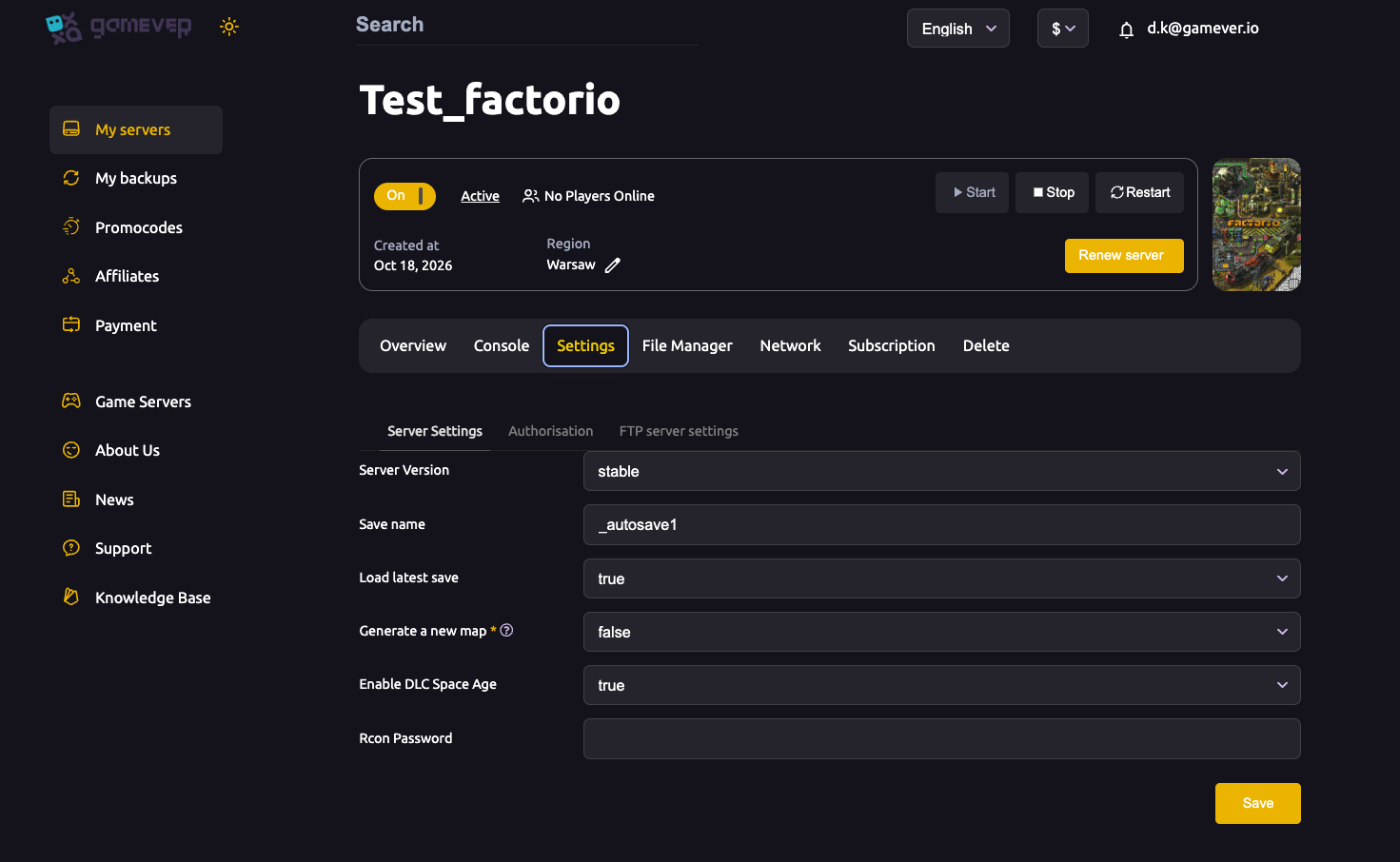
| Field | Type | What it controls |
|---|---|---|
| Server Version | dropdown | The build the server runs — stable or experimental |
| Save name | text | Which save file the server loads (e.g. _autosave1) |
| Load latest save | dropdown | true loads the most recent save instead of Save name |
| Generate a new map | dropdown | true creates a fresh map on next start |
| Enable DLC Space Age | dropdown | true runs the server with the Space Age expansion |
| Rcon Password | text | Sets the RCON password (RCON address is on the Network tab) |
Choose your build in Server Version, click Save, then go to Overview and Restart so the server comes back up on the new build.
Stable vs experimental
Factorio ships on two branches, and the dropdown mirrors them:
| Branch | What it is | Use it when |
|---|---|---|
| stable | The most recent stable release. Wube describe it as "thoroughly bug tested by our community over several months." | Almost always — this is the recommended choice for a server people actually play on. |
| experimental | The cutting-edge build. Wube warn directly: "There might be some nasty bugs. Use on your own risk." | Only when you specifically want the newest features and accept the risk. |
The practical difference for a server: stable is the safe, well-tested build that your players' clients are most likely already on. experimental is newer, but it can introduce bugs, and moving onto a newer build can leave existing mods and saves incompatible until they catch up. Pick experimental only on a test server, never on the group's main world, and be ready to roll back.
Updating safely
A version change is still a change to a live world, so treat it like one:
- Back up first. Take a backup from My backups in the left sidebar (and keep an FTP copy of your save), so you can return to the current build if the update doesn't go cleanly. See the can't-connect guide if players have trouble rejoining afterwards.
- Check your mods. Mods are version-specific — Factorio compares mod checksums when a client joins, so the server and every player need the same mods at compatible versions for the new build. Line this up before you switch; see installing mods.
- Change the build. Set Server Version, click Save, then Restart from Overview. The panel pulls the correct build for you — there's no manual download step.
- Tell your players to match. Everyone must be on the same build to connect. On stable, Steam normally keeps clients current; anyone on experimental (or an older pinned version) has to line up with the server.
- Watch the Console. The Console tab shows the server loading your save on the new build. A save or mod that isn't compatible will surface here.
Note that Enable DLC Space Age interacts with the version: Space Age content belongs to the 2.0-era builds, so the expansion and the build you run have to be consistent. Don't flip the Space Age toggle and the Server Version independently and expect an old save to load — confirm the save was made for the same combination.
Additional Tips
- Pin stable for a public or group server. It's the version most clients default to, so it minimises "can't connect" reports.
- Back up before every version change, and keep the last-known-good save off-server via FTP.
- Mods are the usual casualty of an update — update the server and clients' mods together, never the game build alone.
- Use the Schedules tab for automated restarts/backups so a fresh backup always exists before you touch the build.
- Test experimental on a throwaway server with a disposable world, not your main base.
- Stop the server before editing config files in the File Manager (
/home/server/config/) — the JSON is strict and only read at boot.
Conclusion
The golden rule of Factorio multiplayer is that the server and every player must run the same build, and the Server Version dropdown in Settings → Server Settings is how you set that on a gamever server. Keep it on stable for a reliable, well-tested world; reach for experimental only on a test server when you accept the bugs. Back up, line up your mods, select the build, Save and Restart — the panel handles the update itself, with no manual download or SteamCMD. Keep clients matched and your group stays connected.
Rent your Factorio server at gamever.io — one-click version control, full File Manager and FTP access, and easy restores so updates are never a gamble. Free trial, promo code WELCOME.